2 Tasks for everyone
These are the tasks most people are asked to do, whatever their role. Each one usually starts with an email containing a link; you can also start from the sidebar. My Tasks, right under Dashboard, lists everything waiting on you in one place, overdue first, with a link to where you act on each one; its sidebar entry shows how many there are.
2.1 Acknowledging a policy
Your organization may ask you to confirm that you have read a policy, for example the acceptable use policy or rules of behavior. Requests appear under Policies to acknowledge on the Policy Portal, the Dashboard and My profile, with a due date (red once overdue). You also get an email with a link, a reminder in the week before the due date, and one notice if the date passes.
- Open Policy Portal in the sidebar.
- Under Policies to acknowledge, click the policy's title, or Acknowledge to jump to the acknowledgment.
- Read the policy. The panel below the text says which version you are asked to acknowledge and by when. PDF downloads the version you are reading.
- Tick the attestation checkbox in that panel, for example "I have read and understood this policy."
- Click Acknowledge.
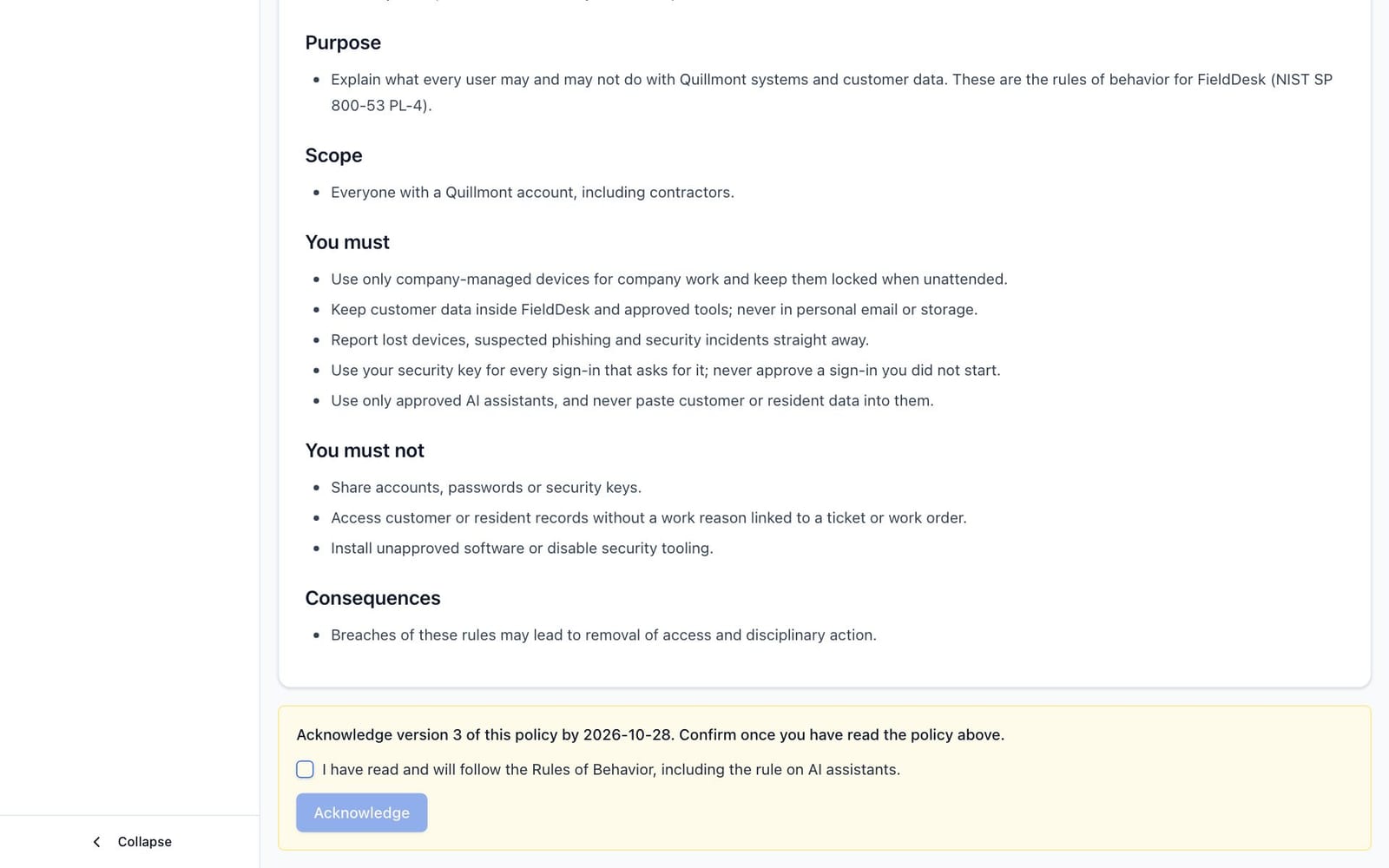
The panel changes to "You acknowledged version N on" followed by the time, and the policy moves to My acknowledgements. Your acknowledgement records the exact version and text you confirmed; it cannot be changed or withdrawn.
The portal also lists every policy in force under Policies. Type in Search titles and descriptions and click Search to find one.
Full details: User Manual, Policy Management, Policy portal and acknowledgements.
2.2 Answering a data mapping questionnaire
If you are a Data Liaison, the privacy team asks you to describe the processing activities you know: what personal data a business process uses, why, where it comes from and who receives it. Nothing changes on the privacy records until the privacy team has reviewed your answers.
- Open My Questionnaires in the sidebar (or follow the link in the email). The list shows what each questionnaire is About, the Questionnaire, its Status and the Answer by date, in red once overdue.
- Click the activity name to open the questionnaire. The header shows who sent it, the answer-by date and any message.
- Answer the questions. For an activity that already has a record, the answers start from what the record holds today: correct and complete them.
- Click Save draft to keep work in progress, or Submit answers when every required question is answered.
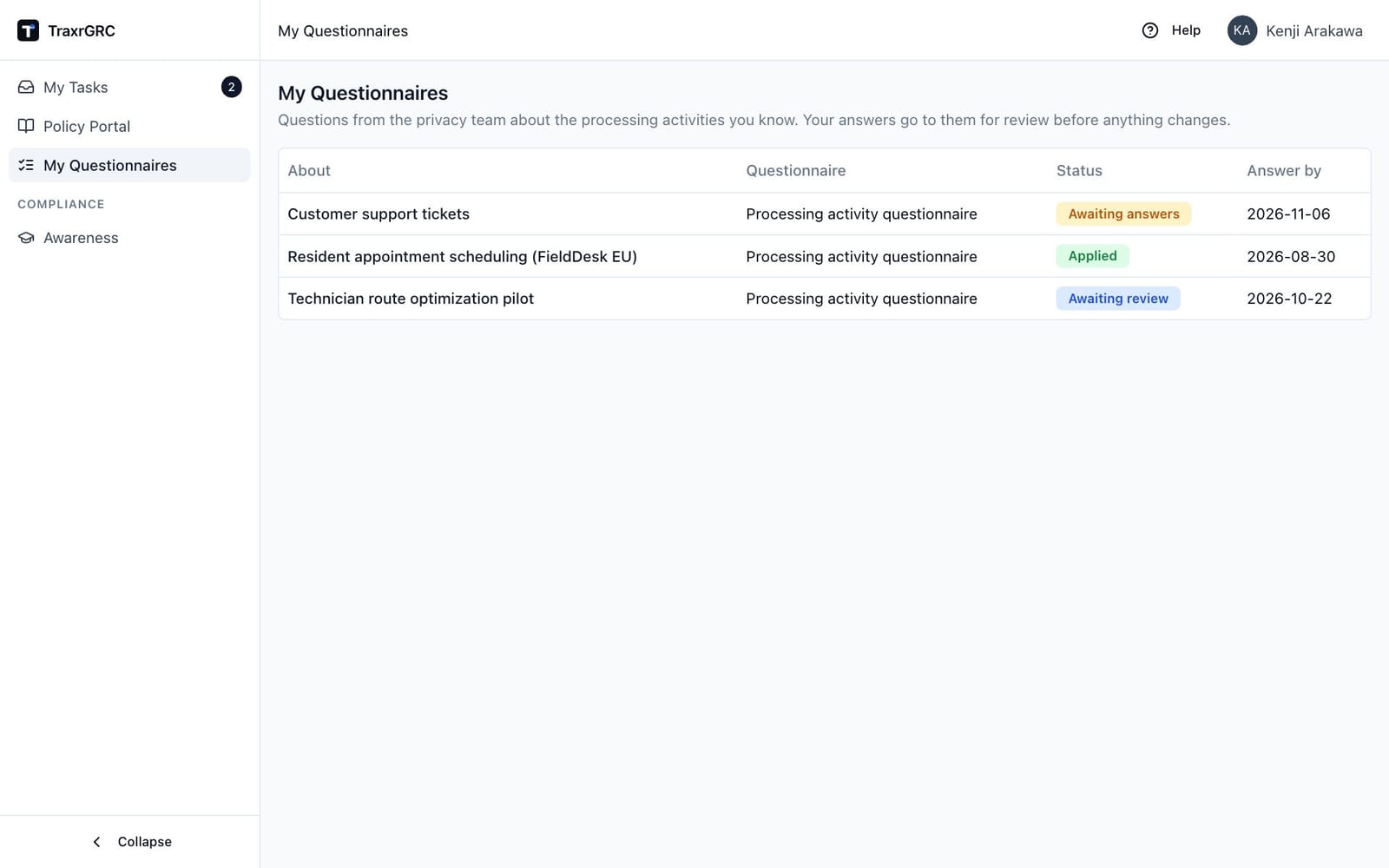
Once you submit, the questionnaire becomes read-only, its status shows Awaiting review, and the sender is emailed. It later shows Applied or Rejected.
Annual checks. Once a year the privacy team may ask you to confirm a record is still accurate. An annual check opens with the current answers and a Nothing has changed button: click it if nothing has changed, or correct the answers and click Submit answers.
Full details: User Manual, Data Privacy, Data mapping questionnaires.
2.3 Completing awareness training
Awareness programs are training material with a short test. Open Awareness in the sidebar to see your programs and their due dates. If Awareness is missing from your sidebar, you have no training assigned through the platform.
- Open Awareness and click the program's title to read its training material on the Content tab.
- Click Take the test (on the list, or in the program's header).
- Check the pass score and due date under the title, then answer each question. More than one choice can be correct: tick every choice you believe is right. A question counts only when your selection matches exactly, and an unanswered question counts as wrong.
- Click Submit answers. The counter beside it shows how many questions you have answered.
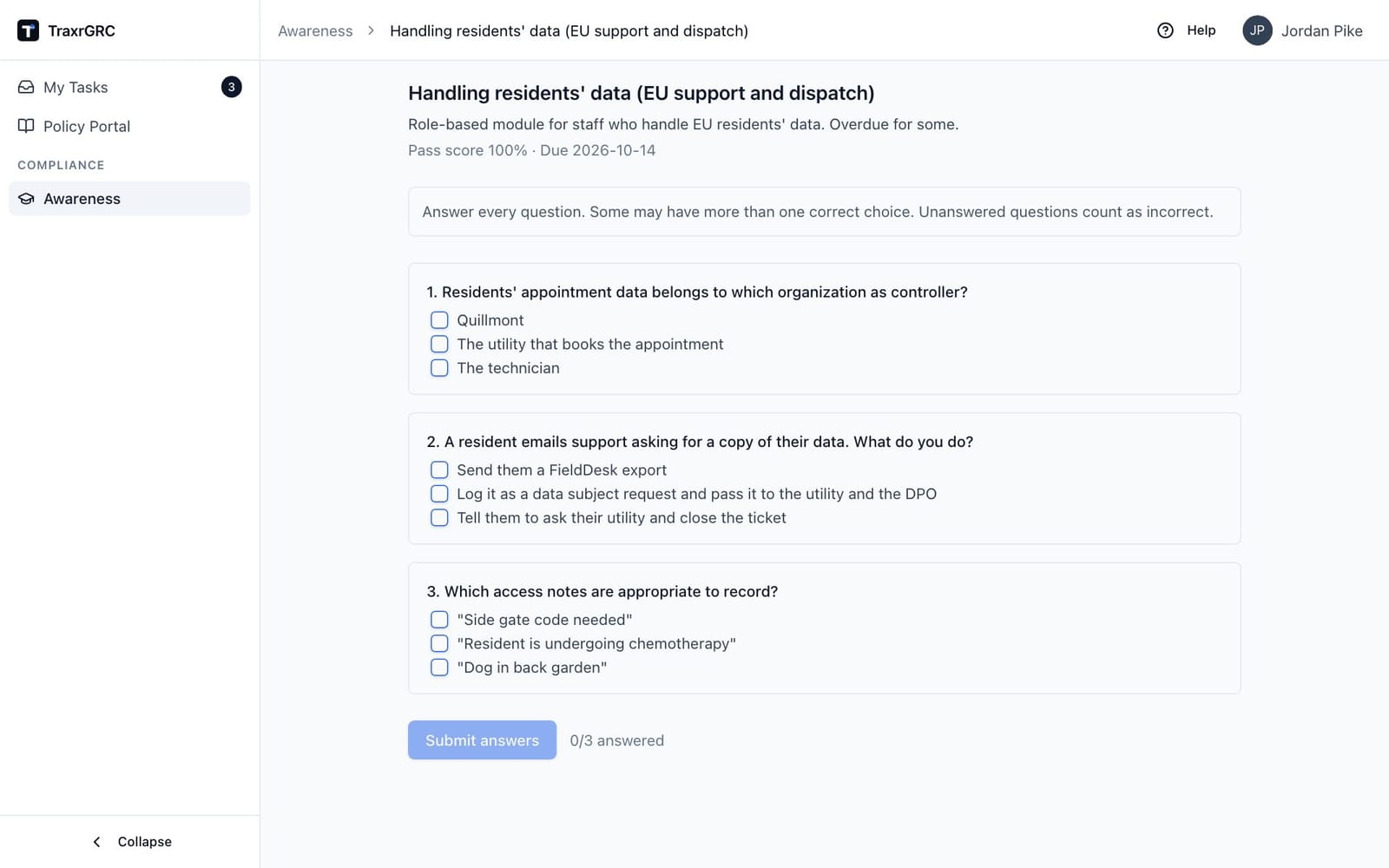
The result screen shows your score and a Passed or Failed badge, with each question marked right or wrong. The correct answers are never shown. If you failed, click Back to program, reread the material and use Retake the test; you can retake as often as you like. A pass is never lost by a later lower score, and once you pass, the due-date reminders stop.
Full details: User Manual, Security Awareness, Taking a test.
2.4 Comments and mentions
Most record pages (risks, controls, policies, incidents, projects and others) have a Comments tab for discussion that stays with the record.
- Open the record and click Comments.
- Type in Add a comment… (up to 4,000 characters).
- To bring a colleague in, write
@followed by their email address, for example@[email protected]. - Click Post comment.
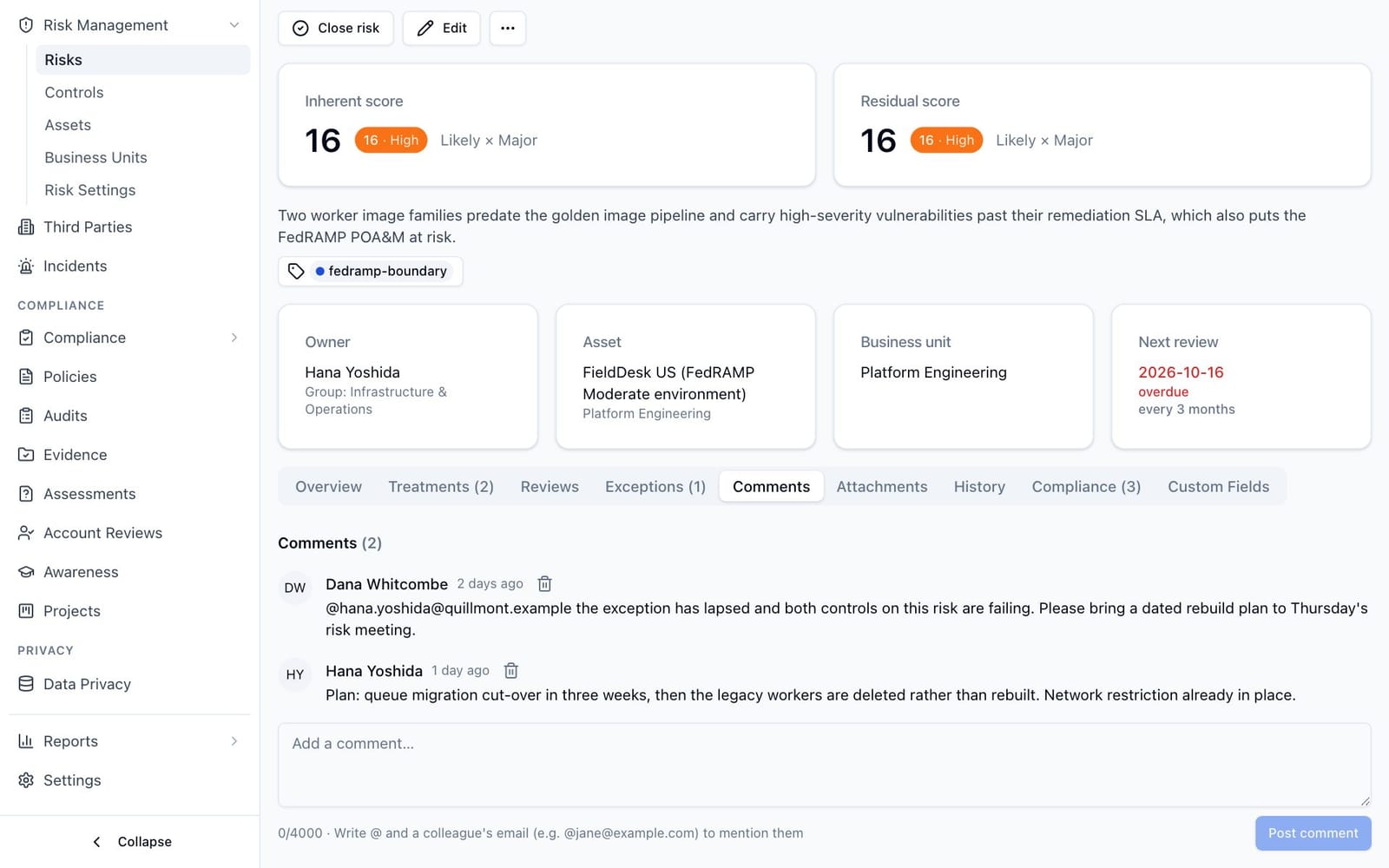
A mentioned colleague is emailed a link to the record when your administrator has set up a notification rule for mentions and the colleague may see the record. The email never contains the comment itself. You can delete your own comments.
Full details: User Manual, Getting Started, Comments.
2.5 Attachments
Supporting documents go on the record's Attachments tab. On a control, a compliance requirement or an account review, add files as evidence instead: Add evidence on its Evidence tab, then upload on the evidence's Files tab.
- Open the record and click Attachments.
- Click Upload file and choose the file.
Files can be up to 25 MB, of these types: PDF, PNG, JPG, JPEG, GIF, WEBP, BMP, TXT, CSV, LOG, DOC, DOCX, XLS, XLSX, PPT, PPTX and ZIP. The file's contents must match its extension. Each person can store up to 2 GB unless an administrator changed the limit. Click a file's name to download it.
Every record also has a History tab listing each change: what happened, who did it, when and which fields changed.
Full details: User Manual, Getting Started, Attachments and History tabs.