3 Your first week as a GRC lead
This chapter is a short, ordered path for the person setting up and running the program. Each section is one task: a few numbered steps, one figure and a pointer to the User Manual section that covers it in full. Work through them in order; later tasks use records created by earlier ones.
3.1 Before you start
The tasks below assume the built-in GRC Manager role (full access to the risk and compliance modules) or administrator rights. Check with your administrator that:
| Item | Why it matters |
|---|---|
| You are in a group carrying the GRC Manager role | Without it, the New buttons and edit actions in this chapter do not appear. |
| Outgoing email is configured | Acknowledgement requests, reminders and assessment links are sent by email. |
| Colleagues have accounts and groups | Owners, approvers and acknowledgement audiences are chosen from active users, groups and roles. |
| Incident classifications exist | A new installation has none; they are added from the incidents list (see Log an incident). |
The GRC Manager role does not include Settings. Risk Settings (the scoring scales, matrix and appetite bands) and the Settings screens are for administrators; the defaults are a 5 × 5 matrix with Low, Medium, High and Critical bands, where High and Critical are over appetite.
3.2 Register an asset
Assets are the things you protect: systems, applications, data stores, facilities. Risks and incidents link to them.
- Open Risk Management → Assets.
- Click New asset.
- Enter the Name, and optionally the Business unit, Owner, Owner group and Description.
- If the asset is a system that holds personal data, tick A system that holds or processes personal data and fill in Hosting country and Categories of personal data held.
- Click Create asset.
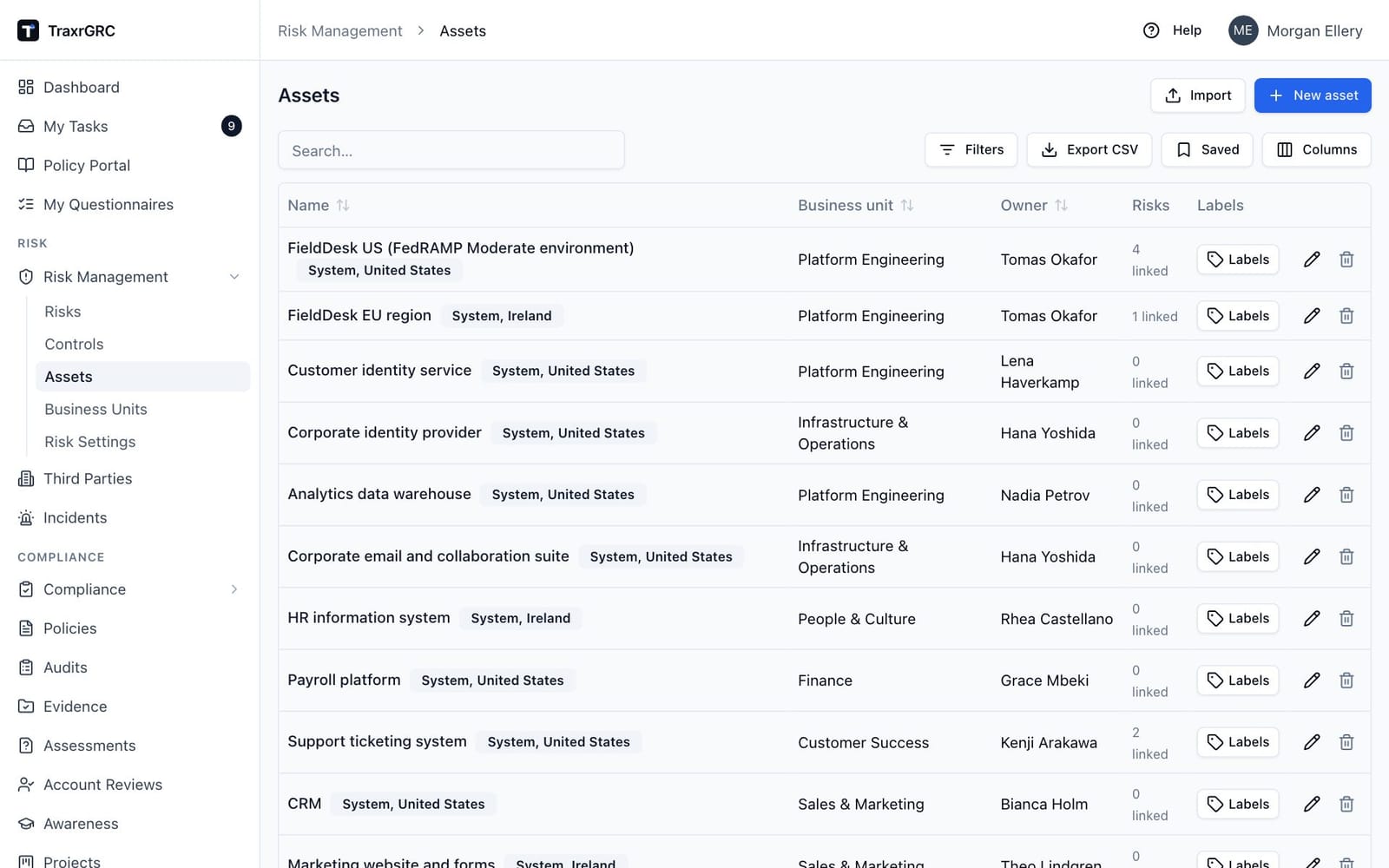
To load many assets at once, click Import, download the template, fill it in and import it back. The same import works for risks, controls, policies, third parties, incidents and projects.
Full details: User Manual, Risk Management, Assets; Getting Started, Importing from CSV.
3.3 Record a risk
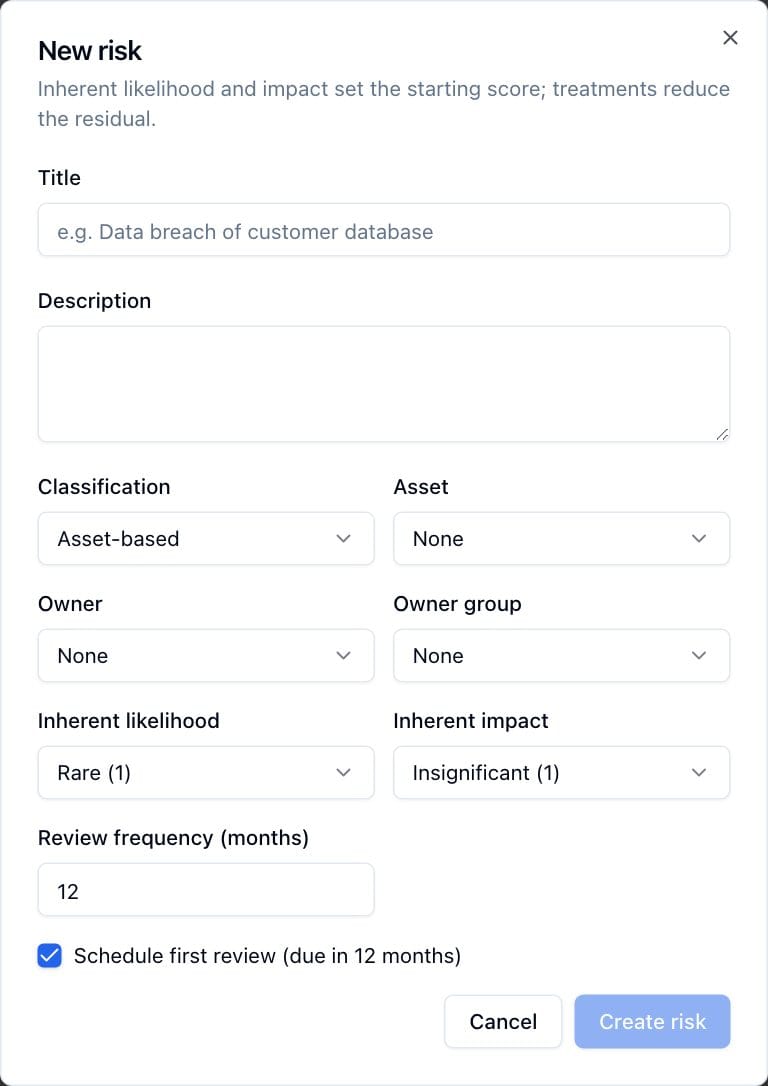
- Open Risk Management → Risks and click New risk.
- Enter a Title and Description.
- Choose the Classification (the register tab it belongs to: Asset-based, Third-party, Business continuity or Enterprise on a new installation) and the Asset you just registered.
- Set an Owner and, optionally, an Owner group.
- Choose the Inherent likelihood and Inherent impact: the risk before any action is taken.
- Keep Review frequency (months) at 12 or change it, and leave Schedule first review ticked so the first review is booked.
- Click Create risk.
The risk opens in the register with its inherent score; its residual score starts equal to it. Open the risk to add what you are doing about it:
- On the risk page, open the Treatments tab and click Add treatment.
- Choose the Strategy (mitigate, accept, transfer or avoid) and Status.
- For a mitigation, set Reduce likelihood by and Reduce impact by (0 to 4) and describe it in Description.
- Click Add treatment.
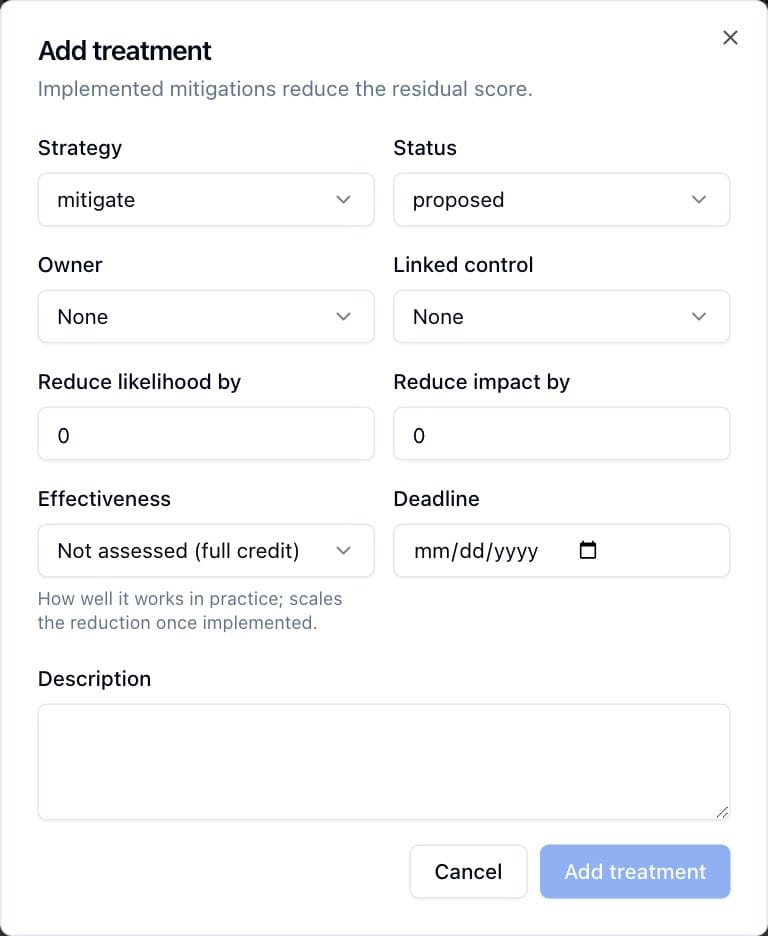
Only an implemented mitigation lowers the residual score. When the residual score lands in an over-appetite band, the risk shows a red banner and appears in the Risks over appetite dashboard widget. Leave Linked control at None for now; you link a control in the next task.
Full details: User Manual, Risk Management, Creating a risk, How scoring works and Treatments.
3.4 Add a control and record a test
Controls are shared: one control can treat risks, satisfy compliance requirements and carry audit findings.
- Open Risk Management → Controls and click New control.
- Enter the Name, choose the Type (Policy, Process, Technical, Physical or Other) and Status (Planned, Active or Retired), set the Owner and optionally the Owner group and Description.
- Click Create control.
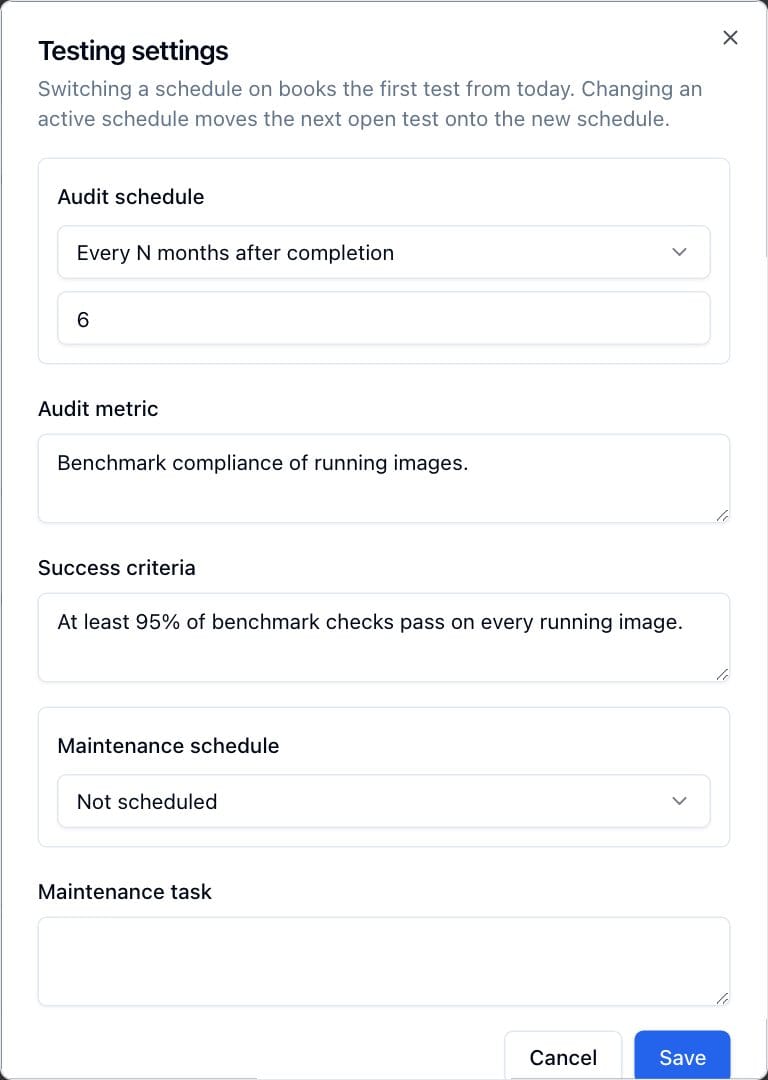
- Click the control's name to open it, then click Testing settings.
- Under Audit schedule, choose Every N months after completion and enter the months, or Fixed dates each year. Describe the Audit metric (what you measure) and the Success criteria (what counts as a pass).
- Click Save. The first audit is booked and appears on the Audits tab.
When you have performed the test:
- On the control's Audits tab, click Record result on the scheduled audit. You can record it before its date.
- In the Record audit dialog, which repeats the success criteria, choose the Result, Pass or Fail, and add Notes.
- Click Record result. The next audit is booked from the schedule.
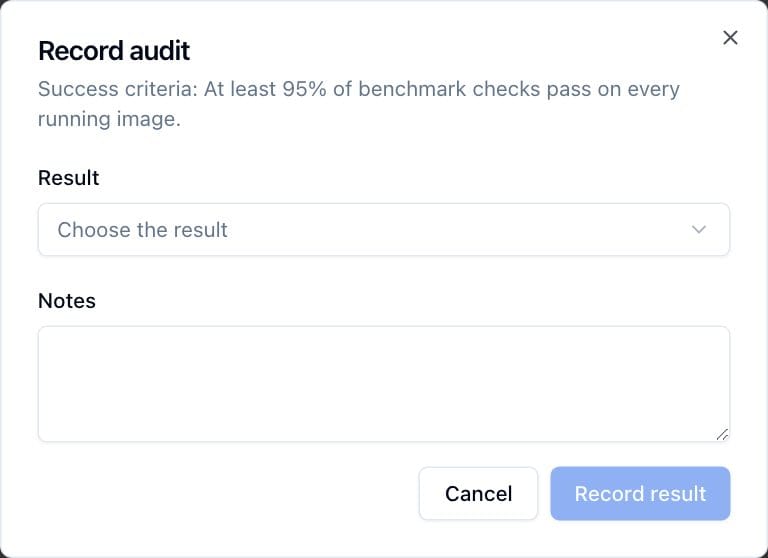
Add the evidence (a report, a screenshot, an export) with Add evidence on the result, then upload its files on the evidence's Files tab. A failed audit marks the control Failed and emails its owner.
Finally, link the control to your risk: open the risk, edit its treatment with the pencil icon, choose the control in Linked control and click Save changes. From then on, a failing or overdue control flags the risk Control failing on the register. Retiring the control later removes the treatment's reduction from the risk's residual score.
Full details: User Manual, Risk Management, Controls and Scheduling and recording control tests.
3.5 Load a framework and analyze a requirement
A framework (NIST SP 800-53, ISO/IEC 27001, the GDPR, your own internal standard) is loaded as a package of requirements. TraxrGRC does not bundle licensed frameworks; you import the clause structure from a file you are licensed to use.
Prepare a CSV file with a header row and one row per clause:
code,name,description,parent_code,kind
AC,Access Control,,,heading
AC-1,Policy and Procedures,Develop and maintain an access control policy.,AC,
AC-2,Account Management,Manage system accounts.,AC,
parent_code builds the tree, and kind is requirement (the default when
blank), additional or heading. A JSON file in the export format works too.
- Open Compliance → Packages and click Import.
- In the Import compliance package dialog, choose your file.
- For a CSV file, enter the Package name and, optionally, the Standard and Version.
- Check the preview of the item tree. If the dialog lists errors, fix the file and choose it again: the whole file is rejected when any row fails.
- Click Commit import.
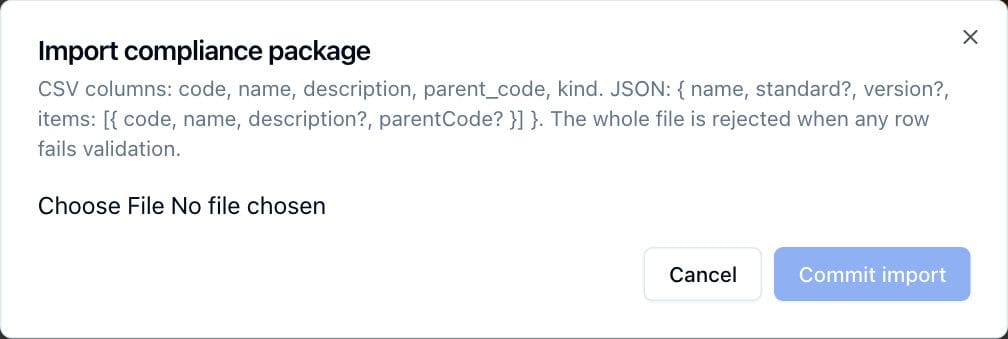
Every requirement gets an analysis with the status Not reviewed. To analyze one:
- Open Compliance → Analyses and choose the package's tab.
- Click the requirement's row to open it.
- In the Analysis card, choose the Status (Compliant, Partially compliant, Not compliant or Not applicable), assign an Owner and write your reasoning in Analysis notes.
- Click Save analysis.
- Under Mapped controls, policies and risks, click Map controls and tick the control you created. Each tick saves straight away. Map policies and Map risks work the same way.
- Add supporting files as evidence: Add evidence on the Evidence tab.
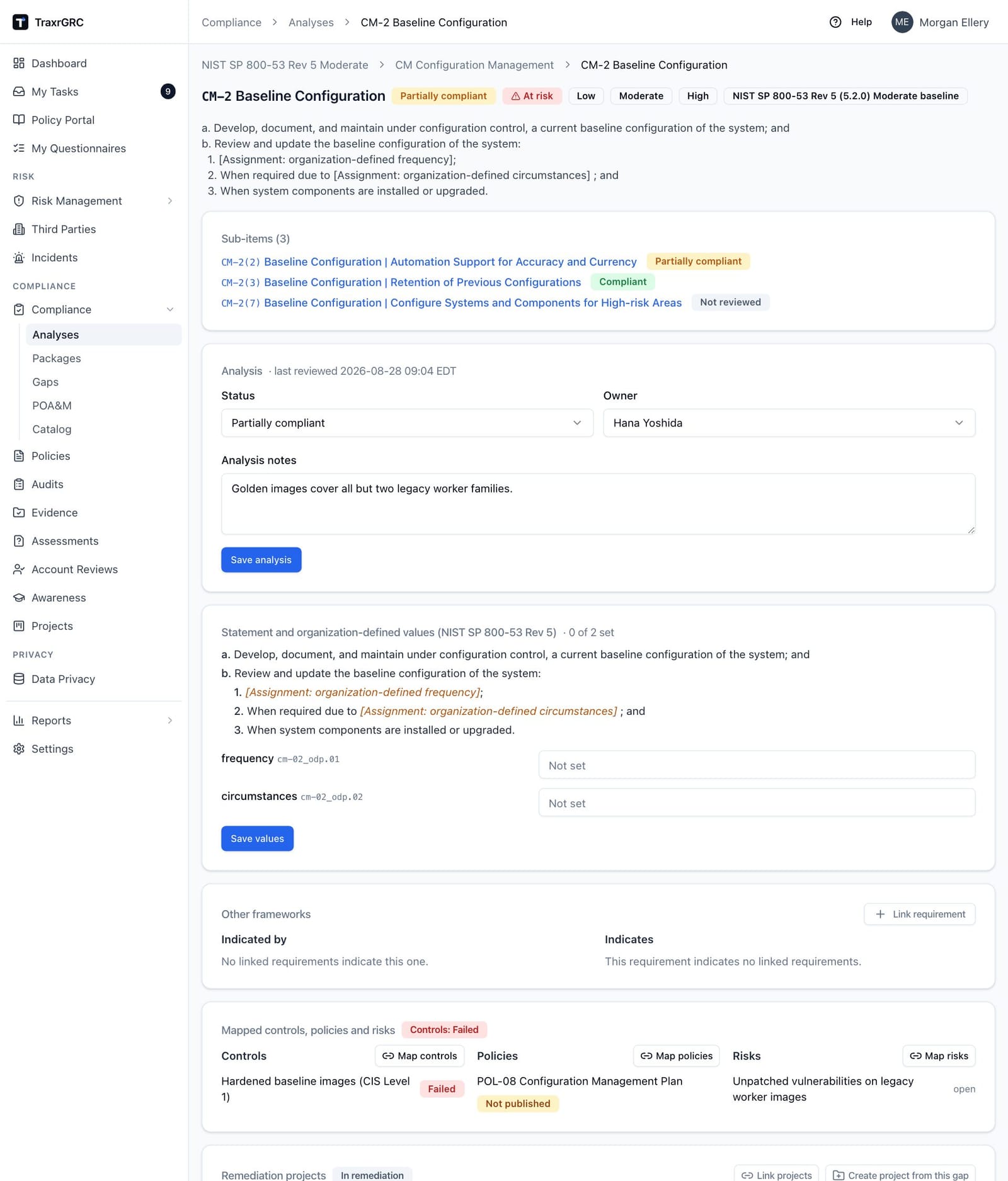
A requirement you mark compliant or partially compliant shows At risk when its evidence disagrees: a mapped control failed, is overdue or retired, or a mapped policy is unpublished or past review. An open audit finding on a mapped control is listed on the requirement, with Add to POA&M when no POA&M item tracks it. For a gap, Create project from this gap starts a remediation project linked to the requirement, and Compliance → Gaps lists every open gap. To mark a whole domain at once, tick rows on the Analyses page and use Set status….
Full details: User Manual, Compliance Management, Importing a package and Working on an item.
3.6 Publish a policy and request acknowledgement
A policy goes live in four stages: write it, have it approved, publish it, and put it on the Policy Portal. Approval needs a second person: you cannot approve your own request unless an administrator has relaxed separation of duties.
- Open Policies and click New policy. Enter the Title, and optionally a Description, Owner, Owner group and Review frequency (months), then click Create policy.
- Open the policy. On the Content tab, click Edit content, write the policy in the Markdown source pane (the Preview pane shows the result) and click Save content.
- On the Approvals tab, click Submit version 1 for approval.
- Your approver opens the policy, clicks Approve on the pending card, optionally adds a Note (it becomes the version's change note) and confirms with Approve.
- Click Publish v1 in the page header. The policy becomes Published with an immutable version 1, and its first review is booked one review frequency after it takes effect.
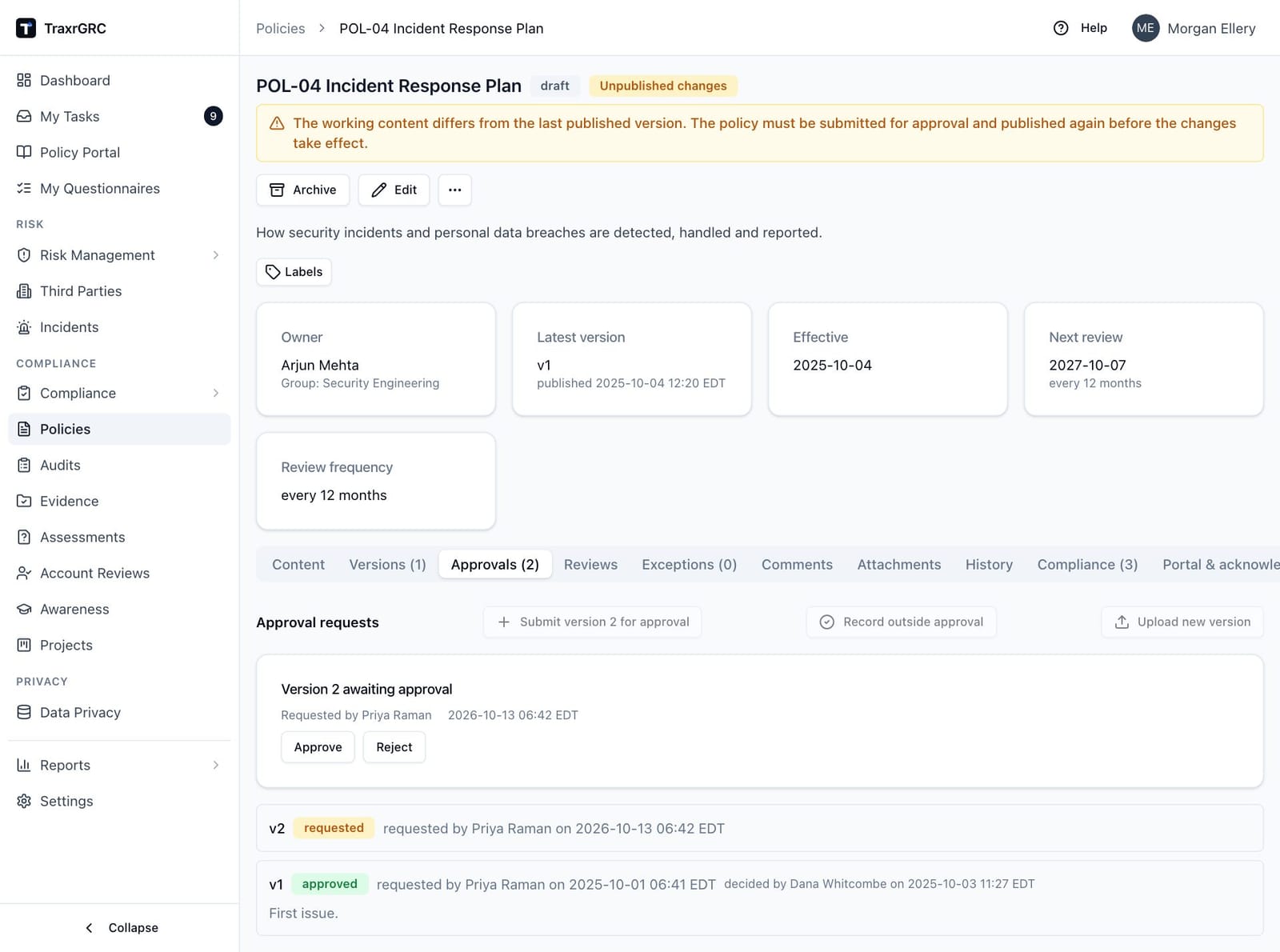
If the content changes after submission, the approval is withdrawn automatically; submit again. If your organization approves policies outside the tool (a board signature, for example), an administrator can allow Record outside approval in place of steps 3 and 4.
To put the policy in front of staff and ask them to acknowledge it:
- Open the policy's Portal & acknowledgements tab.
- Under Policy portal, click Publish to the portal. This needs
policies:updateandpolicies:review; the GRC Manager role has both. - Under Acknowledgement requests, click Request acknowledgement.
- In the Request acknowledgement of version 1 dialog, turn on Everyone (every active user), or tick the Users, Groups and Roles to ask.
- Check the Due date (30 days ahead by default) and, optionally, write the Attestation (optional) text people confirm.
- Click Send request.
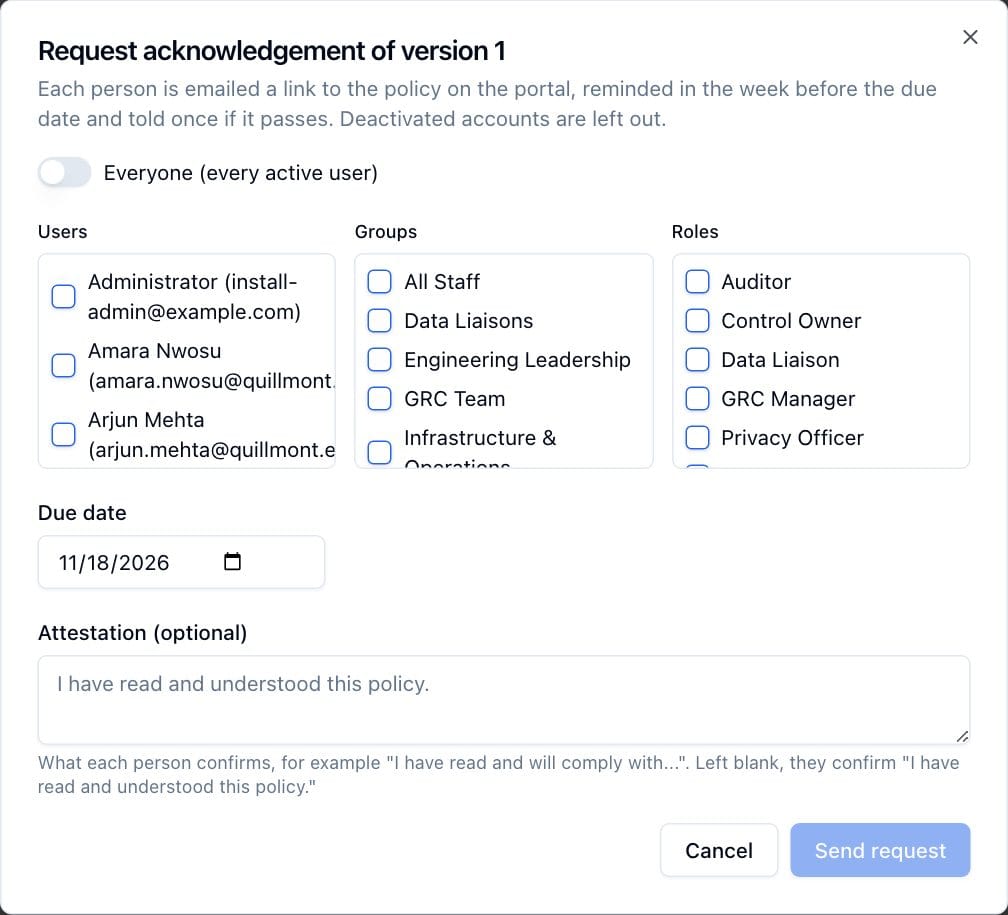
Everyone asked is emailed a link and reminded before the due date. The Completion table on the same tab shows who has acknowledged, who is outstanding and who is overdue, and exports to CSV.
Full details: User Manual, Policy Management, The draft → approval → publish workflow and Policy portal and acknowledgements.
3.7 Log an incident
A new installation has no incident classifications. Add a few first
(this needs incidents:update at the all level):
- Open Incidents and click Classifications.
- Type a Name (for example
Phishing) and a Sort number, and click Add. Repeat for each category you use.
Then log the incident:
- On the incidents list, click New incident.
- Enter a Title (the only required field) and a Description of what happened.
- Choose the Classification, the affected Asset or Third party, and the Owner or Owner group handling it.
- Click Create incident.
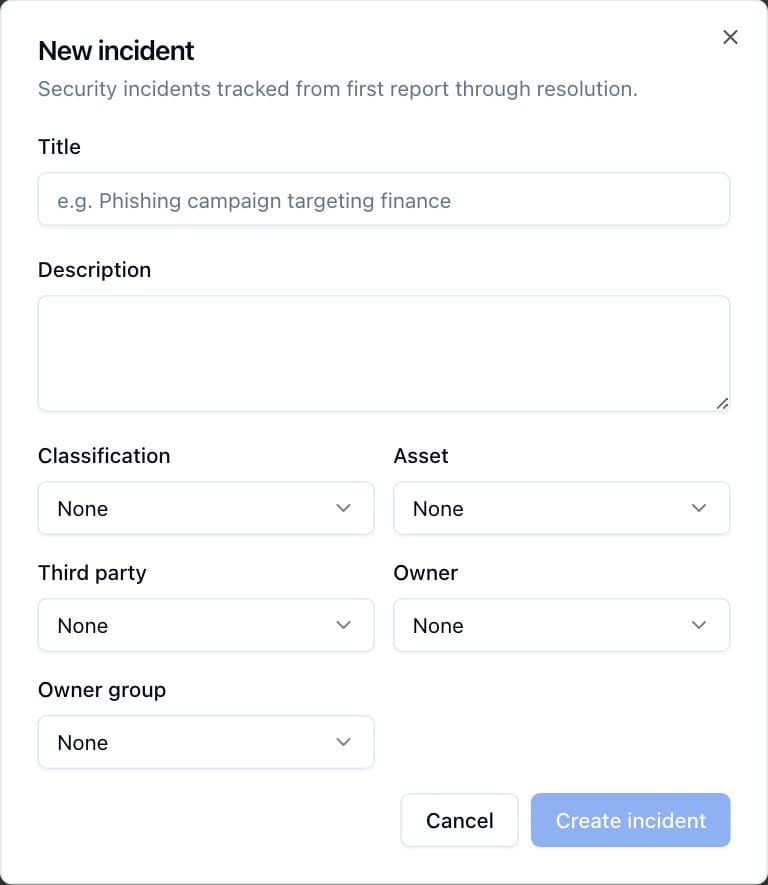
The incident opens with status open. Record progress in Comments and evidence in Attachments. When it is resolved, click Close, write the Resolution and click Close incident. If personal data is involved, Assess as personal data breach on the incident starts the 72-hour notification clock.
Full details: User Manual, Incident Management, Creating an incident, Closing and reopening an incident and Personal data breaches.
3.8 Send a third-party assessment
Online assessments send a questionnaire to a vendor contact, who answers through a personal link without an account. You need a template first; a new installation has none.
- If the vendor is not registered yet, open Third Parties, click New third party, fill in the dialog and click Create third party.
- Open Assessments. On the Templates tab, click New template, enter the Title and optionally a Description and Owner, and click Create template.
- Click the template's title to open it. Click Add question for each question, choose its Answer type, whether it takes Evidence files and whether an answer is required, then click Save questions.
- On the Requests tab, click New request.
- Choose the Template, the Third party (optional), and enter the Contact name and Contact email.
- Choose Repeat (for example Annually) and a Due date (optional). Tick Email the link to the contact, with a reminder a week before the due date to have TraxrGRC send it.
- Click Create request. The Request created dialog shows the public link with a Copy button; if you did not tick the email option, send the link yourself. Click Done.
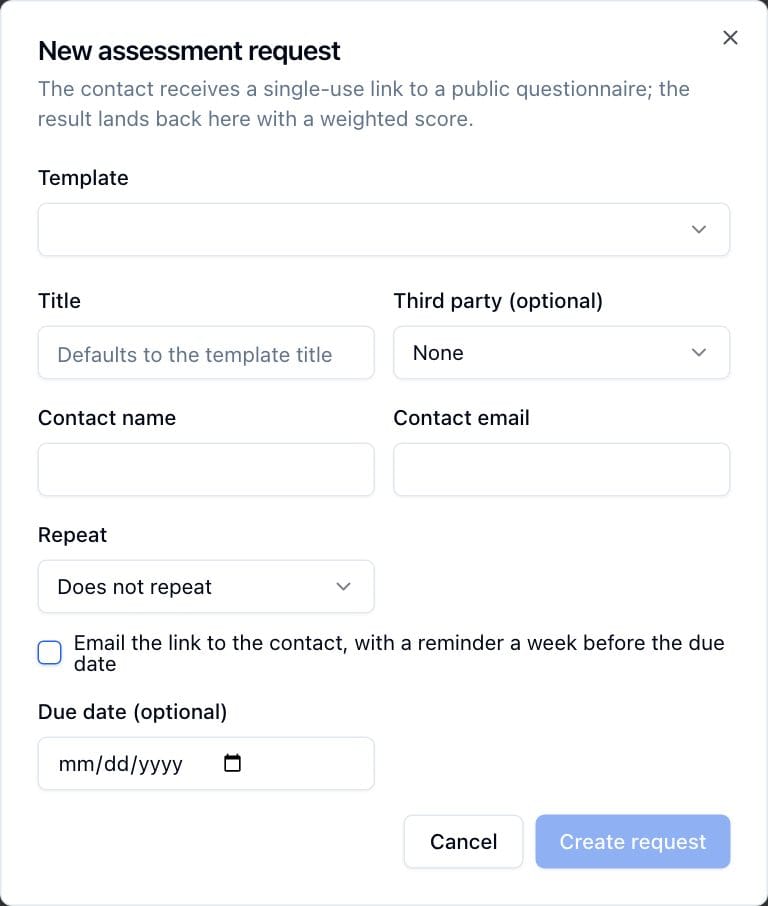
Anyone holding the link can answer, so share it only with the intended contact. When the contact submits, the request shows Completed with a score; open it to accept or flag each answer, send answers back for rework, or raise a third-party risk from an answer.
Full details: User Manual, Online Assessments, Templates and the question editor, Requests and Reviewing answers.
3.9 Run a report
- Open Reports → Report Center. Each card is one report: Risk Register, Compliance Status, Exceptions, Reviews Due, Awareness Completion, Incidents and Policy Acknowledgements.
- Click a card, for example Risk Register.
- Set the filters and click Apply filters. Reset clears them.
- Click Download CSV to save the filtered rows for a spreadsheet or an evidence pack.
- To email the report regularly, click Schedule. The New scheduled report dialog keeps your filters; give it a Name, set the Frequency, Time, Time zone and Recipients, and click Create schedule. Scheduled reports are listed under Reports → Scheduled.
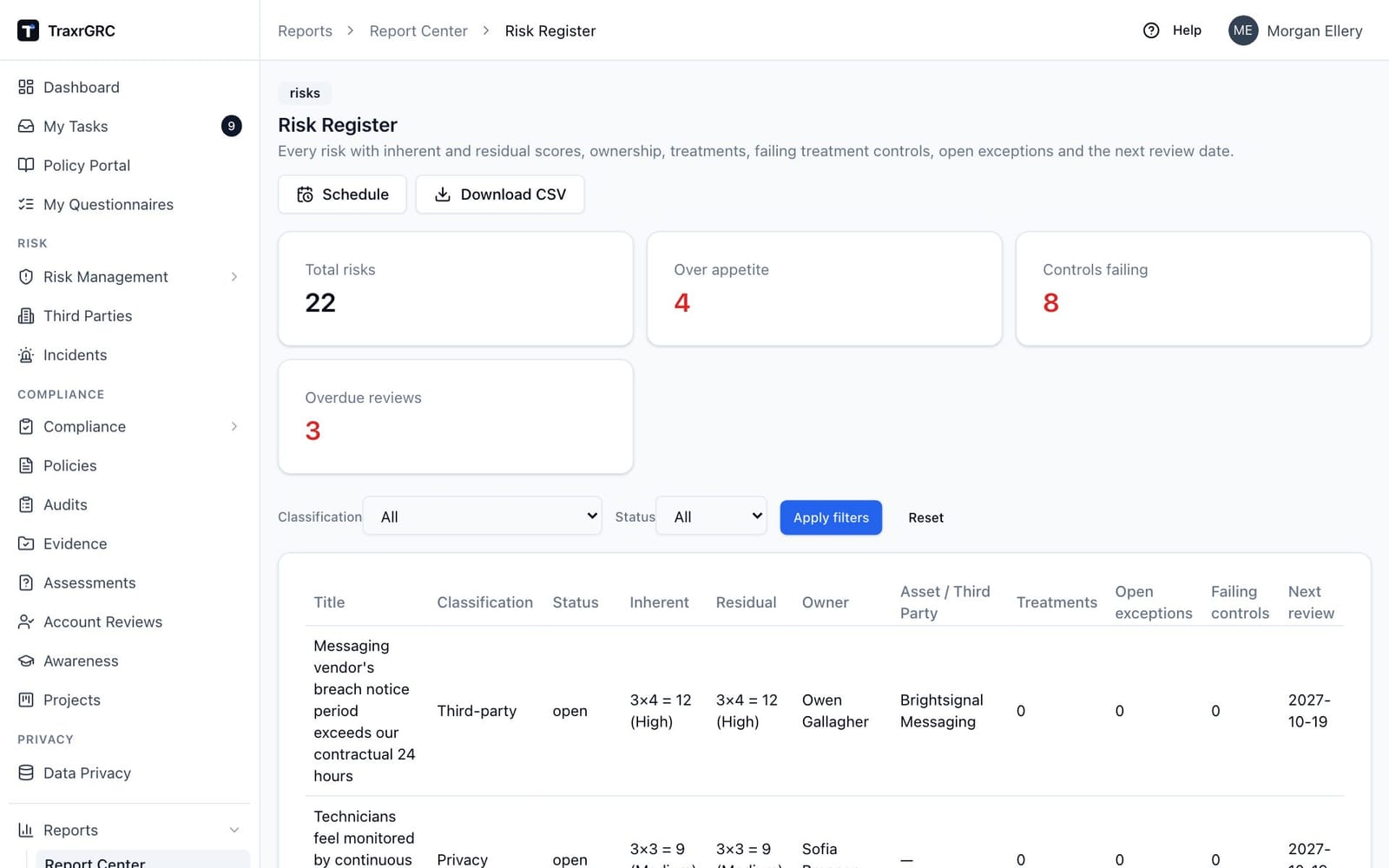
Every report applies the reader's permissions, so two people can see different rows in the same report. For a board-ready view of one framework, open the package under Compliance → Packages and click Report to download the compliance PDF.
Full details: User Manual, Report Center.
3.10 Keep it running: reviews
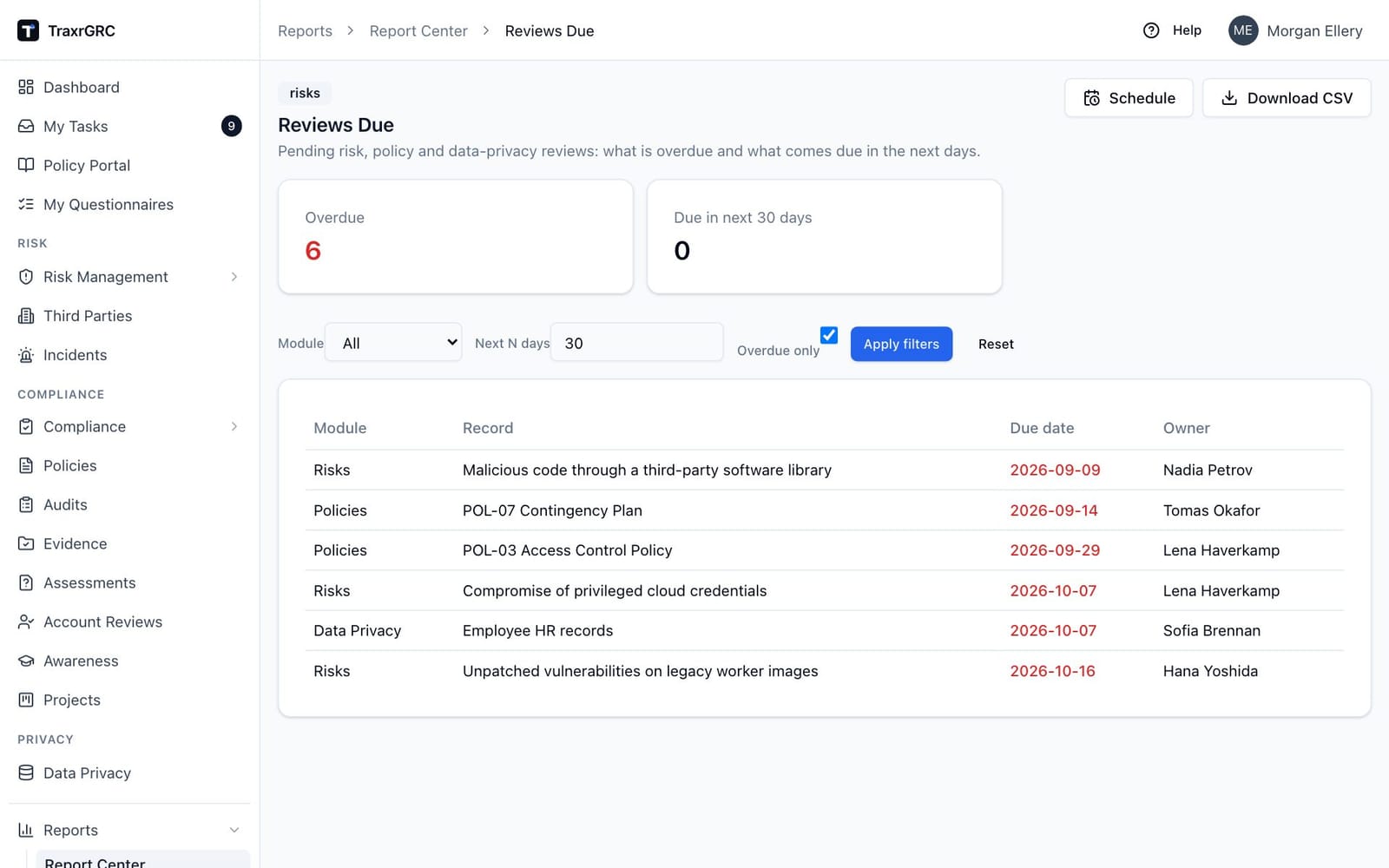
Every risk, policy and record of processing carries a review date, and proving that reviews happen on time is much of what an auditor asks for. Make a weekly habit of finding what is due:
- Open Reports → Report Center and click Reviews Due.
- Tick Overdue only and click Apply filters to list every past-due risk, policy and data privacy review with its owner.
- Click Schedule to have the list emailed to you every week.
To complete a risk review (this needs risks:review; the GRC Manager role has
it):
- Open the risk and click the Reviews tab.
- Under Upcoming reviews, click Complete review.
- Choose the Result: Approved (fine as it is), Changes required (follow-up needed) or Accepted over appetite (the risk stays over appetite by explicit decision). Add Notes on what you checked. Accepting over appetite also asks for a justification, an expiry date and optionally an approver: it raises an exception request, and the risk is accepted only once someone approves it.
- Click Complete review.
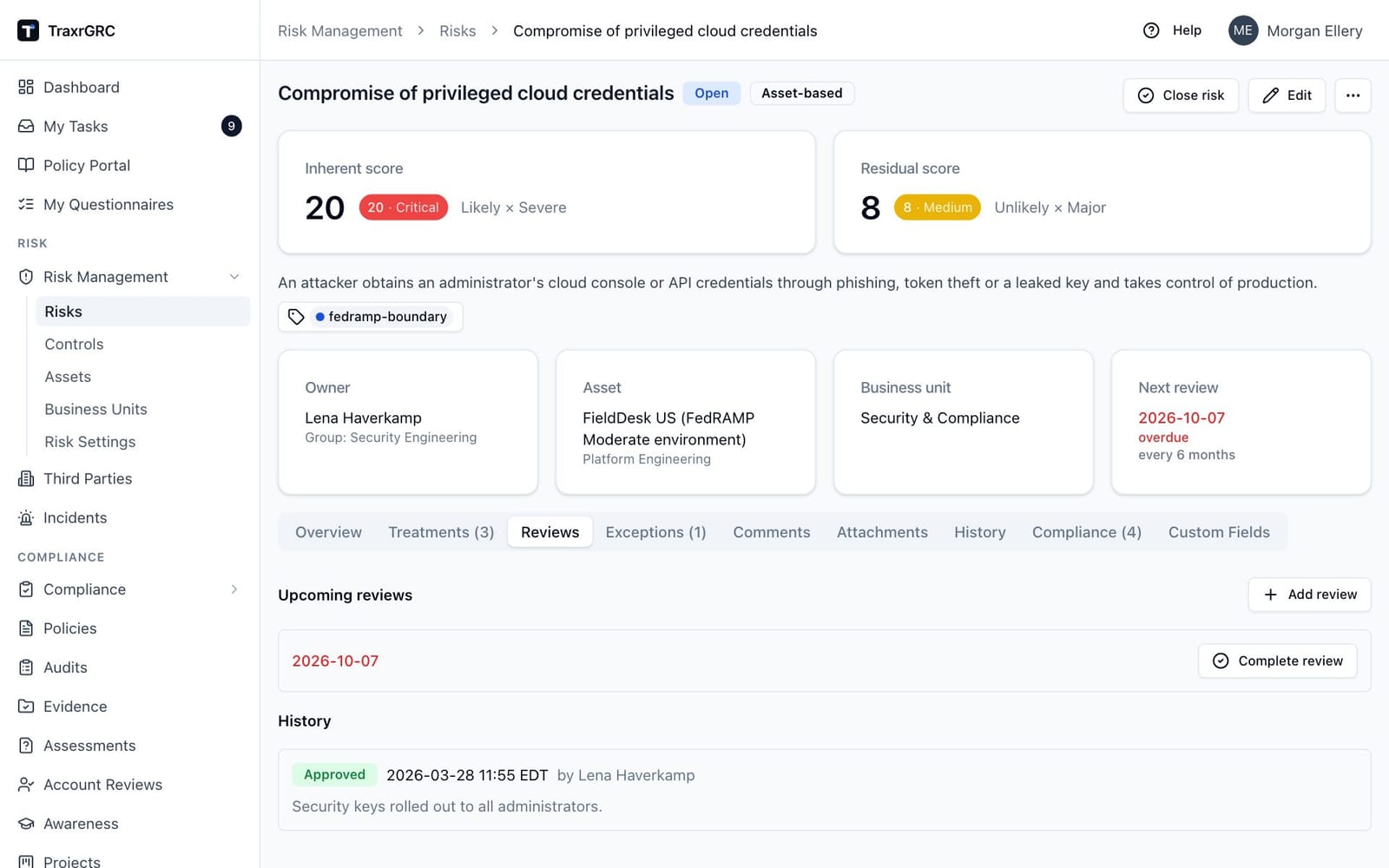
The review is recorded with your name and the time, the next review is booked at the risk's review frequency from today, and Next review moves everywhere it is shown. Policies have a Reviews tab that works the same way.
Full details: User Manual, Risk Management, Reviews; Policy Management, Reviews tab; Report Center, Reviews Due.
3.11 What you have built
By the end of the week your program holds an asset, a scored risk with a treatment, a tested control linked to both the risk and a compliance requirement, a framework under analysis, a published policy with acknowledgements coming in, an incident record, a vendor assessment in flight and a report you can schedule. The Dashboard now reflects all of it. From here, the same patterns repeat: add records, link them, review them on schedule, and let the reports and widgets show where attention is needed.