5 Authentication and Single Sign-On
TraxrGRC supports three ways to sign in: local passwords, LDAP directory passwords, and SAML 2.0 single sign-on. Password and LDAP sign-in can add two-step verification with an authenticator app. SCIM 2.0 provisioning keeps accounts and groups in step with an identity provider. This chapter explains each one, how they interact, how sign-in is throttled, and how sessions end.
All of the settings described here are saved by administrators only. Every
save is written to the audit log and emails every administrator a security
alert. For the environment variables that affect sign-in (APP_URL,
AUTH_SECRET, TRUSTED_PROXY_HOPS), see Configuration Reference.
5.1 Sign-in methods at a glance
| Method | Enabled by | Who uses it | Account created on first use |
|---|---|---|---|
| Local password | Always available, unless SSO only is on | Accounts with a password | No |
| LDAP | Enable LDAP sign-in, Settings → Integrations | Directory users | Yes |
| SAML SSO | Enable SAML single sign-on, Settings → Integrations | Identity provider users | Yes |
| SCIM | Accept SCIM provisioning, Settings → Provisioning | Identity provider, not people | Yes, before first sign-in |
Two ways give you multi-factor authentication. For password and LDAP sign-in, TraxrGRC has its own two-step verification with an authenticator app, which you can require for everyone (see Two-step verification below). For single sign-on, the identity provider's MFA applies; TraxrGRC never asks SSO users for a second code. To make the identity provider the only way in, turn on SSO only, so that password sign-in remains only for break-glass administrators.
5.2 Local passwords
5.2.1 Password policy
Passwords set in the application (new user, reset, a user's own change) must be 8 to 128 characters and contain at least one letter and one digit. The first administrator created by the bootstrap needs at least 12 characters. There is no expiry, history or complexity rule beyond this, and no "forgot password" reset: someone who has forgotten their password needs an administrator (see Resetting a password). If your policy requires more, enforce it at your identity provider and use SSO only.
5.2.2 Changing your own password
Anyone whose account has a local password can change it on My profile, under Sign-in security, in the Password card: Current password, New password and Confirm new password, then Change password. Accounts that sign in only through LDAP, SSO or SCIM have no password here and do not see the card.
- The new password follows the policy above and must differ from the current one.
- Wrong current passwords are throttled like sign-ins, on a counter of their
own for each account, and recorded as
userspassword.change.failed. Too many gives "Too many wrong passwords. Wait 15 minutes and try again." - A change signs out every other session of the user; the session they changed it from stays signed in.
- The audit log records
userspassword.change(never the password), and the user receives theuser.password.changedemail.
5.2.3 Storage
Passwords are hashed with bcrypt at cost 12 and never stored or logged in clear. A hash made at a different cost is rehashed at cost 12 on the next successful sign-in. A sign-in attempt for an unknown email, or an account with no password, still runs a bcrypt comparison, so response time does not reveal which emails have accounts.
5.2.4 The sign-in sequence
When someone submits the sign-in form:
- TraxrGRC checks the throttle (below) for that email and address.
- It compares the password with the local account's hash.
- If that fails and LDAP is enabled (and SSO only is off), the form tries the same email and password against the directory.
- On success, the session is created and a
sign-inaudit entry is written with the method andmfaPending: true when the session is held for the two-step verification step or its setup, false otherwise (always false for SAML). For a held session, themfa.verifiedentry (ormfa.enabledfor a setup) records the completed sign-in. - If the account has two-step verification on, or it is required, the session is held at the two-step verification page until a code is accepted or the account is set up (see Two-step verification). A held session can open nothing in the application.
The page answers every failure with the same message, so it never confirms whether an email exists. The reason is in the audit log (see Audit Log and Evidence Integrity).
5.3 Sign-in throttling and lockout
Throttling is stored in the database, so every application instance shares it. It counts failures within a 15-minute window:
| Counter | Limit | Effect |
|---|---|---|
| One email from one address | 5 failures | That address is refused for that account for 15 minutes |
| One address across all accounts | 30 failures | That address is refused for every account for 15 minutes |
| One account from all addresses | 10 failures | The account is guarded: any address that has failed against it in the window is refused; an address with no failures can still sign in |
The account itself is never locked outright. A lock on the account would let anyone keep its owner out, a break-glass administrator above all. A successful sign-in clears the failures of that email and address pair; the account and address counters keep running until their window ends.
LDAP sign-ins are counted under the directory username (the part of the email before "@"). A directory outage does not count as a failure.
Each lock is recorded once in the audit log (auth lockout, or
account.guarded when an account reaches ten failures) and emails every
administrator, at most once an hour per lock and at most ten lockout alerts an
hour in all. A break-glass account is named as such in the alert.
The address counted is the client address your reverse proxy reports. Set
TRUSTED_PROXY_HOPS to the number of proxies in front of the application, or
every client may appear as the proxy's address and share one counter (see
Configuration Reference and Security Hardening). When no address can be
determined at all, only the email and address pair counter applies.
There is no unlock button. Locks expire after 15 minutes. To let a locked-out user in sooner, they can sign in from another network, or an administrator can reset their password (the throttle keeps counting, so the new password works only from an address that is not locked).
5.4 Two-step verification
Two-step verification (MFA) adds a one-time code from an authenticator app to password and LDAP sign-in. Codes are standard time-based one-time passwords (TOTP, RFC 6238): six digits, a new one every 30 seconds, accepted for one step either side of the server's clock. It works with Microsoft Authenticator, Google Authenticator, 1Password and similar apps. Single sign-on never asks for a code; the identity provider handles its own verification.
5.4.1 Enrollment
Each person sets up two-step verification for themselves. The Two-step verification card on My profile, under Sign-in security, is shown to accounts with a local password or an LDAP link, and to everyone while LDAP sign-in is enabled.
- Click Set up two-step verification.
- In the authenticator app, add an account and scan the QR code shown. If the app cannot scan, type the setup key shown under it, or click Open in authenticator app on the device that has the app. The QR code is drawn on the server; the setup key is never sent to an outside image service.
- Enter the six-digit code the app shows and click Confirm. The key expires if it is not confirmed within 15 minutes; Get a new key starts again.
- Ten recovery codes are shown, once. Each works a single time in place of a code from the app. Save them, for example in a password manager, and click I have saved my recovery codes.
The card then reads "On since" the date, with how many of the 10 recovery codes are left. People cannot turn two-step verification off or get new recovery codes themselves: when a device is lost or the codes run out, an administrator resets it (below) and the person sets it up again.
5.4.2 The sign-in step
After a correct password (local or LDAP), a person with two-step verification
on is taken to the Two-step verification page (/login/mfa):
- Enter the Code from your authenticator app and click Verify. Each code is accepted once; a code already used is refused.
- Without the device, click Use a recovery code instead and enter one of the recovery codes. It is then spent.
Cancel and sign out abandons the sign-in. A session waiting at this step grants nothing and ends after 15 minutes.
Wrong codes are limited per account. The email and address counters of Sign-in
throttling and lockout apply as for passwords, and on top of them an account
may make at most 10 code attempts in 15 minutes from all addresses together,
counting codes from the app, recovery codes and the confirmation code during
setup. The tenth wrong attempt locks that account's code step from every
address until 15 minutes after the first attempt; unlike the password
counters, this lock is outright. Signing in again with the password does not
lift it, and the page answers "Too many wrong codes. Wait 15 minutes and try
again." A correct code resets the count. The lock is recorded as auth
mfa.locked and emails every administrator ("Two-step verification locked
after repeated wrong codes"). Since it follows a correct password, a lock the
user did not cause means someone else knows their password: reset it.
5.4.3 Requiring two-step verification
Settings → Sessions has a Two-step verification card with one switch,
Require two-step verification for password and LDAP sign-in, off by
default. Anyone can view it with settings:read; only an administrator can
save it.
When it is on, anyone who signs in with a password or through LDAP without two-step verification must set it up straight after signing in (Set up now on the two-step verification page) before they can use the application. This includes break-glass administrators. Sessions already open are held at the same step within a minute. Set it up on your own account before you turn the requirement on; the card warns you when you switch it on.
Saving writes a settings update entry for security.requireMfa, and a
change emails every administrator ("Two-step verification requirement
changed"). Turning the requirement off does not remove anyone's enrollment.
5.4.4 Resetting a user's two-step verification
When someone loses their device or runs out of recovery codes:
- Open Settings → Users and click the pencil on their row. Users with two-step verification on show an MFA badge.
- Click Reset two-step verification, then Reset in the confirmation.
Their secret and recovery codes are deleted, every session they have open is
signed out, they receive the user.mfa.reset email, and every administrator
is alerted ("Two-step verification reset for a user"). If the requirement is
on, they set it up again at their next sign-in; otherwise they can set it up
again from My profile. Resetting needs the same rights as resetting a
password: users:update, and an administrator for an administrator's account
or an account with rights beyond your own. Nobody can reset their own: the
button is not shown on your own account, and the server refuses it with "You
cannot reset your own two-step verification. Ask another administrator to
reset it." Keep a second administrator able to reset yours.
5.4.5 Key rotation
Each user's two-step verification secret is stored encrypted with the
settings encryption key (SETTINGS_ENCRYPTION_KEY, or a key derived from
AUTH_SECRET when that is empty), and recovery codes are stored as keyed
hashes (HMAC-SHA256) with a key derived from the same secret. Changing that
secret makes every existing enrollment unreadable and every unused recovery
code invalid: affected users can no longer pass the code step, and an
administrator must reset each of them before they can sign in. The web log
shows mfa.secret_unreadable with the user id for each one it meets.
(Recovery codes issued before keyed hashing was introduced on 2026-10-16 are
stored unkeyed and keep working until used.)
5.4.6 Audit entries
| Action | Module | When |
|---|---|---|
mfa.enroll.started | users | Setup began and a key was issued |
mfa.enabled | users | Setup was confirmed with a code |
mfa.enroll.failed | auth | A wrong code during setup, or a refusal while locked (reason locked: account) |
mfa.verified | auth | The sign-in step passed, with the method (totp or recovery-code) and, for a recovery code, how many are left |
mfa.failed | auth | A wrong, reused or malformed code at sign-in, or a refusal while locked (reason locked: account when the account's code step is locked) |
mfa.locked | auth | The account reached 10 code attempts in 15 minutes and its code step is locked |
mfa.reset | users | An administrator reset a user's two-step verification |
password.change | users | A user changed their own password |
password.change.failed | users | A wrong current password, or a refusal while locked |
Failed code attempts are recorded at most 30 a minute from one address, to keep the log from flooding; the throttle still counts every one.
5.5 LDAP
With LDAP enabled, people sign in with their directory password on the normal sign-in form; there is no separate button. Configure it in Settings → Integrations, LDAP card.
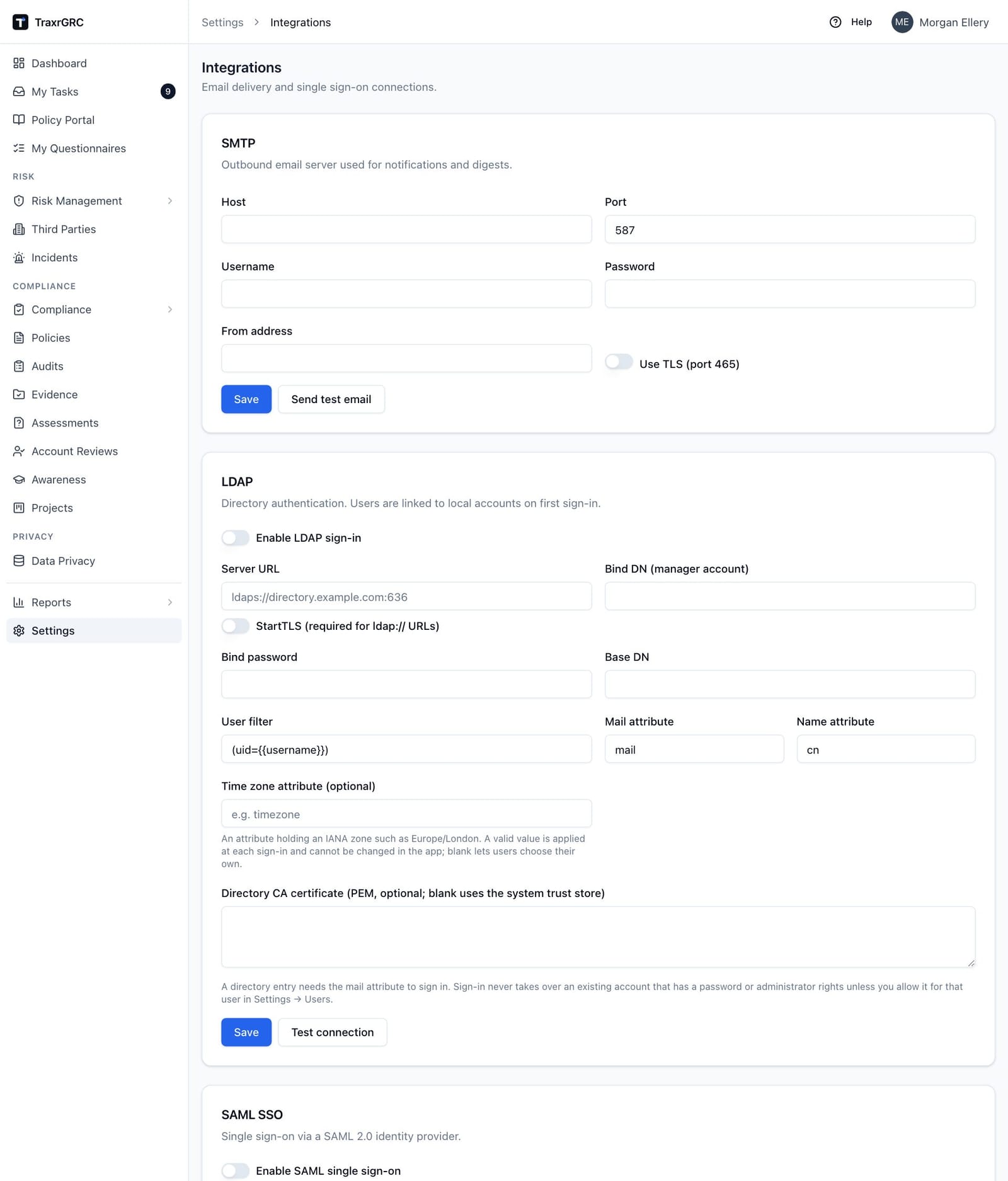
| Field | Required | Notes |
|---|---|---|
| Enable LDAP sign-in | Master switch | |
| Server URL | Yes | ldaps://host:636, or ldap://host:389 with StartTLS. Anything else is refused. |
| StartTLS (required for ldap:// URLs) | For ldap:// | Upgrades the connection before any bind |
| Bind DN (manager account) | Yes | The service account used to search |
| Bind password | Yes, to sign anyone in | Stored encrypted. An empty bind password is refused. |
| Base DN | Yes | Where the user search starts (subtree) |
| User filter | Yes | Must contain {{username}}, for example (uid={{username}}) or (sAMAccountName={{username}}) |
| Mail attribute | Yes | Default mail |
| Name attribute | Yes | Default cn |
| Time zone attribute (optional) | An attribute holding an IANA zone such as America/New_York | |
| Directory CA certificate (PEM, optional; blank uses the system trust store) | For a directory certificate from an internal CA |
How a sign-in works:
- The username is the part of the typed email before "@". It is escaped and substituted into the user filter.
- TraxrGRC binds as the manager account and searches the base DN. If the filter matches more than one entry, sign-in is refused.
- It binds as the found entry with the typed password to prove it.
- The entry's mail attribute becomes the account email. An entry without one cannot sign in; the typed address is never trusted as the email.
- The account is found by its directory link, or linked or created by email (see Account linking below). The name is updated from the directory at each sign-in.
TLS 1.2 or later is required and the certificate is always verified. Connect times out after 5 seconds, each operation after 10, and the whole exchange after 20. Test connection binds as the manager account and reports "Connected. Found N directory user(s)." counting entries with a mail attribute (up to 1,000).
LDAP sign-in does not read group membership from the directory. Assign groups in TraxrGRC, or use SCIM provisioning for group-driven access.
For Active Directory, a typical configuration:
| Field | Value |
|---|---|
| Server URL | ldaps://dc01.corp.example.com:636 |
| Bind DN (manager account) | CN=svc-grc,OU=Service Accounts,DC=corp,DC=example,DC=com |
| Base DN | OU=Staff,DC=corp,DC=example,DC=com |
| User filter | (&(objectClass=user)(sAMAccountName={{username}})) |
| Mail attribute | mail |
| Name attribute | displayName |
This works when the part before "@" of each user's email equals their
sAMAccountName. Where it does not, users type an address whose local part is
their account name; the email recorded comes from the directory either way.
5.6 SAML single sign-on
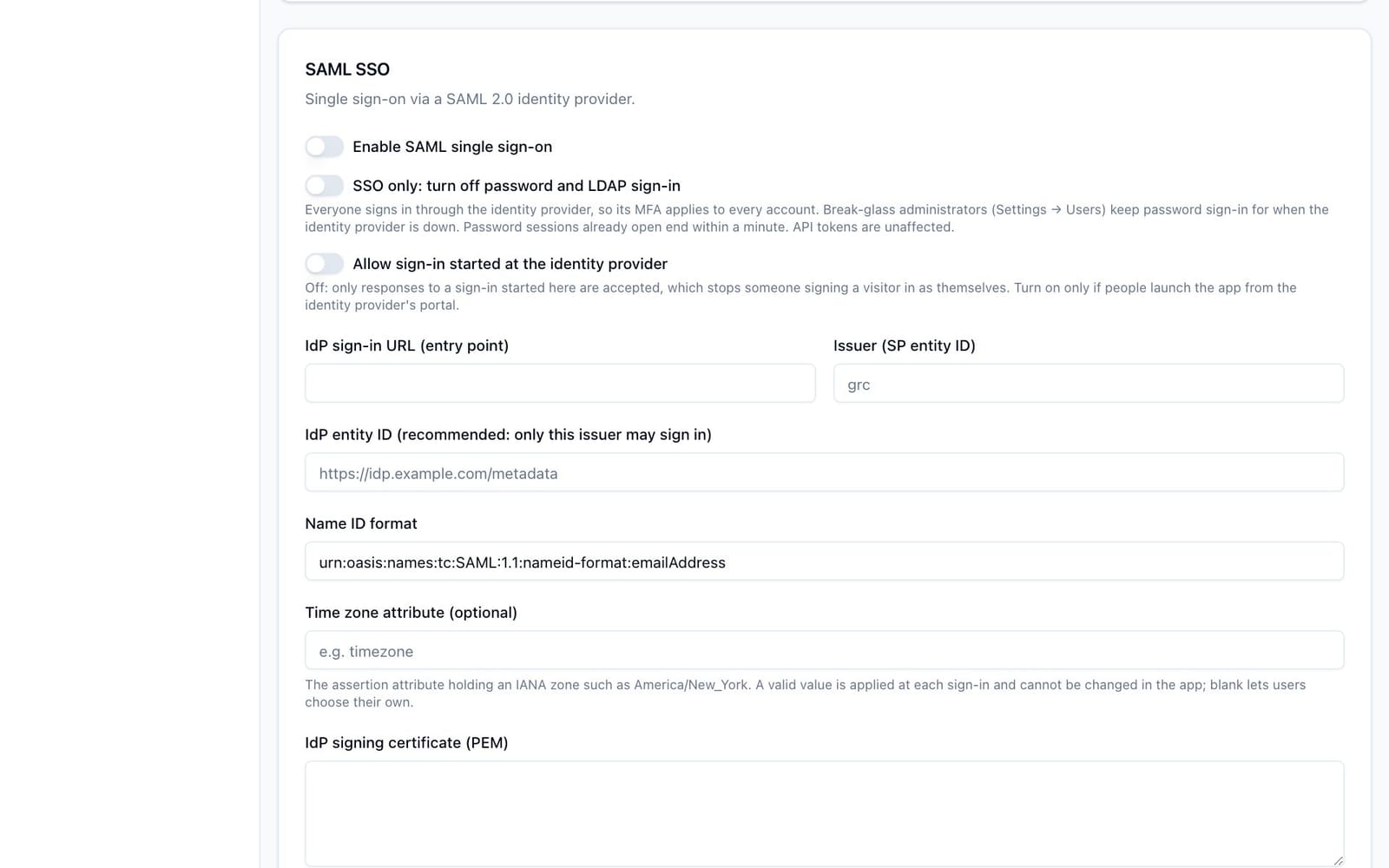
SAML SSO sends people to your identity provider (IdP) to authenticate and accepts its signed answer. Configure it in Settings → Integrations, SAML SSO card.
5.6.1 Before you start
APP_URLmust be the exact externalhttps://address of TraxrGRC. The service provider addresses below are built from it, and the sign-in request cookie that ties the IdP's answer to the browser is sent back on the IdP's post only when it is a secure cookie.- Decide the Issuer (SP entity ID). Any stable string works; a URL such as
https://grc.example.comis conventional. Once your IdP trusts it, do not change it.
The addresses your IdP needs:
| Item | Value |
|---|---|
| SP entity ID (Identifier, Audience) | The Issuer (SP entity ID) you enter |
| Assertion Consumer Service (Reply URL), HTTP-POST | <APP_URL>/api/auth/saml/acs |
| Sign-on URL (where users start) | <APP_URL>/login |
| SP metadata | <APP_URL>/api/auth/saml/metadata |
The metadata address works as soon as an issuer is saved, even with SAML disabled, so you can register the application with your IdP first.
5.6.2 Settings
| Field | Required | Notes |
|---|---|---|
| Enable SAML single sign-on | Master switch. Adds Sign in with SSO to the sign-in page. | |
| SSO only: turn off password and LDAP sign-in | See SSO only and break-glass administrators | |
| Allow sign-in started at the identity provider | Off by default. See IdP-initiated sign-in. | |
| IdP sign-in URL (entry point) | Yes | The IdP's SAML single sign-on URL (HTTP-Redirect binding) |
| Issuer (SP entity ID) | Yes | This service's entity ID; the assertion's audience must equal it |
| IdP entity ID (recommended: only this issuer may sign in) | Recommended | The IdP's own entity ID. When set, responses from any other issuer are refused. |
| Name ID format | Yes | Default urn:oasis:names:tc:SAML:1.1:nameid-format:emailAddress |
| Time zone attribute (optional) | The exact attribute name (it may be a URI) holding an IANA zone | |
| IdP signing certificate (PEM) | Yes | The IdP's public signing certificate, pinned as the only trust anchor |
| SP private key (PEM, optional; signs AuthnRequests) | When present, authentication requests are signed. Stored encrypted. |
The card's fields marked required must be filled before Save succeeds, even when you are saving SAML disabled. Saving records every field before and after in the audit log, except the private key (only whether it changed); the IdP certificate is recorded by its SHA-256 fingerprint, and the security alert names a changed fingerprint.
5.6.3 Attributes and account matching
TraxrGRC reads these from the assertion:
| Account field | Taken from, first match wins |
|---|---|
Attribute named email, Email or mail; otherwise the NameID | |
| Name | Attribute named name, Name, cn or displayName; otherwise the email |
| Time zone | The attribute named in Time zone attribute, when set |
| Link key | `<issuer> |
Attribute names are matched exactly. Claim names in URI form (for example
http://schemas.xmlsoap.org/ws/2005/05/identity/claims/emailaddress) do not
match email; either send attributes with the short names above or make sure
the NameID is the user's email address.
The account is matched first by its existing SAML link. Without one, the asserted email is matched to an account (see Account linking). The NameID must be stable for each person: if it changes, the old link no longer matches and TraxrGRC falls back to the email rule.
5.6.4 What a response must satisfy
A response is accepted only when all of these hold:
- It is signed by the pinned IdP certificate, and the assertion's signature verifies.
- Its issuer equals the IdP entity ID, when one is set.
- The audience equals the Issuer (SP entity ID).
- The bearer subject confirmation's recipient is this instance's ACS address, and the response's destination, when present, is the same address.
- Conditions
NotOnOrAfteris present and in the future, and the subject confirmation has an unexpiredNotOnOrAfter. - The assertion was issued less than 10 minutes ago (2 minutes of clock skew are tolerated).
- It answers the sign-in request this browser started, within 10 minutes, unless IdP-initiated sign-in is allowed.
- It has not been used before. Each assertion is accepted once.
- It is no larger than 64 KB (base64).
Encrypted assertions are not supported: leave assertion encryption off at the IdP. Single logout is not supported either (see Sessions and sign-out).
Every refusal sends the browser back to the sign-in page with "Single sign-on
failed. Please try again or contact an administrator." The precise reason is in
the audit log as an auth sign-in.failed entry with reason saml-invalid
or saml-replay and a detail such as "SAML audience does not match this
service provider".
5.6.5 IdP-initiated sign-in
By default TraxrGRC accepts only answers to a sign-in started from its own Sign in with SSO button, in the same browser, within 10 minutes. That stops someone from signing a visitor in under the attacker's identity with a response they captured. Turn on Allow sign-in started at the identity provider only if people launch TraxrGRC from the IdP's app portal (the My Apps tile in Entra ID, the Okta dashboard). Signed, audience, recipient, age and replay checks still apply.
5.6.6 Example: Microsoft Entra ID
-
In TraxrGRC, enter an Issuer (SP entity ID), for example
https://grc.example.com, fill the other required fields with placeholders if needed, leave Enable SAML single sign-on off and click Save. -
In the Entra admin center, open Enterprise applications, New application, Create your own application (non-gallery), and choose Single sign-on, SAML.
-
Under Basic SAML Configuration, set Identifier (Entity ID) to the issuer, Reply URL (Assertion Consumer Service URL) to
https://grc.example.com/api/auth/saml/acs, and Sign on URL tohttps://grc.example.com/login. You can instead upload the SP metadata. -
Under Attributes & Claims, set the unique user identifier (Name ID) to
user.mail(oruser.userprincipalnamewhere UPNs are email addresses) with the email address format. Add a claim namedemailwith sourceuser.mailand a claim namednamewith sourceuser.displayname, each with the namespace field empty. -
Under SAML Certificates, set the signing option to sign the SAML response and assertion, and download Certificate (Base64).
-
From Set up, copy the Login URL and the Microsoft Entra Identifier.
-
Assign the users or groups who may sign in.
-
Back in TraxrGRC:
Field Value IdP sign-in URL (entry point) The Login URL, https://login.microsoftonline.com/<tenant-id>/saml2IdP entity ID The Microsoft Entra Identifier, https://sts.windows.net/<tenant-id>/Name ID format urn:oasis:names:tc:SAML:1.1:nameid-format:emailAddressIdP signing certificate (PEM) The contents of the downloaded .cerfile, including the BEGIN and END lines -
Turn on Enable SAML single sign-on and click Save.
-
In a private browser window, click Sign in with SSO and complete the sign-in. Check the Audit Log for an
authsign-inentry with methodsaml.
5.6.7 Example: Okta
-
In the Okta admin console, Applications, Create App Integration, SAML 2.0.
-
Set Single sign-on URL to
https://grc.example.com/api/auth/saml/acs(leave "Use this for Recipient URL and Destination URL" ticked) and Audience URI (SP Entity ID) to your issuer. -
Name ID format
EmailAddress, Application usernameEmail. -
Under Attribute Statements, add
email(Basic) with valueuser.emailandname(Basic) with valueuser.displayName. -
Leave assertion encryption off. Finish, then assign people or groups.
-
From the application's Sign On tab, open the SAML setup instructions and copy:
Okta value TraxrGRC field Identity Provider Single Sign-On URL IdP sign-in URL (entry point) Identity Provider Issuer ( http://www.okta.com/<id>)IdP entity ID X.509 Certificate IdP signing certificate (PEM) -
Enable, save and test as for Entra ID.
5.6.8 Rotating the IdP certificate
TraxrGRC pins exactly one IdP certificate. When your IdP rolls its signing certificate, sign-ins fail from the moment it starts signing with the new one until you paste the new certificate. Plan the change: obtain the new certificate in advance, then update the IdP signing certificate field and save at the moment you activate it at the IdP.
5.7 Account linking
LDAP, SSO and SCIM all find accounts by email when no link exists yet. An outside system asserting an email must not be able to take over a local identity, so an existing account is linked automatically only when it has no password, no administrator rights and no break-glass status, or when it is already linked (for SSO: any SAML link, or provisioned by SCIM).
For any other account, the first LDAP or SSO sign-in (or SCIM request) is
refused and recorded as a link-refused sign-in failure (scim.link-refused
for SCIM). To allow it:
- Open Settings → Users and edit the account.
- Turn on Allow the next LDAP or SSO sign-in, or SCIM, to link this account and click Save.
The next directory sign-in, SSO sign-in or SCIM request with that email links
the account, writes a users sso.link entry (or scim.link), and turns the
switch off again. Only administrators can set it.
Plan for this when you move an installation that started with local accounts to SSO: either allow the link for each account before its owner signs in with SSO, or delete accounts with no history and let SSO recreate them. Accounts you created with Add user all have passwords, so all of them need the link allowed.
5.8 SSO only and break-glass administrators
SSO only: turn off password and LDAP sign-in makes the identity provider the only way in, so its MFA and conditional access cover every account:
- The sign-in page shows only Sign in with SSO, with an Emergency administrator sign-in link that opens the password form.
- Password sign-in succeeds only for active administrators marked
break-glass. Anyone else is refused (
sign-in.failedwith reasonsso-only). - LDAP sign-in is refused.
- Password and LDAP sessions already open end within a minute, except break-glass administrators'.
- API tokens are unaffected.
A break-glass administrator is an administrator account with a local password and the Break-glass (emergency password sign-in) switch on. The bootstrap administrator is created as one. Each break-glass password sign-in while SSO only is on is flagged in the audit log and emails every administrator ("Break-glass administrator signed in with a password").
SSO only can be saved only when SAML is enabled with an entry point and certificate, and at least one active administrator with a password is marked break-glass. The save is refused with "SSO-only cannot be turned on." and the reasons otherwise. While it is on:
- The last break-glass administrator cannot be demoted, deactivated, deleted or have the flag removed.
- SAML cannot be disabled unless SSO only is turned off in the same save.
- SCIM never changes, deactivates or deletes a break-glass administrator.
Turning SSO only off emails every administrator ("SSO-only sign-in turned off").
Recommended setup:
- Configure SAML and sign in once through SSO with your own account.
- Keep two break-glass administrators with long, unique passwords held in a sealed or vaulted location, not in daily use.
- Turn on SSO only.
- Review the audit log for break-glass sign-ins as part of your access review.
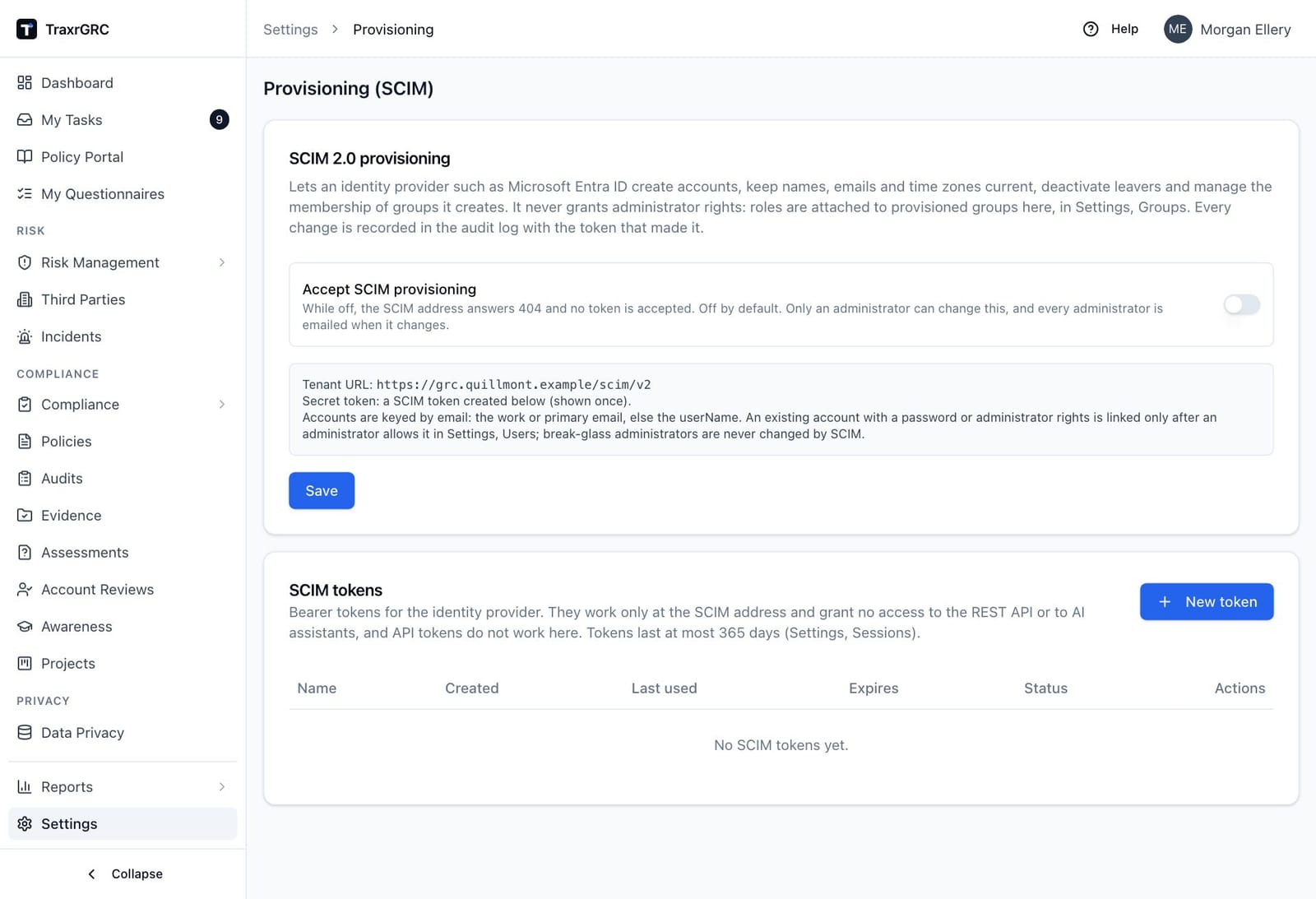
5.9 SCIM provisioning
SCIM 2.0 lets an identity provider create accounts before first sign-in, keep
names, emails and time zones current, deactivate leavers, and manage the
membership of groups it creates. Configure it in Settings → Provisioning
(address /settings/provisioning).
It is built to RFC 7643 and RFC 7644 and to Microsoft Entra ID's documented SCIM behavior, and tested with a scripted client replaying Entra-shaped requests. It has not been tested against a live Entra tenant; validate it in a test tenant before relying on it.
5.9.1 Endpoint and tokens
| Item | Value |
|---|---|
| Tenant URL | <APP_URL>/scim/v2 |
| Authentication | Authorization: Bearer scim_..., a SCIM token |
| Content type | application/scim+json or application/json |
| While Accept SCIM provisioning is off | Every request answers 404, whatever the token |
To create a token, click New token in the SCIM tokens card, enter a
Name and an optional Expires date, and copy the token from the next
dialog: it is shown once, and only its hash is stored. A token's lifetime is
capped by API token lifetime (days) in Settings → Sessions (365 by
default). The list shows each token's Name, Created, Last used,
Expires and Status, with Rotate (revoke and issue a replacement at
once) and Revoke. Creating, rotating and revoking are audited
(scimToken.create, scimToken.rotate, scimToken.revoke), and creating and
rotating email every administrator.
A SCIM token works only at the SCIM address. It grants nothing on the REST API or to AI assistants, and API tokens are refused at the SCIM address.
5.9.2 Supported operations
| Resource | Operations |
|---|---|
/Users | GET list (with filter and paging), POST create |
/Users/{id} | GET, PUT replace, PATCH, DELETE |
/Groups | GET list, POST create |
/Groups/{id} | GET, PUT, PATCH, DELETE |
/ServiceProviderConfig, /ResourceTypes, /Schemas | GET |
| Feature | Support |
|---|---|
| Filters | eq only, clauses joined by and. Users: userName, externalId, emails (or emails.value), displayName, active. Groups: displayName, externalId, and members[value eq "<id>"]. |
| Paging | startIndex and count, at most 100 per page |
| PATCH | add, replace, remove (operation names in any case) |
| Bulk, sort, ETags, password change | Not supported |
| Request body | At most 1 MB |
User attributes read: userName, emails (primary, else work, else first),
displayName (else name.formatted or the name parts), externalId,
active and timezone. Enterprise extension attributes and other attributes
are accepted and ignored.
5.9.3 What provisioning may and may not do
- An account is keyed by email: the primary or work email the provider sends,
else the
userName, which must then be an email address. - A new email creates an account with no password and no administrator rights. The person signs in through SSO.
- An existing account is linked under the account linking rule above;
otherwise the provider receives a 409 conflict and the audit log a
scim.link-refusedentry. Accounts that were not provisioned are invisible to the provider. active: falsedeactivates the account and ends its sessions within a minute;active: truereactivates it.DELETEdeactivates the account, removes it from SCIM groups and unlinks it from SCIM (scim.deprovision). Nothing is ever deleted.- The provider creates, renames and deletes only groups it created, and manages their members (provisioned users only). A name already used by a group made in TraxrGRC is a conflict.
- Roles are never set by the provider. Attach roles to SCIM groups in Settings → Groups.
- SCIM never grants administrator rights, sets a password, changes or deactivates a break-glass administrator, reactivates an administrator, changes an administrator's email, or deactivates the last active administrator. Deactivating any other administrator is allowed and emails every administrator ("Administrator deactivated by SCIM provisioning").
Every change is audited with the actor "SCIM" and the token that made it.
5.9.4 Limits
| Limit | Value | Response |
|---|---|---|
| Requests per token | 1,200 a minute | 429 with Retry-After: 60 |
| Changes per token | 600 a minute | 429 |
| Invalid tokens from one address | 20 in 10 minutes | 429 for the rest of the window |
5.9.5 Setting up Microsoft Entra ID provisioning
-
In TraxrGRC, turn on Accept SCIM provisioning, click Save, then New token, and copy the token.
-
In Entra, open the same enterprise application you use for SAML, Provisioning, mode Automatic. Enter Tenant URL
https://grc.example.com/scim/v2and Secret Token, then Test Connection. -
User attribute mappings:
Entra attribute SCIM attribute userPrincipalName(ormailif UPNs are not email addresses)userNameSwitch([IsSoftDeleted], , "False", "True", "True", "False")activedisplayNamedisplayNamemailemails[type eq "work"].valueobjectIdexternalIdA time zone source attribute (optional) timezoneRemove or ignore the other default mappings; they are accepted and discarded. Use the same email the SAML assertion sends, so SSO finds the provisioned account.
-
Group attribute mappings:
displayName→displayName,objectId→externalId,members→members. -
Scope: Sync only assigned users and groups. Assign the users and groups and start provisioning.
-
In Settings → Groups, attach roles to the groups that appear with the SCIM badge.
Provisioning and SSO work together: SCIM creates the account and its group memberships, SSO signs the person in, and because a provisioned account counts as SSO-established, the first SSO sign-in links to it without an administrator allowing it.
5.10 Sessions and sign-out
A session is an encrypted, signed cookie sealed with AUTH_SECRET. Its rules
are set in Settings → Sessions (address /settings/security), card
Sign-in sessions, API tokens and storage:
| Field | Range | Default | Takes effect |
|---|---|---|---|
| Session length (hours) | 1 to 168 | 12 | For sessions started after the change |
| Idle timeout (minutes) | 5 to 1440 | 60 | For every session, at its next request |
| API token lifetime (days) | 0 to 3650, 0 for no maximum | 365 | For tokens created after the change |
| Attachment storage per user (MB) | 0 to 1048576, 0 for no limit | 2048 | For uploads after the change |
Saving writes an audit entry and emails every administrator ("Session or API token limits changed").
A session ends at whichever comes first:
- The session length, counted from sign-in.
- The idle timeout. Activity is a page view or interaction; the browser reports activity at most once a minute.
- Sign out or Sign out everywhere in the user menu.
- An administrator's Sign out everywhere on the user, a password reset, a two-step verification reset, deactivation, a change of groups or administrator rights (within a minute).
- The user changing their own password on My profile, for every session but the one they changed it from.
- SSO only being turned on, for password and LDAP sessions of anyone but a break-glass administrator (within a minute).
- A change of
AUTH_SECRET, which invalidates every session at once.
Sign-in and sign-out are recorded in the audit log (auth sign-in with the
method credentials, ldap or saml, and sign-out). Signing out of GRC
Platform does not sign the person out of the identity provider, and signing
out of the identity provider does not end the TraxrGRC session; the
session runs until one of the events above. On shared computers, keep the idle
timeout short. The service provider metadata advertises no single logout
service, because TraxrGRC has no single logout endpoint.