4 Users, Groups and Roles
TraxrGRC controls access with three objects. A user is an account that can sign in. A group collects users and carries roles. A role is a permission matrix: one access level for every module and right. A user's effective rights are the union of the roles on every group they belong to, unless the account is an administrator, in which case every check passes.
Groups do a second job: records are owned by a person, a group, or both, and the own access level in a role means "records owned by me or by one of my groups". Designing groups is therefore designing both who holds which rights and whose records each person can reach.
This chapter covers the full lifecycle of accounts, how groups and roles combine, exactly how each access level is evaluated, the separation of duties rules, and worked examples for custom roles. It closes with a permission reference generated from the code.
4.1 Where identity is administered
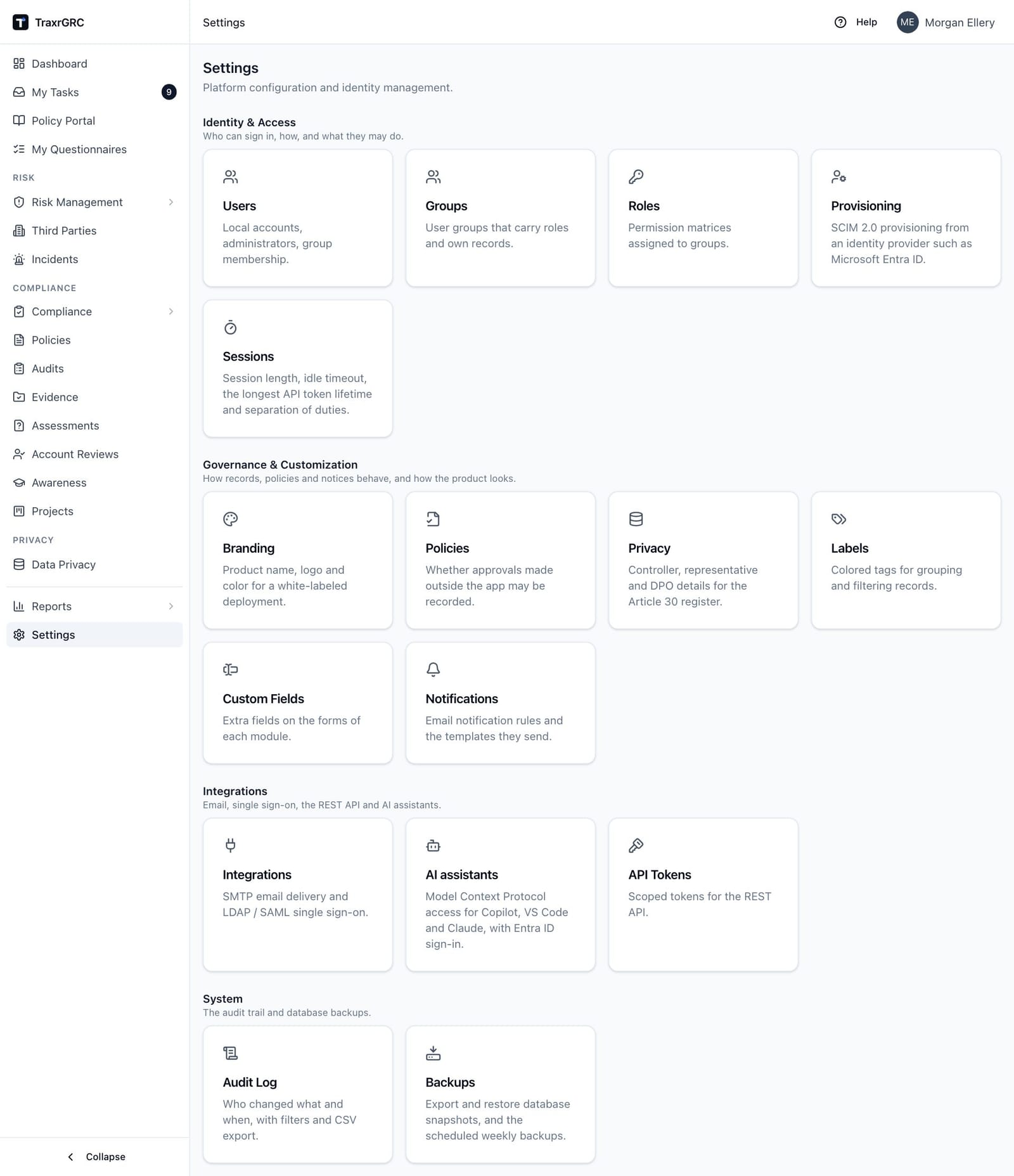
The three screens sit under Settings and appear as cards on the Settings page:
| Screen | Address | Opens with | Changes need |
|---|---|---|---|
| Users | /settings/users | settings:read and users:read | See Delegating user administration below |
| Groups | /settings/groups | settings:read and users:read | Administrator |
| Roles | /settings/roles | settings:read and users:read | Administrator |
The page itself checks settings:read; the list behind it checks users:read.
A role that grants only users:read therefore does not open these screens:
add settings:read as well. None of the built-in roles grants either right,
so out of the box only administrators see these three screens. People with
other rights still see the Settings page, with only the cards they can open
(see Map of the settings pages in Platform Settings).
Creating, editing and deleting groups and roles, granting or removing administrator rights, and changing anyone's group membership are reserved for administrator accounts whatever a role grants. These actions could hand out rights the actor does not hold, so no delegated role can perform them.
4.2 User accounts
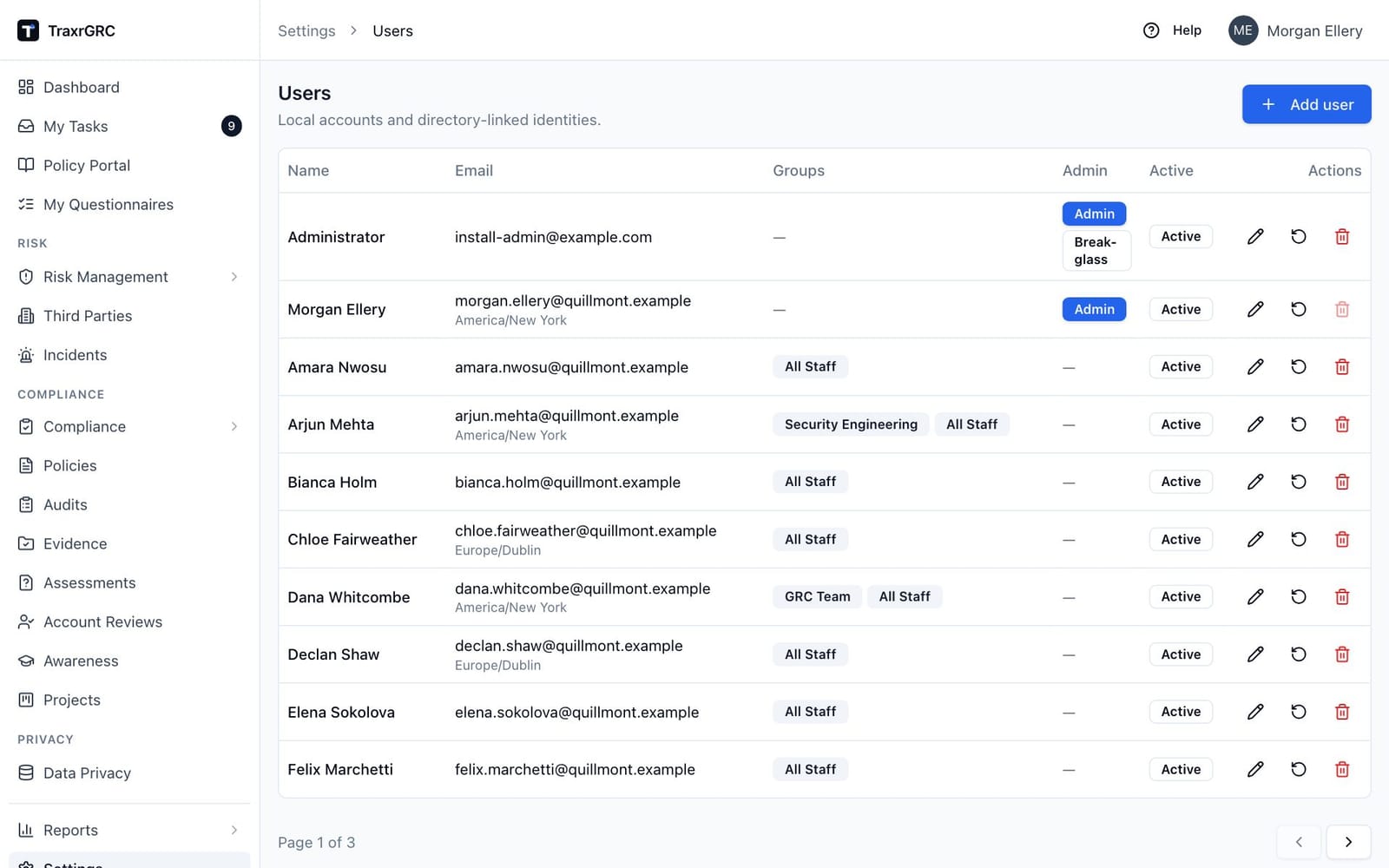
Settings → Users lists every account, administrators first and then by name, ten to a page. Each row shows the name (with a SCIM badge for provisioned accounts), the email with the user's time zone below it, the groups as badges, an Admin badge (plus Break-glass where set), an Active or red Inactive badge, an MFA badge when the user has two-step verification on, and three actions: edit (pencil), reset password (rotate) and delete (trash).
4.2.1 How accounts come into existence
An account is created in one of four ways:
| Source | What it creates | Password | Administrator |
|---|---|---|---|
| Bootstrap | The first administrator, from INITIAL_ADMIN_EMAIL and INITIAL_ADMIN_PASSWORD, on an installation with no users (see Installation) | Yes, at least 12 characters | Yes, and marked break-glass |
| Add user in Settings → Users | A local account | Yes | Optional |
| First LDAP or SSO sign-in | An account for an email that has no account yet, linked to the directory entry or SAML subject | No | No |
| SCIM provisioning | An account for each user the identity provider assigns | No | No (SCIM never grants it) |
There is no invitation email and no self-registration. When you add a local user, you set the initial password and pass it to them through a channel you trust. Accounts created by LDAP, SSO or SCIM have no password and sign in only through their directory or identity provider.
4.2.2 Adding a local user
-
Open Settings → Users and click Add user. The dialog reads "Create a local account. The user signs in with email and password."
-
Complete the fields:
Field Rules Email Required, a valid address, unique. Stored in lowercase. It cannot be changed later in the application. Name Required, up to 120 characters. Password 8 to 128 characters with at least one letter and one digit. Administrator Full access to everything. Needs an administrator to set. Break-glass (emergency password sign-in) Shown once Administrator is on. See Break-glass administrators in Authentication and Single Sign-On. Groups The groups the user joins. Needs an administrator to set. SCIM-managed groups cannot be ticked here. -
Click Save. The account can sign in at once. The audit log records a
userscreateentry with the email, name, administrator and break-glass flags and the group ids. Creating an administrator also emails every active administrator a security alert ("Administrator rights granted").
4.2.3 Editing a user
Click the pencil on the row to open Edit user.
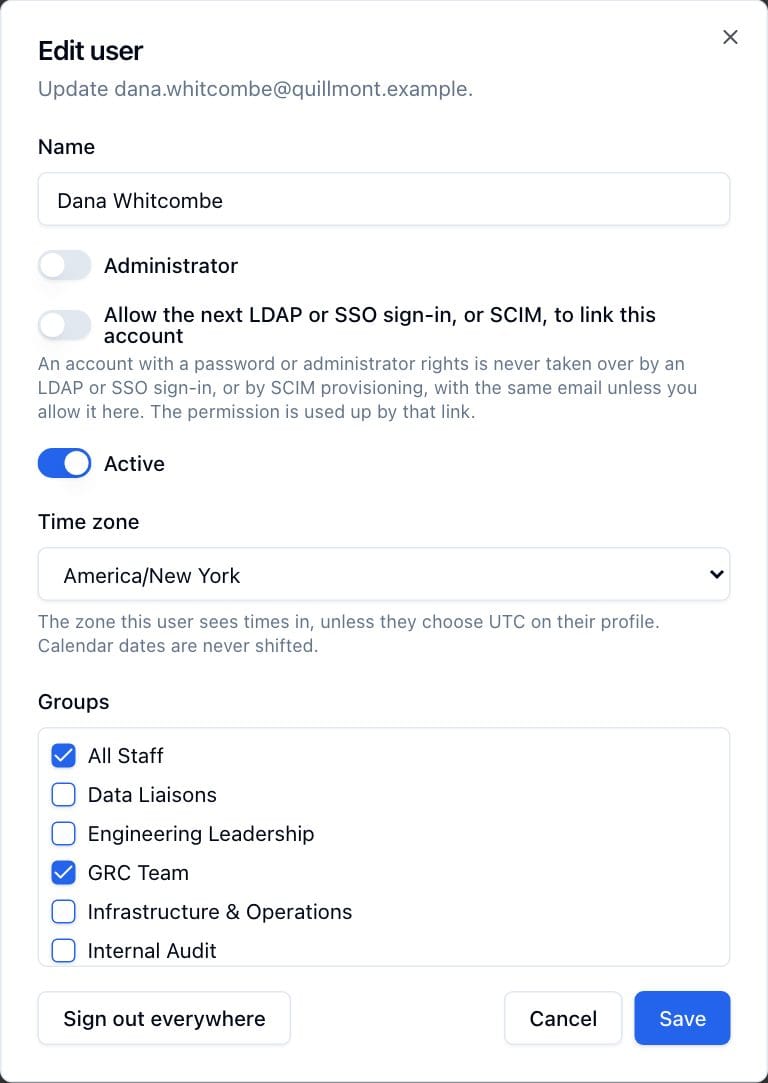
| Field | Notes |
|---|---|
| Name | Editable. For an LDAP account, the directory's name attribute overwrites it at each sign-in. |
| Administrator | Granting or removing it emails every administrator. You cannot remove your own. |
| Break-glass | Only for administrators. Removing administrator rights always clears it. |
| Allow the next LDAP or SSO sign-in, or SCIM, to link this account | Appears for accounts with a password, administrator rights or break-glass status. See Account linking in Authentication and Single Sign-On. The help text below it names any existing link (LDAP, SSO or SCIM provisioning). |
| Active | Turning it off deactivates the account. Disabled on your own account. |
| Time zone | The zone the user sees times in. Grayed out when the directory, identity provider or SCIM supplies it. |
| Groups | Membership. SCIM-managed groups are grayed out. |
Reset two-step verification, shown in the dialog for anyone but yourself who has two-step verification on, turns it off for that user (see Two-step verification in Authentication and Single Sign-On).
The audit log records each save as a users update entry with the changed
fields before and after; group membership appears by group name on both
sides.
Sign out everywhere, at the bottom left of the dialog for anyone but
yourself, ends all of that user's sessions within a minute and writes a
users sessions.revoke entry. Ending an administrator's sessions needs an
administrator.
Two guards protect the installation from lockout. You cannot deactivate, demote or delete your own account, and any change that would leave no active administrator is refused with "At least one active administrator account is required." When SSO-only sign-in is on, a third guard applies to the last break-glass administrator (see Authentication and Single Sign-On).
4.2.4 Deactivating and reactivating
Deactivation is the normal way to remove access. Turn Active off and click Save. The effects:
- The account can no longer sign in by any method.
- Its open sessions end within a minute.
- Its API tokens stop working at once, because every token request loads the creator's account and an inactive account resolves to no identity.
- Records it owns keep it as owner, so ownership and history stay intact.
- It stays in its groups, so reactivating restores its previous rights.
To reactivate, turn Active back on. Reactivating hands the account's role rights back, so a non-administrator may reactivate only an account whose rights do not exceed their own; anything more needs an administrator.
For directory accounts, deactivation in TraxrGRC is independent of the
directory: an LDAP or SSO user who is inactive here is refused even if the
directory accepts them. SCIM is the exception: the identity provider sets
active and TraxrGRC follows it (see SCIM provisioning).
4.2.5 Resetting a password
Users with a local password can change it themselves on My profile (see Changing your own password under Local passwords). There is no "forgot password" link, so someone who has forgotten theirs needs an administrator (or a delegated user administrator, below) to set a new one:
- Click the rotate icon on the user's row.
- Enter the New password in the Reset password dialog (same rules as above) and click Save.
The user's open sessions end within a minute, the audit log records the reset
(the password itself is never logged), and the user receives the
user.password.reset email naming who reset it and when. Resetting an
administrator's password needs an administrator. Resetting the password of an
account with rights beyond your own needs an administrator, because setting
someone's password lets you sign in as them.
For an account created by LDAP, SSO or SCIM, resetting gives it a local password. Do this only for a break-glass administrator who needs one; for anyone else it creates a second way in that bypasses your identity provider.
4.2.6 Deleting a user
Click the trash icon and confirm Delete user ("Permanently delete ...? Records they own are kept but unassigned."). Deleting:
- Clears the owner on every record the user owned. The records remain; their Owner field becomes empty and only people with all-level rights can reach them until someone assigns a new owner.
- Keeps the user's audit log entries. The entries keep the actor's email; the link to the user record is cleared.
- Is refused when the user has awareness training results or has acknowledged a policy, because those are audit evidence. The message tells you to deactivate the account instead.
- Cannot be applied to your own account (the button is disabled on your row) or to the last active administrator.
Deleting an administrator emails every administrator. Prefer deactivation in almost every case: it removes access just as completely, keeps ownership visible, and can be undone.
4.2.7 Delegating user administration
You can give a help desk or HR team limited account administration without making them administrators. Create a role with:
| Module | Rights |
|---|---|
| Settings | Read (all), to open the Settings screens |
| Users | Read, Create, Update (all); Delete (all) only if they should delete |
Holders can then add local accounts without groups, rename accounts, deactivate non-administrators, reactivate accounts whose rights are within their own, reset passwords of non-administrators whose rights are within their own, and sign other non-administrators out everywhere. They cannot change group membership, grant or remove administrator rights, allow account links, or touch an administrator's account. An administrator still adds new accounts to groups.
Be aware that settings:read opens every Settings screen for viewing,
including Integrations (server addresses and bind DN, never the stored
secrets), Sessions and Provisioning.
4.3 Groups
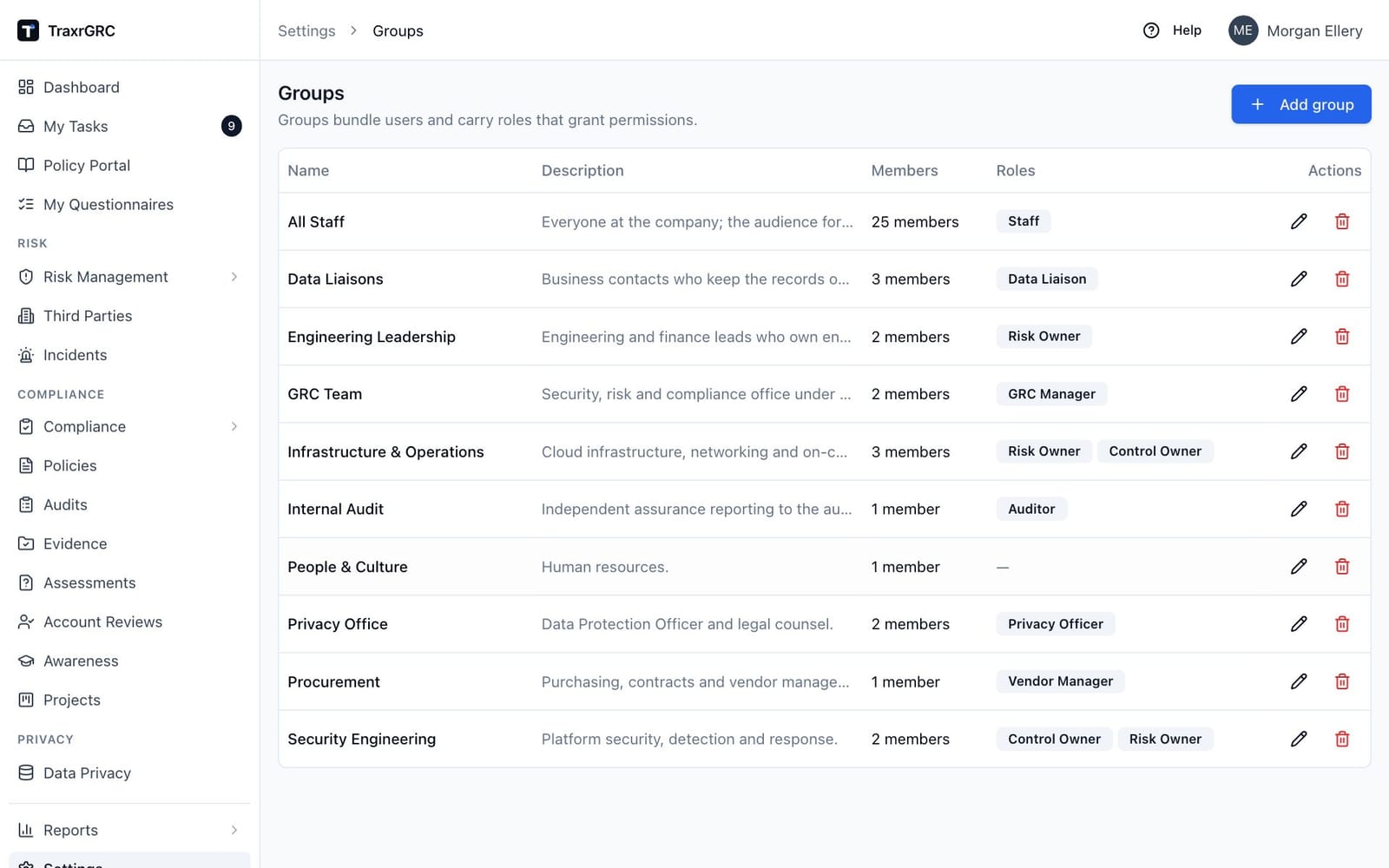
Settings → Groups lists each group's Name, Description, member count, Roles and actions. Only administrators can add, edit or delete groups.
4.3.1 What a group does
A group has two independent effects:
- Rights. Every member receives every role attached to the group. A user in several groups receives the union of all their groups' roles.
- Ownership. Most records carry an Owner group besides an Owner. A member of the owner group counts as an owner of the record wherever a role grants own.
Keep the two in mind when you design groups. A group that exists only to own records can carry no roles at all (the demonstration installation's "People & Culture" group is one), and a group that exists only to grant rights may never be chosen as an owner group.
4.3.2 Creating and editing a group
- Click Add group, or the pencil on a row.
- Enter a Name (unique, up to 120 characters) and an optional Description (up to 500).
- Tick the Members (listed as "Name (email)") and the Roles.
- Click Save.
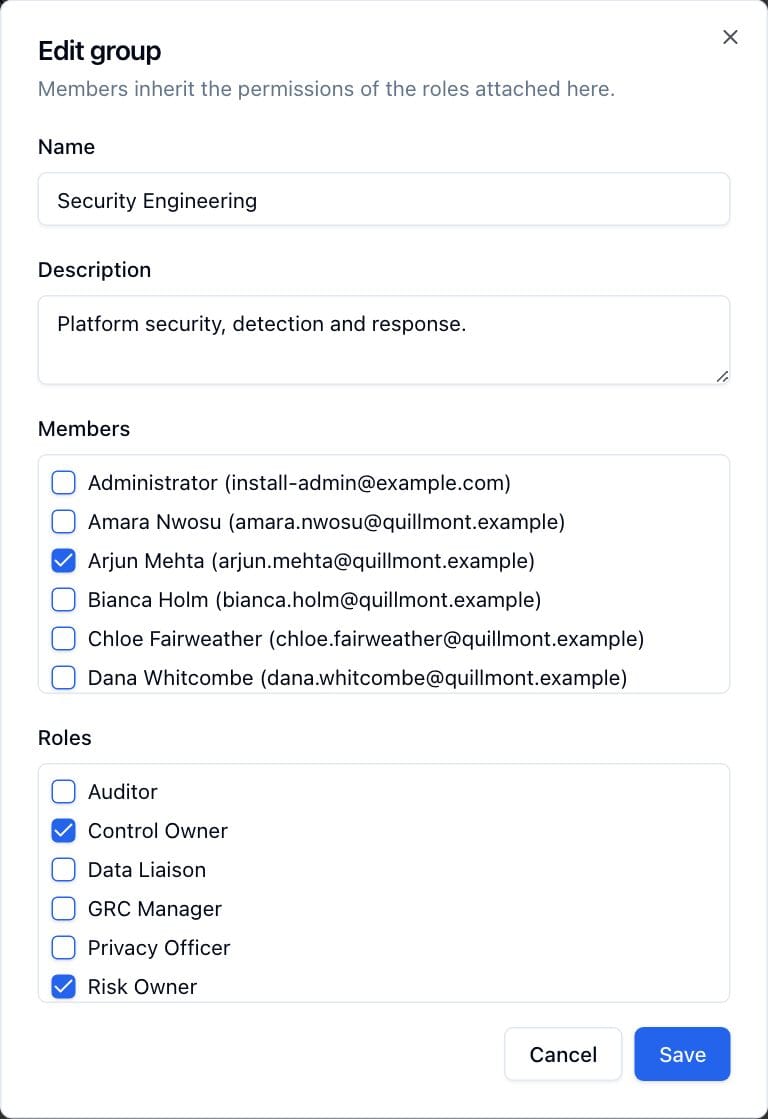
Every save writes a users update entry on the group with the member and
role ids before and after. Users added to or removed from a group have their
sessions ended within a minute so they sign in again with the new rights (your
own session is left alone). Changing only the roles attached to a group does
not end sessions; members' rights change at their next permission refresh,
within a minute.
4.3.3 SCIM-managed groups
Groups created by SCIM provisioning carry a SCIM badge. Their name and members come from the identity provider, so the edit dialog grays out Name and Members and you can change only the description and the roles. Membership of these groups also cannot be changed from Settings → Users. Attaching a role to a SCIM group delegates the decision of who holds that role to whoever manages the group in your identity provider.
4.3.4 Deleting a group
Click the trash icon and confirm Delete group. Members keep their accounts but lose the group's roles, and their sessions end within a minute. Records whose Owner group was this group keep their individual owner, if any; the owner group is cleared. Check what the group owns before you delete it, because people who reached those records through own lose access.
4.4 Roles
Settings → Roles lists each role's Name (with a System badge for the built-in roles), Description, a Permissions summary, the Groups it is attached to, and actions. Only administrators can add, edit or delete roles.
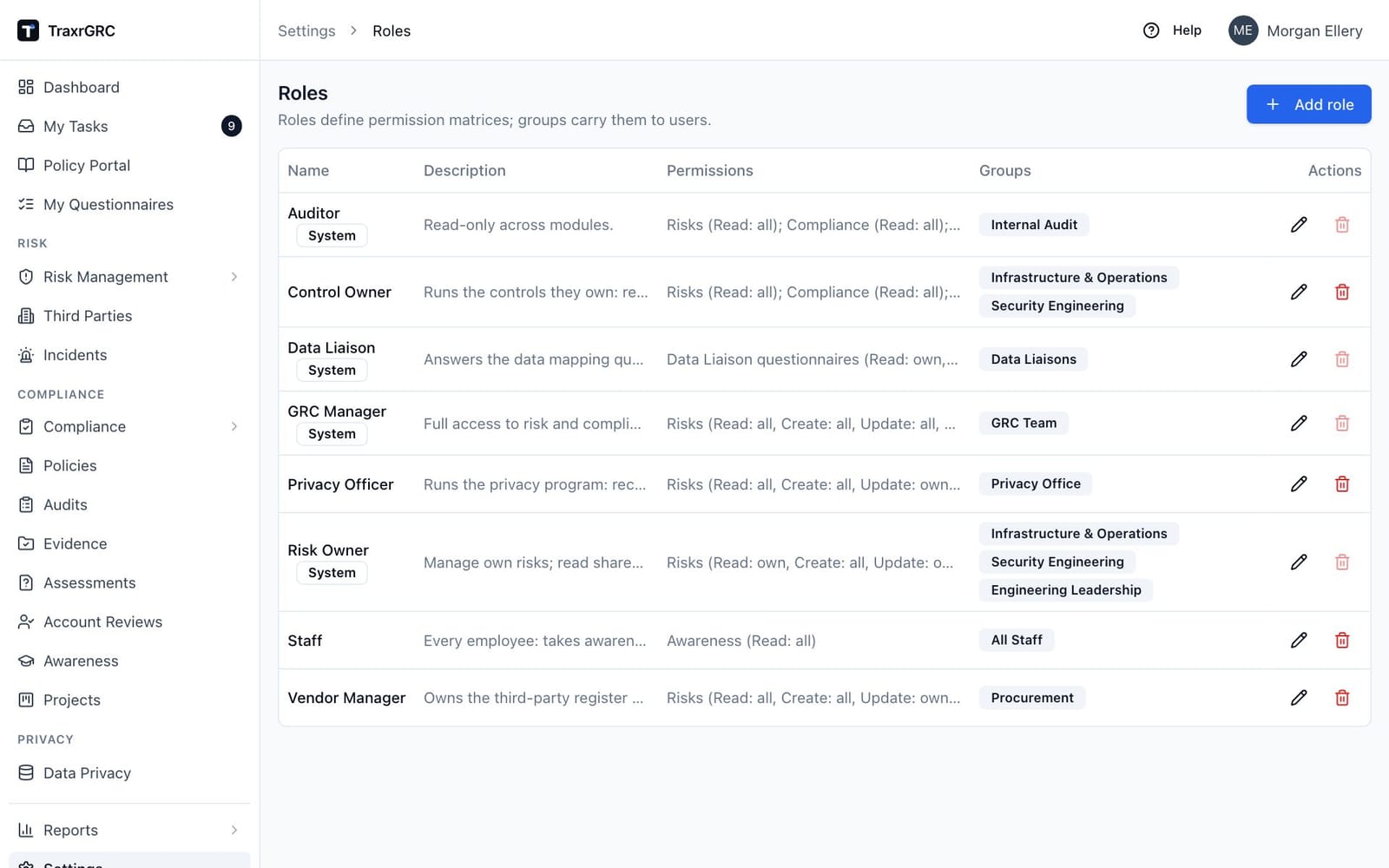
4.4.1 The permission model
A role grants an access level for each pair of module and right:
- Modules: the 23 areas listed in the permission reference at the end of this chapter.
- Rights: Read, Create, Update, Delete and Review. Review exists only on Risks, Compliance, Policies and Data privacy; every other row shows a dash in that column.
- Levels: None, Own or All. Anything not set is None.
The editor's description reads: "Choose the access level per module and right: none, own, or all. Own is offered only where records have an owner."
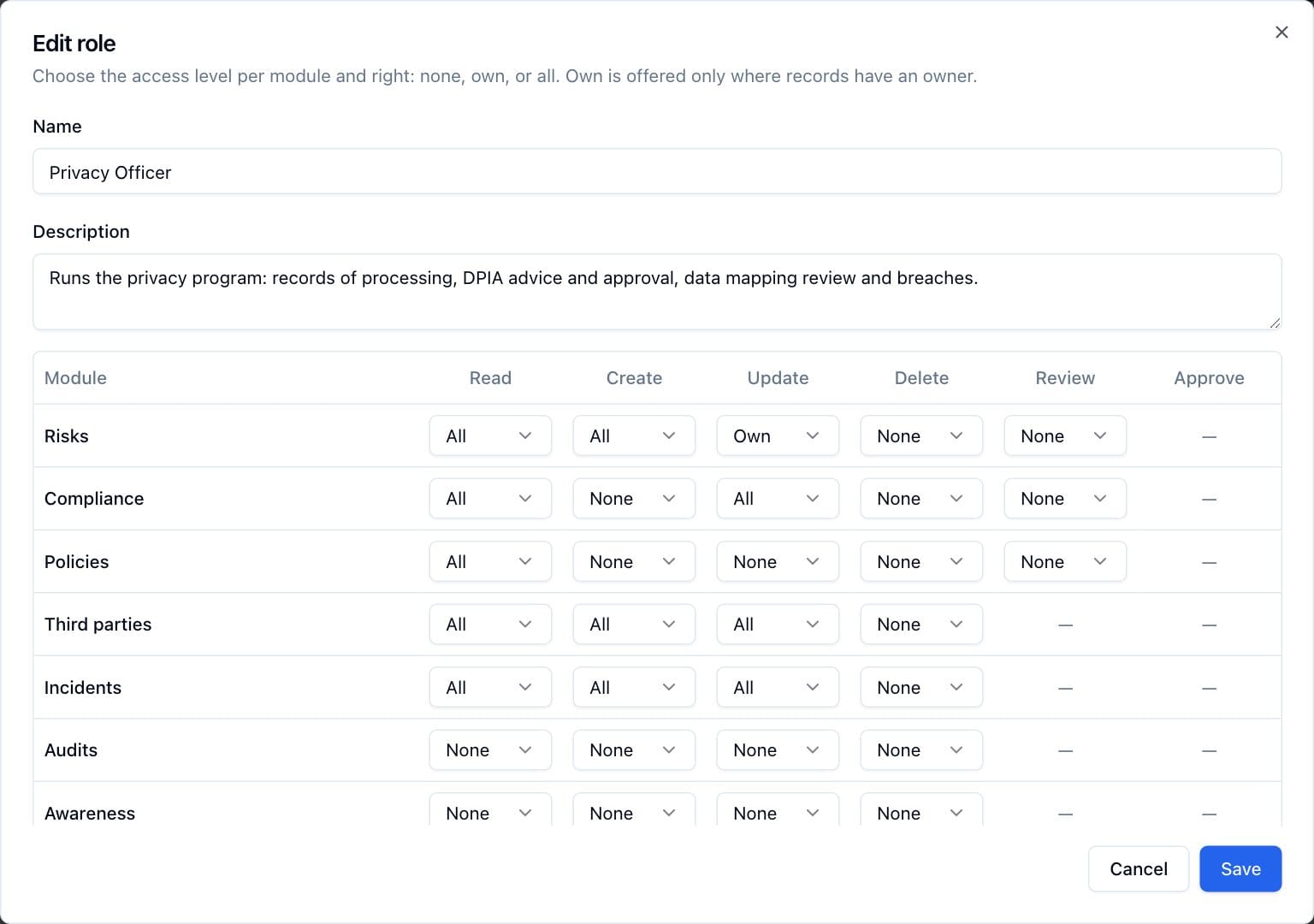
Each right is checked on its own. Update does not imply Read: a role with Update at Own and Read at None lets the holder change nothing, because they cannot open the record. Delete does not imply Update. Set Read on every module where you grant any other right.
4.4.2 How levels combine
When a user belongs to several groups, TraxrGRC merges every role on every group into one matrix, cell by cell, and the highest level wins: All over Own over None. Rights never subtract: no role can take away a right another role grants. To restrict someone, remove them from the group that carries the broader role.
Administrators skip the matrix entirely. Their account holds every right at All, including rights no role can grant, and the administrator-only actions in this guide check the administrator flag directly.
4.4.3 Exactly how Own is evaluated
At All, the right applies to every record in the module. At None, to none. At Own, the check depends on what is being done:
| Action | Rule at Own |
|---|---|
| Listing records | The list shows only records whose Owner is you or whose Owner group is one of your groups. Dashboard widgets and reports apply the same filter. |
| Opening, changing or deleting a record | Allowed when the record's owner is you, or its owner group is one of your groups. |
| Creating a record | Allowed. There is no record to own yet, so Create at Own behaves exactly like Create at All. |
| Working on a child record | Decided by the parent: treatments, reviews and exceptions of a risk use the risk's owner and owner group; a DPIA uses its record of processing. |
Some consequences worth knowing:
-
Create at Own does not force ownership. The person creating a record can name any owner and owner group. If they name someone else, and hold only Own on Read, they lose sight of the record as soon as it is saved. Train people to set themselves or their group as owner, or grant Read at All.
-
Update at Own lets a holder hand a record away. Changing the owner is an update, and the new owner is not checked against the editor's groups. After saving, the editor may no longer reach the record.
-
A record with no owner and no owner group is visible at Own to nobody. Only All-level holders and administrators see it. This is also where records land when their owner is deleted.
-
Some records have an owner but no owner group. For these, only the personal owner counts at Own:
Module Owner and owner group Owner only Risks Risks (and their treatments, reviews and exceptions) Controls Controls Assets Assets Business units Business units Compliance Compliance analyses Policies Policies Third parties Third parties Incidents Incidents Audits Audit plans; audit findings (each finding has its own owner) Projects Projects Awareness Awareness programs Data privacy Records of processing (and their DPIAs) Account reviews Account review programs Evidence Evidence records Assessments Assessment templates and requests -
Data Liaison questionnaires are the exception to ownership. Own on that module means "questionnaires assigned to me", decided by the questionnaire's Data Liaison, never by an owner field. Anyone else gets "not found".
-
Own is not offered on modules whose records have no owner: Custom fields, Reports, Dashboard, Settings, Users, Notifications, Audit log and API tokens. There it would mean the same as All. If an older role still holds Own on one of these modules, TraxrGRC treats it as None until you edit and save the role.
-
Shared configuration needs All. Some actions configure something nobody owns: managing shared dashboard widgets, defining custom fields and labels, changing risk scales and classifications, creating compliance packages, editing notification templates, managing data mapping questionnaire templates, and reading the audit log. These require the right at All (or an administrator) even on modules where Own exists.
4.4.4 The Review right
| Module | What Review allows |
|---|---|
| Risks | Completing risk reviews; deciding risk exceptions that have no designated approver |
| Compliance | Deciding compliance exceptions that have no designated approver |
| Policies | Deciding policy exceptions that have no designated approver; recording approvals made outside the application (when that setting is on, see Platform Settings); putting a policy on the Policy Portal or taking it off (together with Update) |
| Data privacy | Accepting, editing or rejecting Data Liaison answers (together with Update) |
Review follows the same level rules: Review at Own on Risks lets the holder complete reviews of risks they or their groups own.
4.4.5 The Approve right
The Approve column exists only on Data privacy. It is the Approve DPIAs right: approving or rejecting a DPIA, in the approver's own name, at Own on the DPIAs of records they or their groups own, or at All. The built-in GRC Manager role has it at All. When this right was introduced, every role (built-in or custom) holding Data privacy Review got Approve at the same level, and every API token scoped to Data privacy Review got the Approve scope, so nobody lost the ability to decide DPIAs; remove it from the roles that should not.
Approving is separate from being the Data Protection Officer. The DPO is one named user (Settings → Privacy) who gives advice before the decision and needs no Approve right to do so, only Read on the record. A DPO who also holds Approve can advise and then decide.
An exception with a designated approver is decided by that approver alone, who needs only Read on the parent record, or by an administrator. Review matters only for exceptions where nobody was designated.
4.4.6 The built-in roles
Four system roles are created on every installation (the bootstrap adds any that are missing at each start). They carry the System badge and cannot be deleted; they can be edited.
| Role | Description in the product | Purpose |
|---|---|---|
| GRC Manager | Full access to risk and compliance modules. | The GRC team: every right on every GRC module, Review on Risks, Compliance, Policies and Data privacy, Approve DPIAs, shared dashboard management, custom fields, scheduled reports, notification rules and templates, and reading the audit log. No Settings, Users or API tokens rights; the Settings page shows them the Custom Fields, Notifications and Audit Log cards. |
| Risk Owner | Manage own risks; read shared catalogs. | People accountable for risks: create risks, update and review the ones they own, read everything else, and log incidents, projects, privacy records and account reviews. |
| Auditor | Read-only across modules. | Internal or external auditors: Read at All on every GRC module, plus the audit log. |
| Data Liaison | Answers the data mapping questionnaires assigned to them. Grants nothing else; give a Data Liaison other roles as well where they need more. | Business contacts who keep records of processing current. |
The full matrices are in the permission reference at the end of this chapter.
Things to know before you edit a system role:
- Renaming is safe. The bootstrap finds system roles by a fixed internal key, so a renamed "GRC Manager" stays the built-in role and no second copy is created. If a custom role already carries the name of a built-in role that is missing, the bootstrap creates nothing and logs a warning.
- Upgrades may extend them. A migration in this release added Review on Compliance and Policies to "GRC Manager" where it still had Update at All on them. Custom roles are never changed by an upgrade; extend them yourself.
- Prefer a custom role when you need a variation. Copy the matrix into a new role with a clear name, and leave the system role as shipped.
4.4.7 Creating a custom role
- Click Add role.
- Enter a Name (unique, up to 120 characters) and a Description (up to 500) that says who should hold it.
- Set each cell of the matrix.
- Click Save.
- Open Settings → Groups and attach the role to the group or groups whose members should hold it. A role attached to no group grants nothing.
Every create, update and delete of a role writes a users audit entry with
the full matrix before and after. Deleting a role (trash icon, Delete
role) detaches it from its groups; members lose its rights at their next
permission refresh.
4.4.8 Worked example: auditor, read-only
An external audit firm needs to see the program for the audit window, and the audit log, without being able to change anything. The built-in Auditor role already does this. To scope it further, for example to exclude privacy data:
- Create a role "External Auditor" with Read at All on Risks, Compliance, Policies, Third parties, Incidents, Audits, Awareness, Projects, Account reviews, Assessments, Controls, Assets, Business units, Reports, Dashboard, Custom fields and Audit log. Leave Data privacy and every other right at None.
- Create a group "External Audit 2026" with the auditors as members and the new role attached.
- When the engagement ends, deactivate the accounts or remove them from the group.
Read on Audit log at All puts Settings in their sidebar with only the
Audit Log card, which opens /settings/audit-log. The Integrity and
Retention cards stay hidden:
verifying the chain and pruning are administrator actions. Read on Reports
lets them run and download reports; without Create, Update or Delete on
Reports they cannot schedule report emails.
4.4.9 Worked example: control owner
Engineers who run controls should record tests and maintenance on their own controls and see what depends on them, without editing risks or policies. The demonstration installation ships this as a custom role named "Control Owner":
| Module | Read | Create | Update | Delete |
|---|---|---|---|---|
| Controls | All | Own | Own | None |
| Risks | All | None | None | None |
| Compliance | All | None | None | None |
| Policies | All | None | None | None |
| Audits | All | None | Own | None |
| Projects | All | None | Own | None |
| Incidents | All | All | Own | None |
| Assets | All | None | None | None |
| Business units | All | None | None | None |
| Dashboard | All | None | None | None |
| Reports | All | None | None | None |
Design notes:
- Update at Own on Controls is what lets a holder record tests and maintenance on controls they own. Set each control's Owner to the engineer, or its Owner group to the team's group, for example "Security Engineering".
- Create at Own on Controls lets them add controls; remember that it behaves like All and does not force ownership.
- Read at All on Risks and Compliance lets them see which risks and requirements depend on their controls.
- Update at Own on Audits lets them work audit findings assigned to them.
Attach the role to the team's group, which should also be the owner group on the team's controls.
4.4.10 Worked example: delegating exception decisions
To let a department head decide risk exceptions for their area only:
- Make sure the area's risks have that department's group as Owner group.
- Create a role with Read at Own and Review at Own on Risks.
- Attach it to a group containing the department head.
Exceptions on risks owned by their department, requested without a designated approver, can then be decided by them; exceptions elsewhere cannot.
4.5 Separation of duties
Several decisions require a second person by default:
| Rule | Where |
|---|---|
| The person who requested a risk, compliance or policy exception cannot decide it | Exceptions on risks, compliance items and policies |
| The person who requested an in-app policy approval cannot approve it | Policy approvals |
| A Data Liaison cannot accept or reject their own questionnaire answers | Data mapping review |
| Nobody can name themselves as the approver of their own exception | Exception requests; always enforced |
An administrator can relax the first three for teams too small to have a second person decide.
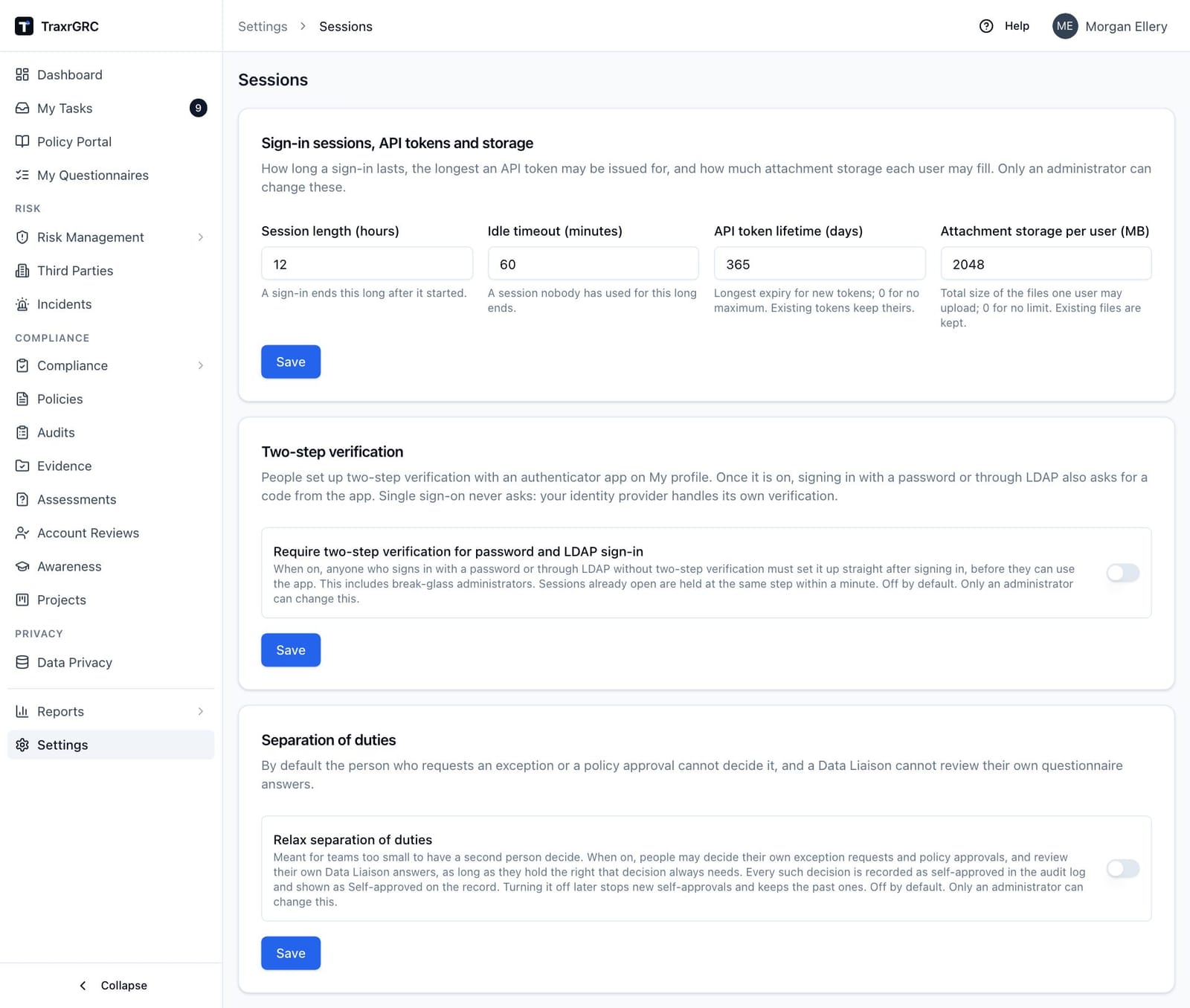
To relax them:
- Open Settings → Sessions (address
/settings/security). - In the Separation of duties card, turn on Relax separation of duties. A warning appears: "Auditors usually expect a second person on these decisions. Every administrator will be emailed about this change."
- Click Save in that card.
With the setting on, the requester may decide their own exception or
approval, and a Data Liaison who also holds Review and Update on Data privacy
may review their own answers. When the DPIA setting Require a second
person to approve DPIAs (Settings → Privacy) is on, relaxing also lets a
DPIA's author approve or reject it. In every case the person still
needs the right the decision always needs. Every decision that succeeded only
because of the setting is stored as self-approved, carries selfApproved: true in its audit entry, and shows a Self-approved badge on the record
(Self-decided for a rejection). Turning the setting off stops new
self-approvals; past ones keep their badge.
The setting never relaxes: naming yourself as an exception's approver, the content checks that bind an approval to the version approved, the DPIA lock during DPO review, outside policy approvals, the user administration limits in this chapter, the audit log protections, and API token scope limits.
Only administrators can change the setting. Saving writes an audit entry and, when the value changes, emails every administrator ("Separation of duties setting changed").
4.6 Staff and portal-only users
Every signed-in user can open the Policy Portal and My profile, whatever their roles. An account with no roles (or only roles that grant nothing relevant) is a portal-only account, the right setup for most employees:
- After sign-in they land on the Policy Portal, because they lack Dashboard read. (A Data Liaison without Dashboard read lands on My Questionnaires instead.)
- The sidebar shows only the entries their rights allow: Policy Portal always, and for example Awareness if a role grants Awareness read.
- They read published policies and acknowledge the ones they are asked to. Acknowledgement requests reach them through group membership, so put every employee in a group such as "All Staff".
- My profile lets them set their time zone and switch off notification rules and scheduled reports addressed to them.
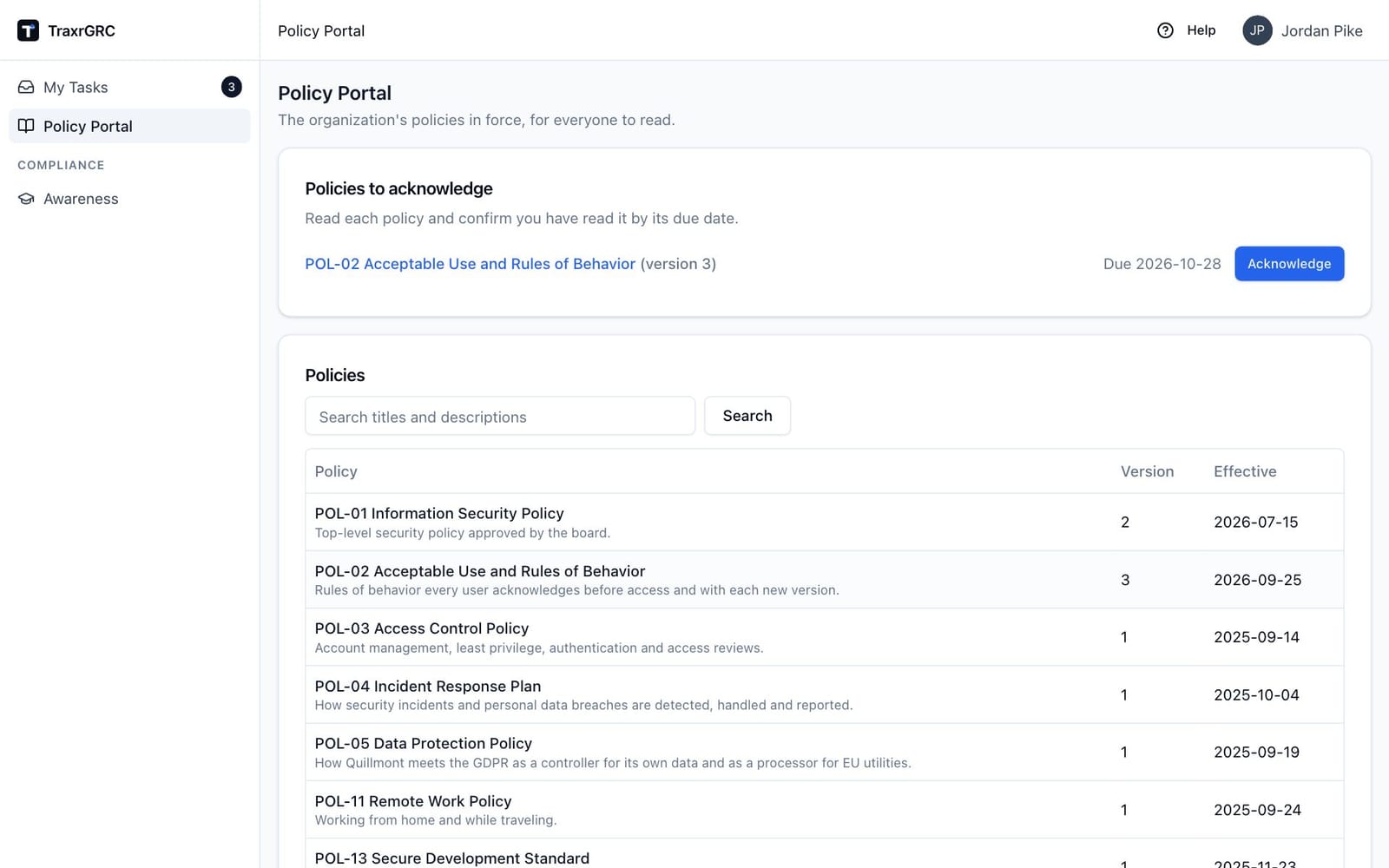
The demonstration installation gives its "All Staff" group a custom "Staff" role with only Read at All on Awareness, so employees can see the training programs; the portal itself needs no role.
4.7 Effect of changes on open sessions
TraxrGRC keeps each person's rights in their session and refreshes them from the database at most once a minute while they use the application. What happens to an open session depends on the change:
| Change | Effect on that user's open sessions |
|---|---|
| A role's matrix is edited | Sessions continue; the new rights apply within a minute |
| A role is attached to or removed from a group | Sessions continue; new rights within a minute |
| A role is deleted | Sessions continue; rights removed within a minute |
| The user is added to or removed from a group (from Users or from Groups) | Sessions end within a minute |
| A group the user belongs to is deleted | Sessions end within a minute |
| Administrator rights granted or removed | Sessions end within a minute |
| Account deactivated | Sessions end within a minute; API tokens stop at once |
| Password reset | Sessions end within a minute |
| Sign out everywhere | Sessions end within a minute |
| SSO-only turned on | Password and LDAP sessions end within a minute, except break-glass administrators |
| Session length changed | Applies to sessions started afterwards |
| Idle timeout changed | Applies to every session at its next refresh |
None of these apply to your own account when you edit it yourself: your session continues and picks up the change at its next refresh.
API tokens act with the rights of the user who created them, loaded at every request, so role and group changes take effect for tokens immediately. See API Access and Integrations.
4.8 Permission reference
This section is generated from the permission engine
(src/lib/permissions/index.ts) and the system role definitions
(prisma/reference-data.ts). Permission names in the code use the module key
shown in the first column, for example thirdParties:update.
4.8.1 Modules
| Module key | Label in the role editor | Own offered | Review offered | What Read opens |
|---|---|---|---|---|
risks | Risks | Yes | Yes | The risk register |
compliance | Compliance | Yes | Yes | Compliance analyses, packages and gaps |
policies | Policies | Yes | Yes | The policies list (the Policy Portal needs no right) |
thirdParties | Third parties | Yes | No | Third parties |
incidents | Incidents | Yes | No | Incidents |
audits | Audits | Yes | No | Audit plans and findings |
awareness | Awareness | Yes | No | Awareness programs |
projects | Projects | Yes | No | Projects |
dataPrivacy | Data privacy | Yes | Yes | Records of processing, DPIAs, transfers and the data map |
dataLiaison | Data Liaison questionnaires | Yes (by assignment) | No | My Questionnaires |
accountReviews | Account reviews | Yes | No | Account review programs |
assessments | Assessments | Yes | No | Online assessment templates and requests |
evidence | Evidence | Yes | No | Evidence records, their files and links |
customFields | Custom fields | No | No | The Custom Fields screen and values on records |
reports | Reports | No | No | The Report Center |
controls | Controls | Yes | No | Controls |
assets | Assets | Yes | No | Assets |
businessUnits | Business units | Yes | No | Business units |
dashboard | Dashboard | No | No | The Dashboard |
settings | Settings | No | No | The Settings page and its screens |
users | Users | No | No | The lists on Users, Groups and Roles (with settings:read) |
notifications | Notifications | No | No | The Notifications screen |
auditLog | Audit log | No | No | The Audit Log screen |
apiTokens | API tokens | No | No | The API Tokens screen |
4.8.2 Rights on configuration modules
On the record modules, Create, Update and Delete mean what they say on that module's records. On the configuration modules they mean:
| Module | Read | Create | Update | Delete |
|---|---|---|---|---|
| Custom fields | View definitions and values | Define fields (All) | Change definitions (All) | Delete definitions (All) |
| Reports | Run and download reports | Schedule report emails | Change schedules | Delete schedules |
| Dashboard | See the Dashboard and customize your own copy of it | (unused) | Add, move and remove shared widgets (All) | (unused) |
| Settings | Open Settings screens | Create labels and other shared catalog entries (All) | Change branding, risk scales and other shared configuration (All) | Delete shared configuration (All) |
| Users | List users, groups and roles | Add local users (without groups) | Rename, deactivate, reactivate, reset passwords, sign out (non-administrators, within your own rights) | Delete non-administrator users |
| Notifications | View the screen | (administrator only) | Change notification settings and templates (All) | (administrator only) |
| Audit log | Read the audit log (All) | (unused) | (unused) | (administrator only: pruning) |
| API tokens | List your own tokens; All lists everyone's | Create tokens | Revoke your own; All revokes anyone's | (unused) |
Integrations, Provisioning, the Sessions card, separation of duties, Policies and Privacy settings, AI assistants, Backups, audit log verification and pruning are administrator only, whatever a role grants.
4.8.3 Built-in role matrices
Levels per right: R Read, C Create, U Update, D Delete, V Review, A Approve. Cells not listed are None.
| Module | GRC Manager | Risk Owner | Auditor | Data Liaison |
|---|---|---|---|---|
| Risks | R C U D V all | R own; C all; U own; V own | R all | |
| Compliance | R C U D V all | R all | R all | |
| Policies | R C U D V all | R all | R all | |
| Third parties | R C U D all | R all | R all | |
| Incidents | R C U D all | R all; C all; U own | R all | |
| Audits | R C U D all | R all | R all | |
| Awareness | R C U D all | R all | R all | |
| Projects | R C U D all | R all; C all; U own | R all | |
| Data privacy | R C U D V A all | R all; C all; U own | R all | |
| Data Liaison questionnaires | R own; U own | |||
| Account reviews | R C U D all | R all; C all; U own | R all | |
| Assessments | R C U D all | R all | R all | |
| Evidence | R C U D all | R all; C all; U own | R all | |
| Custom fields | R C U D all | R all | R all | |
| Reports | R C U D all | R all | R all | |
| Controls | R C U D all | R all | R all | |
| Assets | R C U D all | R all | R all | |
| Business units | R C U D all | R all | R all | |
| Dashboard | R C U D all | R all | R all | |
| Settings | ||||
| Users | ||||
| Notifications | R U all | |||
| Audit log | R all | R all | ||
| API tokens |