2 Installation
This chapter installs one instance with Docker Compose. Installation takes about fifteen minutes, most of it the first image build.
2.1 Before you begin
You need:
- A server that meets the host requirements in Architecture and Requirements,
and an account on it that can run
docker. - The DNS name for the instance, already pointing at the server.
- The TraxrGRC release archive.
- If you use the bundled HTTPS proxy: ports 80 and 443 reachable from the internet (or from Let's Encrypt) and an email address for certificate notices.
- The address, port and credentials of an SMTP relay. Security alerts reach administrators only by email, so configure SMTP before go-live.
A release is the product's source tree: docker-compose.yml, the
Dockerfile, the deploy/ scripts and the application code. Compose builds
the application image from it on your server.
2.2 Unpack the release
-
Create the installation directory and unpack the release into it. This guide uses
/srv/grcthroughout.sudo mkdir -p /srv/grc sudo chown "$USER" /srv/grc tar -xzf grc-release-<version>.tar.gz -C /srv/grc cd /srv/grc -
Check that
docker-compose.yml,Dockerfileand thedeploy/directory are at the top of/srv/grc. Every command in this guide runs from that directory.
Keep the installation directory for this release only. Upgrades replace its
contents (see Upgrades), and a file you add there yourself stops the next
upgrade unless you list it in .deploy-keep.
2.3 Create the .env file
All instance configuration that is not made in the application lives in
.env next to docker-compose.yml.
-
Copy the example and restrict it to your account:
cp deploy/env.example .env chmod 600 .env -
Generate the three required secrets and paste each into
.env:openssl rand -base64 32 # AUTH_SECRET openssl rand -hex 32 # POSTGRES_PASSWORD openssl rand -hex 32 # APP_DB_PASSWORDUse hexadecimal for the two database passwords: they go into a database connection URL, where characters such as
/,@and+would break it. -
Fill in the remaining values:
Setting Value APP_URLThe public address users reach, with https://and no trailing slash, for examplehttps://grc.example.com.APP_NAMEThe product name shown until an administrator sets one under Settings → Branding. INITIAL_ADMIN_EMAILThe email address of the first administrator. INITIAL_ADMIN_PASSWORDIts password, 12 characters or more. DOMAINWith the bundled Caddy: the host name only, for example grc.example.com.ACME_EMAILWith the bundled Caddy: the address Let's Encrypt sends certificate notices to. -
Decide now whether to set
BACKUP_SIGNING_KEYandSETTINGS_ENCRYPTION_KEY(32 characters or more each, for example fromopenssl rand -base64 32). Both are optional. Setting them at installation lets you rotateAUTH_SECRETlater without losing in-app restore of older snapshots or the stored integration passwords. Adding them later has the same effect as changingAUTH_SECRET. See Configuration Reference. -
Store a copy of
.envin your organization's password vault.
The full list of settings, with defaults, is in Configuration Reference.
Compose reads .env only to fill in docker-compose.yml: a variable reaches
the containers only if docker-compose.yml passes it on, so adding other
variables to .env has no effect on the application.
2.4 Choose how HTTPS is provided
Pick one of the three options below before the first start.
2.4.1 Option 1: the bundled Caddy
The tls profile starts Caddy in front of web. Caddy obtains and renews a
certificate from Let's Encrypt for DOMAIN, redirects HTTP to HTTPS, sends the
HSTS header, compresses responses, and refuses request bodies larger than the
application accepts (32 MiB, and 2049 MiB on /api/backups/restore) before
they reach it. Caddy also replaces any X-Forwarded-For header a client sends
with the address it saw, so the default TRUSTED_PROXY_HOPS=1 is correct.
Requirements: DOMAIN and ACME_EMAIL set in .env, ports 80 and 443 free
on the host and reachable for the ACME challenge. Caddy refuses to start
without DOMAIN.
Start every command that brings the stack up with --profile tls.
2.4.2 Option 2: the bundled Caddy with your own certificate
If the server cannot be reached by Let's Encrypt (an internal network), keep
the bundled Caddy and give it a certificate you supply. Do not edit
deploy/Caddyfile: an upgrade replaces it. Instead:
-
Copy the shipped file to a top-level
Caddyfile.*name, which upgrades never touch:cp deploy/Caddyfile Caddyfile.local -
In
Caddyfile.local, add atlsline inside the site block that names your certificate and key as they will appear inside the container:{$DOMAIN} { tls /certs/fullchain.pem /certs/privkey.pem ... }For a server reached only on an internal network,
tls internalmakes Caddy issue its own certificate from a local authority instead; browsers then need Caddy's root certificate installed to trust it. -
Create
docker-compose.override.yml(also never touched by upgrades) to mount the file and the certificates:services: caddy: volumes: - ./Caddyfile.local:/etc/caddy/Caddyfile:ro - /etc/ssl/grc:/certs:ro -
Keep the request body limits and the
reverse_proxy web:3000line from the shipped file. Compare your copy withdeploy/Caddyfileafter each upgrade and carry over any change.
2.4.3 Option 3: your own reverse proxy
Leave out --profile tls and point your proxy at http://127.0.0.1:3000.
The proxy must:
- Pass the
Hostheader the browser sent (or setX-Forwarded-Host). The application compares it with the request'sOriginto refuse cross-site requests. - Overwrite
X-Forwarded-Forwith the client's address, or append to it. SetTRUSTED_PROXY_HOPSin.envto the number of proxies that append, for example2for a cloud load balancer in front of nginx. Sign-in throttling and the address recorded on every audit entry depend on this. - Cap request bodies at 32 MiB, and at 2049 MiB for
/api/backups/restore. - Allow at least five minutes for a response on
/api/backups/restoreand/api/backups/export; both work on the whole database. - Send
Strict-Transport-Securityor leave the application's own header in place.
An nginx example:
server {
    listen 443 ssl;
    server_name grc.example.com;
    ssl_certificate     /etc/ssl/grc/fullchain.pem;
    ssl_certificate_key /etc/ssl/grc/privkey.pem;

    client_max_body_size 32m;

    location = /api/backups/restore {
        client_max_body_size 2049m;
        proxy_read_timeout 300s;
        proxy_pass http://127.0.0.1:3000;
        proxy_set_header Host $host;
        proxy_set_header X-Forwarded-For $proxy_add_x_forwarded_for;
        proxy_set_header X-Forwarded-Proto $scheme;
    }

    location / {
        proxy_read_timeout 300s;
        proxy_pass http://127.0.0.1:3000;
        proxy_set_header Host $host;
        proxy_set_header X-Forwarded-For $proxy_add_x_forwarded_for;
        proxy_set_header X-Forwarded-Proto $scheme;
    }
}
If the proxy runs on another machine, set WEB_BIND in .env to the
server's private address (never 0.0.0.0 on a host with a public interface)
and firewall port 3000 so that only the proxy can reach it.
2.5 First start
-
Build the image and start the stack. With the bundled Caddy:
docker compose --profile tls up -d --buildBehind your own proxy, leave out
--profile tls:docker compose up -d --build -
Follow the
migrateservice until it exits:docker compose logs -f migrateOn a new installation the log ends with lines like these:
app-role: grc_app created; grants applied; pgboss owned by grc_app. [bootstrap] reference data added: <n> roles, <n> classifications, <n> templates, <n> data mapping questionnaires [bootstrap] shared dashboard: default layout created [bootstrap] created administrator [email protected]; remove INITIAL_ADMIN_PASSWORD now<n>stands for the counts, which depend on the release. Before them, Prisma lists the database migrations it applied. -
Check that every service is up and that
webreports healthy:docker compose psmigrateshows as exited with code 0;dbandwebshow(healthy);worker(andcaddy) show as running. -
Check the health endpoint:
curl -s http://127.0.0.1:3000/api/health
# {"status":"ok"}
curl -s https://grc.example.com/api/health
# {"status":"ok"}
If migrate stops with an error, web and worker stay down; see Monitoring
and Troubleshooting.
2.6 Bootstrapping the first administrator
The first administrator is created by the bootstrap step that migrate runs
on every start (prisma/bootstrap.ts, available in development as
npm run db:bootstrap). The bootstrap:
- Adds any missing reference data (default roles, classifications, email
templates and the default data mapping questionnaire). It never changes or
deletes existing data, so it is safe on every start, with one exception:
the shared dashboard. When a release ships a new default layout, the
bootstrap replaces the shared dashboard with it if nobody has changed it
since the last default was applied (personal dashboards are never touched;
their owners get a "New widgets available" note instead), writes an audit entry
(module dashboard, entity dashboardLayout), and logs
[bootstrap] shared dashboard: default layout updated. A dashboard someone has edited (a widget added, removed, moved or retitled) is left as it is, logged asedited by an administrator, default layout not applied. The layout last applied is recorded in thedashboard.appliedDefaultLayoutsetting, which travels with backups. - Encrypts any secret setting still stored in plain text.
- If the database has no users at all, creates an administrator from
INITIAL_ADMIN_EMAILandINITIAL_ADMIN_PASSWORD. The address is stored in lower case, the name is set toAdministrator, and the account is marked break-glass, so it keeps password sign-in if you later turn on SSO only.
When users already exist, the bootstrap logs
[bootstrap] users exist; initial administrator skipped and ignores both
variables. When no users exist and either variable is missing, or the
password is shorter than 12 characters, it fails with:
[bootstrap] No users exist. Set INITIAL_ADMIN_EMAIL and INITIAL_ADMIN_PASSWORD (at least 12 characters) to create the first administrator.
migrate then exits with an error and the application does not start. Set
both values and run docker compose up -d again.
The application never reads the password from anywhere except
INITIAL_ADMIN_PASSWORD. Some operators record the initial administrator's
password in a file named .initial-admin (mode 600) in the installation
directory; upgrades leave a file of that name alone, but the safer place is
your password vault.
2.7 First sign-in
- Open
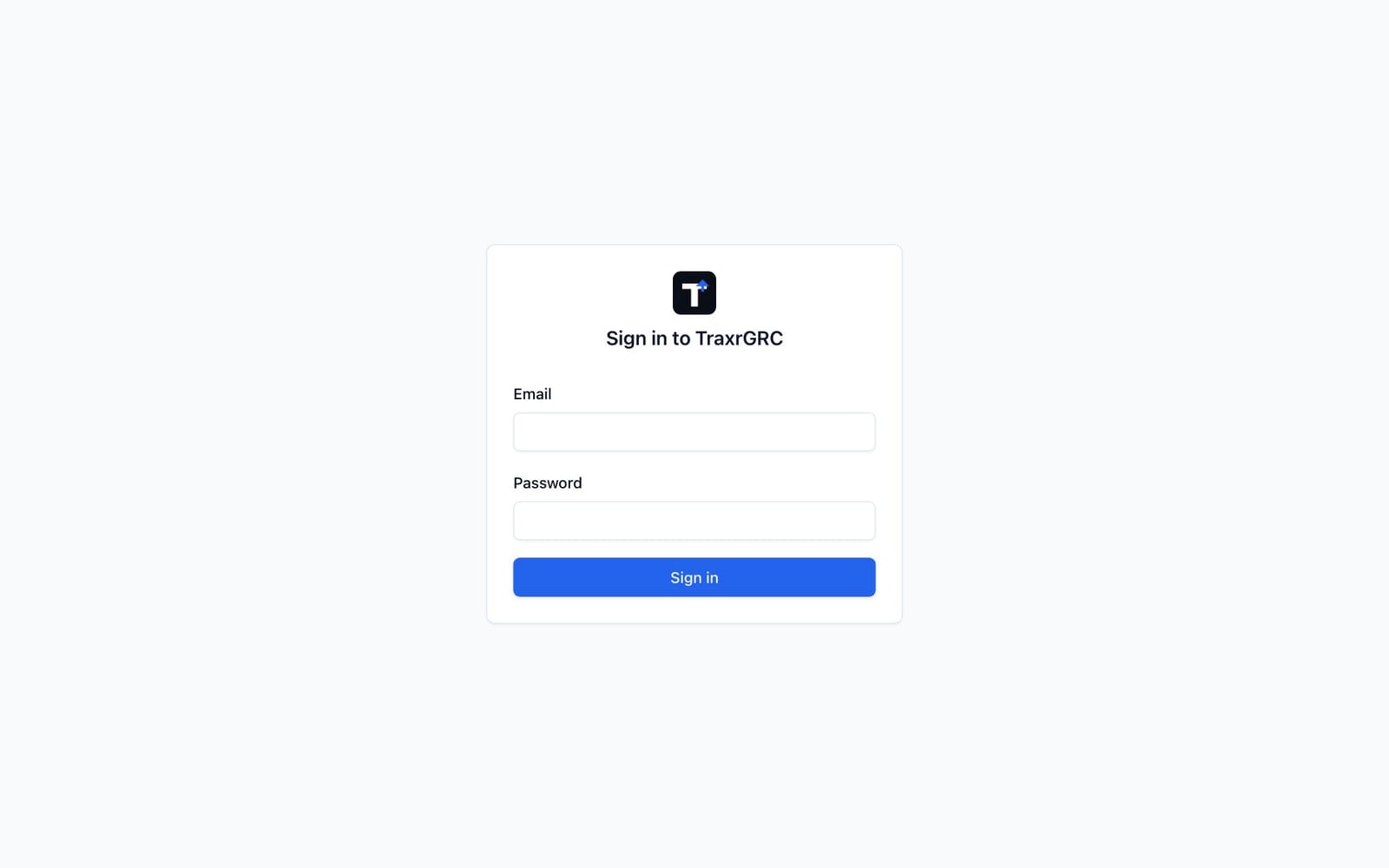
APP_URLin a browser. You are taken to the sign-in page. - Enter the initial administrator's Email and Password and click Sign in.
- Open the user menu, choose My profile, and set your Time zone.
- Change the initial password: in Settings → Users, open the Administrator account and set a new password (see Users, Groups and Roles). Store it in the vault.
Then remove the initial password from the server:
-
Delete the value of
INITIAL_ADMIN_PASSWORDin.env(leave the line asINITIAL_ADMIN_PASSWORD=). -
Recreate the exited
migratecontainer, which otherwise keeps the old value in its configuration:docker compose up -d --no-deps --force-recreate migrate -
Confirm the value is gone:
docker inspect "$(docker compose ps -aq migrate)" | grep INITIAL_ADMIN_PASSWORDThe command should print
"INITIAL_ADMIN_PASSWORD="with no value.
2.8 Post-installation checklist
Work through this list before you invite users. The chapters named in each row describe the screens.
| Step | Where | Chapter |
|---|---|---|
Initial password changed, removed from .env and from the migrate container. | Server, Settings → Users | This chapter |
A copy of .env stored in the password vault. | Vault | Installation |
| Product name, logo and color set. | Settings → Branding | Platform Settings |
| SMTP configured and Send test email received. | Settings → Integrations | Notifications and Email |
| Session length and idle timeout reviewed. | Settings → Sessions | Authentication and Single Sign-On |
| LDAP or SAML configured and tested, if used. | Settings → Integrations | Authentication and Single Sign-On |
| A second administrator created and marked break-glass, password in the vault. | Settings → Users | Users, Groups and Roles |
| SSO only turned on, if every user signs in through the identity provider. | Settings → Integrations | Authentication and Single Sign-On |
| Groups and roles set up for least privilege. | Settings → Groups, Settings → Roles | Users, Groups and Roles |
Nightly deploy/backup.sh scheduled, copied off the server, and one restore drill passed. | Server | Backup and Restore |
| Daily audit chain verification scheduled. | Server | Monitoring and Troubleshooting |
External monitoring of /api/health. | Monitoring system | Monitoring and Troubleshooting |
| Existing registers loaded, if any. | API | Loading and Importing Data |
2.9 Running several instances on one server
Each instance needs its own directory, .env, project name and volumes. In
each instance's .env, set:
COMPOSE_PROJECT_NAMEto a distinct name, so its volumes and containers do not collide with another instance's. The application image is named after it (grc-platform-<COMPOSE_PROJECT_NAME>:latest), so each instance builds, runs and rolls back its own image.WEB_PORTto a distinct port.
If you set APP_IMAGE yourself, give each instance a different value; two
instances sharing one image name would build over and roll back each other's
image.
Only one process can listen on ports 80 and 443, so at most one instance can
use the bundled Caddy's default configuration. Put one reverse proxy in
front of all instances, or give each instance's Caddy its own port in a
Caddyfile.* and docker-compose.override.yml.