2 Administration & Settings
Settings is where you run the platform itself: accounts and sign-in, permissions, the shared vocabulary your records use (labels and custom fields), email and single sign-on connections, provisioning, sessions, branding, AI assistant access, notification scheduling, the audit trail, API access and backups.
This chapter is for administrators. Most Settings screens check the settings module right (settings:read to open them, settings:create or settings:update to change them), and several changes are reserved for administrator accounts whatever a role grants. None of the built-in roles holds settings rights. A few screens check their own module instead, and the built-in roles do grant some of those, so a GRC Manager, Risk Owner or Auditor also sees the Settings entry in the sidebar, with only the cards for those screens:
| Screen | Right checked to open it | Built-in roles that hold it |
|---|---|---|
| Custom Fields | customFields:read (create, update and delete at all to change) | GRC Manager (all rights); Risk Owner and Auditor (read) |
| Notifications | notifications:read (notifications:update to change) | GRC Manager |
| Audit Log | auditLog:read | GRC Manager, Auditor |
| API Tokens | apiTokens:read (apiTokens:create to issue tokens) | None |
| Backups | Administrator account | None |
Administrators always pass every permission check, so the procedures below assume you are signed in as an administrator.
Almost everything you change here is recorded automatically: every create, update and delete writes an entry to the Audit Log (see Audit Log below), and saving integration, scheduler or template changes is likewise audited.
2.1 Finding the Settings screens
Click Settings at the bottom of the sidebar to open the Settings page ("Platform configuration and identity management"). It shows a card for each Settings screen you may open, grouped under Identity & Access, Governance & Customization, Integrations and System; click a card to open it. A group with no card you may open is hidden. The sidebar entry appears for anyone who can open at least one screen. An administrator sees every card:
| Card | What it covers |
|---|---|
| Users | Local accounts, administrators, group membership. |
| Groups | User groups that carry roles and own records. |
| Roles | Permission matrices assigned to groups. |
| Integrations | SMTP email delivery and LDAP / SAML single sign-on. |
| Provisioning | SCIM 2.0 provisioning from an identity provider such as Microsoft Entra ID. |
| Sessions | Session length, idle timeout, the longest API token lifetime and separation of duties. |
| Branding | Product name, logo and color for a white-labeled deployment. |
| Policies | Whether approvals made outside the app may be recorded. |
| Privacy | Controller, representative and DPO details for the Article 30 register. |
| AI assistants | Model Context Protocol access for Copilot, VS Code and Claude, with Entra ID sign-in. |
| Labels | Colored tags for grouping and filtering records. |
| Custom Fields | Extra fields on the forms of each module. |
| Notifications | Email notification rules and the templates they send. |
| Audit Log | Who changed what and when, with filters and CSV export. |
| API Tokens | Scoped tokens for the REST API. |
| Backups | Export and restore database snapshots, and the scheduled weekly backups. |
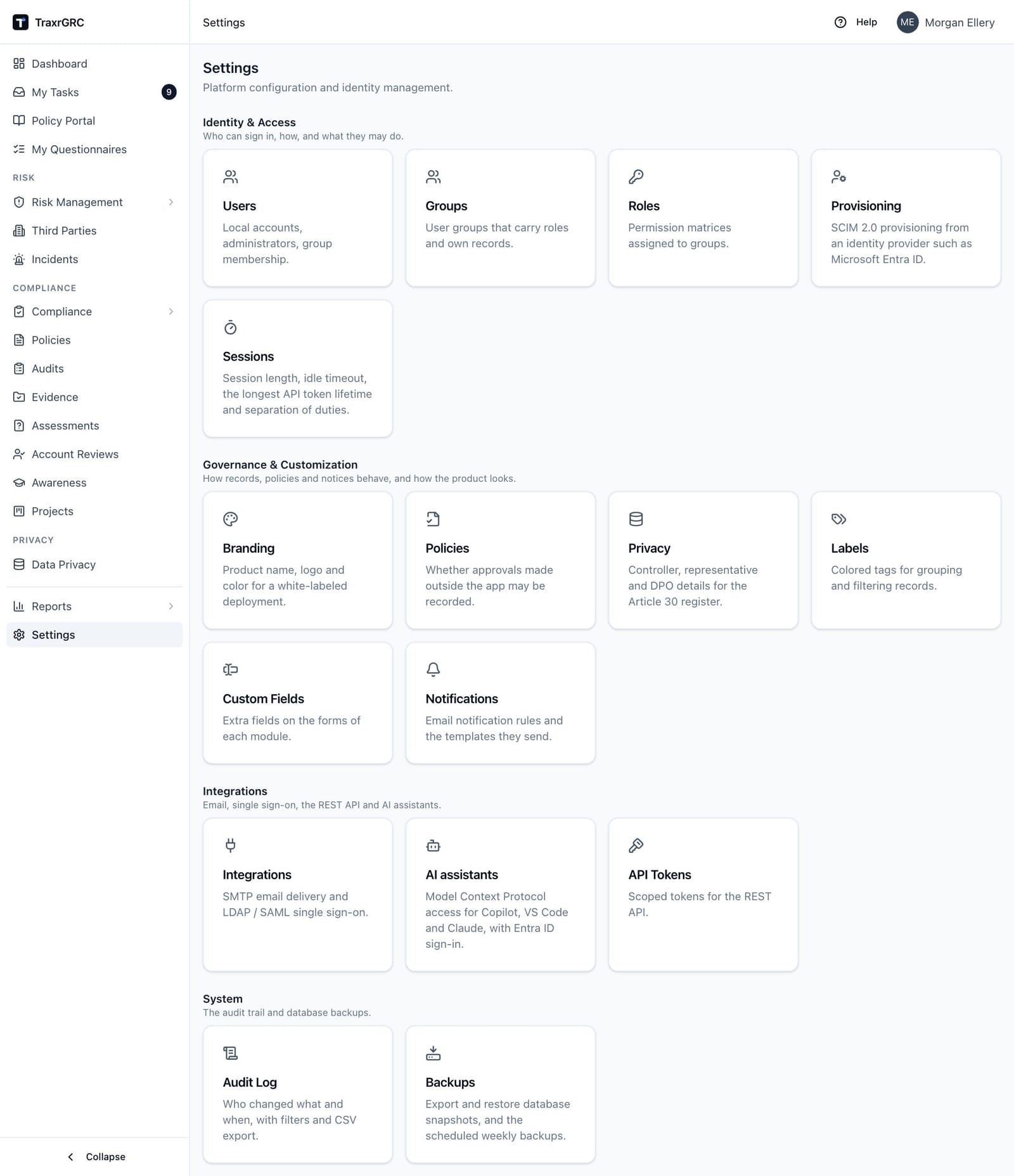
Each card appears only to people its screen admits. A GRC Manager, for example, sees Custom Fields, Notifications and Audit Log; an Auditor sees Custom Fields and Audit Log; and only administrators see Backups. Security alert emails link straight to the Audit Log.
2.2 Users
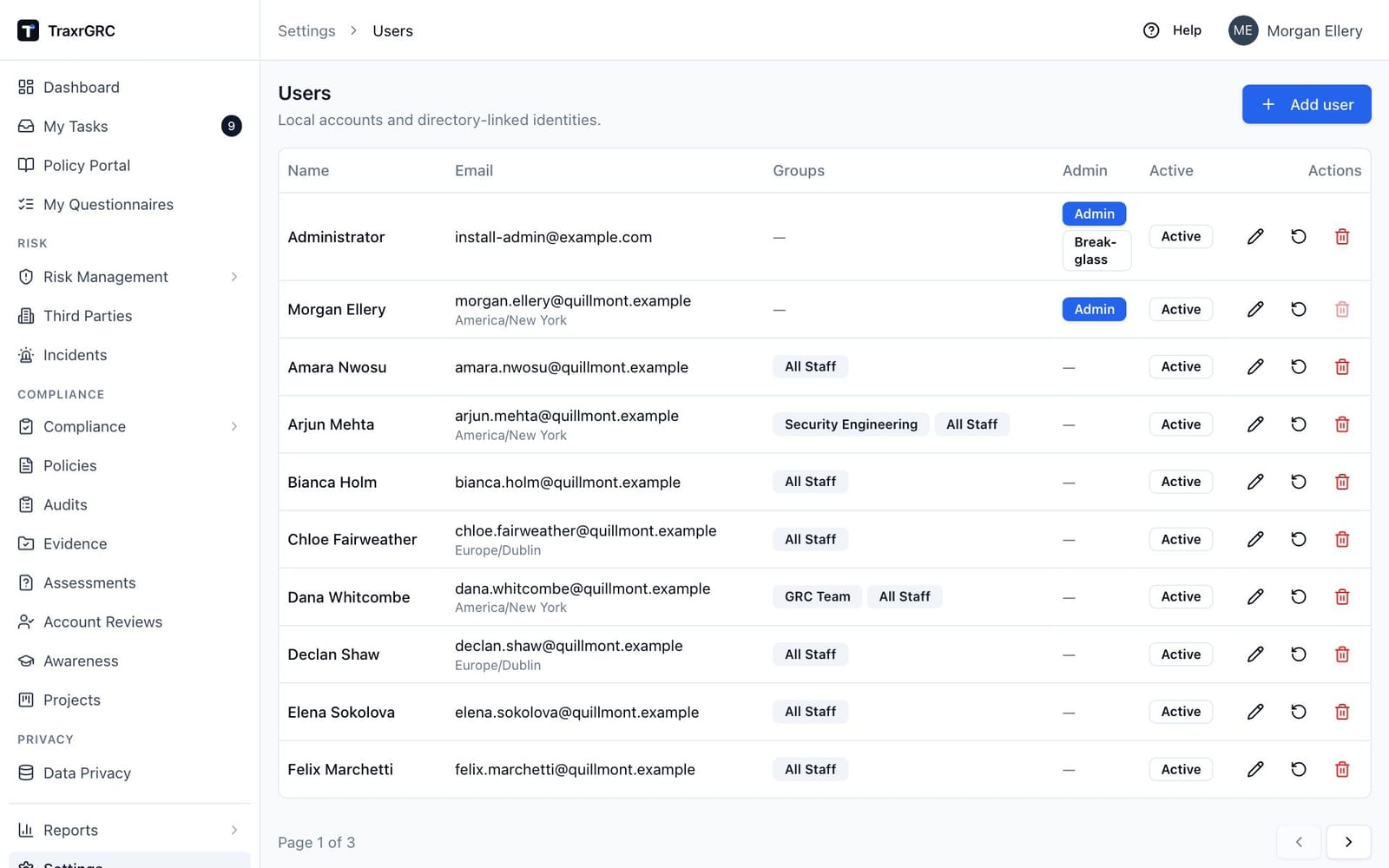
Settings → Users lists every account that can sign in: local accounts and directory-linked identities alike. The list is paginated (10 per page) and shows, for each user:
| Column | What it shows |
|---|---|
| Name | The display name, with a "SCIM" badge for accounts provisioned by SCIM. |
| The sign-in address, with the user's time zone under it ("(directory)" when it comes from the directory or identity provider). | |
| Groups | The user's groups, as badges. |
| Admin | A solid "Admin" badge (plus "Break-glass" for break-glass administrators), or a dash. |
| Active | An outlined "Active" badge, or a red "Inactive" badge, plus an "MFA" badge when the user has two-step verification on. |
| Actions | Edit (pencil), Reset password (rotate) and Delete (trash). |
To create an account:
-
Click Add user. The dialog explains: "Create a local account. The user signs in with email and password."
-
Complete the dialog:
Field What it means Email Sign-in address. Must be unique; it cannot be changed afterward. Name The display name shown across TraxrGRC. Password Initial password for a local account: at least 8 characters, with at least one letter and one digit. Administrator Grants full access to every module and setting; bypasses all permission checks. Break-glass (emergency password sign-in) Appears once Administrator is on. When SSO-only sign-in is on, only break-glass administrators may sign in with a password, for use when the identity provider is unavailable. The account needs a password (use Reset password if it was created by SSO). Shown as a "Break-glass" badge in the list. Groups Tick the groups the user belongs to. Group membership is how permissions and record ownership reach the user. -
Click Save. The user can sign in immediately with email and password. An audit entry is written.
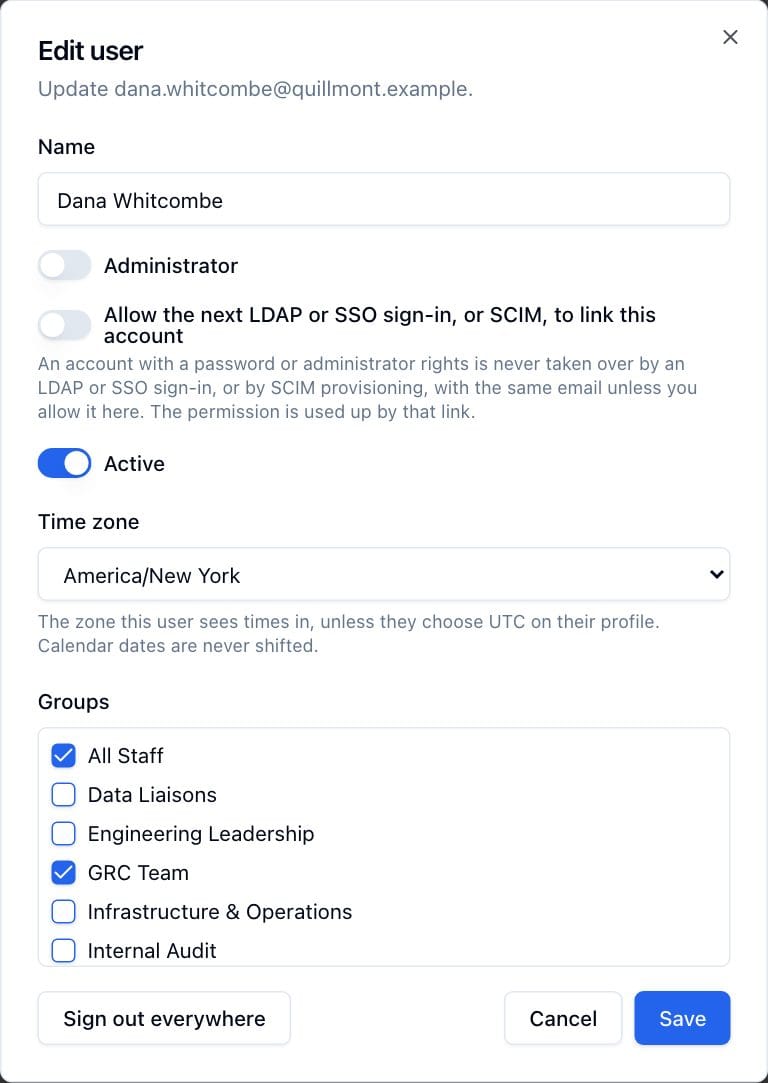
To manage an existing user, click the pencil icon on their row. The Edit user dialog opens:
- Name, Administrator and Active can be changed, and Groups re-ticked.
- The Active switch only appears when editing. Turning it off deactivates the account: the user can no longer sign in.
- The email address is shown in the dialog header for reference but is not editable.
- Allow the next LDAP or SSO sign-in, or SCIM, to link this account appears for accounts with a password or administrator rights. LDAP, SSO and SCIM provisioning never take such an account over by email on their own; turning this on (administrators only) lets the next directory or SSO sign-in, or SCIM request, with that email link to it, after which the switch turns itself off. The help text shows whether the account is already linked to LDAP, SSO or SCIM provisioning.
- Time zone sets the zone the user sees times in ("Not set (times in UTC)" until chosen). It is grayed out when the user's directory or identity provider supplies the zone. Setting it for an administrator's account needs an administrator. The user can still choose to see UTC on their profile. See "Times and time zones" in Getting Started.
- Sign out everywhere (in the edit dialog, for other users) ends all of that user's sessions within a minute. Signing out an administrator needs an administrator.
- Turning the account off, changing its administrator rights or changing its groups ends that user's open sessions within a minute (not when you edit your own account). Adding or removing members of a group in Settings → Groups does the same for those members.
- Reactivating an account whose role rights go beyond your own needs an administrator, as does a password reset of such an account.
- Reset two-step verification (in the edit dialog, for other users with
two-step verification on) is for a lost device or used-up recovery codes.
Confirm with Reset in the dialog that follows: the user's authenticator
app and recovery codes stop working, their sessions are signed out, they are
emailed (template
user.mfa.reset) and every administrator is alerted. They set it up again from My profile, or at their next sign-in when your administrator requires it. It needs the same rights as a password reset. Nobody can reset their own; another administrator must do it.
To set a new password, click the rotate (reset) icon, enter the New
password in the Reset password dialog (the same rules as above) and click
Save. The user's open sessions end within a minute and they receive an
email (template user.password.reset) saying who reset it and when.
To remove an account, click the trash icon and confirm in the Delete user dialog. Deleting a user keeps the records they owned, but those records become unassigned.
Two protections keep you from locking yourself out:
- You cannot deactivate or demote your own account, and you cannot delete your own account (the delete button is disabled on your own row, and the switches are disabled when you edit yourself).
- TraxrGRC always requires at least one active administrator: if your change would leave the organization with zero active admins, it is rejected with "At least one active administrator account is required."
2.3 Groups
Settings → Groups bundles users together and attaches roles to them; members inherit the permissions of the roles on their groups (see Roles below). The list shows each group's Name, Description, Members (a count), Roles (as badges) and actions.
To create or edit a group, click Add group or the pencil icon, complete the fields and click Save:
| Field | What it means |
|---|---|
| Name | The group name (must be unique). |
| Description | Optional free-text purpose, e.g. "Governance, risk and compliance function." |
| Members | Tick every user who belongs to the group. Users are listed as "Name (email)". |
| Roles | Tick the roles this group carries. Every member inherits the union of these roles' permissions. |
The dialog reminds you of the rule: members inherit the permissions of the roles attached here. Group membership also matters for "own"-level access: records owned by a user's groups count as theirs.
Groups created by SCIM provisioning carry a "SCIM" badge: their name and members come from the identity provider, so in the edit dialog the name and member list are grayed out and only the description and roles can be changed. Likewise their membership cannot be ticked or unticked from Settings → Users.
To delete a group, click the trash icon and confirm in the Delete group dialog. Members keep their accounts but lose this group's roles; records are unaffected.
2.4 Roles
Settings → Roles defines permission matrices. A role is a table of access levels, one cell per module and right, and groups carry roles to their members. The list shows each role's Name (with a "System" badge for the built-in ones), Description, a Permissions summary (e.g. "Risks (Read: all, Create: all…)" or "No permissions"), the Groups it is attached to, and actions.
TraxrGRC ships with four system roles:
| Role | What it grants |
|---|---|
| GRC Manager | Full access to the GRC modules, including Review on Risks, Compliance, Policies and Data privacy, the Dashboard, Custom fields, Reports, Notifications and read access to the Audit log. |
| Risk Owner | Manage own risks; read shared catalogs. |
| Auditor | Read-only across modules, including the Audit log. |
| Data Liaison | Answers the data mapping questionnaires assigned to them, and nothing else (see Data mapping questionnaires). Give a Data Liaison other roles as well where they need more. |
System roles cannot be deleted; the delete button is disabled for them. They can be renamed: TraxrGRC recognizes its built-in roles by a fixed internal key, so a renamed role stays the built-in one.
To create or edit a role:
-
Click Add role or the pencil icon.
-
Enter a Name and optional Description.
-
Set the permission matrix. Rows are the 23 modules: Risks, Compliance, Policies, Third parties, Incidents, Audits, Awareness, Projects, Data privacy, Data Liaison questionnaires, Account reviews, Assessments, Custom fields, Reports, Controls, Assets, Business units, Dashboard, Settings, Users, Notifications, Audit log and API tokens. Columns are the rights Read, Create, Update, Delete and Review.
-
Set each cell's level from its dropdown:
Level What it means None No access to that module/right. Own Only records owned by the user or by one of their groups appear in lists and can be opened or changed. For Data Liaison questionnaires, the questionnaires assigned to the user. All Every record of that module. Own is not offered on modules whose records have no owner (Custom fields, Reports, Dashboard, Settings, Users, Notifications, Audit log and API tokens), since there it would mean the same as All. Set at least one cell away from "None": a role with an empty matrix grants nothing. The matrix scrolls inside the dialog; Save stays in view at the bottom.
-
Click Save.
The Review column applies to Risks (completing risk reviews and deciding risk exceptions with no designated approver), Compliance and Policies (deciding their exceptions with no designated approver; on Policies also recording outside approvals) and Data privacy (the decision on Data Liaison answers); every other row shows a dash in that column. The built-in GRC Manager role has Review on all four; an upgrade adds Compliance and Policies review to it where it still has update at "all" on them. Add Review to any custom role whose holders should decide exceptions, and Data privacy review to the role of the people who review Data Liaison answers.
The Approve column applies only to Data privacy: it is the Approve DPIAs right, to approve or reject a DPIA. Every role that held Data privacy review before this right existed was given it at the same level, so nobody lost the ability to decide DPIAs on upgrade; remove it from roles that should not. Approving is separate from being the DPO, who is named in Settings → Privacy.
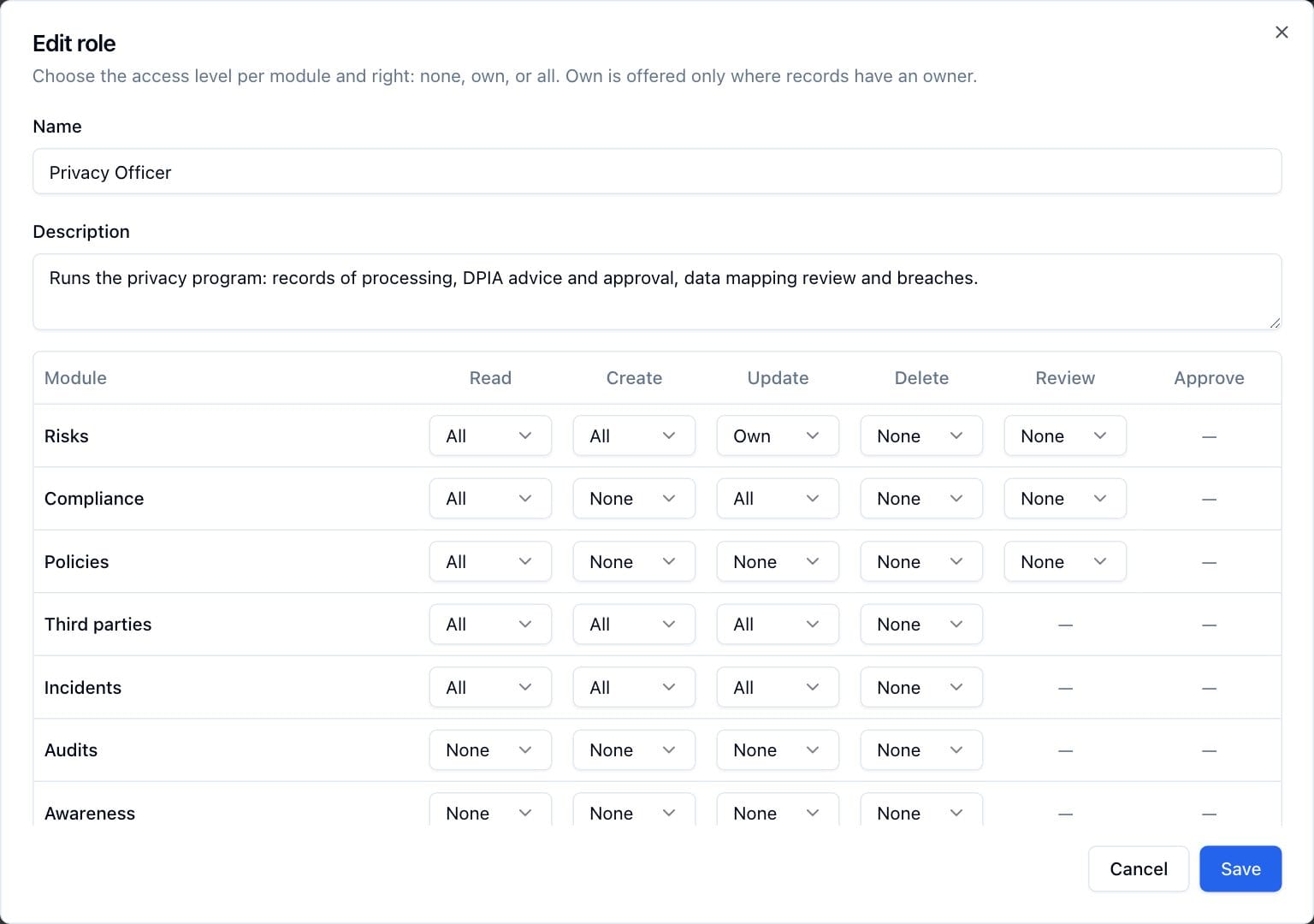
When a user belongs to several groups, their effective permissions are the union of all their roles' matrices, with "all" winning over "own", which wins over "none". Administrators bypass the matrix entirely.
Deleting a role (click the trash icon, then confirm in the Delete role dialog) detaches it from its groups; members lose the granted permissions. Groups themselves are kept.
2.5 Labels
Settings → Labels (address /settings/labels) manages the shared tag
vocabulary. In the application, labels are attached and detached with the
Labels picker on the record pages of risks, controls, third parties,
incidents, policies and projects, and in the Labels column of the asset
list and of an audit plan's findings (see Labels in Getting Started). You
need update rights on the record in its own module; without them the labels
are read-only. The screen shows a count of labels and a table with Name (colored dot plus
name), Color (hex value), Assignments (how many records carry it),
Created (date) and actions. Viewing needs settings:read; creating, editing
and deleting need settings:create, settings:update and settings:delete
respectively, each at all.
To create a label:
- Click Create label.
- Enter a Name. Names are lowercase slugs of letters, digits and single
dashes, e.g.
critical-vendor; duplicates are rejected. - Pick a Color: either one of the ten preset swatches or any custom hex
color typed into the field below (for example
#0ea5e9). The button stays disabled until the name is filled in and the hex is valid. - Click Create label.
To rename or recolor a label, click its pencil icon. To remove one, click the trash icon and confirm in the Delete label? dialog: the label is unassigned from every record it was on. This cannot be undone.
2.6 Custom Fields
Settings → Custom Fields (address /settings/custom-fields) extends GRC
Platform with your own attributes. Fields are defined per entity type and then
appear on every record of that type, where people fill in their values (see
below). The screen is organized into tabs, one per entity: Risks,
Controls, Policies, Third parties, Incidents, Audit plans,
Projects, Awareness programs, Records of processing, Account
review programs, Compliance analyses and Assessment requests.
Each tab lists that entity's fields with columns Name, Type, Required, Options (for select fields), Sort, Active and actions. Fields are ordered by their sort value. Opening the screen needs customFields:read; creating, changing and deleting fields need the matching customFields right at the all level.
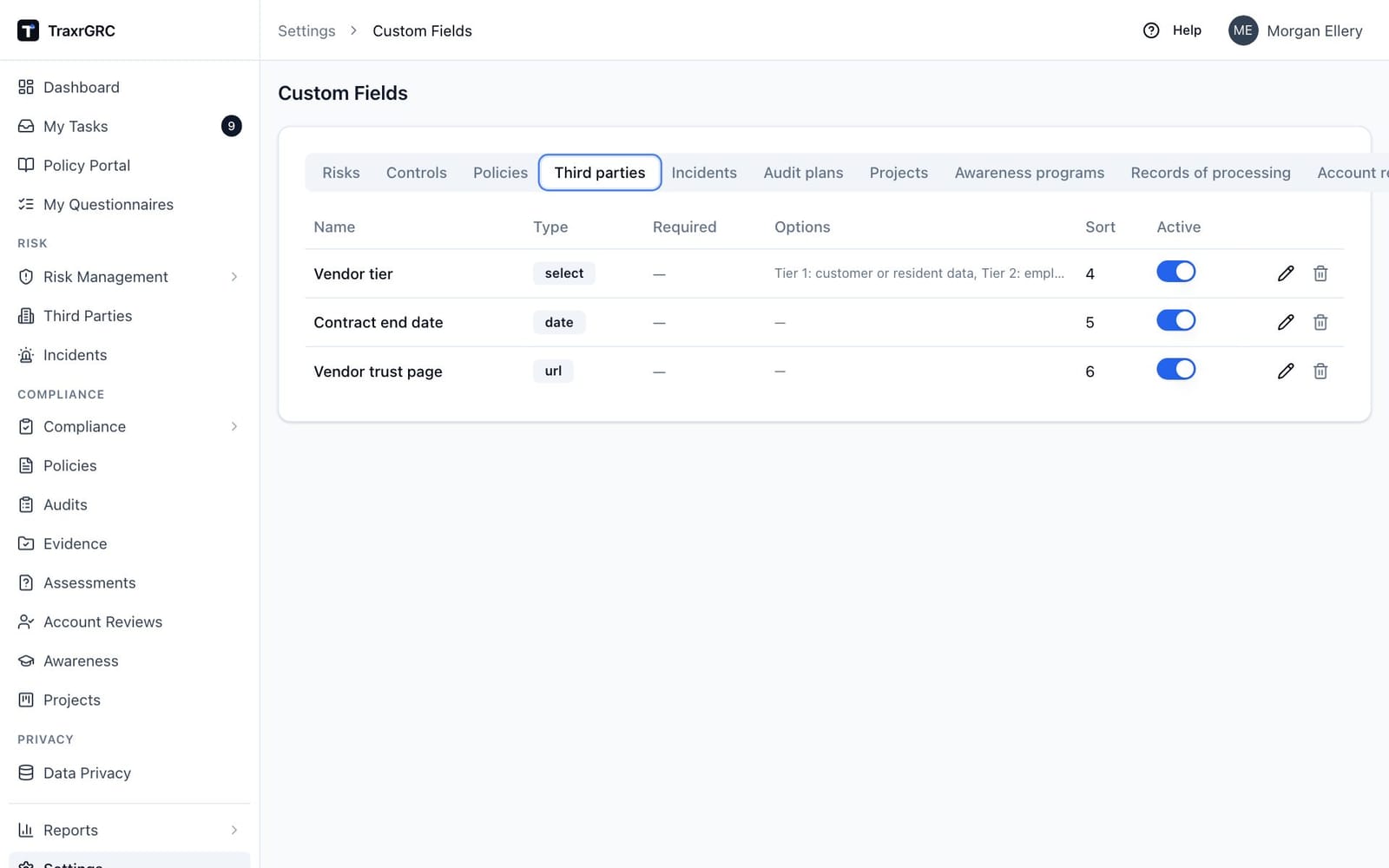
To create a field:
-
Open the tab for the entity type and click Create field.
-
Complete the Create custom field dialog:
Field What it means Name The field label shown on records, e.g. "Mitigation notes". Names must be unique per entity. Type One of: Text, Textarea, Number, Date, Select, Multi-select, Checkbox or URL. Sort order A number controlling where the field appears; lower values first. New fields default to the end of the list. Options Shown only for Select and Multi-select. Use Add option to build the list and the × button to remove one. Options must be unique and at least one is required. Required When ticked, records must have a value for this field before they can be saved. -
Click Create field.
In the table, the Active switch turns a field off without deleting it (inactive fields no longer appear on records); the pencil icon edits the definition (save with Save changes); the trash icon deletes the field. Deleting also destroys every value already stored against it: the Delete custom field? confirmation warns about this, and it cannot be undone.
Where values are filled in: open any record page (a risk, policy, audit plan, record of processing and so on) and switch to its Custom Fields tab. The card lists each active field (required fields are marked with a red asterisk); click Edit to open the value dialog, save, and the values are stored with the record. Whoever edits values needs update rights on that record's module.
2.7 Integrations
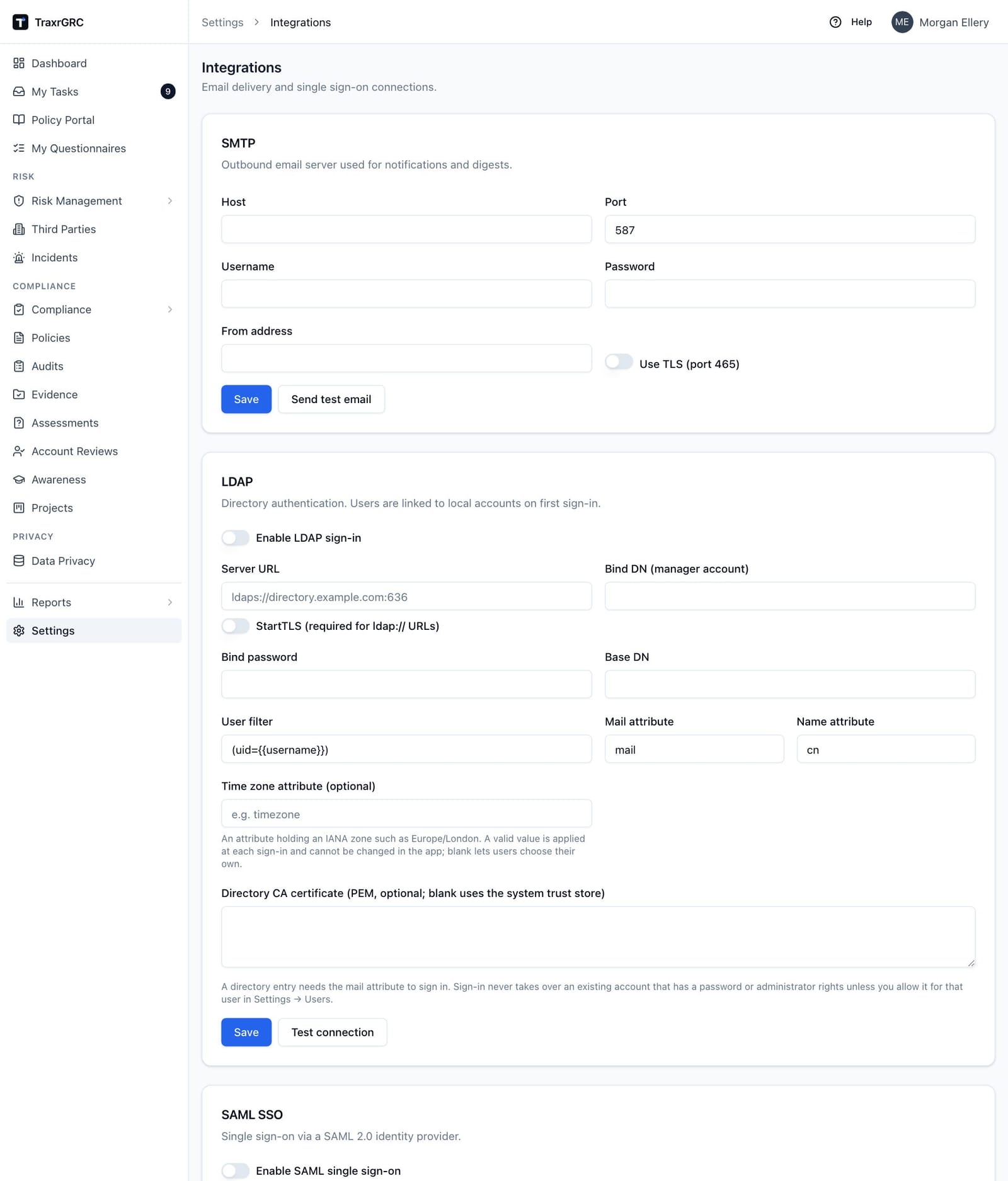
Settings → Integrations connects TraxrGRC to your mail server and identity providers. It holds three cards: SMTP, LDAP and SAML SSO, each with its own Save button. Saving on any card writes an audit entry and sends every administrator a security alert. The SMTP password, LDAP bind password and SAML private key are stored encrypted and never sent back to the browser: a stored one shows "Stored. Type to replace." and is kept unless you type a new value.
2.7.1 SMTP
The outbound email server used for notifications and digests (see Notifications below). Fields:
| Field | What it means |
|---|---|
| Host | SMTP server hostname. |
| Port | SMTP server port (587 by default). |
| Username | Account used to authenticate, if your server requires it. |
| Password | Password for that account. |
| From address | The sender address on outgoing TraxrGRC mail. |
| Use TLS (port 465) | Toggle for an implicit-TLS connection. |
With a username set and Use TLS off, the server must offer STARTTLS: GRC Platform refuses to send the password over an unencrypted connection, the same rule LDAP follows. A relay without TLS that takes a password fails with an error (Send test email shows it); use port 465 with Use TLS, enable STARTTLS on the relay, or use an unauthenticated relay, which sends no password and is unaffected.
To configure and check the mail server:
- Fill in the fields and click Save.
- Click Send test email. TraxrGRC sends a test message, with the product name and "SMTP test" in its subject, to your own address.
- Read the toast: "Test email sent to your address." on success, or "Test email failed:" with the reason. This is the fastest way to verify a new configuration before notifications depend on it.
2.7.2 LDAP
Directory authentication: with LDAP enabled, users sign in with their directory credentials. A first sign-in creates an account, or links to an existing one with that email when it has no password, administrator rights or break-glass status (or an administrator has allowed the link in Settings → Users).
| Field | What it means |
|---|---|
| Enable LDAP sign-in | Master switch. When on, a failed local password check falls back to the directory. |
| Server URL | The directory address: ldaps://directory.example.com:636, or ldap://directory.example.com:389 with StartTLS on. Plain ldap:// without StartTLS is refused, so passwords never cross the network in clear text. |
| StartTLS (required for ldap:// URLs) | Upgrades an ldap:// connection to TLS before binding. |
| Bind DN (manager account) | The service account TraxrGRC binds with. |
| Bind password | Password for the bind account. |
| Base DN | Where in the directory user search starts. |
| User filter | The search filter used to find the signing-in user; must contain {{username}}, e.g. (uid={{username}}). |
| Mail attribute | Directory attribute mapped to the TraxrGRC email (defaults to mail). An entry without it cannot sign in. |
| Name attribute | Directory attribute mapped to the display name (defaults to cn). |
| Time zone attribute (optional) | Directory attribute holding the user's IANA time zone, for example Europe/London. Blank (the default) reads none and users choose their own. A valid value is applied at every sign-in and cannot be changed in the app; an invalid one is ignored and logged. When the directory stops sending one, the user's last zone stays and becomes theirs to change. |
| Directory CA certificate (PEM, optional; blank uses the system trust store) | The certificate authority that signed the directory's TLS certificate, when it is not publicly trusted (an internal CA). Changing it clears a stored bind password, as changing the URL does. |
To check the connection:
- Click Save.
- Click Test connection. A result panel appears under the buttons: on success, "Connected. Found N directory user(s)." with the directory's user count; on failure, "Connection failed:" with the reason.
Connections give up after 5 seconds and each directory operation after 10.
2.7.3 SAML single sign-on
The SAML SSO card sets up single sign-on via a SAML 2.0 identity provider.
| Field | What it means |
|---|---|
| Enable SAML single sign-on | Master switch. |
| SSO only: turn off password and LDAP sign-in | Everyone signs in through the identity provider, so its MFA covers every account (TraxrGRC's own two-step verification, under Sessions, covers password and LDAP sign-in instead). Password sign-in stays open only to break-glass administrators (Settings → Users); LDAP sign-in is refused. Password sessions already open end within a minute. API tokens are unaffected. |
| Allow sign-in started at the identity provider | Off by default: TraxrGRC accepts only the identity provider's answer to a sign-in started from its own Sign in with SSO button, in the same browser, within 10 minutes. That stops someone from signing a visitor in as themselves with a response they captured. Turn it on only if people launch TraxrGRC from the identity provider's app portal. |
| IdP sign-in URL (entry point) | Where TraxrGRC sends users to authenticate. |
| Issuer (SP entity ID) | Your TraxrGRC service's entity ID, e.g. grc. |
| IdP entity ID (recommended: only this issuer may sign in) | The identity provider's own entity ID, e.g. https://idp.example.com/metadata. When set, responses from any other issuer are refused. |
| Name ID format | The identifier format, defaulting to the email-address format. |
| Time zone attribute (optional) | The assertion attribute holding the user's IANA time zone (its exact name, which may be a URI). Blank (the default) reads none. Treated like the LDAP time zone attribute above. |
| IdP signing certificate (PEM) | The identity provider's public signing certificate. |
| SP private key (PEM, optional; signs AuthnRequests) | Your service's key; when present, authentication requests are signed. |
Click Save to store the configuration. The Service provider metadata button opens your service's metadata document in a new tab, and the metadata URL is printed next to it: give that URL (or the file) to your identity provider when setting up the trust. Once SAML is enabled, the sign-in page grows a Sign in with SSO button that starts the SSO flow.
TraxrGRC accepts a response only when it is signed by the pinned
certificate, addressed to this service (audience, and the bearer confirmation's
recipient and the response's destination are this instance's
/api/auth/saml/acs address), still valid (Conditions NotOnOrAfter is
required) and issued less than 10 minutes ago. Each response is accepted once.
Single sign-on needs an https:// APP_URL in practice: the browser only
returns the sign-in request cookie on the identity provider's post when it is a
secure cookie.
An SSO sign-in creates an account the first time an email is seen. For an email that already has an account, it links only when that account has no password, administrator rights or break-glass status, or is already linked to SSO, or an administrator has allowed the link in Settings → Users. Users you created in Settings → Users have a password, so allow the link for each of them (or let SSO create their accounts instead) before they first sign in with SSO. Break-glass administrators keep signing in with their password.
SSO only can be saved only when SAML is enabled with an entry point and certificate, and at least one active administrator with a password is marked break-glass. While it is on, the last break-glass administrator cannot be demoted, deactivated, deleted or have the flag removed, and SAML cannot be switched off unless SSO only is turned off in the same save. Sign in once through SSO before turning it on, so you know the identity provider works.
2.8 Provisioning (SCIM)
Settings → Provisioning connects an identity provider such as Microsoft Entra ID over SCIM 2.0, so that joiners get an account before they first sign in, names, emails and time zones stay current, leavers are deactivated, and the provider's groups decide who holds the roles you attach to them. It is off by default and changes nothing until an administrator turns it on and creates a token. Built to RFC 7643 and 7644 and Entra's documented SCIM behavior and tested with a scripted client that replays Entra-shaped requests; it has not been tested against a live Entra tenant.
The screen has two cards, SCIM 2.0 provisioning and SCIM tokens:
| Setting | What it means |
|---|---|
| Accept SCIM provisioning | Master switch, administrators only; click Save after changing it. While off, the SCIM address answers 404 and no token is accepted. Turning it on or off is audited and emails every administrator. |
| Tenant URL | The address to give the identity provider: https://<your host>/scim/v2. |
| SCIM tokens | Bearer tokens for the identity provider, listed with Name, Created, Last used, Expires and Status. New token (administrators only) asks for a Name and an optional Expires date and shows the token once; only its hash is stored. Tokens last at most the API token lifetime set in Settings → Sessions (365 days by default). Rotate revokes a token and shows its replacement at once (provisioning fails until you paste the new one into the identity provider); Revoke stops it. Both ask for confirmation. Creating and rotating email every administrator. A SCIM token works only at the SCIM address: it grants nothing on the REST API or to AI assistants, and API tokens do not work at the SCIM address. |
What provisioning may do:
- Accounts are keyed by email: the work or primary email the provider sends, else the userName (which must then be an email address). A new email creates an account with no password and no administrator rights; the person signs in through SSO.
- An existing account with the same email is linked only when it has no password, no administrator rights and no break-glass status, or is already linked to SSO, or an administrator has ticked Allow the next LDAP or SSO sign-in, or SCIM, to link this account in Settings → Users (the same rule as SSO sign-in). Otherwise the provider gets a conflict and the refusal is in the audit log. Accounts that were not provisioned are invisible to the provider.
- Leavers: setting the user inactive in the provider deactivates the account and ends its sessions within a minute; reactivating it there reactivates the account. Removing the user from the app's assignment (DELETE) also deactivates the account, removes it from the SCIM groups and unlinks it from SCIM. Nothing is ever deleted, since acknowledgements, evidence and the audit trail refer to people.
- Never: grant administrator rights, set a password, change or deactivate a break-glass administrator, reactivate an administrator or change an administrator's email, or deactivate the last active administrator. Deactivating any other administrator is allowed and emails every administrator.
- Groups: the provider creates, renames and deletes only the groups it created, and manages their members (provisioned users only). A group name already used by a group made here is a conflict. Roles are never set by the provider: attach roles to a SCIM group in Settings → Groups, and its members receive them. Attaching a powerful role to a SCIM group lets the identity provider decide who holds it, so treat that group's membership in the provider as part of your access control.
- Time zone: a valid IANA name in the user's
timezoneattribute becomes their zone with source "SCIM provisioning", like a directory zone. - Every change is audited with the actor "SCIM" and the token that made it. Each token may make 1,200 requests and 600 changes a minute; an address that sends 20 bad tokens in 10 minutes is refused (429) for the rest of that window.
Setting up Microsoft Entra ID (Enterprise applications → your app → Provisioning):
- Here: turn on Accept SCIM provisioning, Save, then New token and copy it.
- In Entra: Provisioning mode Automatic; Tenant URL the address shown here
(
https://<host>/scim/v2); Secret Token the token. Test connection. - Mappings, users: keep
userPrincipalName→userName(ormailif UPNs are not email addresses),Switch([IsSoftDeleted], , "False", "True", "True", "False")→active,displayName→displayName,mail→emails[type eq "work"].value,objectId→externalId. Optional: a time zone source attribute →timezone. Other default mappings (name parts, job title, department, manager) are accepted and ignored. Use the same email the SSO assertion sends, so SSO sign-in finds the provisioned account. - Mappings, groups:
displayName→displayName,objectId→externalId,members→members. - Scope: "Sync only assigned users and groups", assign the users and groups, and start provisioning. Then attach roles to the new groups in Settings → Groups.
2.9 Sessions
Settings → Sessions (administrators change it; anyone with settings:read can view it) holds the Sign-in sessions, API tokens and storage card:
| Field | What it means |
|---|---|
| Session length (hours) | A sign-in ends this long after it started, whatever happens. 1 to 168, default 12. |
| Idle timeout (minutes) | A session nobody has used for this long ends. 5 to 1440, default 60. The browser tells the server about activity (clicks, typing, moving between pages) at most once a minute. |
| API token lifetime (days) | The longest expiry a new API token may have; 0 for no maximum. Default 365. Existing tokens keep their expiry. |
| Attachment storage per user (MB) | The total size of the files one person may upload; 0 for no limit. Default 2048 (2 GB). Lowering it keeps existing files and refuses new uploads past the limit. |
Saving writes an audit entry and emails every administrator.
Two-step verification, the next card, has one switch with its own Save: Require two-step verification for password and LDAP sign-in, off by default and changed only by an administrator. When on, anyone who signs in with a password or through LDAP without two-step verification must set it up straight after signing in, before they can use the app; this includes break-glass administrators. Sessions already open are held at the same step within a minute. Single sign-on is never asked for a code. Set it up on your own account first (see Sign-in security under My profile); the card reminds you when you switch it on. Saving writes an audit entry and, when the value changes, emails every administrator. When someone loses their authenticator device, reset their two-step verification in Settings → Users.
Separation of duties, on the same page, is a separate switch with its own Save, off by default and changed only by an administrator. By default the person who requests an exception or a policy approval cannot decide it, and a Data Liaison cannot review their own questionnaire answers. Relax separation of duties is meant for teams too small to have a second person decide: when on, the person who requested a risk, compliance or policy exception or an in-app policy approval may decide it, a Data Liaison who also holds dataPrivacy review may review their own answers, and, where DPIA approval needs a second person (see Privacy), a DPIA's author may decide it. They still need the right the decision always needs. Every such decision is recorded as self-approved in the audit log and shows a Self-approved badge (Self-decided for a rejection) on the record. Turning the switch off stops new self-approvals; past ones keep their badge. Naming yourself as the approver of your own exception stays refused, and the other safeguards (approved content checks, the DPIA lock while awaiting approval, outside policy approvals) are unchanged. Saving writes an audit entry and, when the value changes, emails every administrator.
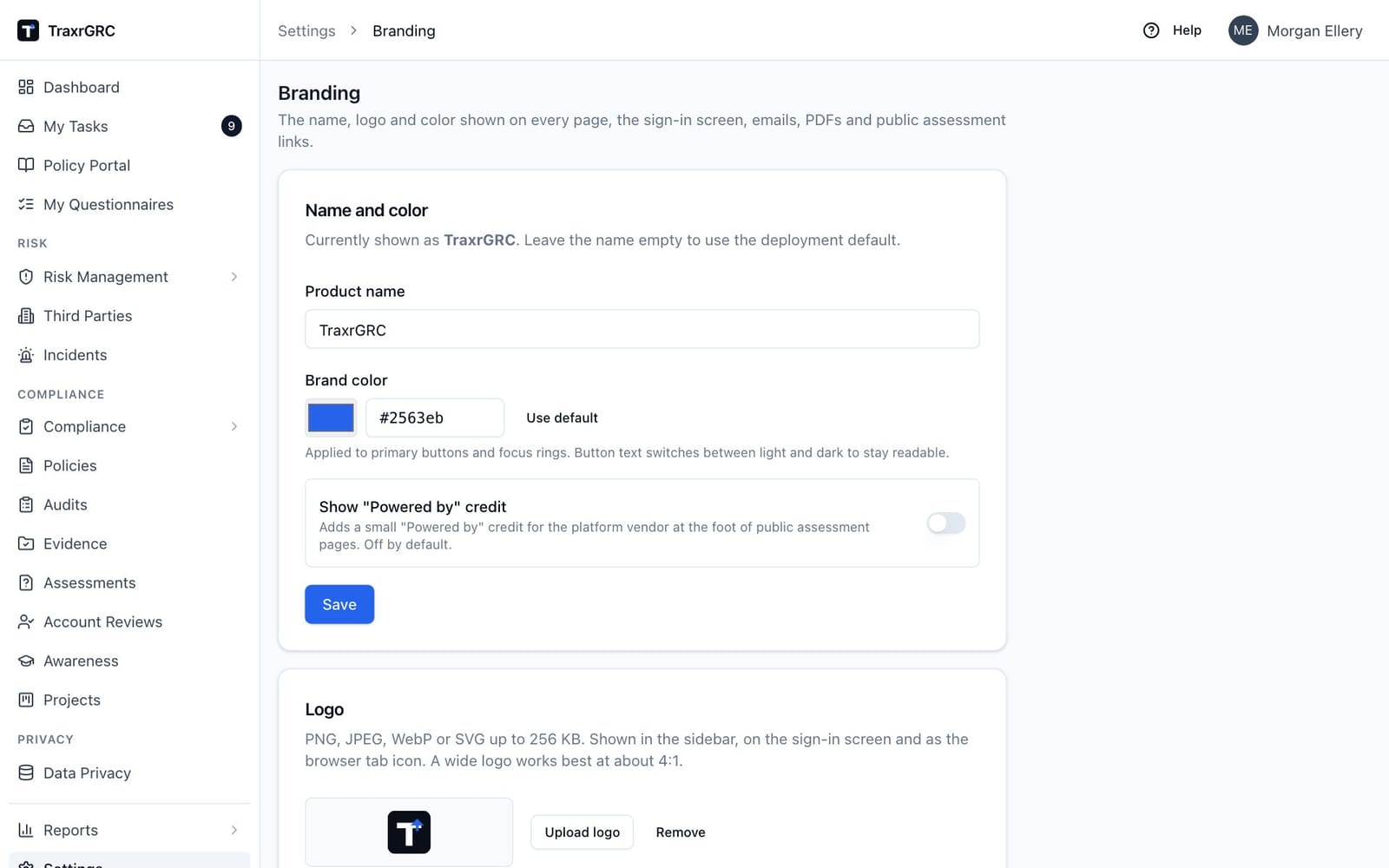
2.10 Branding
Settings → Branding white-labels the application (settings:read to view, settings:update to change; every save is audit-logged). It has two cards: Name and color, with its own Save, and Logo.
| Setting | Effect |
|---|---|
| Product name | Shown in the sidebar, browser tab titles, the sign-in screen, public assessment pages, PDF exports, the SMTP test email and the API document title. Email templates show it through the {{app.name}} variable. Leave it empty to use the deployment default (APP_NAME, otherwise GRC Platform). Up to 60 characters. |
| Brand color | A #rrggbb color applied to primary buttons, focus rings and links. Button text switches between light and dark to stay readable; a color too light to read as link text on white is darkened, keeping its hue, until it meets WCAG AA contrast. Use default restores the standard theme. |
| Show "Powered by" credit | A small credit naming the platform vendor at the foot of public assessment pages. Off by default. |
| Logo | Upload logo takes a PNG, JPEG, WebP or SVG up to 256 KB, checked by its content rather than its file name. It replaces the shield icon in the sidebar and on the sign-in and assessment pages, and becomes the browser tab icon. Remove goes back to the shield. |
Changes reach every page within about 30 seconds.
2.11 Policies
Settings → Policies has one card, Approvals made outside the app, with one switch, Allow recording outside approvals (off by default), and a Save button. On, people with update and Review on Policies can record an approval made outside the app and upload reissued documents with one (see Policy Management). Anyone with settings:read can see it; only an administrator can change it, and the change is audit-logged. Turn it on where documents are approved outside the tool, such as by a board or a controlled-document process.
2.12 Privacy
Settings → Privacy holds the Records of processing header, printed at the top of the Article 30 register export (settings:read to view, settings:update to change; saves are audit-logged): the Controller (legal name), Controller contact details, EU or UK representative where Article 27 requires one, and the Data protection officer's name and contact details. Empty fields print empty.
DPIA approval, on the same page, has its own Save and is changed only by an administrator. It holds three settings:
| Setting | Effect |
|---|---|
| Data Protection Officer | Optional. The one user who gives DPO advice on DPIAs. Only active users can be chosen; deactivating the DPO leaves none named (the card says so) until you choose another. Separate from the DPO contact details printed in the register header above. |
| DPO advice before a DPIA is decided | Required when a DPO is named (the default), Required (needs a DPO named) or Optional. While required, a submitted DPIA waits for the DPO's advice before anyone can approve or reject it, and approving against the advice needs a reason, which the DPO is emailed. With no DPO named, nothing waits. |
| Require a second person to approve DPIAs | Off by default, so the person who wrote a DPIA may decide it, as a one-person privacy office needs. When on, whoever created the DPIA or submitted it for approval cannot approve or reject it; another holder of the Approve DPIAs right must. If separation of duties is relaxed (see Sessions), an author may still decide, recorded as self-approved with a Self-approved badge on the DPIA. |
Saving writes an audit entry for each changed setting and, when any value changes, emails every administrator.
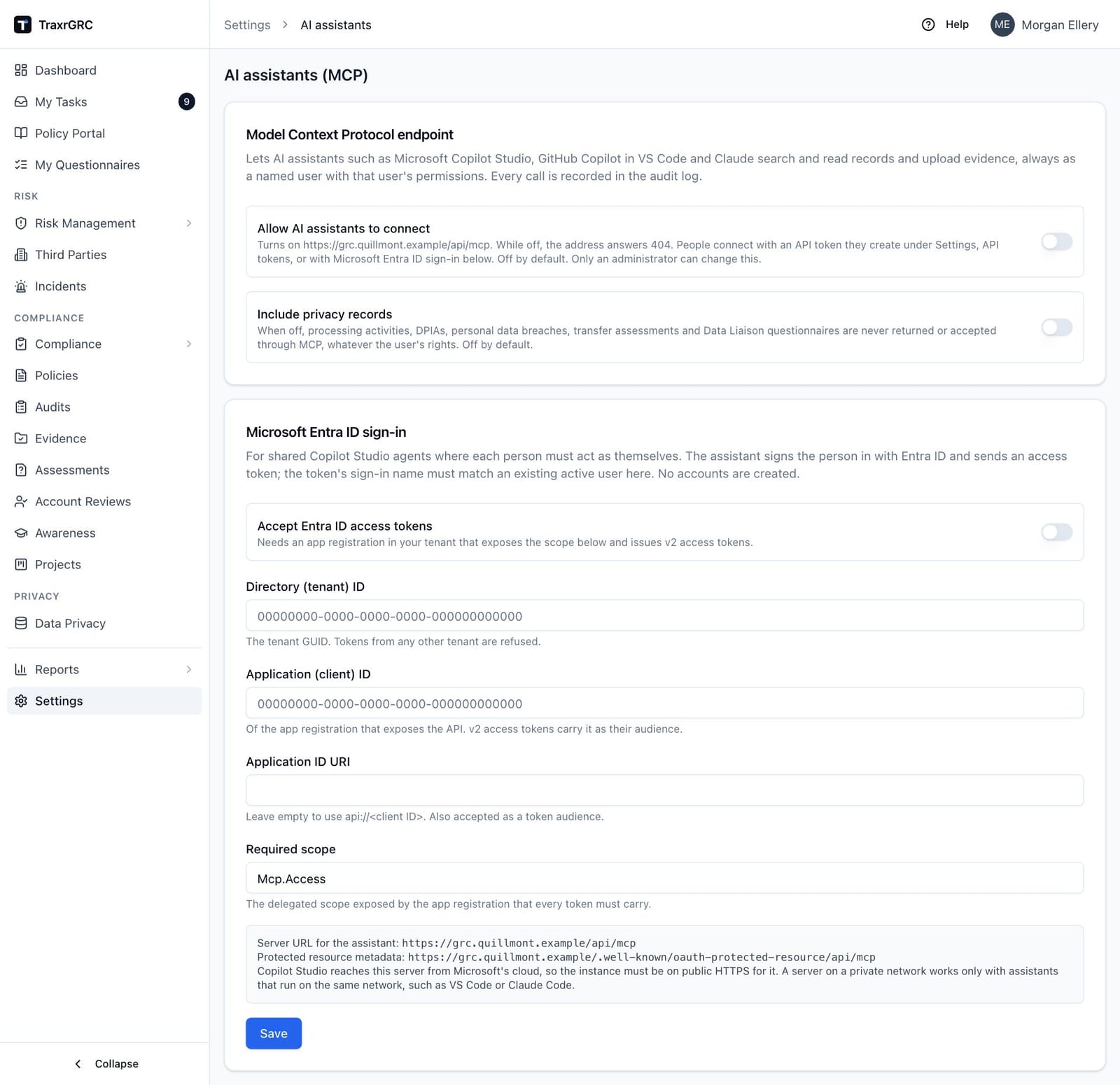
2.13 AI assistants
Settings → AI assistants (the screen is headed AI assistants (MCP))
lets AI assistants such as Microsoft Copilot Studio agents, GitHub Copilot in
VS Code and Claude connect to TraxrGRC through the Model Context Protocol
(MCP) at https://<your address>/api/mcp. Anyone with settings:read can see
this page; only an administrator can change it, and every change is
audit-logged and emailed to all administrators.
This section summarizes what an administrator decides here. The full reference,
with the tools an assistant can call, the guardrails, and step-by-step setup
for VS Code, Claude Code and Copilot Studio, is the MCP guide (docs/MCP.md)
shipped with TraxrGRC; keep it at hand when connecting an assistant.
What an assistant can do. Search records across the modules; read one record in full; list risks, controls, compliance requirements and policies with filters; list what is waiting on its user; and attach evidence to a record its user may update. It cannot delete, edit or decide anything.
The Model Context Protocol endpoint card holds two switches:
| Switch | What it does |
|---|---|
| Allow AI assistants to connect | Off by default. Turns on the /api/mcp address; while off, the address answers 404 ("not found"). |
| Include privacy records | Off by default. While off, processing activities, DPIAs, personal data breaches, transfer assessments and Data Liaison questionnaires are never returned or accepted through MCP, whatever the user may see in the app. |
The Microsoft Entra ID sign-in card is for shared Copilot Studio agents where each person signs in as themselves:
| Field | What it means |
|---|---|
| Accept Entra ID access tokens | Turns Entra sign-in on. Needs an app registration in your tenant that exposes the scope below and issues v2 access tokens. |
| Directory (tenant) ID | The tenant GUID. Tokens from any other tenant are refused. |
| Application (client) ID | Of the app registration that exposes the API. |
| Application ID URI | Leave empty to use api://<client ID>. |
| Required scope | The delegated scope every token must carry. |
Below the fields, a panel shows the server URL to give the assistant, the protected resource metadata address and (once configured) the authorization server. Click Save to store both cards. The person signing in must already have an active account here with the same email as their Entra sign-in name; no accounts are created.
An assistant always acts as a named user and sees exactly what that user can
see. With an API token (see API Tokens) it is the token's creator, limited to
the token's scopes; with Entra sign-in it is the person who signed in. Every
tool call is recorded in the Audit Log under the module "mcp". Evidence
uploaded by an assistant goes through the same file checks and storage limit as
uploads in the app, with a 10 MB limit per file, and appears on the record's
Attachments tab. For a control or a compliance requirement it becomes new
evidence linked to the record instead (see Files on controls, requirements and
account reviews). That needs read access to the record and evidence:create,
the same as linking evidence in the app; update access to the record is not
needed, since the record itself does not change.
Uploading files through an assistant. An assistant cannot carry a real file (a PDF, spreadsheet or screenshot) to TraxrGRC itself. Instead it gives you an upload link:
- Open the link in your browser, signed in as yourself. If you are signed out, you sign in first and return to the link.
- Check the record type and name the files will be attached to, and any note from the assistant.
- Choose up to 10 files (25 MB each, the same file types and storage limit as on a record's Attachments tab) and select Upload. They appear on the record's Attachments tab, or for a control or requirement on new evidence linked to it.
A link expires 15 minutes after it is made and works only for the person whose assistant asked for it: anyone else who opens it is refused and the attempt is logged. Your rights are checked again when you open the link and for every file, so a link stops working if you lose access to the record or an administrator turns AI assistants off. The Audit Log records the link being issued and each file uploaded through it (module "mcp").
Copilot Studio calls TraxrGRC from Microsoft's cloud, so it works only when this instance is reachable over public HTTPS. A server on a private network works only with assistants that run on the same network, such as VS Code or Claude Code.
2.14 Notifications
Settings → Notifications (address /settings/notifications) controls the
email TraxrGRC sends. Opening it needs notifications:read; changing
templates and the scheduler needs notifications:update. It has four tabs:
Templates, Rules (shown to administrators only), Delivery log and
Scheduler.
2.14.1 Templates
Every email TraxrGRC can send has a template, keyed by a stable identifier. The Templates table lists each template's Key (click it to edit), Name, Module (as a badge), Subject and an Enabled switch, with the usual search and column filters; the Module filter offers every area in the table below. The templates are:
| Area | Template keys |
|---|---|
| Risks | risk.review.due, risk.review.overdue, risk.appetite.breach, risk.exception.expiring |
| Controls | control.audit.due, control.audit.overdue, control.audit.failed, control.maintenance.due, control.maintenance.overdue |
| Compliance | compliance.exception.expiring |
| Policies | policy.review.due, policy.review.overdue, policy.exception.expiring, policy.acknowledgement.requested, policy.acknowledgement.due, policy.acknowledgement.overdue (see Policy portal and acknowledgements) |
| Awareness | awareness.due |
| Data privacy | dataprivacy.review.due, dataprivacy.review.overdue, dataprivacy.dpa.expiring, dataprivacy.dpa.expired, dataprivacy.tia.due, dataprivacy.tia.overdue, dataprivacy.questionnaire.sent, dataprivacy.questionnaire.submitted, dataprivacy.dpia.approvedAgainstAdvice, dataprivacy.attestation.sent, dataprivacy.questionnaire.due, dataprivacy.questionnaire.overdue |
| Evidence | evidence.expiring, evidence.expired |
| Assessments | assessment.sent, assessment.reminder, assessment.overdue, assessment.returned, assessment.completed |
| Reports | report.scheduled (see Scheduled reports) |
| Platform | security.alert (see Security alerts under Audit Log), user.password.reset, user.password.changed (a user changed their own password), user.mfa.reset (an administrator reset a user's two-step verification), notification.rule (every email a notification rule sends) and the summary digest.daily |
To tailor a template:
- Click its key. The Edit template dialog opens.
- Edit the Name, Subject and Body. Both subject and body accept
{{dotted.vars}}placeholders, e.g.{{risk.title}}. - Check the Available vars panel on the right of the dialog. It lists, for
that template, every placeholder with its meaning. For example,
risk.review.duesupports{{risk.title}}and{{review.dueDate}};risk.appetite.breachadds{{risk.score}}and{{risk.band}};digest.dailysupports{{digest.date}}and{{digest.body}}. Every template also lists{{app.name}}. The Administrator's Guide has the full table. - Click Save template. The change applies to the next email queued through that template.
Use the Enabled switch to turn a template off without editing it; disabled templates send nothing. Template edits and toggles are audited.
2.14.2 Notification rules
The fixed notifications above go to record owners on fixed events. Notification rules let an administrator email other people about other events. The Rules tab is shown to administrators only, and every rule created, changed or deleted is recorded in the Audit Log. A new installation, or one upgraded from an earlier version, has no rules ("No rules yet, so nothing beyond the fixed notifications is sent."), so nothing beyond the fixed notifications is sent until an administrator creates one.
The rules list shows each rule's Name (with a "Disabled" badge when paused), Trigger, Records (the record types, "All", and any status condition), Recipients, and Opted out (how many people switched the rule off on their profile), with edit and delete buttons.
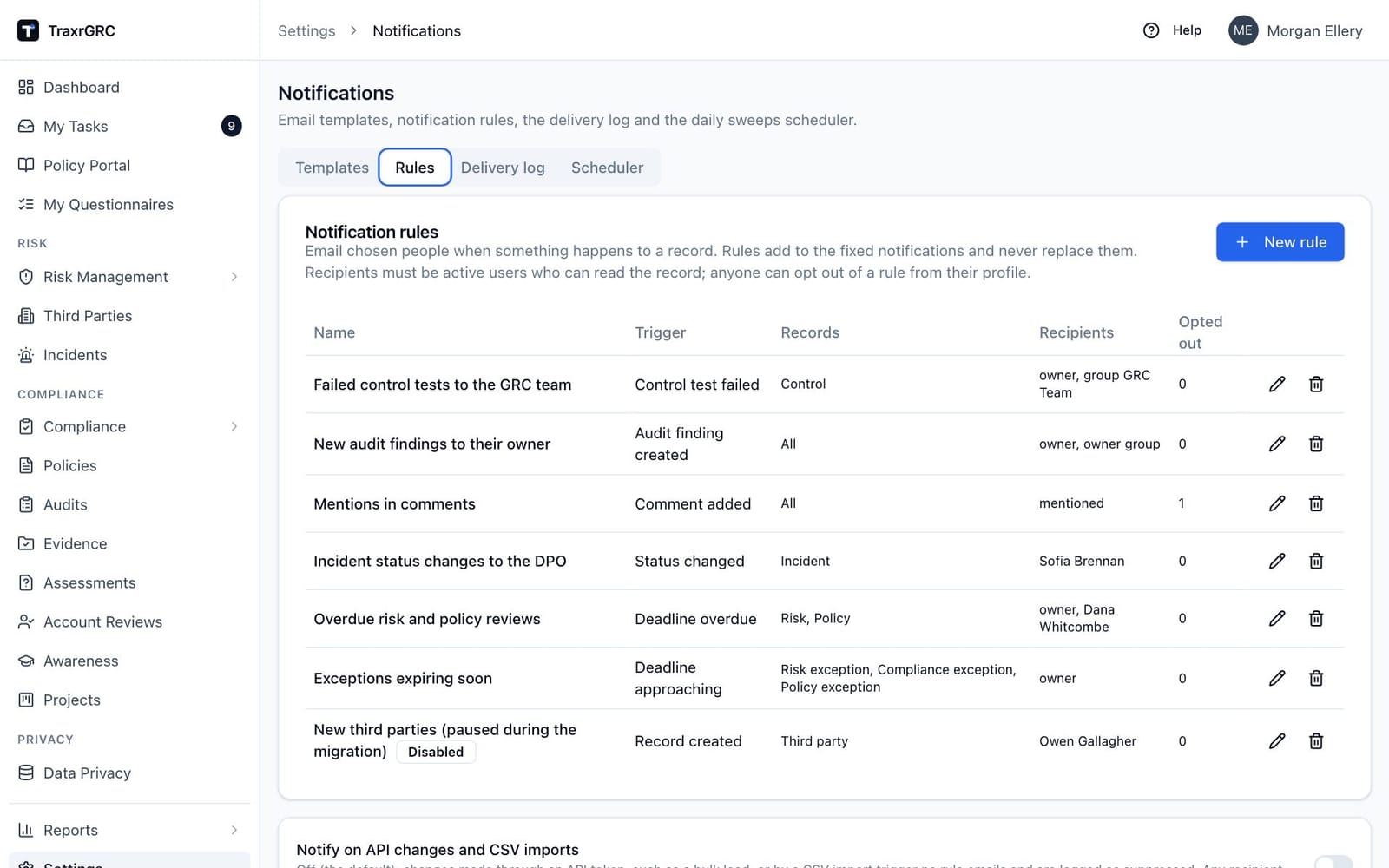
To create a rule:
-
Click New rule. The New notification rule dialog opens.
-
Fill in the fields:
Field What it means Name Shown in the delivery log, in the email ("You receive this because of the notification rule ...") and on each person's My profile page. Trigger What the rule reacts to: Comment added, Record created, Status changed, Audit finding created, Control test failed, Deadline approaching or Deadline overdue. Records The kinds of record the rule covers: Risk, Control, Compliance requirement, Policy, Risk exception, Compliance exception, Policy exception, Incident, Project, Third party and Audit finding, as far as the trigger applies to them. Tick none to cover every kind the trigger supports. Only when the record's status is Optional. For a status change, the new status; for other triggers, the record's status at the time. Tick none for any status. Recipients Any mix of the record's owner, the members of the record's owner group, people @mentioned in the comment (Comment added only), named users, the members of chosen groups, and the members of every group that carries a chosen role. Only active users of this installation can be chosen; no outside address can be entered. Enabled Untick to pause the rule without deleting it. -
Click Create rule (Save rule when editing).
To change a rule, click its pencil icon (the dialog is headed Edit notification rule). To remove one, click its trash icon and confirm in the Delete this rule? dialog.
Deadlines are the ones the daily sweep already tracks: risk and policy reviews, policy acknowledgement requests with people still to acknowledge (on the policy), control audits and maintenance, project and audit finding deadlines (approaching or overdue), and approved exceptions coming up to expiry (approaching only). The lead times are the scheduler's Review lead days and Exception lead days. A deadline rule emails once when a deadline enters the lead window and once when it passes; moving the date starts afresh. Status and comment rules work within seconds of the change; deadline rules run with the daily sweep (and Run sweeps now).
What every rule email contains, and who gets one:
- The email names the record (its title or reference), what happened (for example "Status: Open to Closed" or "Risk review was due 2026-10-09") and a link to it. It never contains a comment's text, a description or any other field. An incident recorded as a personal data breach is named only by a short reference ("Incident 1a2b3c4d (title withheld)"), since breach titles can name the people affected.
- A recipient gets the email only if they may open the record at that moment, by the same rule the app uses on screen (for an exception, its risk, requirement or policy; for an audit finding, its audit plan and the finding). This is checked when the rule fires and again just before sending, so someone who lost access in between gets nothing.
- Nobody is emailed about their own change.
- Each person gets at most 20 rule emails an hour; the rest are suppressed.
- Changes made through an API token, such as a bulk load with the loader script, and changes made by a CSV import send no rule emails by default; the delivery log lists them as suppressed. Turn on Notify on API changes and CSV imports below the rules list to include them (the hourly cap still applies).
- Anyone can switch a rule off for themselves on My profile.
Fixed notifications and security alerts are unaffected by rules: they keep going to the same people as before.
2.14.3 Scheduler
The Scheduler tab holds the Daily sweeps scheduler card, which configures when and what the background worker emails. The worker scans reviews and exceptions on a cron schedule and queues notification emails. Sweeps skip items already notified in the last 20 hours, so overlapping runs never double-send. A reminder goes out only while its recipient can still read the record it names (an owner whose role no longer includes that module gets nothing), and awareness and questionnaire reminders only to people who still hold Awareness or Data Liaison read.
| Setting | What it means |
|---|---|
| Daily digest | When on, each recipient gets one summary email (the digest.daily template) instead of individual notifications. |
| Cron schedule (UTC) | Five fields (minute hour day month weekday) in UTC. Default 0 7 * * * (07:00 daily). An invalid expression is rejected when you save. |
| Review lead days | Reviews due within this many days (0 to 365; default 7) are notified: risk, policy and data-privacy reviews due or overdue, plus awareness programs due. |
| Exception lead days | Approved risk, compliance and policy exceptions expiring within this many days (0 to 365; default 14) are flagged to their owners. |
Click Save settings to store the schedule. A changed schedule is active at once: the confirmation reads "Scheduler settings saved. The new schedule is active." If instead a warning says the new schedule takes effect when the background worker next starts, the worker could not be reached; ask whoever runs the server to start or restart it. Run sweeps now performs an immediate sweep outside the cron schedule and reports how many items it found, across how many recipients, and how many digests were queued; use it after changing settings or before relying on the schedule. The run is recorded in the Audit Log.
2.14.4 Delivery log
The Delivery log tab lists every queued email with columns Created, Template, To, Rule or schedule (the notification rule or scheduled report that sent it, with the report attachment's name; "Deleted rule" or "Deleted schedule" once that is gone), Subject, Status, Error and Sent at. Statuses:
| Status | Badge | Meaning |
|---|---|---|
| Queued | Gray | Waiting to be sent. |
| Sending | Gray | A rule email being sent. One left in this state by a crash is marked failed after 15 minutes and is not resent, so nobody gets it twice. |
| Sent | Solid | Delivered successfully; Sent at shows when. |
| Failed | Red | Sending failed; the Error column holds the reason. A rule email is tried four times, a minute or more apart, before it fails. |
| Skipped | Outline | Intentionally not sent. |
| Suppressed | Outline | A rule email deliberately not sent to this person. The Error column says why: no-access (they may not open the record), opted-out, api-write (the change came through an API token), rate-limit (over 20 rule emails in an hour), recipient-inactive, record-deleted, rule-disabled or template-disabled. A suppressed row has no subject or body. |
You can filter the log by status and search across recipient, subject, template key and error text. Rule emails, with the Rule or schedule column naming the rule, are listed to administrators only. The demo instance sends no email, so its delivery log is empty.
2.15 Audit Log
Settings → Audit Log (address /settings/audit-log; needs auditLog:read,
and its card appears on the Settings page for anyone who holds it) is the
organization's trail: every mutating action across TraxrGRC, with
before/after diffs where applicable. Each create, update and delete you
performed from the screens above lands here automatically.
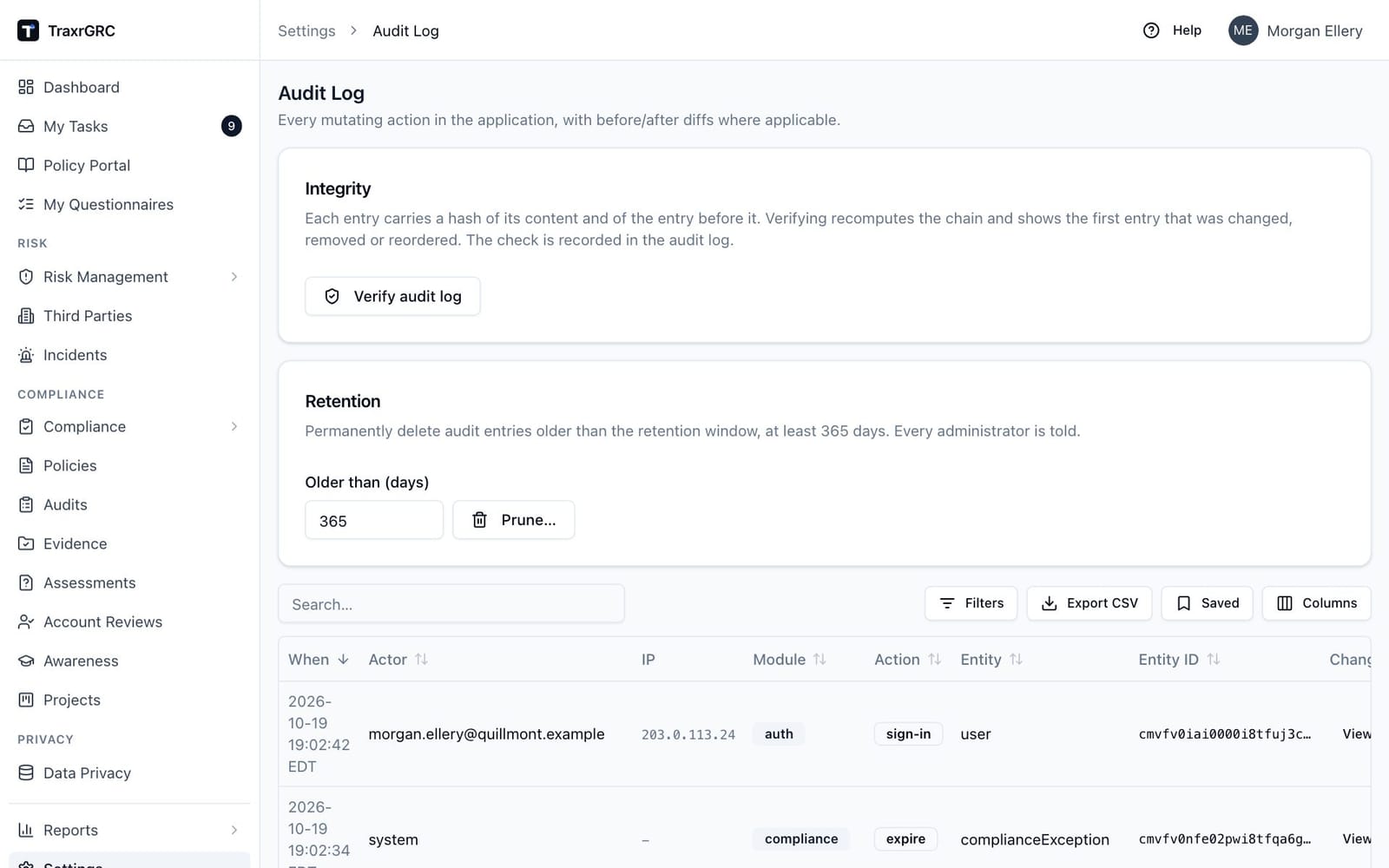
The table shows:
| Column | What it shows |
|---|---|
| When | The time of the action, to the second. |
| Actor | Who acted, and the API token when the change came through the REST API. |
| IP | The client address the reverse proxy reported. |
| Module | The module, as a badge. |
| Action | The action, as a badge, e.g. create, update, delete, export, restore, run. |
| Entity | The record type. |
| Entity ID | The record's identifier. |
| Changes | A View diff button when the entry recorded a change. |
The log opens newest first; click a column heading to sort another way. A free-text search matches the actor, entity type, entity ID and action. Column filters narrow it further: dropdowns for Module, Action and Entity (the options are drawn from the entries themselves), text for Actor, IP and Entity ID (any part of the value matches), and a date picker for When that shows the entries of that calendar day in your time zone.
Export CSV downloads the entries matching the current search and filters, up to 5,000 rows, with times in UTC. Its Changes column holds each entry's recorded change (before, after and, where recorded, the source) as compact JSON, and is empty for entries without one. To export a long period, export it a day at a time with the When filter.
Click View diff to open Change details: the Before and After values side by side, exactly as recorded.
Besides changes to records, the log holds:
- Sign-ins (module
auth): every successful sign-in (sign-in) and sign-out, with the method (password, LDAP or SSO) and whether it was a break-glass administrator signing in with a password while SSO-only is on. Every refused sign-in (sign-in.failed) records the email as typed, the address and the reason: unknown user, wrong password, no password set, inactive account, locked out (and which lock), refused by SSO-only, method switched off, rejected by the directory, a directory entry with no email, a refused account link (LDAP or SSO asserting the email of an account with a password or administrator rights), an invalid or replayed SSO response (with the precise reason, such as not a reply to this browser's request), or malformed input. Nothing is created for an email that has no account, and the sign-in page answers every failure the same way. A sign-in lock (lockout) is recorded once per locked email-and-address pair or address, andaccount.guardedwhen one account reaches ten failures in 15 minutes. Accounts created by a first LDAP or SSO sign-in appear as auserscreate entry, a first link to an existing account asuserssso.link, and "sign out everywhere" asuserssessions.revoke. - Two-step verification and password changes: a passed or failed code at
sign-in (
authmfa.verified,mfa.failed, andmfa.lockedwhen an account's code step locks after 10 wrong codes; asign-inentry showsmfaPendingwhen the session still waited for the code), setting it up (usersmfa.enroll.started,mfa.enabled, andauthmfa.enroll.failedfor a wrong code), an administrator's reset (usersmfa.reset), and a user changing their own password (userspassword.change, orpassword.change.failedfor a wrong current password). - Refused requests (module
security, actionpermission.denied): a screen action, API call or API token refused for lack of rights, with the module and right, or the reason the token was refused (includingrate-limitedwhen a token goes over its request budget). At most ten a minute are kept per person (or per address for requests with no valid token); the next entry says how many were dropped. - Integration settings: saving SMTP, LDAP or SAML records every field before and after. Passwords and the SAML private key are never recorded, only whether they changed; the SAML identity provider certificate is recorded by its SHA-256 fingerprint, so a swapped certificate stands out.
Entries cannot be edited or deleted, by the application or by anything else connected to its database, except by the Retention card below.
2.15.1 Integrity
The Integrity card (administrators only) proves the log has not been tampered with. Each entry carries a hash of its content and of the entry before it. Click Verify audit log to recompute the chain: the result reads "Intact: N entries verified (chain positions ...)", or "Broken at entry ..." with the reason and the number of intact entries before the first entry that was changed, removed or reordered. The check itself is recorded in the audit log.
2.15.2 Retention
The Retention card (administrators only) prunes history:
- Enter an age in Older than (days): 365 to 3650; defaults to 365.
- Click Prune….
- Confirm in the Prune audit entries? dialog by clicking Prune.
The pruning itself is written to the log, and every administrator receives a security alert. Entries less than a year old can never be pruned.
2.15.3 Security alerts
Every active administrator receives an email (template security.alert,
editable under Settings → Notifications) when:
- a sign-in is locked after repeated failures, or one account has ten failures in 15 minutes (at most once an hour per lock, and at most ten an hour in all; a break-glass account is named as such);
- the session or API token limits are changed;
- administrator rights are granted or removed (including deleting an administrator);
- a break-glass administrator signs in with a password while SSO-only is on, or SSO-only is turned off;
- the audit log is pruned, or the database is restored from a backup;
- SMTP, LDAP or SAML settings are saved;
- an API token is created;
- two-step verification is required or no longer required, a user's two-step verification is reset, or an account's code step is locked after 10 wrong codes in 15 minutes.
Alerts need SMTP to be configured; each one is listed in the Settings → Notifications delivery log.
2.16 API Tokens
Settings → API Tokens (address /settings/api-tokens) issues tokens for
scripts and integrations that call TraxrGRC over the REST API (see REST
API). Tokens authenticate requests with an Authorization: Bearer aat_…
header; TraxrGRC stores only the SHA-256 hash of each token, never the
token itself. Viewing the list needs apiTokens:read; creating tokens needs
apiTokens:create.
The table shows each token's Name, Scopes (a compact summary such as "risks: read, update"), Created by, Created, Last used, Expires and Status:
| Status | Badge | Meaning |
|---|---|---|
| Active | Solid | The token works. |
| Expired | Red | Its expiry date has passed. |
| Revoked | Outline | Revoked by an administrator. |
To create a token:
- Click Create token. The Create API token dialog opens.
- Enter a Name describing its consumer, e.g. "CI compliance exporter", and optionally an Expiry date. Tokens last at most 365 days unless an administrator changed the limit under Settings → Sessions: a blank expiry gets the maximum, and a later date is refused. Tokens created before the limit keep their expiry.
- Grant scopes in the matrix: tick the rights (Read, Create, Update, Delete, Review) per module, the same vocabulary as role permissions. Review is offered on the same four modules as in roles (Risks, Compliance, Policies and Data privacy) and shows a dash elsewhere. At least one scope is required. The scopes bound everything a request does, beyond the endpoint it calls: creating a risk from a DPIA also needs Create on Risks, linking a vendor or system to a record needs Read on Third parties or Assets, and a token without Read on Controls, Policies or Risks sees a compliance requirement's mappings in those modules as hidden. Any right on a module lets a request read that module's records along the way; listing them still needs Read. A token never exceeds its creator's own rights.
- Click Create token.
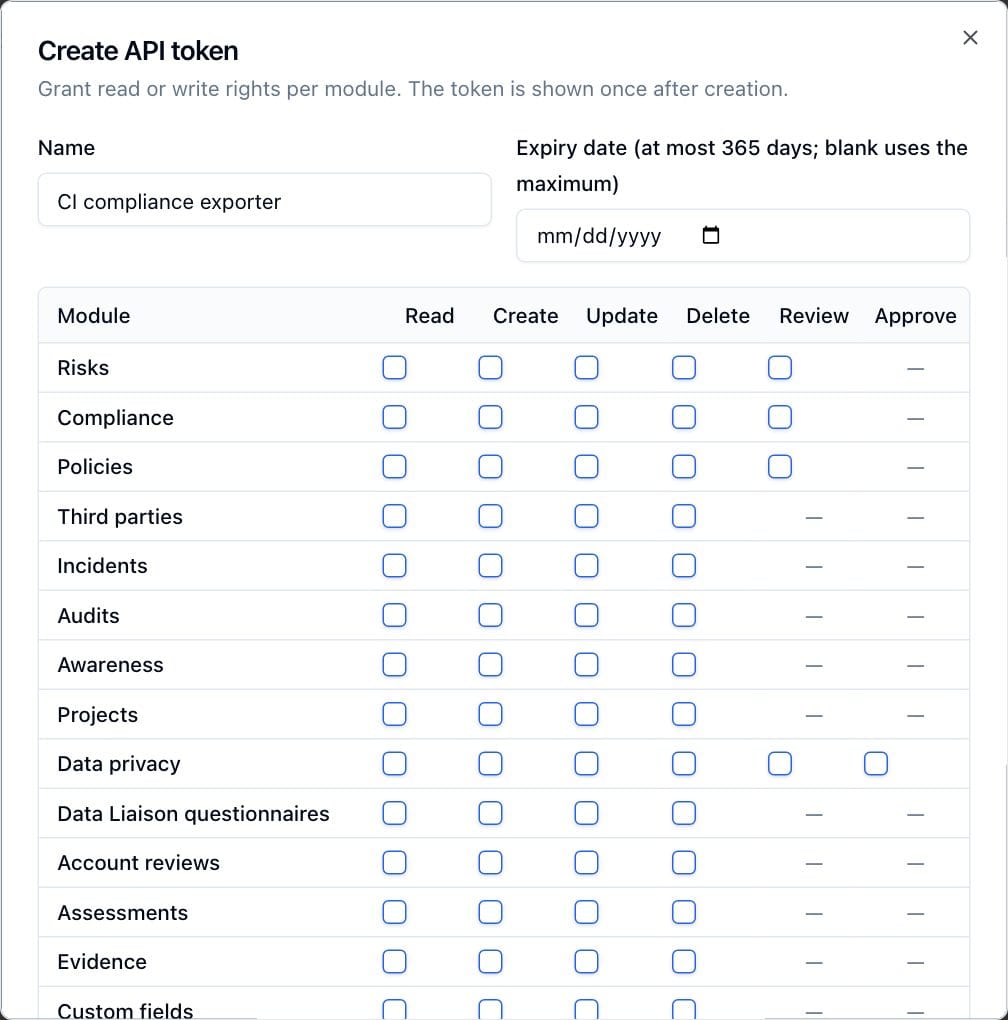
A Token created dialog appears with the full token value. This is the only time it is ever shown: copy it immediately (the copy button puts it on the clipboard) and store it somewhere safe, then click Done. If you lose it, revoke the token and create a new one.
The same tokens connect AI assistants to the MCP endpoint (see AI assistants above): give such a token only the modules the assistant needs, Read alone for a read-only assistant.
To retire a token, click its trash icon and confirm in the Revoke token? dialog. Requests using that token fail immediately, and the revocation cannot be undone.
2.17 Backups
Settings → Backups (address /settings/backups; administrators only)
exports and restores full database snapshots and manages the automatic weekly
backups. The screen states the stakes: exporting downloads a complete, signed
snapshot of every table, restoring a backup replaces the entire database
except the audit log and revokes every API token and SCIM token, and
exporting, restoring and running backups are administrator operations.
Include files in backups, on by default, decides whether backups carry
the attached files of every record (evidence, policies, risks, vendors and
the rest). The screen shows how many files there are and how much they add to
each backup. With it on, a backup is a gzipped tar (.tar.gz) of the signed
snapshot and every file, and the snapshot lists each file with its SHA-256.
There is no size limit beyond the server's free disk space: backups are
assembled and unpacked on disk, and the screen says Not enough free disk
space before starting one the disk cannot hold. With it off, a backup
is the signed JSON snapshot alone: it holds attachment records but not the
files, so back up the upload directory separately. Changing the setting is
recorded in the audit log.
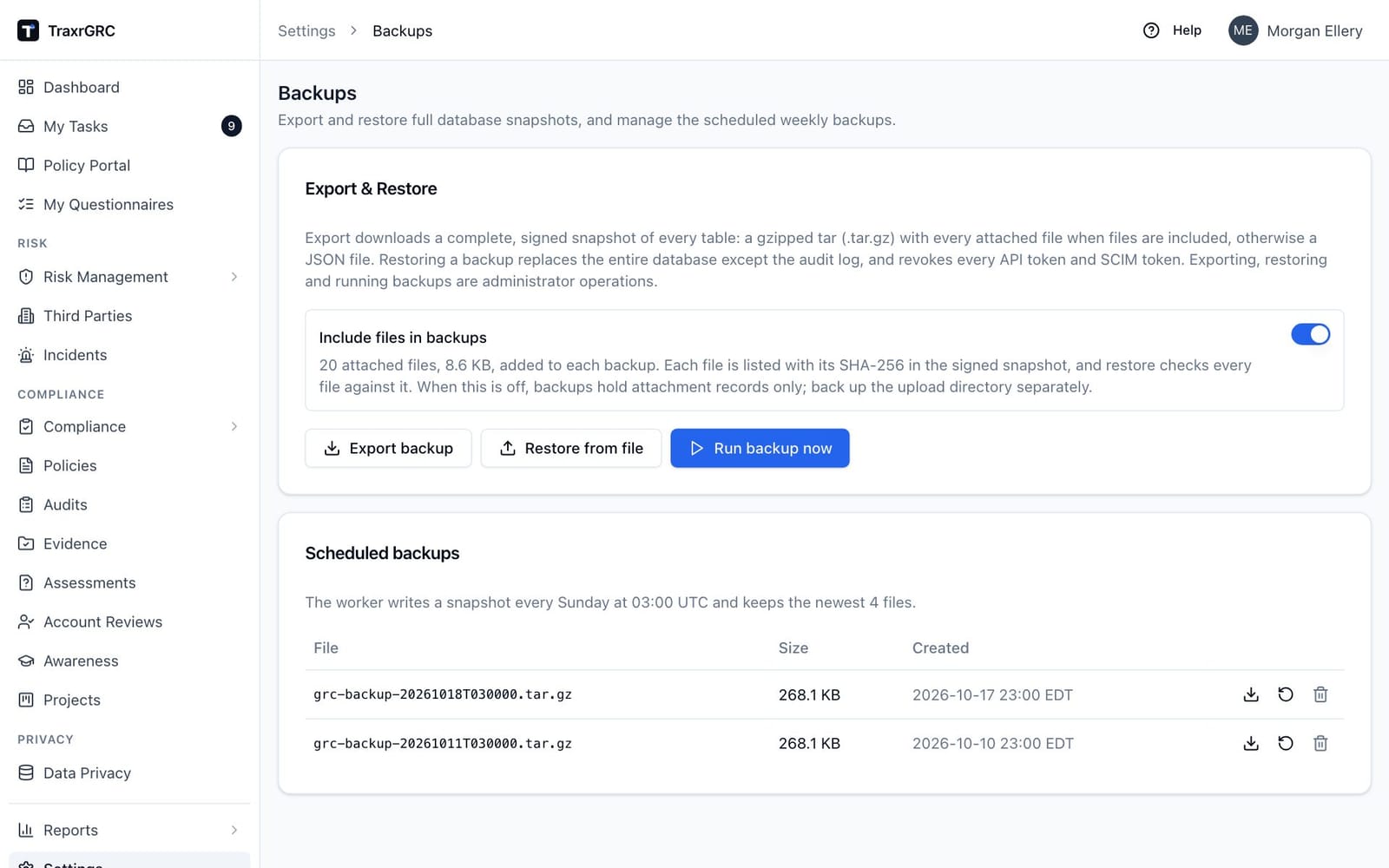
The Export & Restore card has three buttons:
-
Export backup downloads a backup of the whole database to your computer:
grc-backup-YYYY-MM-DD.tar.gzwith files, orgrc-backup-YYYY-MM-DD.jsonwithout. Keep it somewhere safe: it contains everything. -
Restore from file opens a file picker; choose a previously exported backup (
.tar.gz,.json, or a.zipmade by an earlier version). To restore a scheduled backup that is already on the server, use the restore action on its row in Scheduled backups instead; it opens the same dialog. The Restore backup? dialog warns that restoring replaces the entire database with the file's contents (every current record is wiped first, including sign-in sessions, and every API token and SCIM token is revoked) and asks you to Type RESTORE to confirm. The Restore button stays disabled until the text matches exactly. When the restore finishes, a notice tells you it completed, that all sessions were wiped and that every API token and SCIM token was revoked: sign back in afterward.Every snapshot carries a signature made with a key only the server holds, and restore checks it. A file that was edited after export, or was exported by another installation, is refused. A file with no signature at all (exported before snapshots were signed) is not refused outright: the dialog warns that it cannot be shown to be unmodified and offers I trust this unsigned file; tick it only if you know where the file came from, then restore again. The audit log records whether each restore was signed or trusted.
Snapshots hold the SMTP password, LDAP bind password and SAML private key encrypted with this instance's key; restored onto an instance with a different key (see the deployment guide), those three must be re-entered under Settings → Integrations. A restore never removes or rewrites the audit log: the current entries stay, and a signed snapshot's entries that are not already present are added back. It also keeps the current single sign-on replay records and sign-in lockouts, and it revokes every API token and every SCIM token, so integrations need new API tokens and your identity provider needs a new SCIM token afterward. A backup with files also writes its files back, each checked against the SHA-256 in the signed snapshot: a file that matches is restored, one that does not is left out and named in the completion notice, and so is a listed file the backup lacks. The files are moved into place only after the database restore succeeds. A backup with files must carry this installation's signature; an unsigned one is refused. A JSON snapshot brings back only the attachment records, and the files come from the upload directory as it stands, so a file missing there can no longer be downloaded. Snapshots taken before 14 October 2026 hold no data-privacy records (DPIAs, transfers, transfer impact assessments, sub-processors, breach notifications, data mapping questionnaires); restoring one empties those tables.
-
Run backup now takes an immediate on-demand snapshot (the same kind the weekly job writes) and adds it to the scheduled-backups list below.
The Scheduled backups card: the background worker writes a snapshot every Sunday at 03:00 UTC and keeps the newest four files. The table lists each File (its name), Size and Created date, with a download, a restore and a delete action per row. Downloading streams the file; restoring opens the Restore backup? dialog for that file; deleting asks for confirmation in the Delete backup file? dialog and removes the file from the list and from disk, which cannot be undone. The demo instance has no backups until one is run.
A restore rewinds the whole platform to the moment of the snapshot, well beyond moving data, so coordinate with your team before restoring over live work.