6 Third-Party Management
Third parties are the external organizations your business depends on or serves (vendors, partners and customers) and the risks they introduce. GRC Platform keeps a register of these organizations with their key contacts, links them to the risks they give rise to, tracks each vendor's data protection position as a processor (data processing agreement, sub-processors and transfer impact assessments), and records the full history of changes.
Vendor managers and procurement teams maintain the register; risk owners link vendor risks to it; the privacy team and DPO use its data protection tab. This chapter covers the Third Parties area (sidebar, under Risk).
6.1 The register
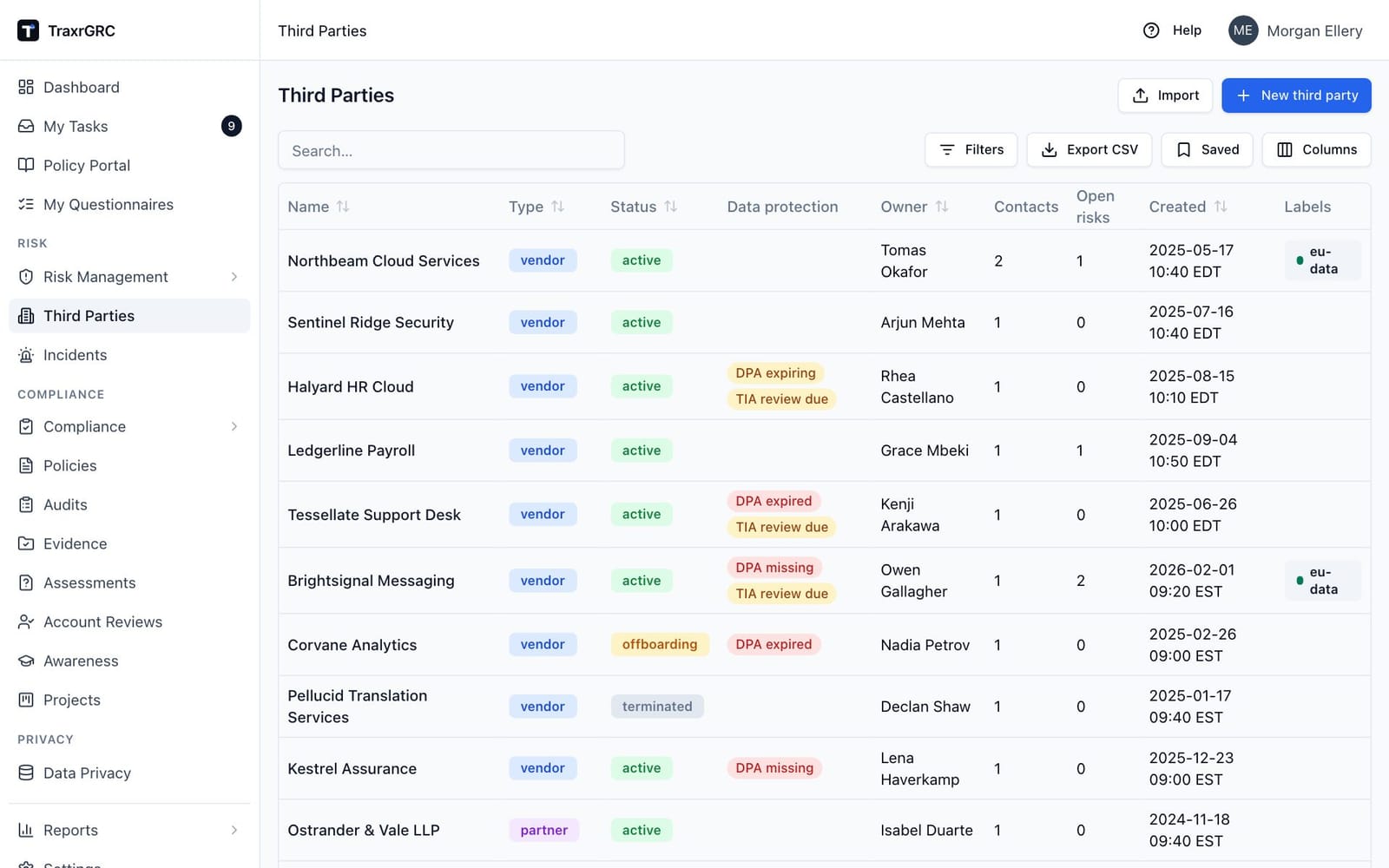
Open Third Parties from the navigation. One row per organization:
| Column | What it shows |
|---|---|
| Name | The organization's name. Click it to open the record. |
| Type | Vendor (blue), Partner (purple), Customer (teal) or Other (gray). Filterable. |
| Status | Active (green), Offboarding (amber) or Terminated (gray). Filterable. |
| Data protection | Flags that need attention (see below). Empty when nothing needs attention. |
| Owner | The owning user, or the owning group if no user is set. |
| Contacts | How many contacts are recorded. |
| Open risks | How many linked risks currently have the Open status. |
| Created | When the record was created. |
| Labels | The third party's labels. Filter by typing part of a label name. |
The Data protection column shows only the states that need attention:
| Flag | Meaning |
|---|---|
| DPA missing (red) | The data processing agreement is required but not started, or still in negotiation. |
| DPA expiring (amber) | A signed DPA expires within 60 days. |
| DPA expired (red) | A signed DPA's expiry date has passed. |
| TIA review due (amber) | At least one transfer impact assessment is due for review within 30 days or is overdue. |
Use the filter box to search names, descriptions and websites, and the Type and Status filters to narrow the list. You can sort by name, type, status, owner and creation date. Third parties can also be created and updated in bulk with Import (see Importing from CSV in Getting Started).
6.2 Creating a third party
- Click New third party.
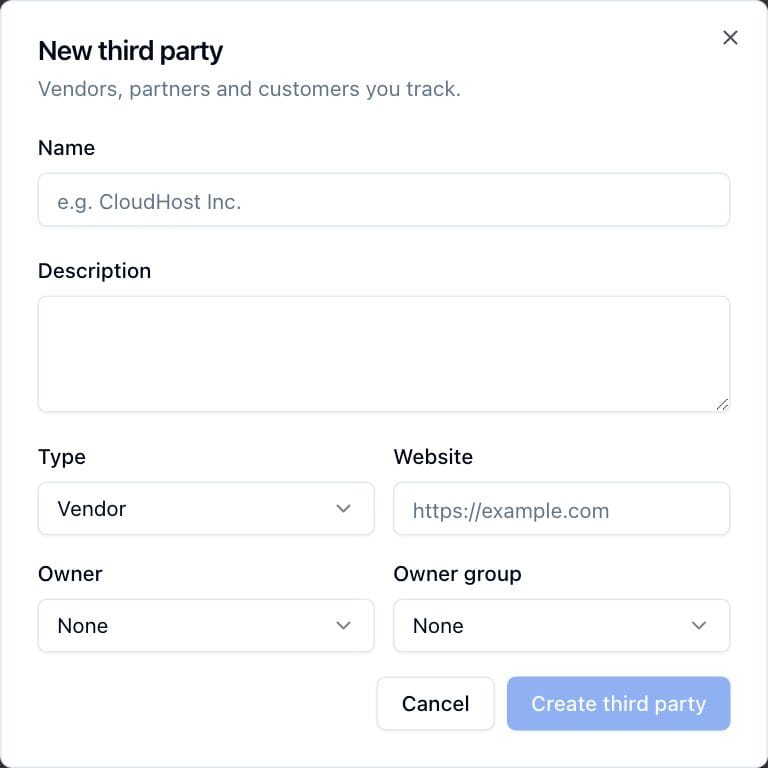
- Complete the dialog:
| Field | What it means |
|---|---|
| Name | The organization's name (required; must be unique). |
| Description | Optional background. |
| Type | Vendor, Partner, Customer or Other; defaults to Vendor. |
| Website | Optional; must be a valid http:// or https:// address when filled in. |
| Owner | The user responsible for the record. Both owner fields are optional. |
| Owner group | The group responsible for the record. |
- Click Create third party.
The new record starts with the status Active. To change the status later, click Edit: the Edit dialog adds a Status field with the three values. Click Save changes to save. Status changes are saved with the rest of the record and are recorded in the audit log.
| Status | Meaning |
|---|---|
| Active | The relationship is current. |
| Offboarding | The relationship is ending. |
| Terminated | The relationship has ended. Terminated vendors get no DPA or TIA reminder emails. |
6.3 The detail page
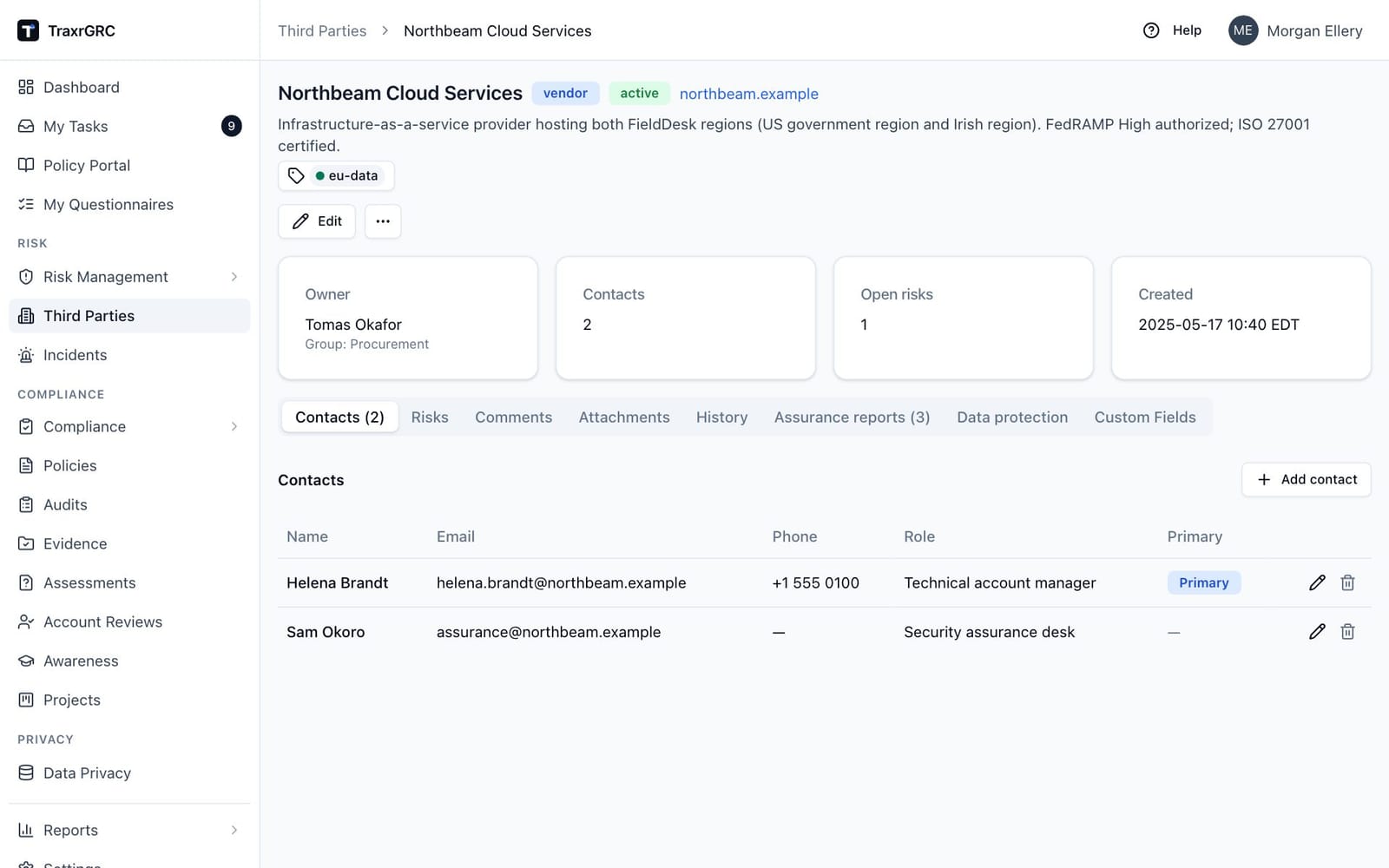
The header shows the name, type and status badges, the website as a link when one is set, the description and the Labels picker (see Labels in Getting Started; attaching needs thirdParties:update on the record), followed by the Edit button and the More actions menu (…) holding Delete. Four cards summarize the owner (with the owner group), the number of contacts, the number of open risks and the creation date.
One row of tabs covers the rest of the page:
- Contacts, Risks, Comments, Attachments and History: the organization itself.
- Data protection: the vendor's data processing agreement, sub-processors and transfer impact assessments.
- Custom Fields: administrator-defined extra fields for third parties (see Administration & Settings).
6.3.1 Contacts tab
The tab label shows the number of contacts. The contacts table lists each person's name, email, phone, role and whether they are the Primary contact (blue badge).
To add a contact:
- Click Add contact.
- Complete the dialog: Name (required), Email, Phone, Role, and the Primary contact checkbox.
- Click Add contact.
To change a contact, click the pencil icon on its row, edit the fields and click Save changes. To remove one, click the bin icon and confirm with Remove.
Only one contact can be primary: marking a contact as primary automatically clears the flag on every other contact, both when adding and when editing. If you remove the primary contact, the record is left without one; nothing is promoted automatically. The Remove contact? confirmation reminds you of this. Adding, editing and removing contacts are written to the audit log.
6.3.2 Risks tab
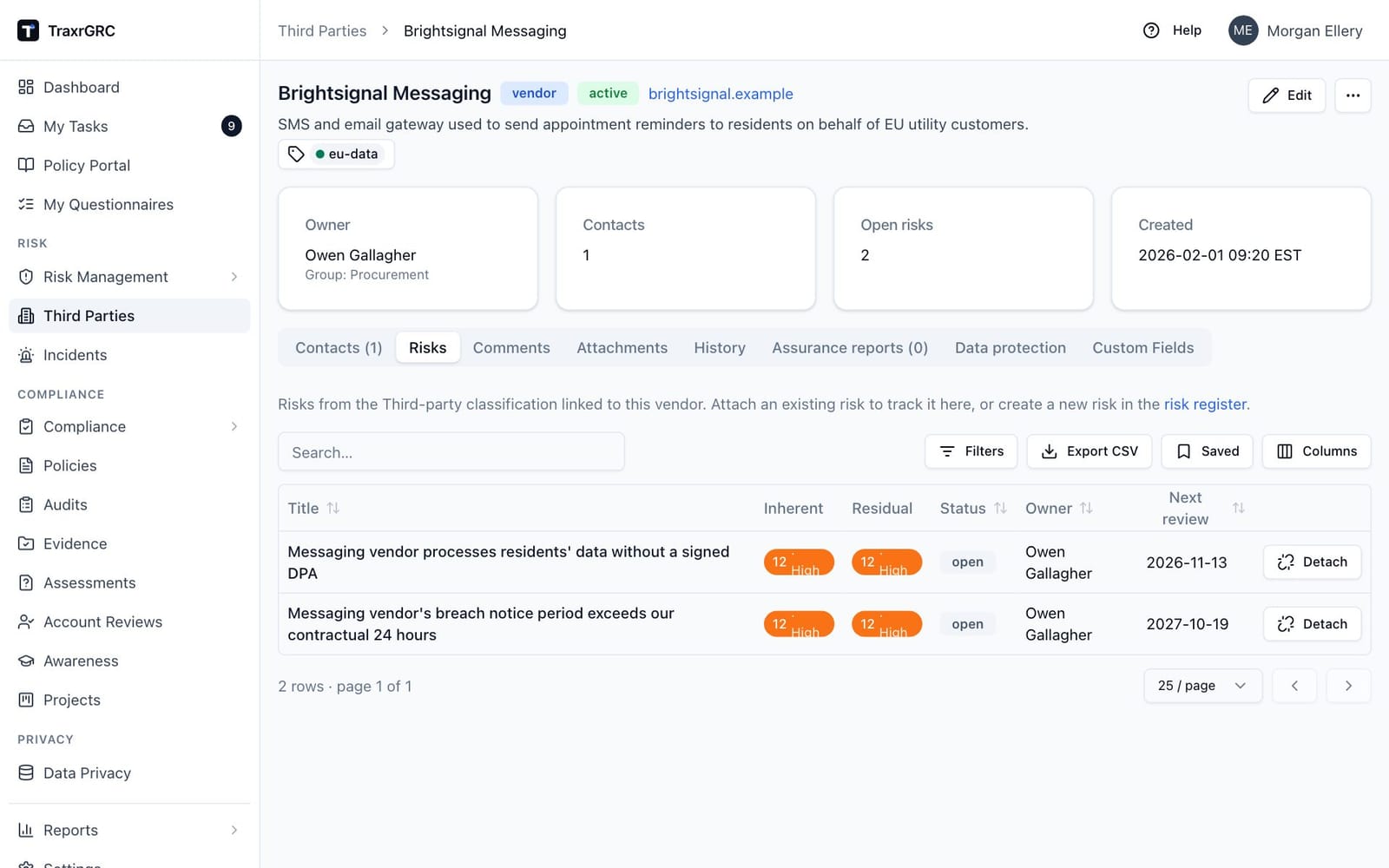
This tab lists the risks from the Third-party classification that are linked to the organization: the vendor risks you track. The table shows each risk's title (linking to the risk register), inherent and residual score chips, status, owner and next review date.
Attaching a risk:
- Click Attach risk. The button appears only when at least one risk in the Third-party classification is not yet linked to any organization. If it is missing, create the risk in the risk register first (see Risk Management).
- In the dialog, choose the Risk and click Attach risk.
The risk stays in the risk register; attaching only creates the link. You need update access to the risk itself for the attach to succeed.
Detaching a risk: click Detach on the row and confirm with Detach. The link is removed; the risk itself stays in the register. Detaching is also audited.
6.3.3 Comments, Attachments and History
- Comments: a discussion thread on the record, available to anyone who can update it.
- Attachments: supporting files such as contracts or due-diligence reports, available to anyone who can update the record.
- History: the last 100 audit entries for this record (create, update, attach-risk, detach-risk, delete), each showing the action, actor, time and changed fields. Status and DPA changes appear as update entries; adding or removing a sub-processor appears as a create or delete entry with "subProcessor" as the changed field. Contact changes and transfer impact assessment changes are recorded against their own records and appear in the administrator's audit log, not on this tab.
6.4 Data protection
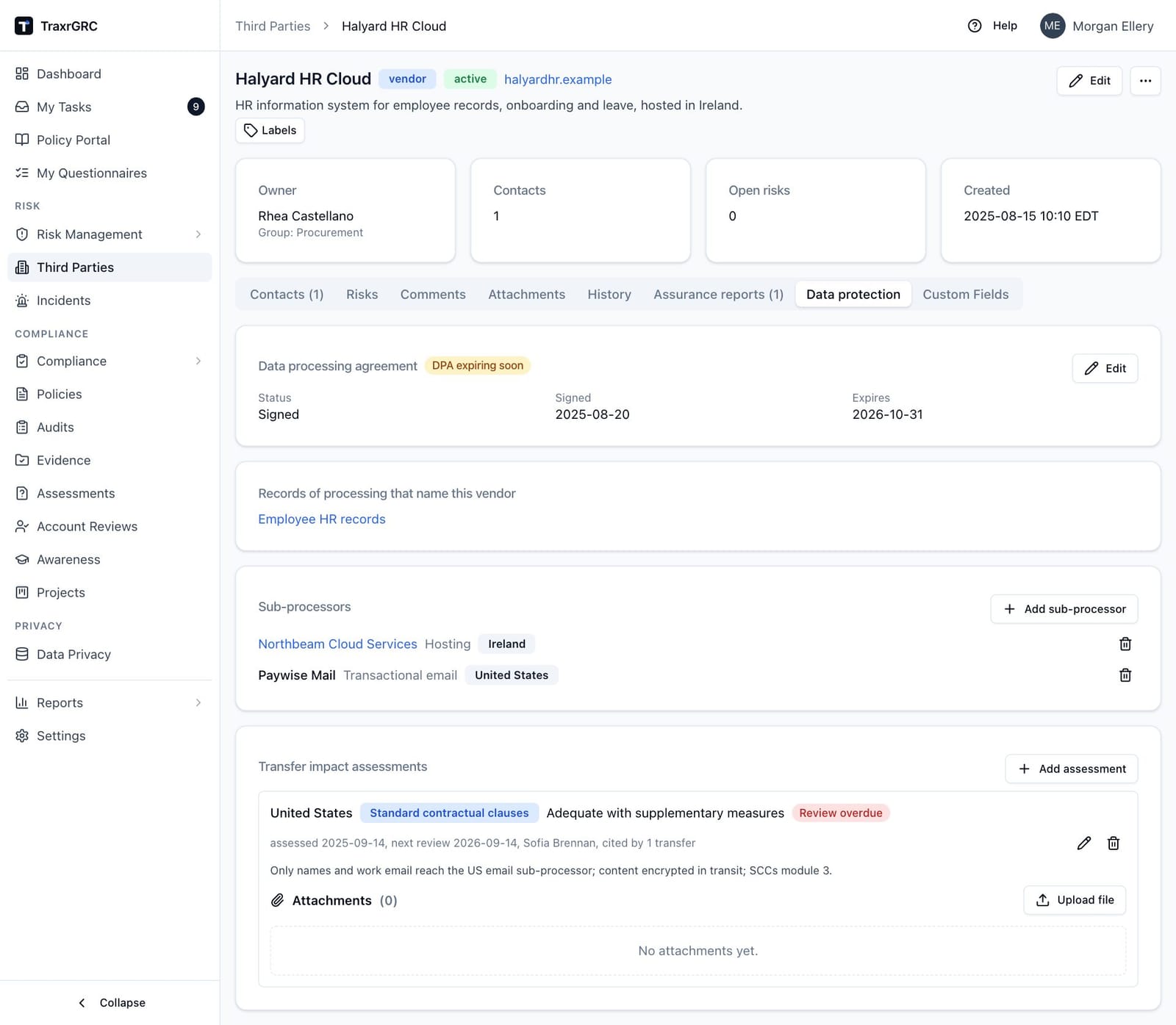
The Data protection tab, after History, covers the vendor as a
processor of personal data. It has up to four sections. Everything on it needs
thirdParties:update on the vendor to change; without it the tab is
read-only.
6.4.1 Data processing agreement
The section heading carries a chip with the DPA's state, and the section shows the Status, Signed date and Expires date.
To record the agreement:
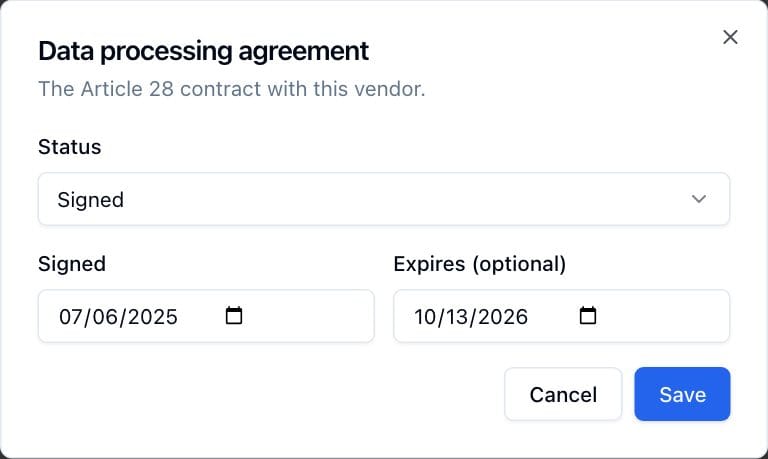
- Click Edit in the section.
- In the Data processing agreement dialog, choose the Status, and enter the Signed date and, optionally, Expires (optional).
- Click Save.
| Status | Meaning |
|---|---|
| Not assessed | Nobody has decided whether a DPA is needed. |
| Not required | The vendor processes no personal data for you. |
| Required, not started | A DPA is needed and work has not begun. |
| In negotiation | Terms are being agreed. |
| Signed | The DPA is in force. Needs the signed date; the expiry cannot be before it. |
The chip reads:
| Chip | When |
|---|---|
| DPA not assessed (gray) | No status set. |
| DPA not required (gray) | Status Not required. |
| DPA missing (red) | Required, not started, or In negotiation. |
| DPA signed (green) | Signed, with no expiry or an expiry more than 60 days away. |
| DPA expiring soon (amber) | Signed, expiring within 60 days. |
| DPA expired (red) | Signed, and the expiry date has passed. |
The vendor's owner gets one email when a signed DPA enters the 60 days and one when it expires; recording a new expiry date starts the cycle again. Terminated vendors are skipped.
6.4.2 Records of processing that name this vendor
Lists the records of processing (see Data Privacy) that name this vendor as a
processor, or "as sub-processor". Each links to the record. The section is
shown only if you have dataPrivacy:read.
6.4.3 Sub-processors
Lists each company the vendor engages to process the data, with its service and country. A sub-processor that also has its own third-party record links to it.
- Click Add sub-processor.
- Enter the Name (required), Service (optional) and Country (optional).
- Optionally, under Also a third party here (optional), choose the matching third-party record. A vendor cannot be its own sub-processor.
- Click Add sub-processor.
Remove a sub-processor with the bin icon on its row.
6.4.4 Transfer impact assessments
Each assessment records whether a destination country's laws and practices let the transfer safeguard work as intended. Each entry shows the country, the safeguard, the conclusion, a review chip when needed, the assessed and next review dates, the owner, how many transfers in records of processing cite it, the supplementary measures, and its own attachments for the full assessment.
To add an assessment:
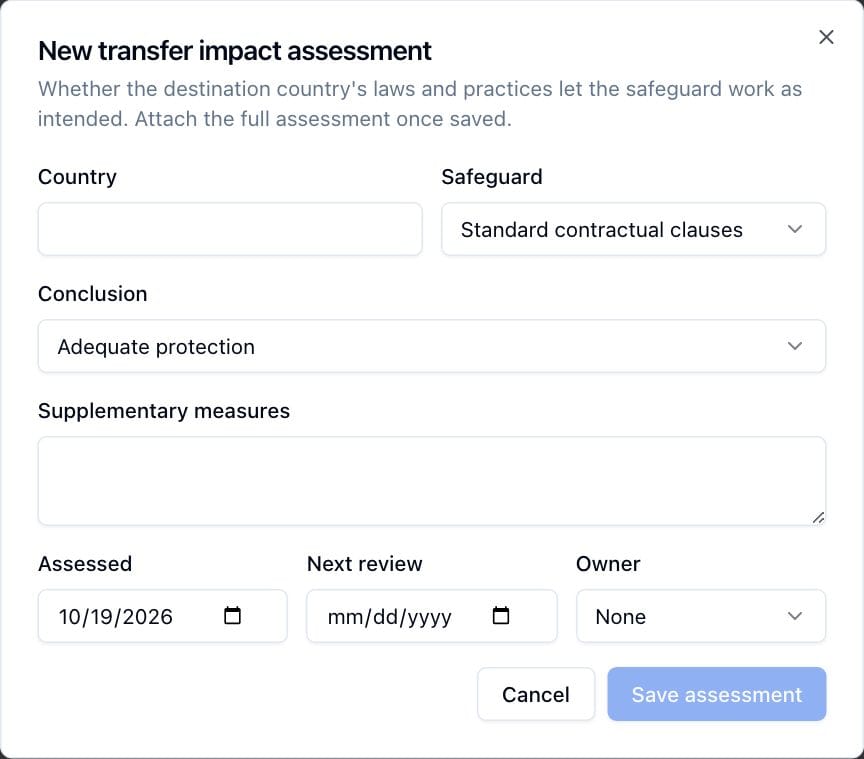
- Click Add assessment.
- Complete the dialog:
| Field | What it means |
|---|---|
| Country | The destination country (required). |
| Safeguard | Adequacy decision, Standard contractual clauses, Binding corporate rules, EU-US Data Privacy Framework, Derogation (Art. 49) or Other. Defaults to Standard contractual clauses. |
| Conclusion | Adequate protection, Adequate with supplementary measures, or Not adequate. |
| Supplementary measures | The measures the conclusion relies on. Required when the conclusion is Adequate with supplementary measures. |
| Assessed | The assessment date; defaults to today. |
| Next review | When the assessment must be reviewed. |
| Owner | The person responsible for the assessment. |
- Click Save assessment.
- Attach the full assessment document to the entry once it is saved.
Edit an assessment with its pencil icon, or delete it with its bin icon. Deleting an assessment leaves the transfers that cited it in place without the link.
| Review chip | When |
|---|---|
| Review due soon (amber) | The next review is within 30 days. |
| Review overdue (red) | The next review date has passed. |
The assessment's owner (or, without one, the vendor's owner) gets one email when the review comes within 30 days and one when it is overdue; a new review date starts the cycle again. With the daily digest on, these go in the digest and are still sent only once. Terminated vendors are skipped.
6.5 Deleting a third party
- Open More actions (…) in the header and click Delete.
- Confirm with Delete in the "Delete third party?" dialog.
Deleting removes the record together with its contacts, sub-processors, transfer impact assessments (with their files), comments, attachments and labels. A record of processing that named the vendor first moves on to its next processor. The delete is blocked while any risks are attached; the error tells you how many risks must be detached first. Deleting a record cannot be undone.
6.6 Who can do what
Access is controlled by the thirdParties module rights (see Administration & Settings):
| Action | Permission needed |
|---|---|
| View the register and a record | thirdParties:read |
| Create a record | thirdParties:create |
| Edit a record (including status), add/edit/delete contacts, change the Data protection tab, comment, attach files | thirdParties:update; at the own level you must be the owner or in the owner group |
| Delete a record | thirdParties:delete; at the own level you must be the owner or in the owner group |
| See the records of processing that name a vendor | dataPrivacy:read |
Attaching and detaching risks additionally require risks:update on the
specific risk; at the own level you must own that risk or belong to its
group. The attach dialog only lists risks for users who also have
risks:read. Administrators bypass all checks.