11 Data Privacy
Data Privacy is your register of records of processing: one entry for each activity in which your organization handles personal data (for example "CRM customer data processing"), documenting the legal basis, the data involved, where it is stored, and who is responsible for keeping the entry up to date. Each record carries a review schedule so the register stays current over time. Around the register the module provides data protection impact assessments (DPIAs), the Article 30 register export, a data map, and data mapping questionnaires that collect the facts from the business people who know each activity.
The privacy team and the Data Protection Officer (DPO) use this module day to day. Data Liaisons, the business contacts for each activity, see only their own questionnaires (see Data mapping questionnaires below). Auditors and colleagues with read access use the register and its exports as evidence. Who can do what is controlled by the dataPrivacy module permissions, summarized at the end.
11.1 The records list
Open Data Privacy in the navigation (under Privacy). The page has three tabs:
| Tab | Contents |
|---|---|
| Records of processing | The register itself, described below. |
| DPIAs (N) | Every DPIA on records you can read (see DPIAs below). |
| Questionnaires | The questionnaires sent to Data Liaisons and the questionnaires available to send (see Data mapping questionnaires below). |
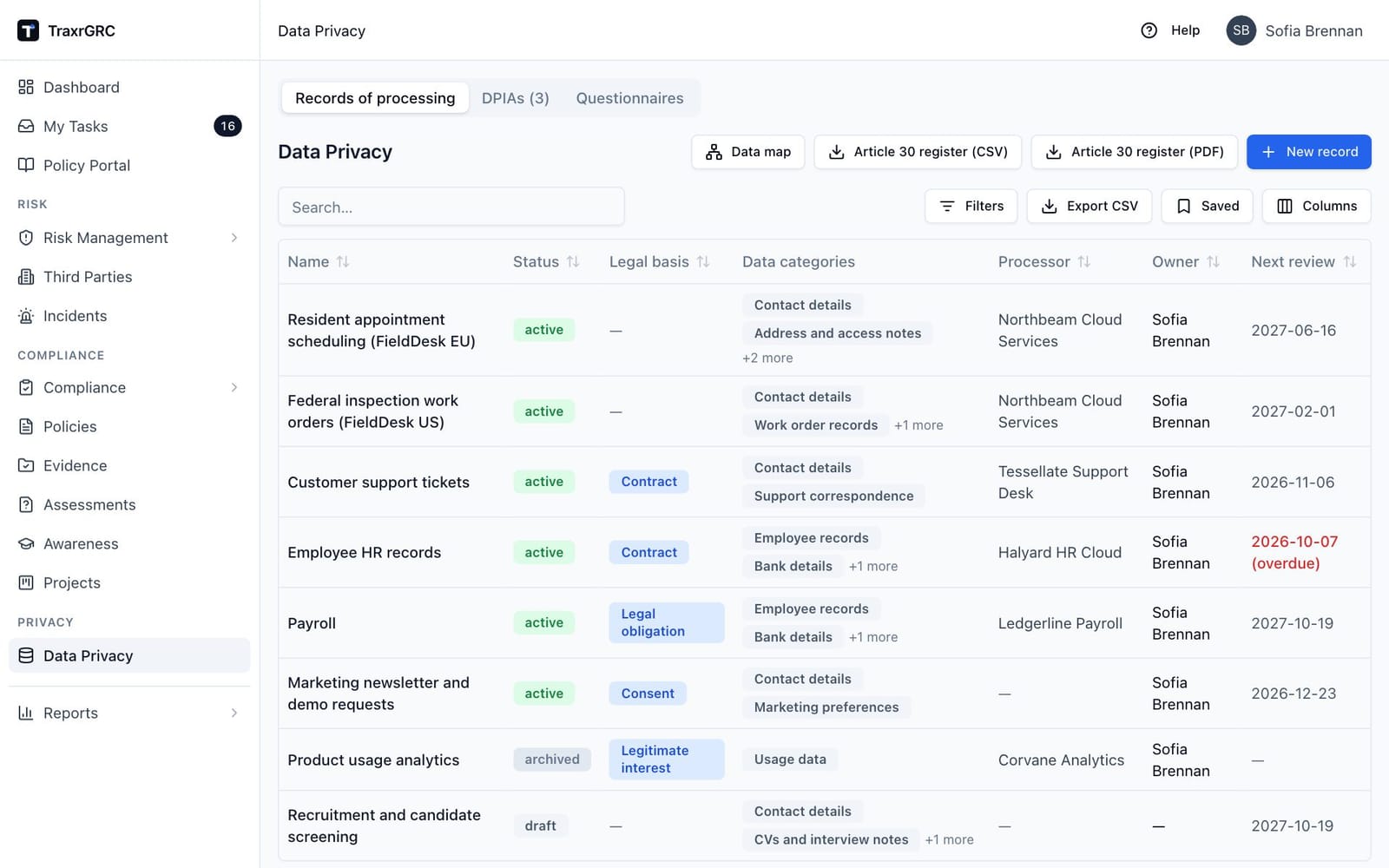
On Records of processing, each row is one record of processing:
| Column | What it shows |
|---|---|
| Name | Click it to open the record. |
| Status | Draft, Active or Archived. |
| Legal basis | The GDPR lawful basis as a blue badge: Consent, Contract, Legal obligation, Legitimate interest, Vital interests or Public task (or a dash if unset). |
| Data categories | Up to two category chips, with "+N more" when there are more. |
| Processor | The first processor on the record, if any. Click to open its profile (see Third Parties). |
| Owner | The named owner, or the owner group. |
| Next review | When the next review is due. Shown in red with "(overdue)" once the date has passed, unless the record is archived. |
The table can be searched and filtered by status and legal basis, and Export CSV downloads the current view. The buttons above the table are:
| Button | What it does |
|---|---|
| Data map | Opens the data map (see The data map below). |
| Article 30 register (CSV) | Downloads the full register as a spreadsheet (see The Article 30 register below). |
| Article 30 register (PDF) | Downloads the full register as a formatted document. |
| New record | Creates a record (requires dataPrivacy:create). |
11.2 Creating a record
-
Click New record (requires dataPrivacy:create).
-
Complete the New record of processing dialog:
Field What it means Name A short name for the processing activity, e.g. "CRM customer data processing". Required. Description What the activity covers. Owner An individual user responsible for keeping the entry accurate (optional). Owner group A responsible group (optional). Used for "own"-level permission scoping. Review frequency (months) How often the record must be reviewed, 1 to 120. Defaults to 12. Processor (third party) The third party that processes the data on your behalf, if any (only non-terminated third parties are offered; see Third Parties). Schedule the first review N months from now Tickbox, on by default. When ticked, the record is created with its first review already scheduled and the Next review date set accordingly. Untick to create the record with no scheduled review. -
Click Create record. The record is created as a Draft.
-
Open the record and click Edit to fill in the full documentation (below).
11.3 The record detail page
Click a record name to open it. The header shows the name, the status badge, the legal basis badge and the description. The header buttons depend on the record's status and your permissions:
| Button | When it appears |
|---|---|
| Activate, Archive, Reactivate | You have dataPrivacy:update; which ones depend on the status (see Record status below). |
| Edit | You have dataPrivacy:update on the record. |
| Delete | You have dataPrivacy:delete on the record. |
| Send questionnaire | You have dataPrivacy:update on the record and it is not archived (see Data mapping questionnaires below). |
Four summary cards sit under the header:
| Card | What it shows |
|---|---|
| Owner | The owner, the owner group and the record's Data Liaison (or "none"). |
| Processors | Each processor, linked to its third-party profile, with sub-processors marked as such. |
| Next review | The next review date, marked overdue in red once it has passed, and the review frequency. |
| Retention | The retention period. |
Below the cards come the Article 30 completeness notice and the Linked assets, risks and controls card, both described below.
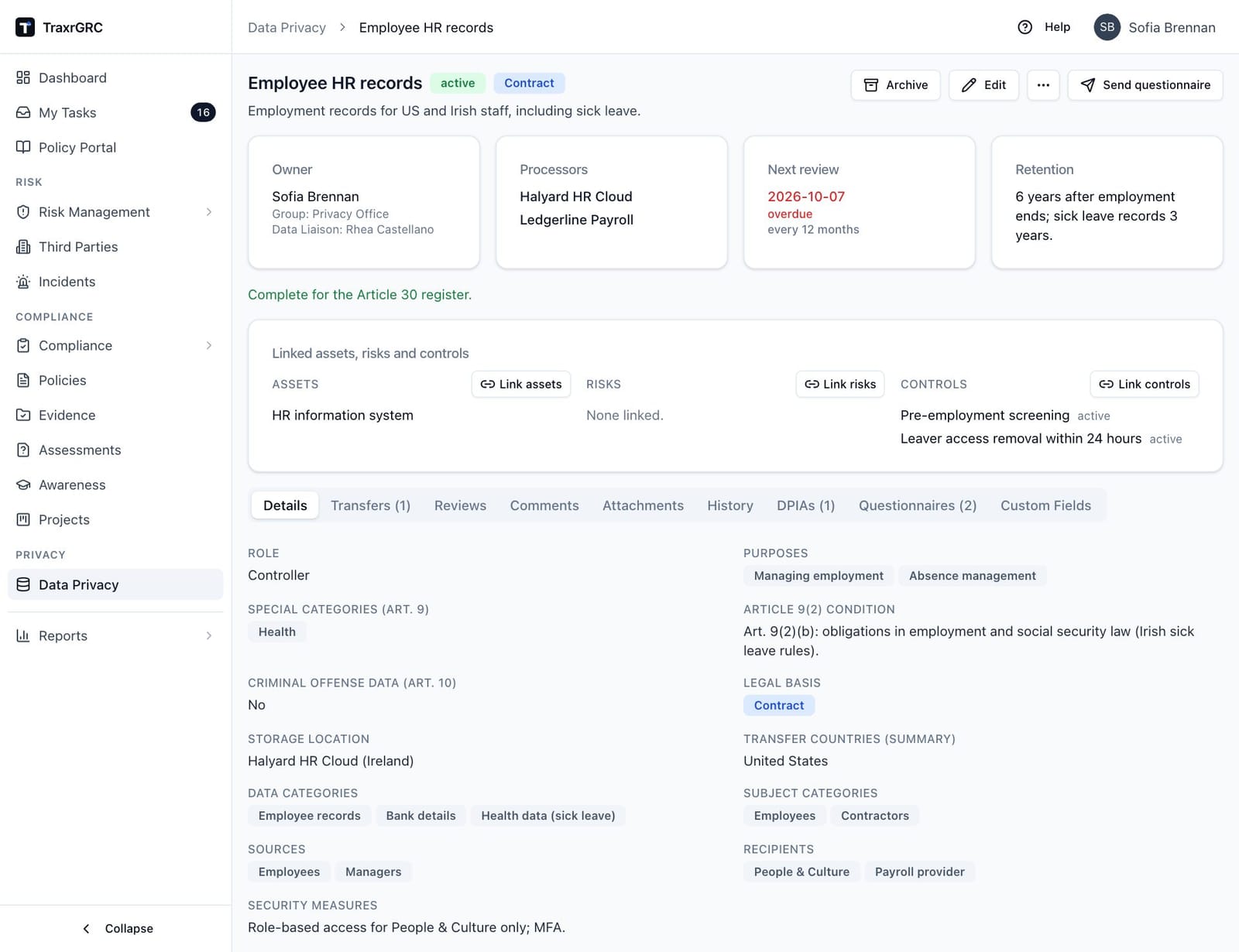
The page has one row of tabs:
| Tab | Contents |
|---|---|
| Details, Transfers (N), Reviews, Comments, Attachments, History | Everything about the record itself, described in the sections below. |
| DPIAs (N) | The record's data protection impact assessments (see DPIAs below). |
| Questionnaires (N) | Questionnaires sent about this record, with the questionnaire, Data Liaison, status, sent date, answer-by date and the date answered. |
| Custom Fields | Organization-specific fields (see Comments, attachments, history and custom fields below). |
11.4 Documenting the record
The creation dialog captures only the essentials. To document the record fully:
- Open the record and click Edit (requires dataPrivacy:update).
- Complete the Edit record of processing dialog. It contains everything from the creation dialog plus the fields below.
- Click Save changes.
| Field | What it means |
|---|---|
| Data Liaison | The business contact who answers questionnaires about this activity and receives its annual checks (see Data mapping questionnaires below). Only people with the Data Liaison role are offered. |
| Role | Whether your organization acts as Controller, Joint controller or Processor for this activity. A processor's record needs less for Article 30 (see below). |
| Purposes of processing | Why the data is processed, e.g. "Payroll administration". A tag input like the category fields. |
| Joint controllers | Shown for the joint-controller role: the name and contact details of each joint controller. |
| Processors and sub-processors | The third parties that process the data for you. Pick one from Add a third party and set it to Processor or Sub-processor; remove it with the bin icon. The first one listed is the record's main processor. |
| Special categories of data (Art. 9) | Tick each special category involved: health, genetic, biometric (for identification), racial or ethnic origin, political opinions, religious or philosophical beliefs, trade union membership, sex life or sexual orientation. |
| Article 9(2) condition | Shown once a special category is ticked: the condition that permits processing it, e.g. "9(2)(i) public interest in public health". |
| Criminal convictions and offenses data (Art. 10) | Tick when the activity involves such data. |
| Legal basis | The lawful ground for the processing: Consent, Contract, Legal obligation, Legitimate interest, Vital interests or Public task (or "None"). Shown as a blue badge on the record. |
| Retention | How long the personal data is kept, e.g. "5 years after account closure". |
| Storage location | Where the data is stored, e.g. "EU data center". |
| Transfer countries (summary) | A free-text summary kept from earlier versions. Record each transfer and its safeguard on the Transfers tab instead. |
| Security measures | Free text describing the safeguards in place, e.g. encryption and access control. |
| Data categories | The kinds of data involved, e.g. "Contact details". |
| Subject categories | Whose data it is, e.g. "Customers", "Employees". |
| Sources | Where the data comes from, e.g. "Web sign-up forms". |
| Recipients | Who receives the data, e.g. "Sales team". |
The purposes field and the four category fields (data categories, subject categories, sources, recipients) are tag inputs: type a value and press Enter to add it as a chip (you can also separate values with a comma). Duplicate values are ignored. Remove a value by clicking the × on its chip.
Everything you document is displayed on the record's Details tab, ready for an auditor or a colleague to read.
11.5 Article 30 completeness
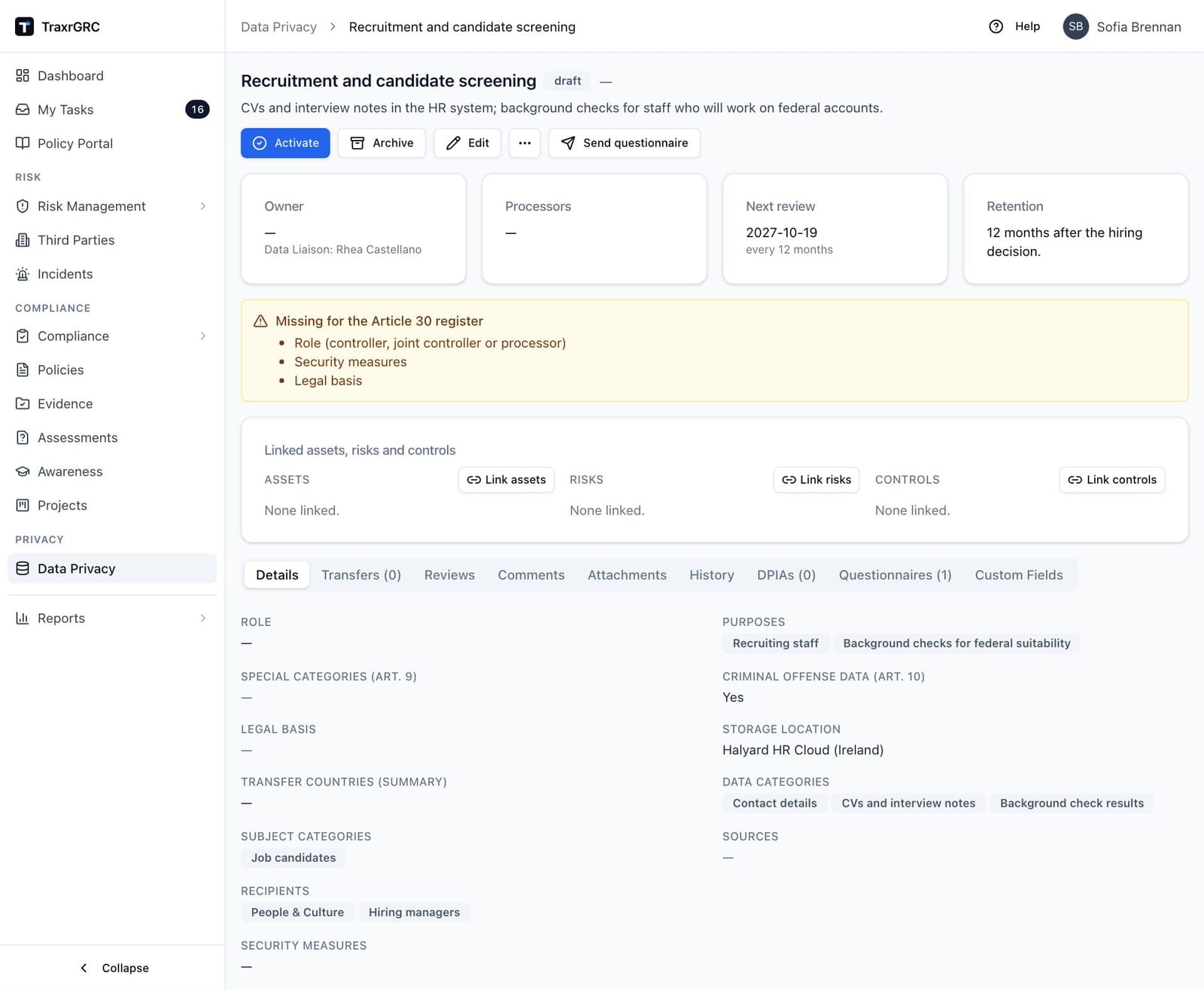
Below the summary cards the record either says it is "Complete for the Article 30 register" or shows an amber Missing for the Article 30 register notice listing what it still lacks.
| Record's role | What it needs besides its role |
|---|---|
| Controller, joint controller, or no role set | Purposes, categories of data subjects, categories of personal data, recipients, retention period, security measures and legal basis; an Article 9(2) condition when special categories are ticked; the joint controllers for the joint-controller role. A record with no role set is also asked for its role. |
| Processor (Article 30(2)) | Only the categories of personal data and the security measures. |
11.6 Transfers
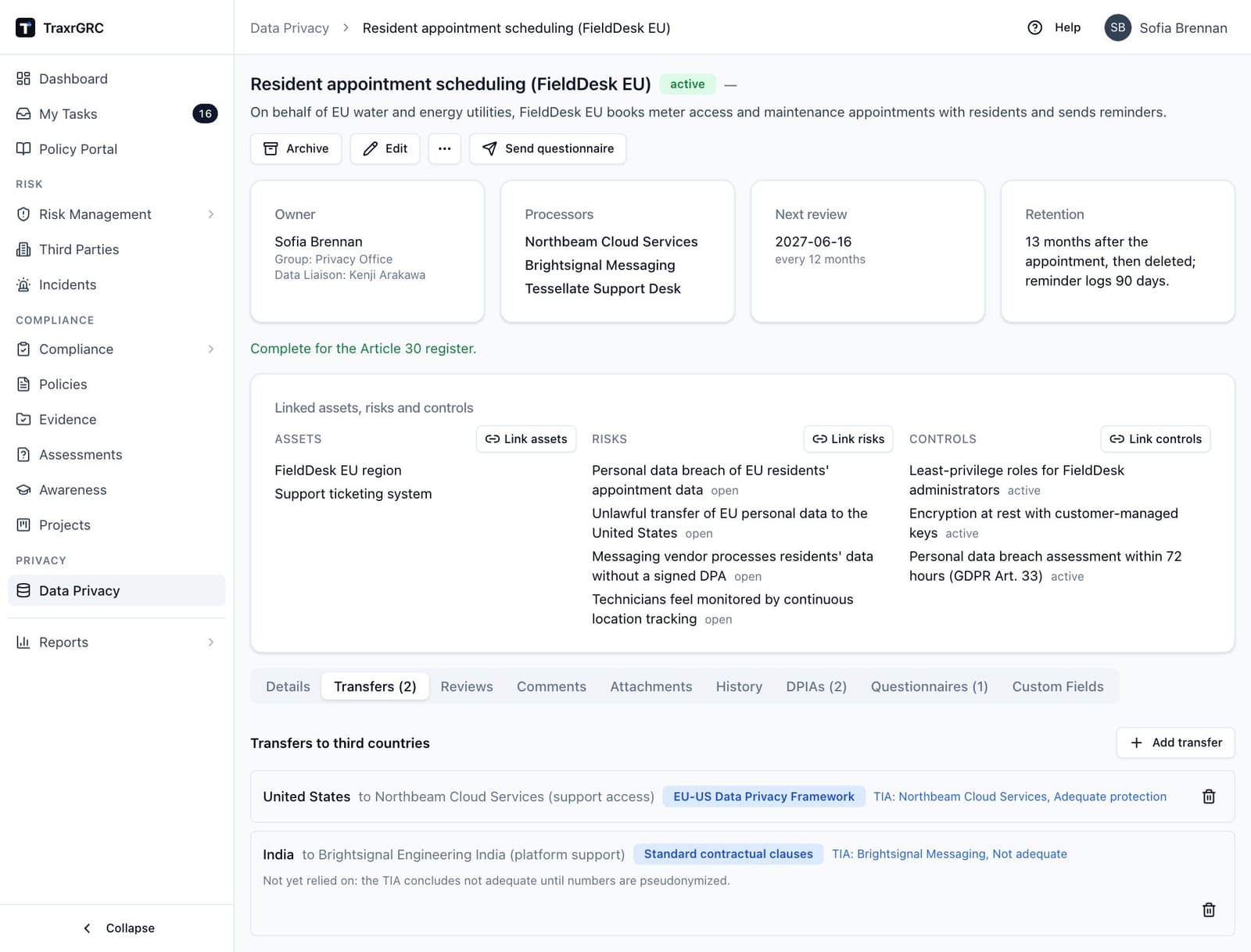
The Transfers tab lists each transfer of the record's data to a country outside the EEA, under the heading Transfers to third countries. To add one (requires dataPrivacy:update):
-
Click Add transfer.
-
Complete the dialog:
Field What it means Country The destination country. Required. Recipient (optional) Who receives the data there. Safeguard The transfer mechanism relied on: Adequacy decision, Standard contractual clauses, Binding corporate rules, EU-US Data Privacy Framework, Derogation (Art. 49) or Other. Transfer impact assessment The vendor's transfer impact assessment the transfer rests on (see Third Parties: Data protection). Shown only when such assessments exist. Notes (optional) Anything else worth recording. -
Click Add transfer.
A transfer under standard contractual clauses or binding corporate rules with no assessment cited shows an amber No transfer impact assessment badge. Remove a transfer with the bin icon.
11.7 Linked assets, risks and controls
The Linked assets, risks and controls card ties the record to the rest of the register. To link an entry:
- Click Link assets, Link risks or Link controls.
- Search, and pick an entry to link it. Pick it again to unlink it.
Linking needs dataPrivacy:update on the record and read on the linked module; entries in modules you cannot read are counted, not shown. Deleting a linked asset, risk or control removes the link and records that on the record's history, naming what was deleted; a deleted risk is recorded the same way on any DPIA it was linked to.
11.8 The Article 30 register
Article 30 register (CSV) and Article 30 register (PDF) on the Data Privacy page download the records of processing activities.
Both contain a header naming the controller, its contact details, representative and DPO (from Settings → Privacy) and the date, then one entry per active record that you can read, with (drafts and archived records are left out, since a draft is not yet a live processing activity):
- role and joint controllers;
- purposes and legal basis (printed with its Article 6(1) letter);
- categories of data subjects and of personal data, special categories and the Art. 9(2) condition, and criminal offense data;
- recipients and processors;
- each transfer with its safeguard (a record with no transfers listed falls back to its transfer summary);
- retention, security measures and owner.
The PDF lays out each activity as a block of labeled fields in Article 30(1) order, with a page footer naming the controller and date, and prints any empty required field as Not recorded so gaps are visible before the register goes to a supervisory authority.
11.9 DPIAs
A data protection impact assessment (Art. 35) belongs to one record of processing. The DPIAs tab on the Data Privacy page lists every DPIA on records you can read; the DPIAs tab on a record lists that record's DPIAs. Both tables show:
| Column | What it shows |
|---|---|
| DPIA | The title. Click it to open the DPIA. |
| Record of processing | The record it belongs to (on the Data Privacy page only). |
| Status | See the table below. |
| Screening | Not screened, Likely required or Likely not required. |
| Decided | When it was approved or rejected. |
| Next review | The DPIA's next review date. |
A DPIA moves through these statuses:
| Status | Meaning |
|---|---|
| Draft | Created; screening not yet saved. |
| Screened | Screening saved. Either kept as the evidence that no DPIA was needed, or ready for the full assessment. |
| In progress | The full assessment is being written. |
| Awaiting approval | Submitted for the DPO's advice, where required, and a decision. Frozen apart from prior consultation. |
| Approved | Approved by someone with the Approve DPIAs right. Locked. |
| Rejected | Rejected by someone with the Approve DPIAs right. Locked until reopened. |
11.9.1 Starting and screening a DPIA
- Open the record's DPIAs tab and click New DPIA (requires dataPrivacy:update on the record). DPIAs are always started from their record; the Data Privacy page's DPIAs tab has no New DPIA button.
- Give it a Title and click Create DPIA. You arrive on the DPIA page.
- Under Screening (WP248 criteria), tick each of the nine criteria from the WP29 guidelines endorsed by the EDPB that applies: evaluation or scoring; automated decisions with legal or similarly significant effect; systematic monitoring; sensitive or highly personal data; large scale; matching or combining datasets; vulnerable data subjects; innovative use or new technology; and processing that prevents people exercising a right or using a service or contract. Two or more met makes a DPIA likely required; the chip next to the heading says so as you tick.
- Click Save screening. If fewer than two are met, the screened DPIA stays as your evidence that none was needed, or you can still carry on.
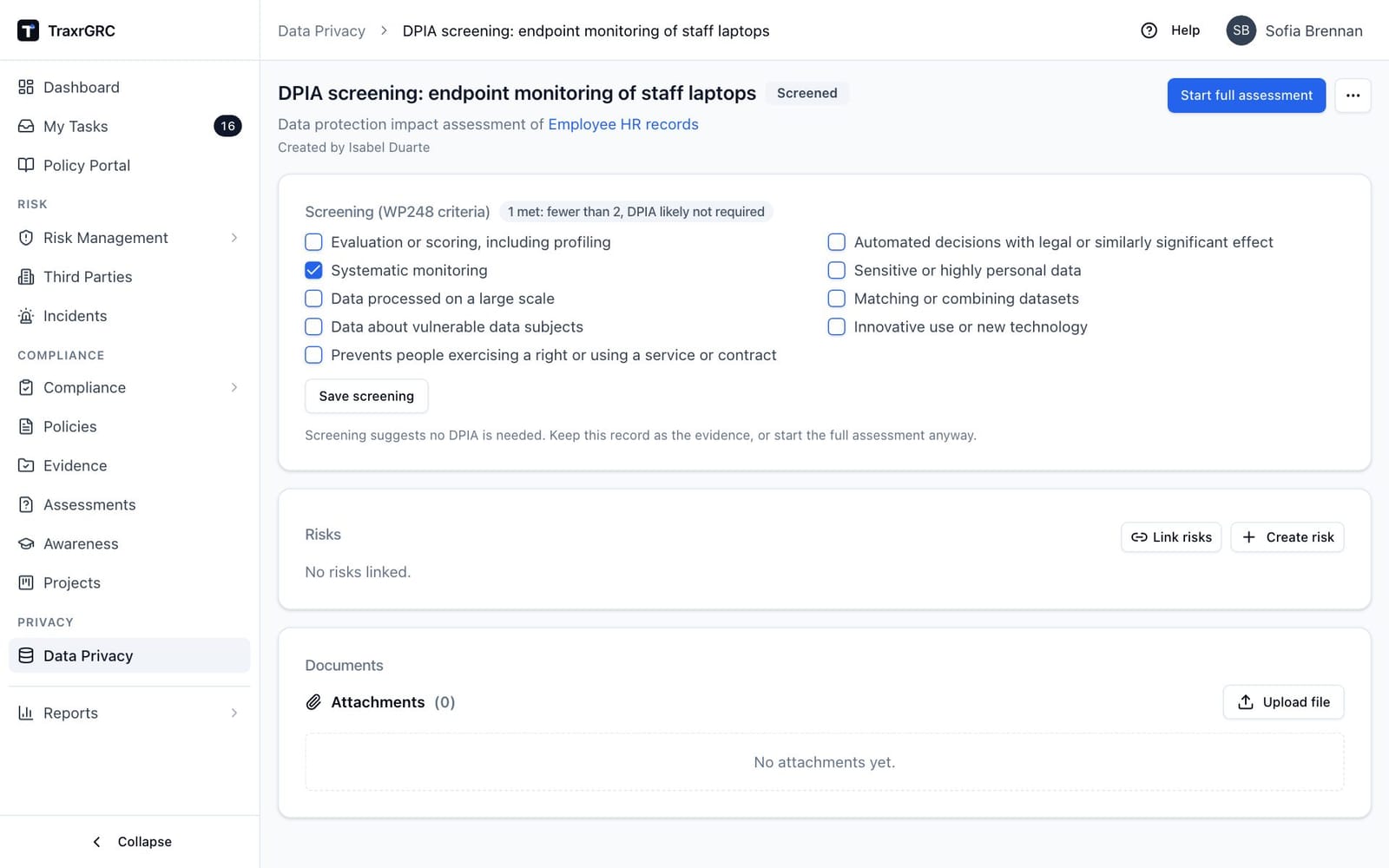
11.9.2 The full assessment
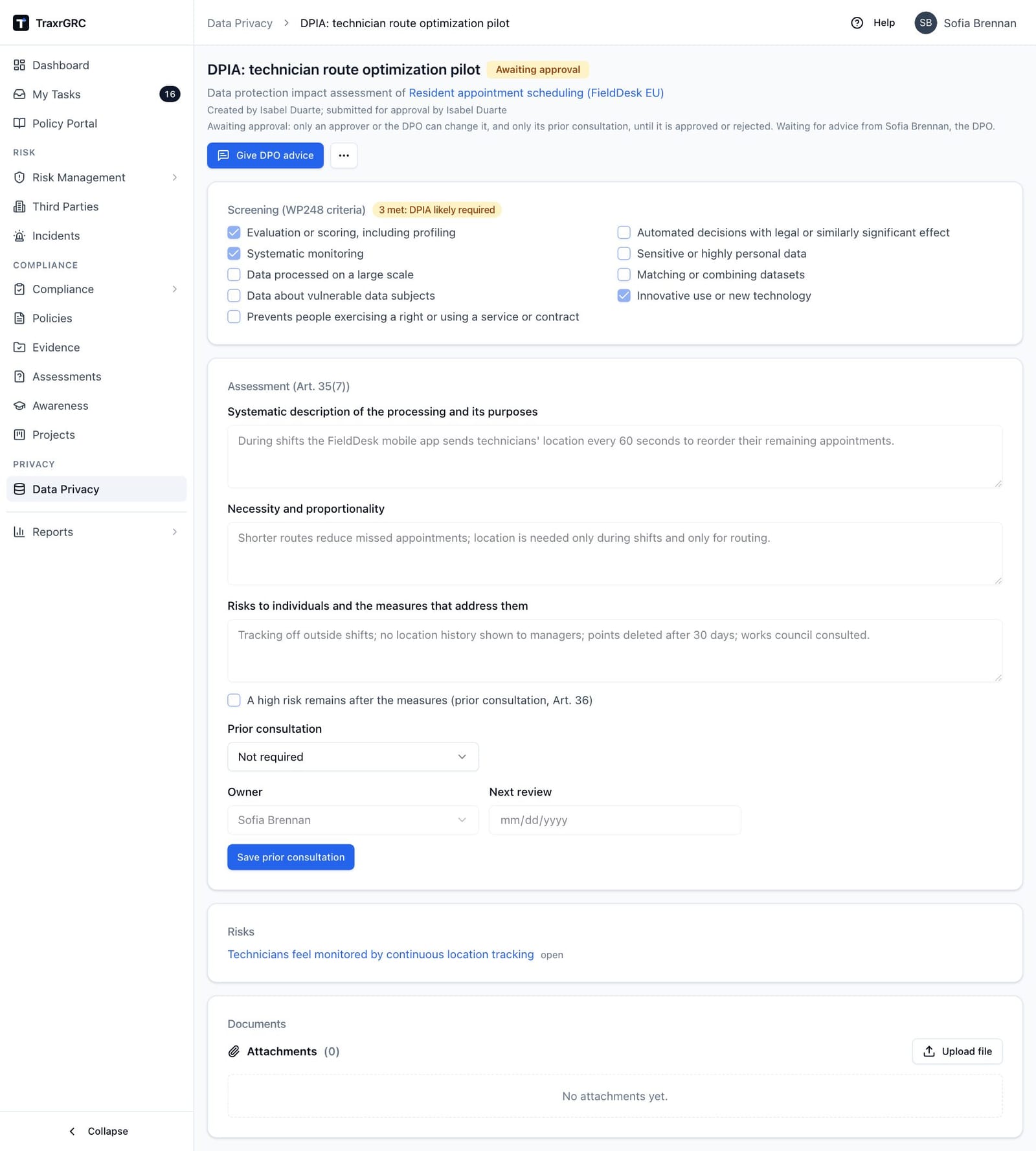
- Click Start full assessment. The Assessment (Art. 35(7)) section opens with three texts: the systematic description of the processing and its purposes, necessity and proportionality, and the risks to individuals with the measures that address them.
- Tick A high risk remains after the measures when it does, and record Prior consultation with the supervisory authority (Art. 36): Not required, Required, not yet made, or Authority consulted, with its date (Consulted on) and Reference.
- Set an Owner and a Next review date if you like, then click Save assessment.
- Under Risks, Link risks connects existing risks. Create risk makes a new one from the DPIA: give it a Title and Classification; it is linked to the DPIA and to the record, starts at the lowest likelihood and impact for you to rate on the risk page, and needs risks:create.
- Click Submit for approval. This is refused until the description, necessity and measures are written. From then until it is decided, the DPIA is frozen: nobody can change its text, screening, residual-risk answer, linked risks, owner or review date. The one exception is prior consultation, which an approver or the DPO (with dataPrivacy:update on the record) may still set with Save prior consultation, since approval can depend on it. Changing it clears any DPO advice already given, since the advice covered the earlier text.
The DPIA page names who created it and who submitted it for approval.
11.9.3 DPO advice
Article 35(2) requires the organization to seek the DPO's advice when carrying out a DPIA. The DPO gives advice; deciding is a separate step for someone with the Approve DPIAs right, who may or may not be the DPO.
An administrator names the Data Protection Officer in Settings → Privacy (see the Administration chapter). Only that person can give DPO advice, and their DPIAs awaiting advice appear in their My Tasks as Advise on .... Whether advice is required before a decision is also set there; by default it is required whenever a DPO is named.
- As the DPO, open a DPIA awaiting approval and click Give DPO advice.
- Choose a Recommendation: Proceed, Proceed with changes or Do not proceed.
- Write your Advice and click Save advice.
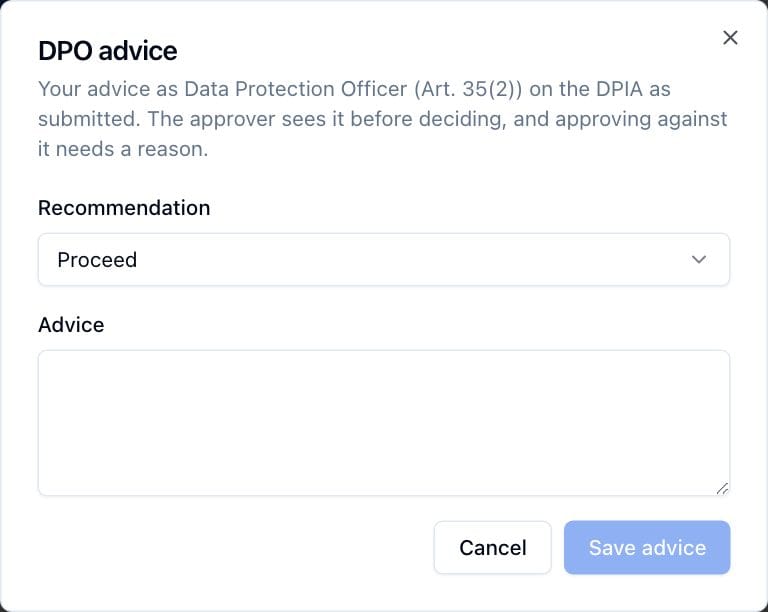
The advice appears on the DPIA under DPO advice, with your name and the time. Until the DPIA is decided you can change it with Revise DPO advice. Like a decision, it covers exactly the DPIA you have open and is refused if the DPIA changed meanwhile. Resubmitting or reopening the DPIA clears it, so the DPO advises on each submission.
While advice is required and missing, approvers see "Waiting for advice from" the DPO on the DPIA, no Approve or reject button, and no task in My Tasks.
11.9.4 Approving or rejecting
- Open the DPIA and click Approve or reject (requires the Approve DPIAs right, dataPrivacy:approve, on the record). The dialog repeats the DPO's recommendation, if any.
- Write a Decision note.
- If the DPO recommended changes or not proceeding, approving also needs a Reason for approving against the DPO's advice.
- Click Approve or Reject.
The decision is recorded in your name: the DPIA shows Decision with your note and "Approved by" or "Rejected by" you, with the time. An approval against the DPO's advice is marked Approved against DPO advice with your reason, recorded in the audit log, and emailed to the DPO. Rejecting never needs a reason beyond the note.
The rules for deciding are:
- When DPO advice is required, the decision waits for it.
- The author may decide their own DPIA unless an administrator has turned on Require a second person to approve DPIAs (Settings → Privacy). Then whoever created the DPIA or submitted it sees why the button is missing, and another approver decides.
- The decision covers exactly the DPIA you have open. It is refused if the DPIA changed since the page was loaded or since it was submitted (a linked risk deleted meanwhile, for example; reject it so it can be resubmitted), if the DPO's advice changed meanwhile, or if someone else has already decided it.
- Approval is refused while a high residual risk has prior consultation set to not required, and when consultation is marked as made without its date.
- Approving sets the next review a year out unless a date is already set.
11.9.5 After the decision
An approved or rejected DPIA is locked; Reopen returns it to In progress and clears the decision and the DPO's advice. Documents holds the full assessment and any supporting files. Delete, in the More actions menu (…), asks for confirmation ("Delete DPIA?") and then removes the DPIA (requires dataPrivacy:delete on the record); deleting the record deletes its DPIAs.
11.10 The Reviews tab
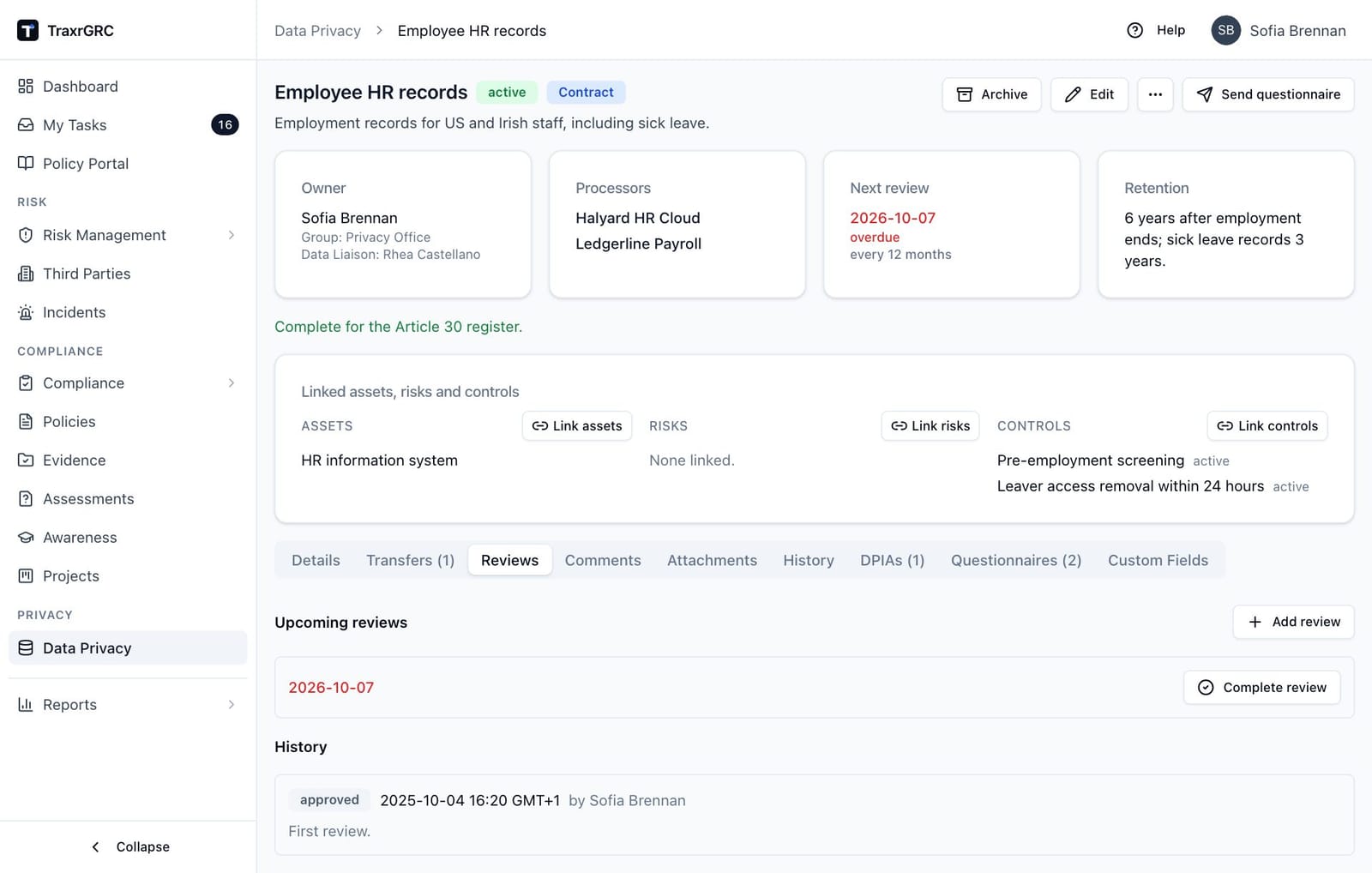
Records are kept honest through scheduled reviews. Open the record's Reviews tab.
Upcoming reviews lists pending reviews by scheduled date; a date in the past is shown in red. To complete a pending review:
-
Click Complete review (requires dataPrivacy:update).
-
In the dialog, choose the Result:
Result Meaning Approved The record is accurate as documented. Changes required The record needs corrections (describe them in Notes). -
Add optional Notes.
-
Click Complete review.
Completing a review records the outcome, your name and the date in the review history, and automatically schedules the next review at the record's review frequency. The Next review date moves forward to match, leaving one pending review ready.
To schedule an additional, ad-hoc review without completing one:
- Click Add review.
- Pick a Scheduled date.
- Click Schedule review.
The Next review date always reflects the earliest pending review.
History lists completed reviews newest first: the result badge (Approved in gray, Changes required in amber), the completion date, the reviewer's name and any notes.
Changing the Review frequency on the record re-anchors pending reviews: they are rescheduled from the most recent completed review (or the record's creation, if none) at the new frequency.
11.11 Review notifications
The daily notification sweep watches every record that is not archived:
| When | What the owner receives |
|---|---|
| A review comes due within the lead window (default 7 days) | A "Data privacy review due soon" email naming the record and its due date. |
| The review date has passed | An "OVERDUE data privacy review" email. |
Owners who are deactivated receive nothing, and archived records are excluded entirely. A record with a Data Liaison gets an annual check instead while that check is open (see Annual checks below). Templates and lead windows are configured in Settings → Notifications (see Administration & Settings). Reminders also appear in the notification center (see Notifications).
11.12 Record status: draft, active, archived
| Status | Badge | Meaning |
|---|---|---|
| Draft | Gray | Being documented. Not yet part of the live register. |
| Active | Green | The live register entry. Review scheduling and due-date notifications apply. |
| Archived | Gray | Retired. Excluded from review notifications; its next-review date no longer flags red. |
The detail page offers dedicated buttons (requires dataPrivacy:update):
| Button | Move |
|---|---|
| Activate | Draft to Active. |
| Archive | Draft or Active to Archived. |
| Reactivate | Archived to Draft; activate it again afterward to return it to the live register. |
11.13 Comments, attachments, history and custom fields
- Comments. Discuss the record in the Comments tab. Posting requires dataPrivacy:update on the record.
- Attachments. Upload supporting evidence (DPIAs, processor agreements, data maps) in the Attachments tab. Uploading requires dataPrivacy:update; anyone who can read the record can download.
- History. The History tab lists the audit-log entries for the record and its reviews: creation, edits, status changes, scheduled and completed reviews (last 100 entries), each with the action, actor, date and changed fields. A change applied from a Data Liaison's answers links to the questionnaire it came from.
- Custom Fields. The Custom Fields tab, last in the row, shows any extra fields your organization has defined for records of processing, or a note that none are defined. Editing values requires dataPrivacy:update on the record (see Administration & Settings).
11.14 Deleting a record
- Open the record, open More actions (…) and click Delete (requires dataPrivacy:delete).
- Read the confirmation, which warns that the record is deleted together with its reviews, along with its comments, attachments and labels. Its transfers, links, DPIAs and their documents go too.
- Click Delete to confirm, or Cancel.
Deletion cannot be undone and is recorded in the audit log. If the processing activity has simply ended, archiving is usually the safer choice.
11.15 Data mapping questionnaires
Data mapping questionnaires ask the business people who know a processing activity, called Data Liaisons, to describe it, so the privacy team does not have to chase the facts by hand. Each answer can fill a field of the record of processing, and nothing changes on the record until the privacy team has reviewed the answers.
11.15.1 Who can be a Data Liaison
Anyone with the Data Liaison role, given through a group (Settings → Groups), plus administrators. A Data Liaison needs an account: with SAML single sign-on, the account is created the first time they sign in through SSO, after which an administrator adds them to a group carrying the role; without SSO, an administrator creates the account. The role grants nothing else, so a Data Liaison sees only My Questionnaires and lands there after signing in; give them other roles as well where they need more.
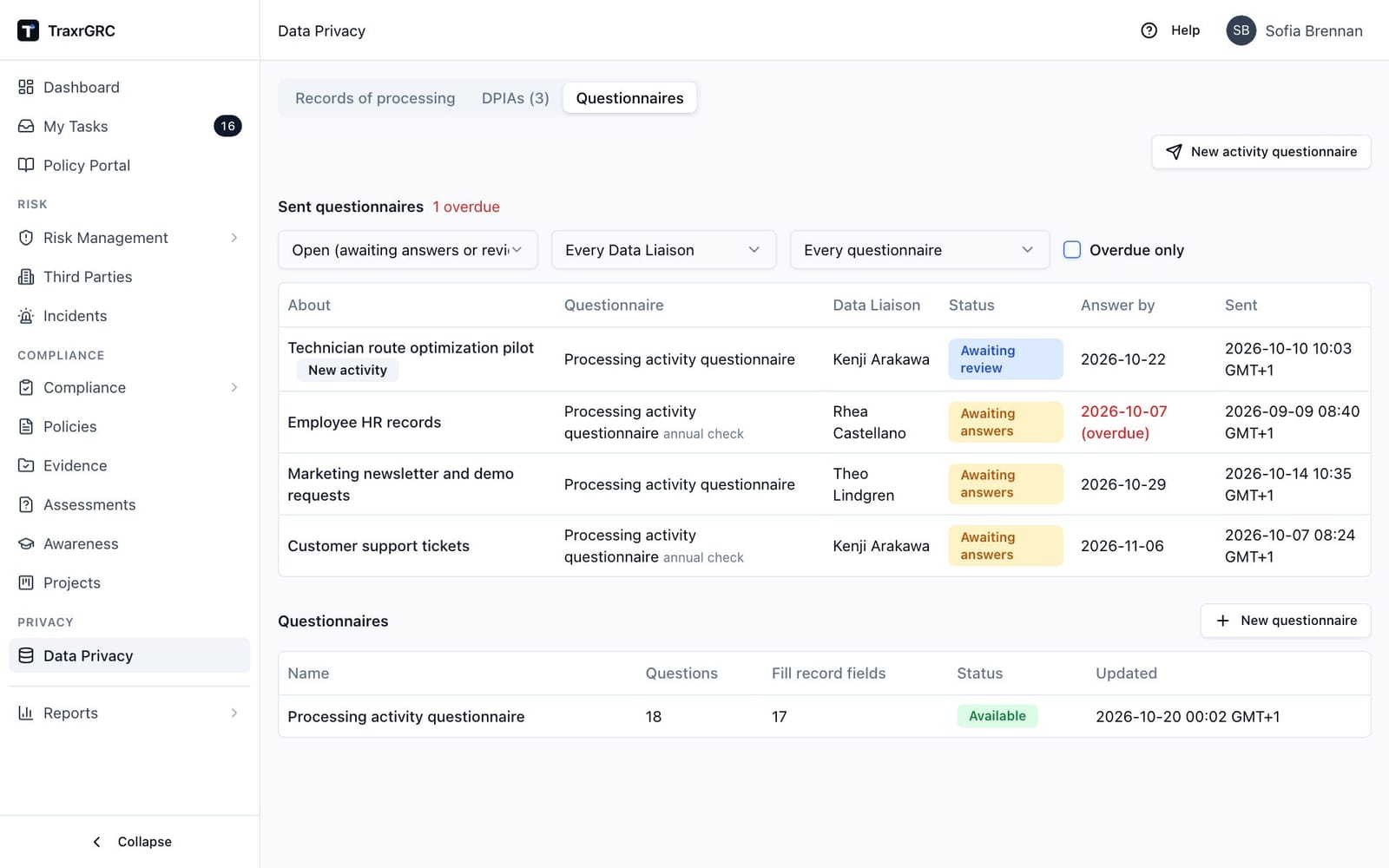
11.15.2 The Questionnaires tab
The Questionnaires tab on the Data Privacy page has two sections.
Sent questionnaires lists every questionnaire sent, with the number overdue next to the heading:
| Column | What it shows |
|---|---|
| About | The record, or the proposed name of a new activity (marked New activity). Click it to open the questionnaire. |
| Questionnaire | The questionnaire used, marked "annual check" for annual checks. |
| Data Liaison | Who was asked. |
| Status | See the table below. |
| Answer by | The answer-by date, in red with "(overdue)" once it has passed. |
| Sent | When it was sent. |
Filter the list by status (open ones, meaning awaiting answers or review, are shown by default), by Data Liaison, by questionnaire, and with Overdue only. With dataPrivacy:read at "all" you see every questionnaire sent; at "own", those about records you own and those you sent. The Data mapping questionnaires outstanding dashboard widget summarizes them.
| Status | Meaning |
|---|---|
| Awaiting answers | Sent; the Data Liaison has not submitted yet. |
| Awaiting review | Submitted; waiting for the privacy team to decide. |
| Applied | Decided; accepted values were written to the record (or a new record was created). |
| Rejected | The answers were rejected with a reason; nothing changed. |
| Canceled | Withdrawn before it was decided. |
Questionnaires lists the questionnaires that can be sent, with the number of questions, how many fill record fields, whether each is Available or Withdrawn, and when it was last updated.
11.15.3 Building a questionnaire
The default Processing activity questionnaire asks for the Article 30 details in plain words. New questionnaire, or a click on a questionnaire's name, opens the editor. Changing questionnaires needs dataPrivacy:update at the "all" level; everyone with dataPrivacy:read can look at them.
- Give the questionnaire a Name and an optional Description.
- Click Add question for each question, and set:
- Question: the text the Data Liaison reads.
- Help text: optional guidance shown with it.
- Answer type: see the table below. For Pick from a list in the app, choose the List; for single and multiple choice, enter Choices, one per line (at least two).
- Fills record field: the record field the answer fills, or Not mapped (kept with the answers).
- Required: whether the question must be answered.
- Click Save. The editor lists anything that still needs fixing and keeps Save disabled until it is right.
| Answer type | What the Data Liaison sees |
|---|---|
| Short text, Long text | A text box. Long text that fills a list field takes one entry per line. |
| Yes or no | Two choices. |
| Single choice, Multiple choice | The choices you list, one per line (at least two). |
| Pick from a list in the app | Purposes, categories of personal data or of data subjects, sources and recipients (typed entries; the category lists and sources suggest values other records already use), countries (typed, with suggestions from countries already recorded on transfers, sub-processors, transfer assessments and systems), special categories, legal basis and processing role (fixed lists), or vendors and systems (picked by name). |
A question can fill only a field that suits its answer type, and each field from one question at most; questions that fill no field are kept with the answers for the privacy team to read. Clear Available to send to withdraw a questionnaire without deleting it. Delete removes a questionnaire and needs dataPrivacy:delete at the "all" level. Requests already sent keep the questions they were sent with.
11.15.4 Sending a questionnaire
- Start from one of two places:
- On a record, click Send questionnaire (dataPrivacy:update on the record; not offered on archived records).
- On the Questionnaires tab, click New activity questionnaire (dataPrivacy:create) for an activity that has no record yet, and enter the Name of the new activity.
- Choose the Questionnaire (only available ones are offered).
- Choose the Data Liaison. On a record, the record's own Data Liaison is preselected.
- Optionally set an Answer by date and a Message to the Data Liaison.
- Click Send.
The Data Liaison gets an email with a link. A record's Data Liaison is set in Edit; it is the default respondent and receives the annual checks.
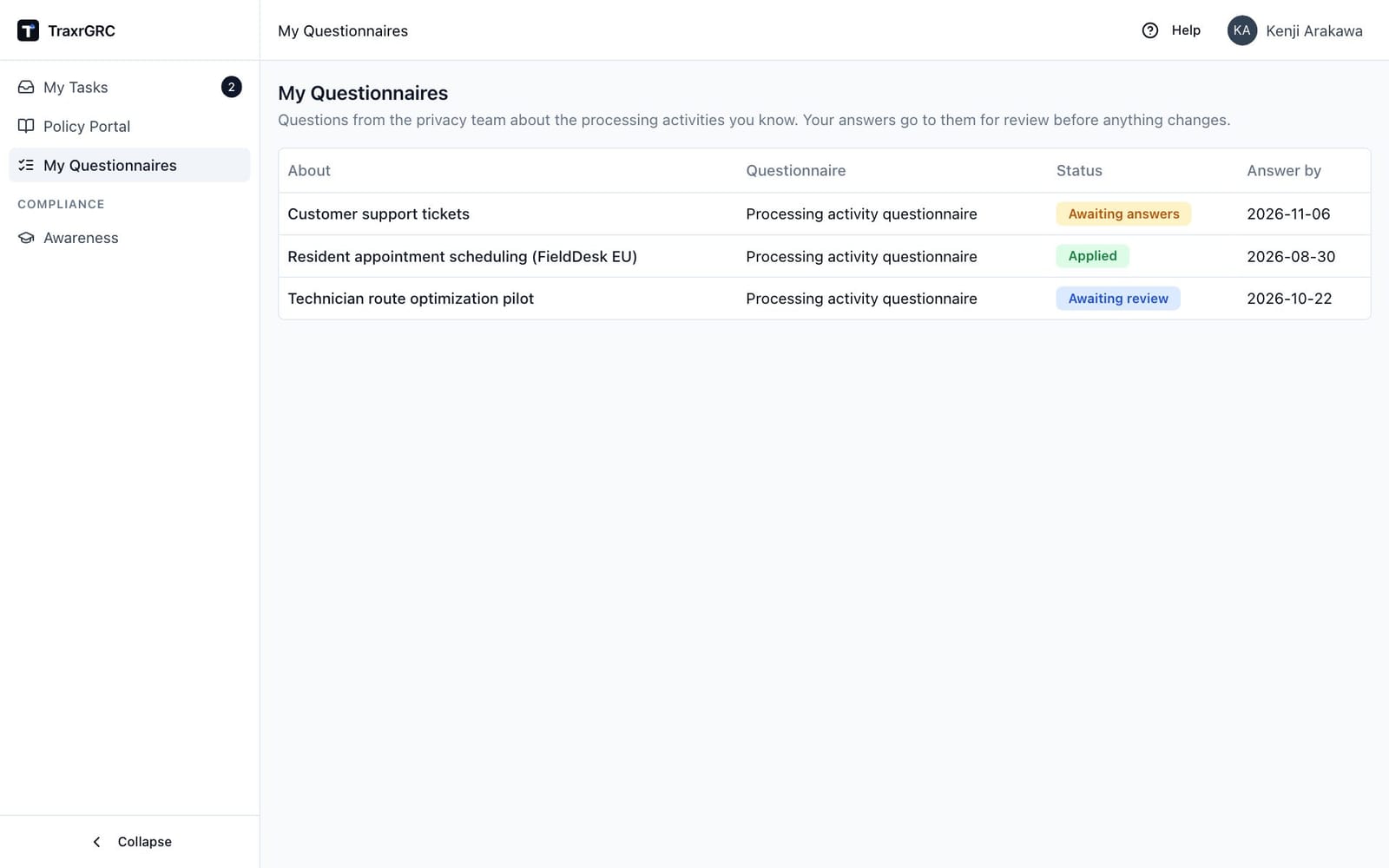
11.15.5 Answering (the Data Liaison's view)
The Data Liaison opens My Questionnaires in the navigation. The page lists their questionnaires with what each is about, the questionnaire, its status and the answer-by date (red once overdue), open ones first.
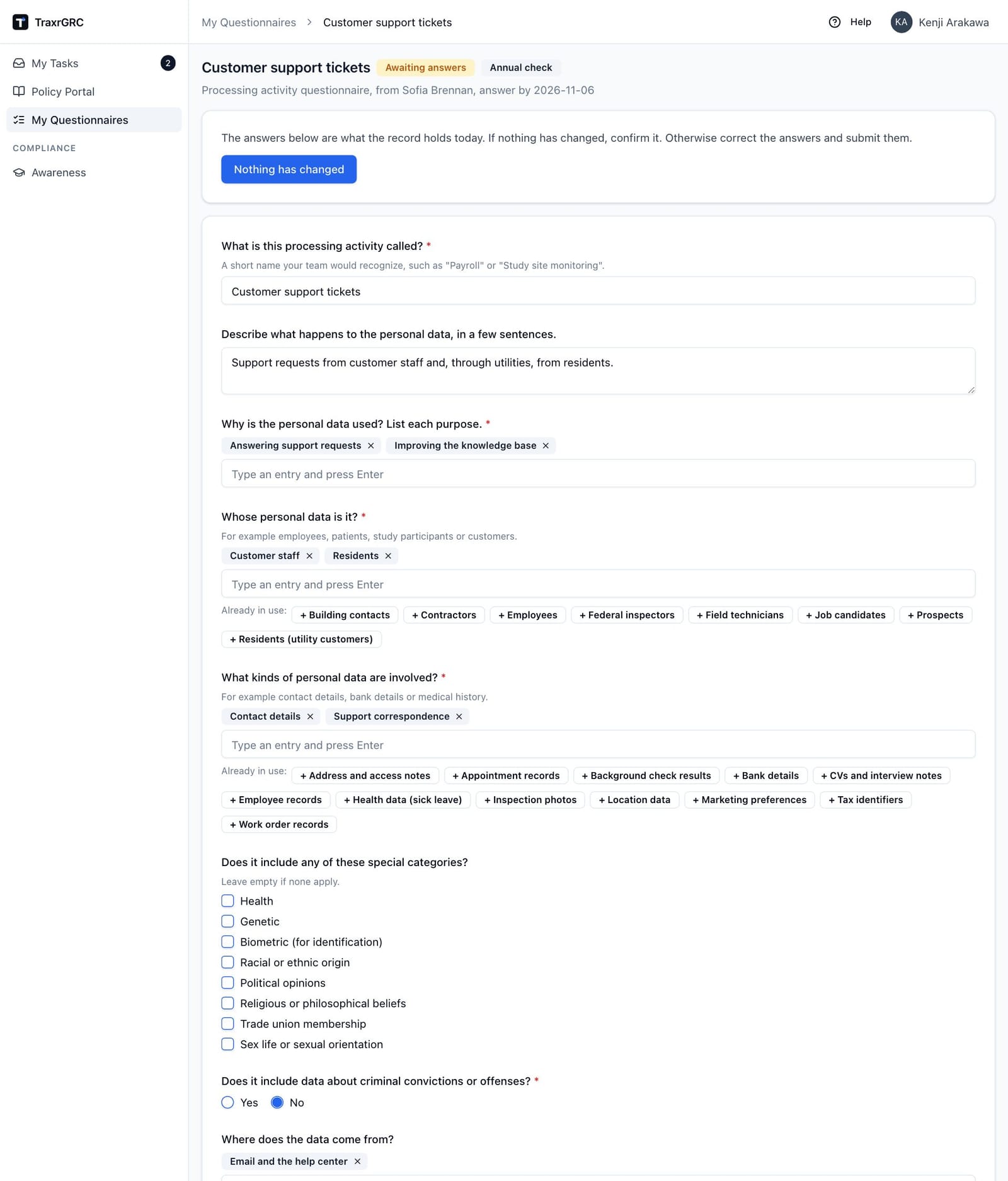
- Click the activity name to open the questionnaire. The header shows the questionnaire, who sent it, the answer-by date and any message.
- Answer the questions. Answers start from what the record holds today.
- Click Save draft to keep work in progress, or Submit answers to send them for review once every required question is answered.
Whoever sent the questionnaire gets an email. After submitting, the questionnaire is read-only and says the answers have been sent to the privacy team. A Data Liaison sees only their own questionnaires; any other link shows "Page not found".
11.15.6 Reviewing answers
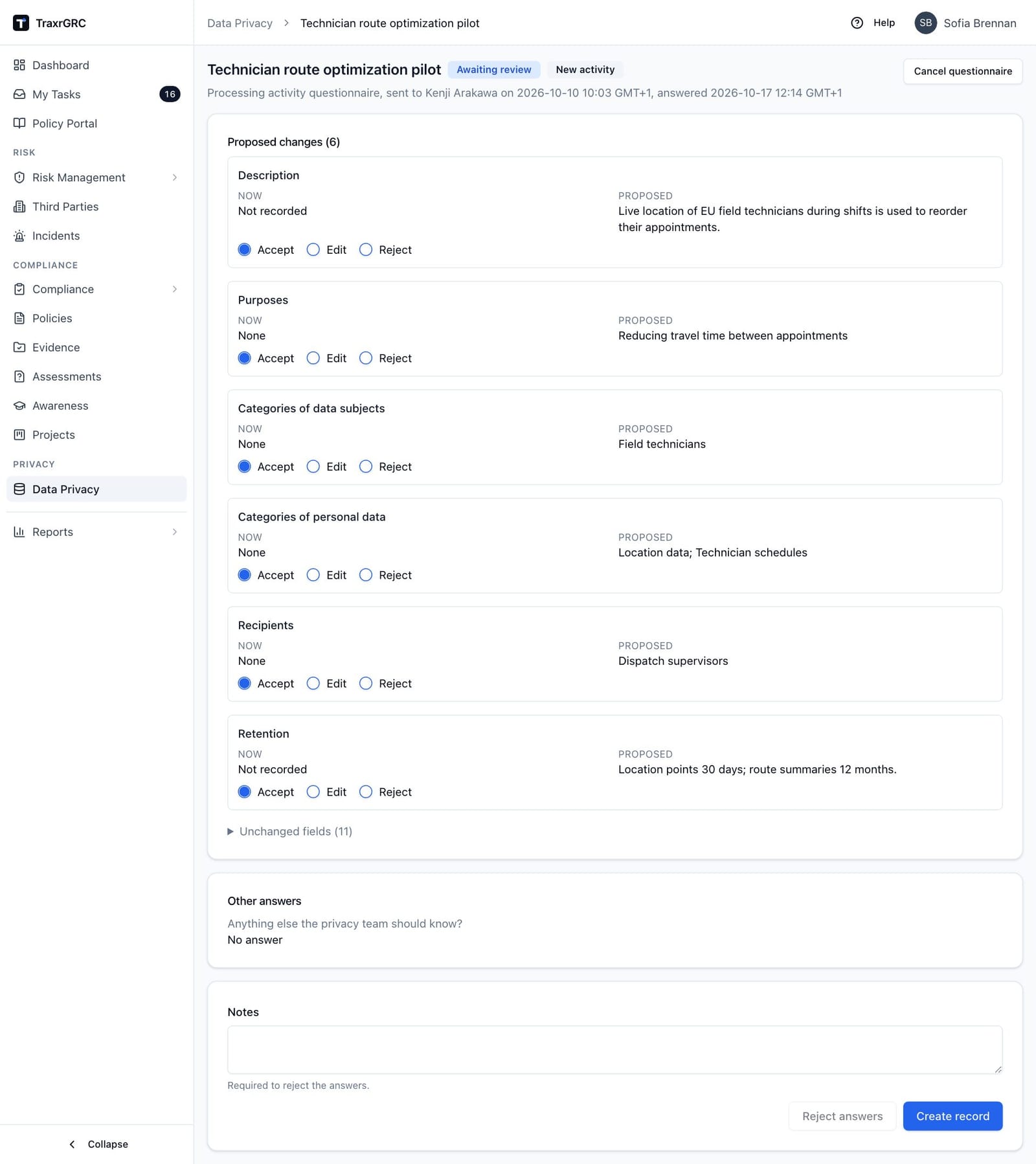
Open a sent questionnaire from the Questionnaires tab, the record's Questionnaires tab or the email. The page shows who it was sent to and when it was answered, with Open the record for questionnaires about an existing record.
Proposed changes (N) lists each field the answers would change, Now against Proposed. For each one choose:
| Decision | Effect |
|---|---|
| Accept | Write the proposed value. |
| Edit | Change the value before it is written. |
| Reject | Keep the record's current value. |
Unchanged fields lists the fields the answers leave as they are, and Other answers shows answers to questions that fill no field.
- Decide each proposed change.
- Add Notes if you wish (notes are required to reject the answers).
- Click Apply decisions to write the accepted and edited values to the record; its History names the questionnaire. For a new activity the button reads Create record: it creates a draft record from the answers, with the Data Liaison set.
Alternatively, Reject answers (with notes giving the reason) changes nothing, and Cancel questionnaire withdraws one that has not been decided. Once decided, the page shows who decided it and when, with each field's decision.
Deciding needs dataPrivacy:review and the right to update the record, and is never open to the Data Liaison who gave the answers, administrators included, unless an administrator has relaxed separation of duties (see Sessions under Settings). Anyone else who can read the record sees the answers only.
11.15.7 Annual checks
Thirty days before an open review on a record that has an active Data Liaison, the daily sweep sends them an annual check: the record's last applied questionnaire (or the default one), prefilled and due on the review date. It is marked Annual check throughout.
- Nothing has changed asks for confirmation (any changes saved as a draft are not sent), then confirms the record and completes the review with the Data Liaison as reviewer.
- Changed answers go to review like any other; applying them completes the review with the reviewer who applied them.
Each review gets one check, so a rejected or canceled check is not sent again; complete that review by hand. Completing a review by hand cancels its open annual check, so the Data Liaison is not asked to confirm a review that is already done.
11.15.8 Reminders
The daily sweep emails the Data Liaison once when a questionnaire's answer-by date is within 7 days and once when it has passed. A new answer-by date starts again.
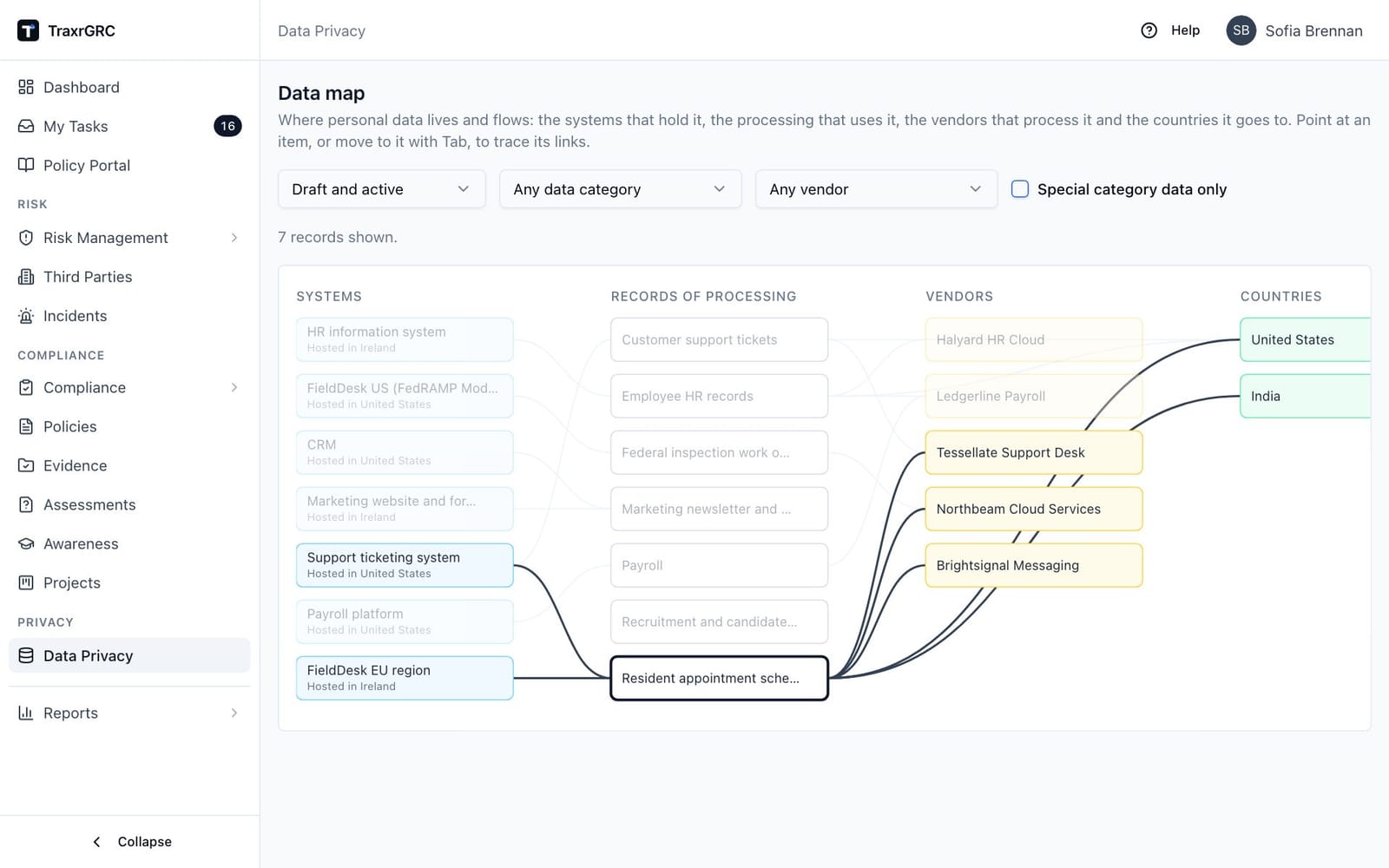
11.16 The data map
Data map on the Data Privacy page draws where personal data lives and flows, in four columns:
| Column | What it shows |
|---|---|
| Systems | The assets linked to records. A system's hosting country is written on the system. |
| Records of processing | The records themselves. |
| Vendors | The third parties that process the data for them. |
| Countries | The countries the data goes to, from transfers and the transfer summary; entries such as "None" are ignored. |
Each item sits beside the records it touches. Point at an item, or move to it with Tab, to light up its links, and click one to open it.
Filter the map by record status (Draft and active by default, or Active, Draft, Archived or Every status), by data category, by vendor, or with Special category data only. A line under the filters counts the records shown and names what is left off because you cannot read it. On a narrow screen the map scrolls sideways inside its own box. Opening the map needs dataPrivacy:read; systems need assets:read and vendors thirdParties:read.
11.17 Data privacy permissions
| Action | Permission needed |
|---|---|
| See the list and open a record | dataPrivacy:read |
| Create a record | dataPrivacy:create |
| Edit documentation, change status, complete or schedule reviews | dataPrivacy:update on the record; at "own" level you must own it (or its owner group) |
| Post comments, upload attachments | dataPrivacy:update on the record |
| Add or remove transfers, link assets, risks and controls | dataPrivacy:update on the record, plus read on the linked module |
| Start, screen, edit, submit or reopen a DPIA | dataPrivacy:update on its record |
| Give DPO advice on a DPIA | Being the Data Protection Officer named in Settings → Privacy, with dataPrivacy:read on its record |
| Approve or reject a DPIA | dataPrivacy:approve on its record; DPO advice first when it is required; not its creator or submitter while "Require a second person to approve DPIAs" is on, unless separation of duties is relaxed |
| Delete a record or a DPIA | dataPrivacy:delete on the record |
| Download the Article 30 register | dataPrivacy:read (the register lists only records you can read) |
| Open the data map | dataPrivacy:read (systems need assets:read, vendors thirdParties:read) |
| Create or change data mapping questionnaires | dataPrivacy:update at the "all" level |
| Delete a data mapping questionnaire | dataPrivacy:delete at the "all" level |
| Send a questionnaire about a record, or cancel one | dataPrivacy:update on the record |
| Send a questionnaire about a new activity | dataPrivacy:create |
| Answer a questionnaire | Being its Data Liaison, with the Data Liaison role (dataLiaison:update) |
| Accept, edit or reject a Data Liaison's answers (never your own) | dataPrivacy:review, plus dataPrivacy:update on the record (dataPrivacy:create for a new activity) |
Roles are assigned to groups and inherited through group membership; administrators bypass all of the above (see Managing Users, Groups & Roles).