7 Incident Management
Incident Management is the record of security events that went wrong: a phishing campaign, a malware infection, a lost laptop, a service outage. You file each incident under a classification, give it an owner, link it to the affected asset or third party, and keep a full history from first report to resolution. Incidents that involve personal data can be assessed as personal data breaches, with the GDPR 72-hour notification clock and a log of who was told and when. Closed incidents keep their resolution, so the record stays useful for trend reporting and the next audit.
The security operations team typically files and works incidents; the Data Protection Officer assesses and tracks breaches; the CISO and auditors read the register.
7.1 Who can do what
Access to incidents is controlled by the incidents module rights. Administrators can do everything regardless of role.
| Action | Permission |
|---|---|
| See the incidents list and detail pages | incidents:read |
| Create an incident (New incident) | incidents:create |
| Edit, close, reopen, assess a breach, log notifications, comment, upload attachments, edit custom fields | incidents:update, at the "all" level for every record or "own" for records you or your groups own |
| Link records of processing to a breach | incidents:update on the incident and dataPrivacy:read |
| Delete an incident | incidents:delete (all or own) |
| Manage the classification catalog | incidents:update at the "all" level |
| Import incidents from CSV | incidents:create or incidents:update |
A record is "yours" when you are listed as its owner or your group is the
owner group. The Classifications button appears only for users whose
incidents:update right is at the "all" level, because the catalog is
shared by every incident.
7.2 Managing the classification catalog
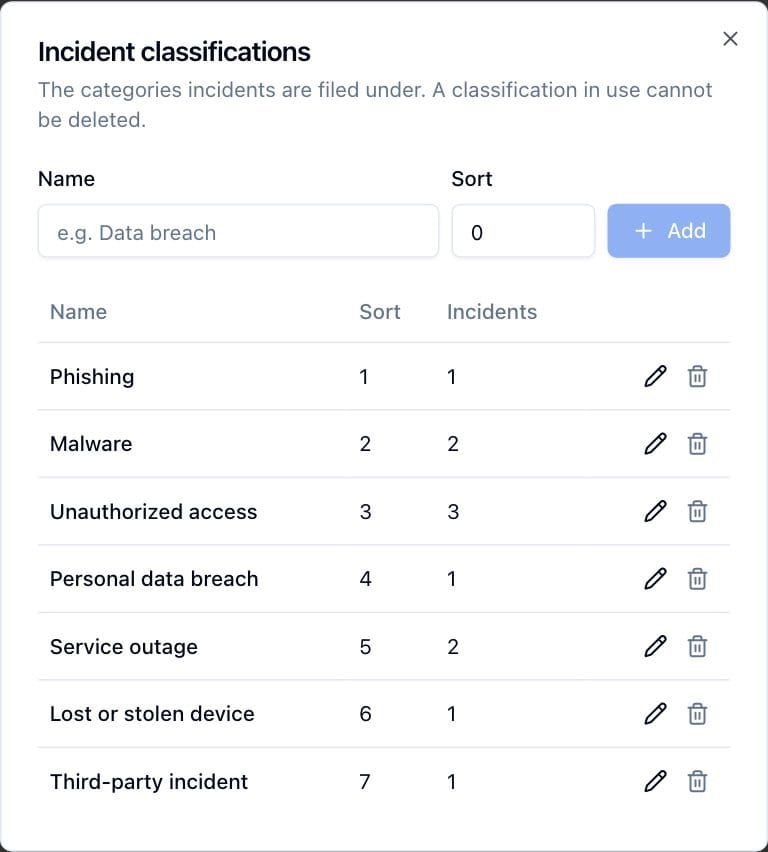
Classifications are the categories incidents are filed under. The demo catalog, for example, holds Phishing, Malware, Unauthorized access, Personal data breach, Service outage, Lost or stolen device and Third-party incident.
- Open Incidents in the navigation.
- Click Classifications (top right). The Incident classifications dialog lists the catalog with the Sort value and the number of Incidents filed under each classification.
- To add one, type a Name and a Sort number and click Add. Classifications are ordered by sort value, then name, everywhere they are listed.
- To rename or re-order one, click the pencil icon in its row, change the Name or Sort value in the Edit classification dialog, and click Save changes.
- To remove one, click the trash icon and confirm with Delete.
A classification that is in use cannot be deleted. If any incident is filed under it, the delete fails with a message saying how many incidents are classified with it. Reclassify those incidents first.
7.3 The incidents list
The Incidents page lists every incident you can read. Click a column heading to sort; the Classification and Status columns have filter dropdowns.
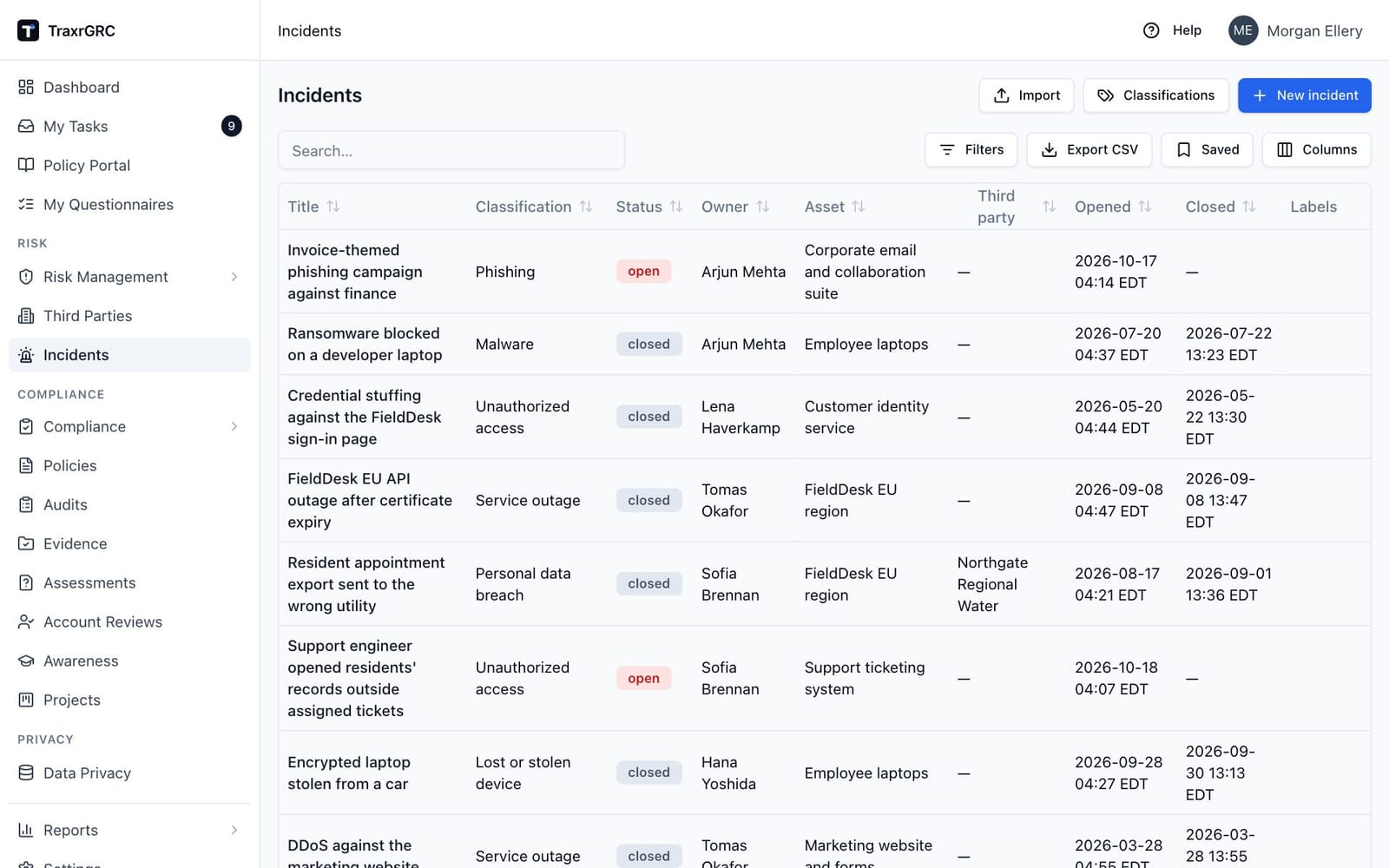
| Column | What it shows |
|---|---|
| Title | The incident's title. Click it to open the incident. |
| Classification | The incident's category, or a dash. Filter by one classification. |
| Status | open or closed (see below). Filter by status. |
| Owner | The owner user, or the owner group when no user is set. |
| Asset | The linked asset, or a dash. |
| Third party | The linked third party, or a dash. |
| Opened | When the incident was opened. |
| Closed | When the incident was closed, or a dash. |
| Labels | The incident's labels. Filter by typing part of a label name. |
Incidents have two statuses, shown as colored badges:
| Status | Badge | Meaning |
|---|---|---|
| open | Red | The incident is being worked. New incidents start here. |
| closed | Gray | The incident was resolved; a resolution and closed date are recorded. |
The Import button beside New incident creates or updates incidents in bulk from a CSV file (see Importing from CSV under Getting Started). Personal data breach details are not imported.
7.4 Creating an incident
-
On the incidents list, click New incident.
-
Complete the dialog (only the title is required):
Field What it means Title Short name for the incident, e.g. "Phishing campaign targeting finance". Description Free text: what happened, the impact, the current state. Classification Category from the catalog, or None. Asset The affected asset from your asset register, or None. Third party The third party involved, or None. Owner The user responsible for handling the incident. Owner group The group responsible; complements or replaces the owner user. -
Click Create incident.
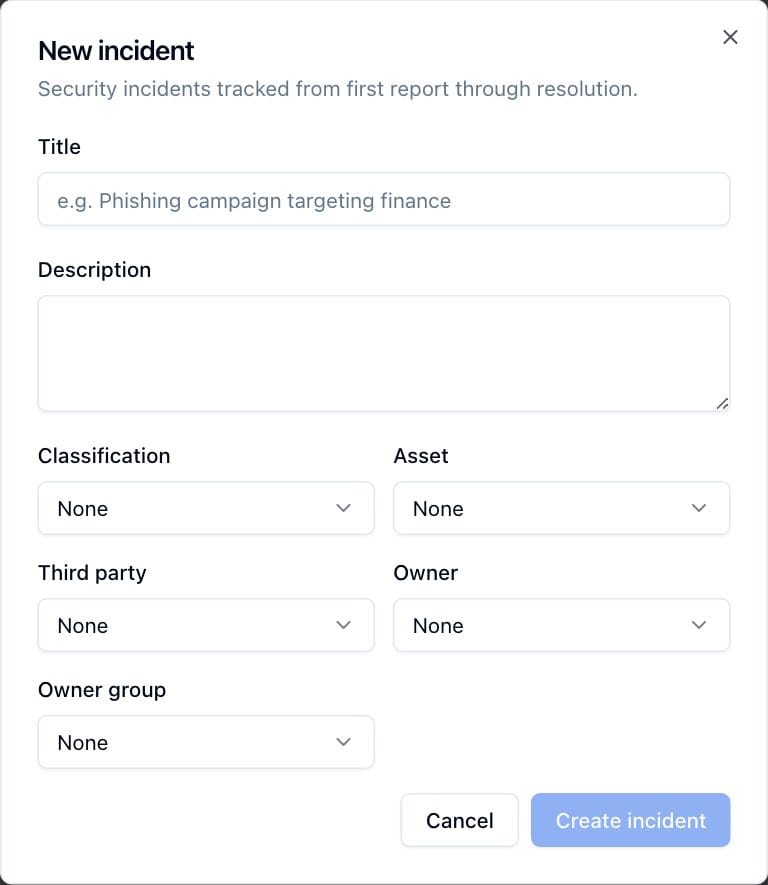
The incident is created with status open, and Opened is set to the current time. The creation is recorded in the audit log and appears on the incident's History tab.
7.5 The incident detail page
Click an incident's title to open it.
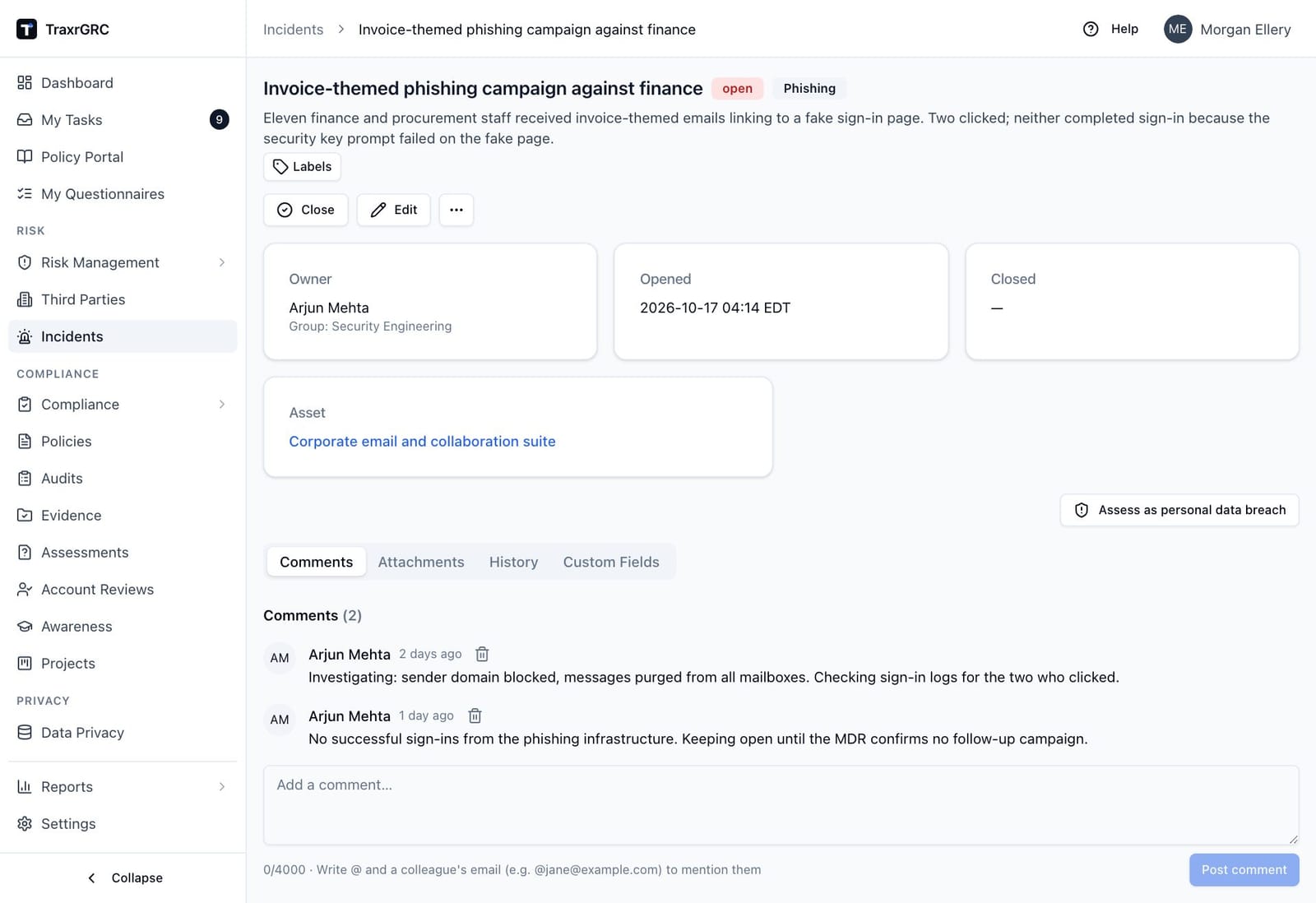
The page shows:
- Header. The title, the status badge, a red Personal data breach badge when the incident is marked as one, the classification badge, the description and the Labels picker (see Labels in Getting Started; attaching needs incidents:update on the incident). The Close (or Reopen) and Edit buttons and the More actions menu (…, with Delete) sit on the right; each appears only when you hold the right to use it.
- Owner, Opened and Closed cards. The owner card also names the owner group when one is set.
- Asset and Third party cards, when the incident is linked to either. The asset name opens the asset register; the third party name opens that third party's page.
- The personal data breach section (see Personal data breaches below).
- Resolution card, on a closed incident.
- Comments, Attachments, History and Custom Fields tabs.
7.6 Closing and reopening an incident
Closing records how the incident was resolved and stamps the closed date.
- Open the incident and click Close.
- In the Close incident dialog, write the Resolution: what fixed the incident, e.g. "Credentials reset, EDR coverage verified". A resolution is required; the button stays disabled until you have typed something.
- Click Close incident.
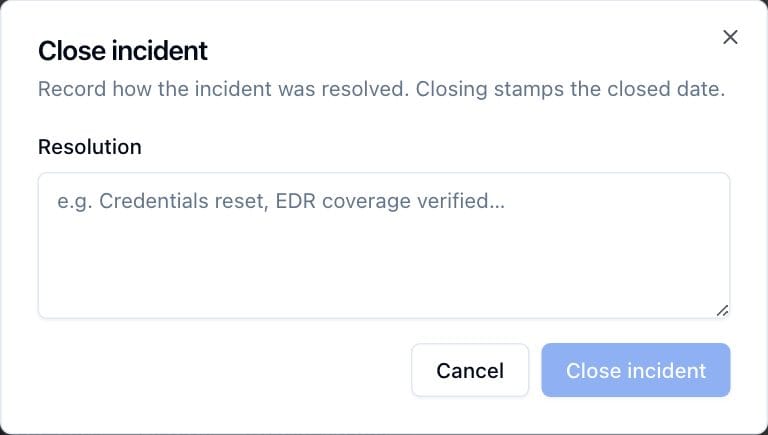
The incident moves to closed, the Closed card shows the closing time, and the resolution appears in a Resolution card. The close is recorded in the audit log.
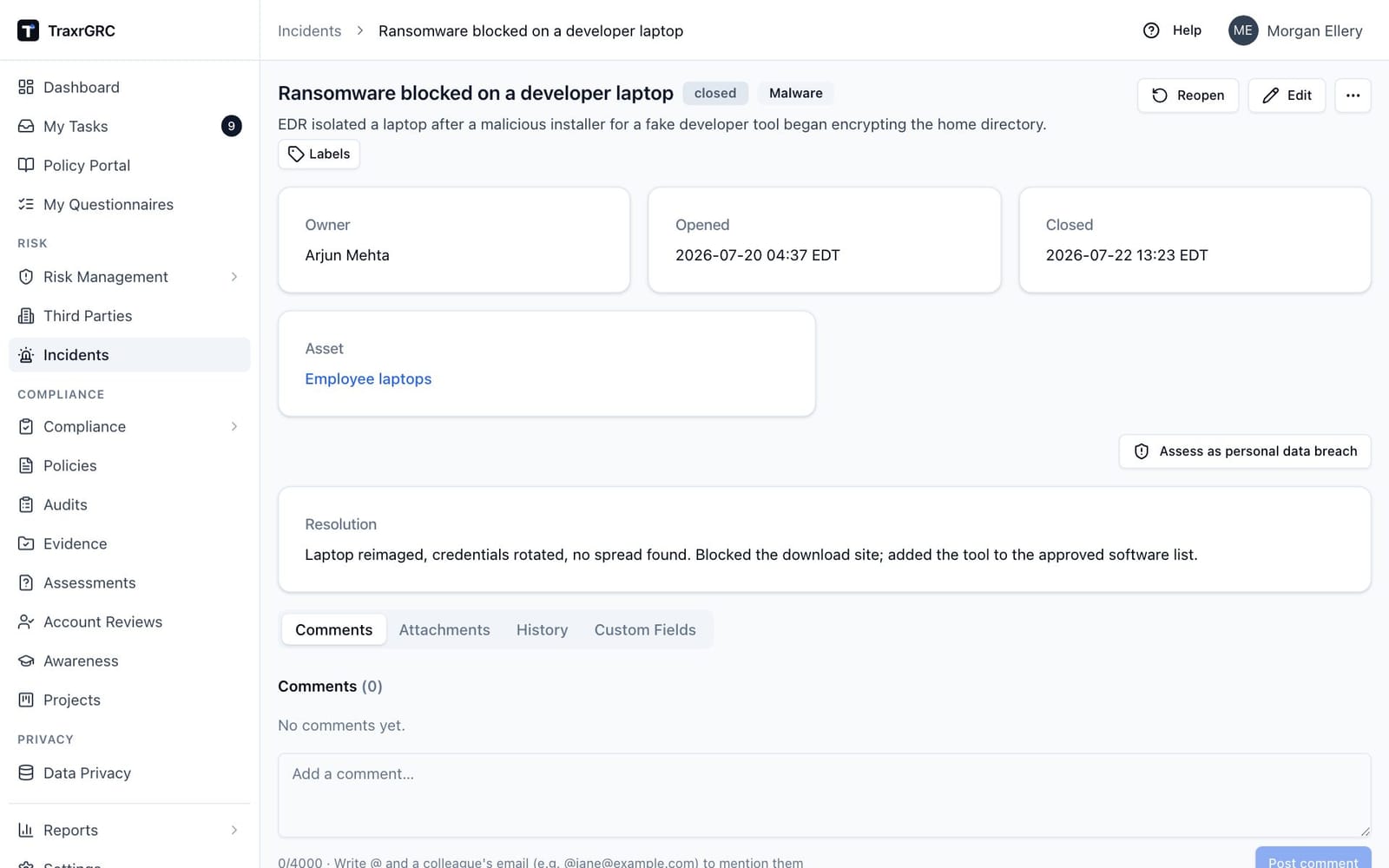
To reopen a closed incident:
- Click Reopen.
- Confirm with Reopen in the Reopen incident? dialog.
The incident returns to open and the closed date is cleared. The recorded resolution is kept in the record: it is hidden while the incident is open, shown again if you close the incident a second time with a new resolution, and it stays visible in the History tab's change entries.
7.7 Personal data breaches
An incident that involves personal data is assessed as a personal data breach under GDPR Articles 33 and 34. The assessment records when the breach became known, the risk to individuals, and the decision to notify the supervisory authority and the people affected. TraxrGRC then tracks the 72-hour deadline for notifying the authority.
7.7.1 Assessing an incident as a breach
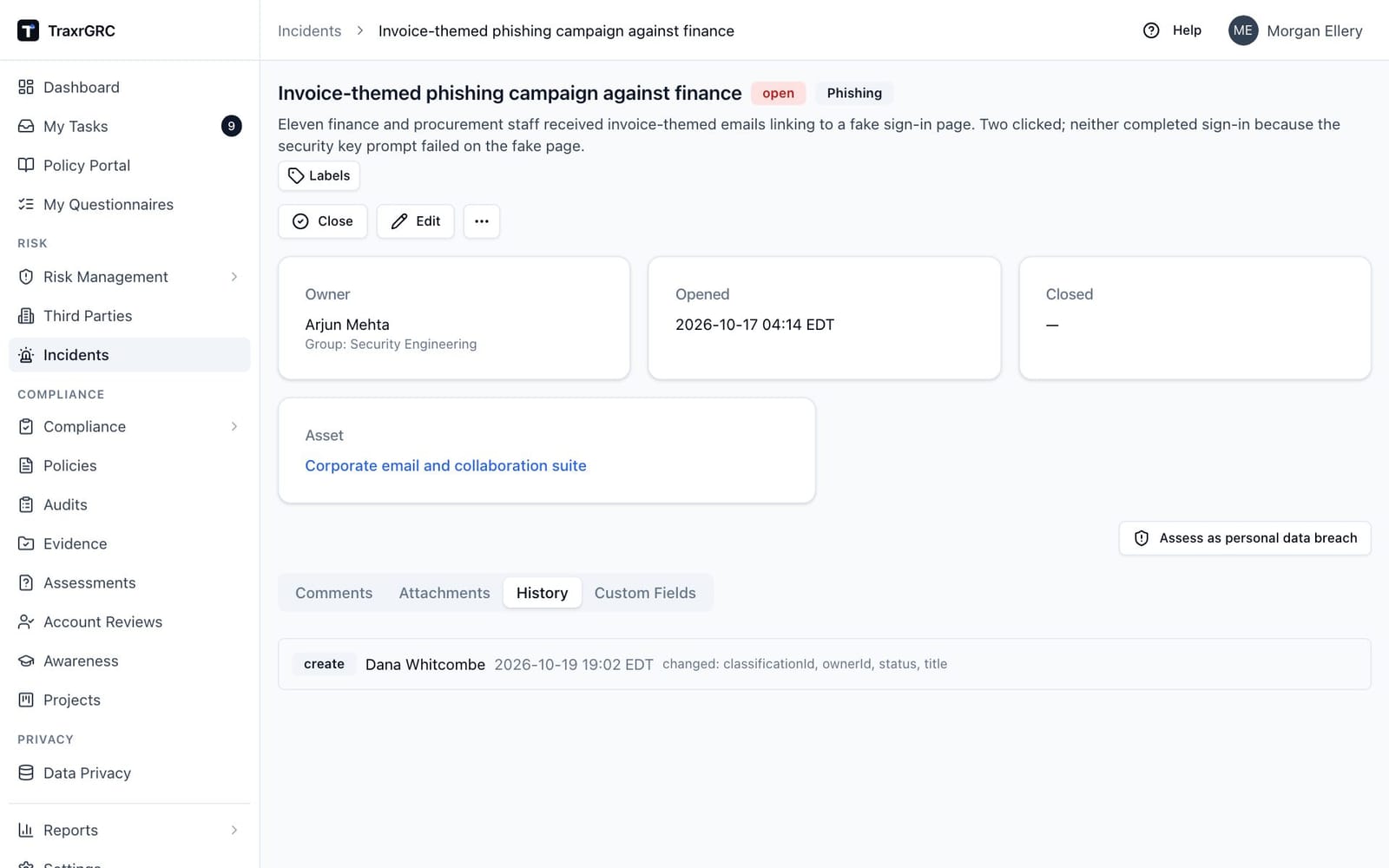
- Open the incident and click Assess as personal data breach (shown on
incidents not yet marked, to users with
incidents:update). - The Personal data breach assessment dialog opens with This incident is a personal data breach ticked and Became known set to now. Times are entered and shown in your timezone, which the field labels name.
- Complete the fields below and click Save assessment.
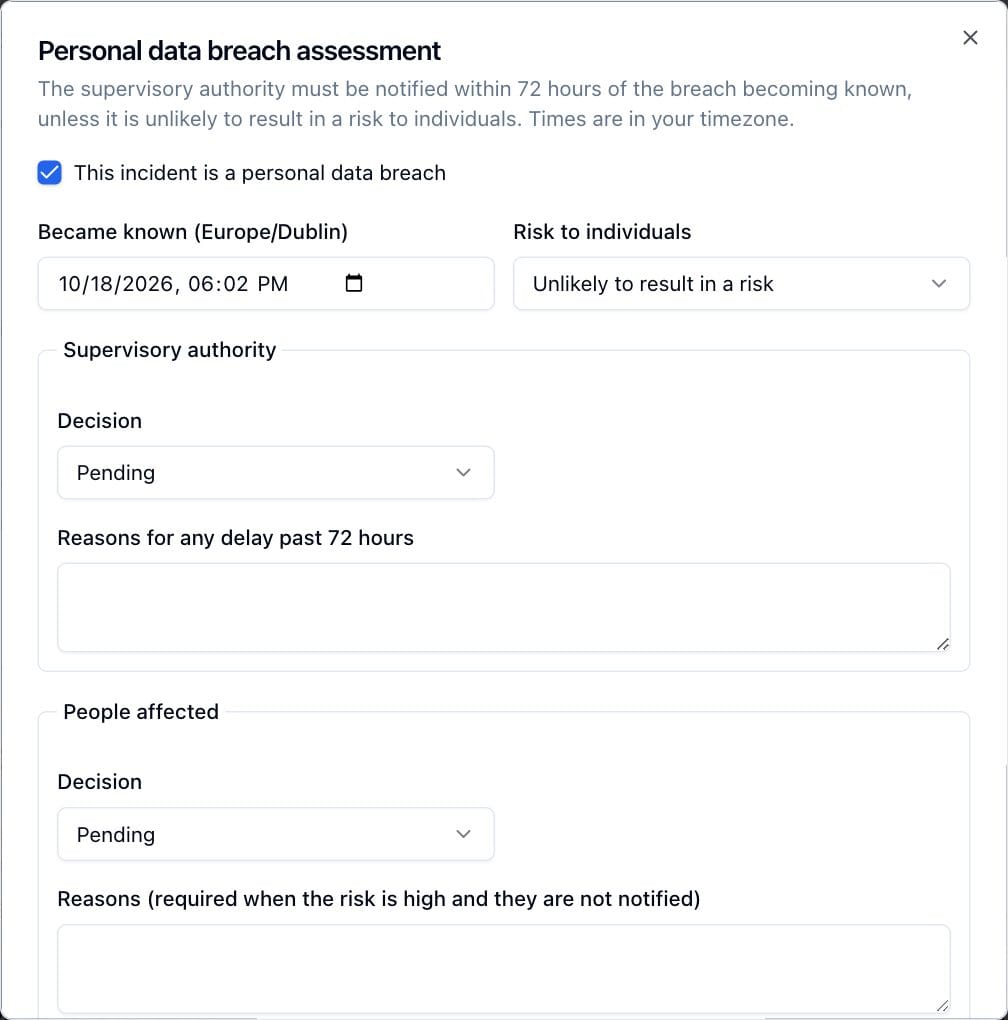
| Field | What it means |
|---|---|
| This incident is a personal data breach | The flag. Untick it if the assessment shows the incident did not involve personal data. |
| Became known | When your organization became aware of the breach. The 72-hour deadline runs from here. Required. |
| Risk to individuals | Not assessed, Unlikely to result in a risk, Risk to individuals or High risk to individuals. |
| Supervisory authority: Decision | Pending, Notified or Not required. Notified adds Notified at and an optional Authority reference. |
| Supervisory authority: reasons | Labeled Why notification is not required when the decision is Not required, otherwise Reasons for any delay past 72 hours. Required when notification is not required, or when the authority was notified after 72 hours. |
| People affected: Decision | Pending, Notified (adds Notified at) or Not required. |
| People affected: Reasons | Required when the risk is high and the decision is Not required: the Art. 34(3) ground, e.g. the data was encrypted. |
| People affected (approx.) / Records affected (approx.) | Approximate counts. |
| Categories of data affected | Tags, e.g. "Health data". |
Saving refuses an incomplete assessment and tells you what is missing, for example "Enter when the authority was notified." To change an assessment later, click Edit assessment on the breach card.
7.7.2 The breach card
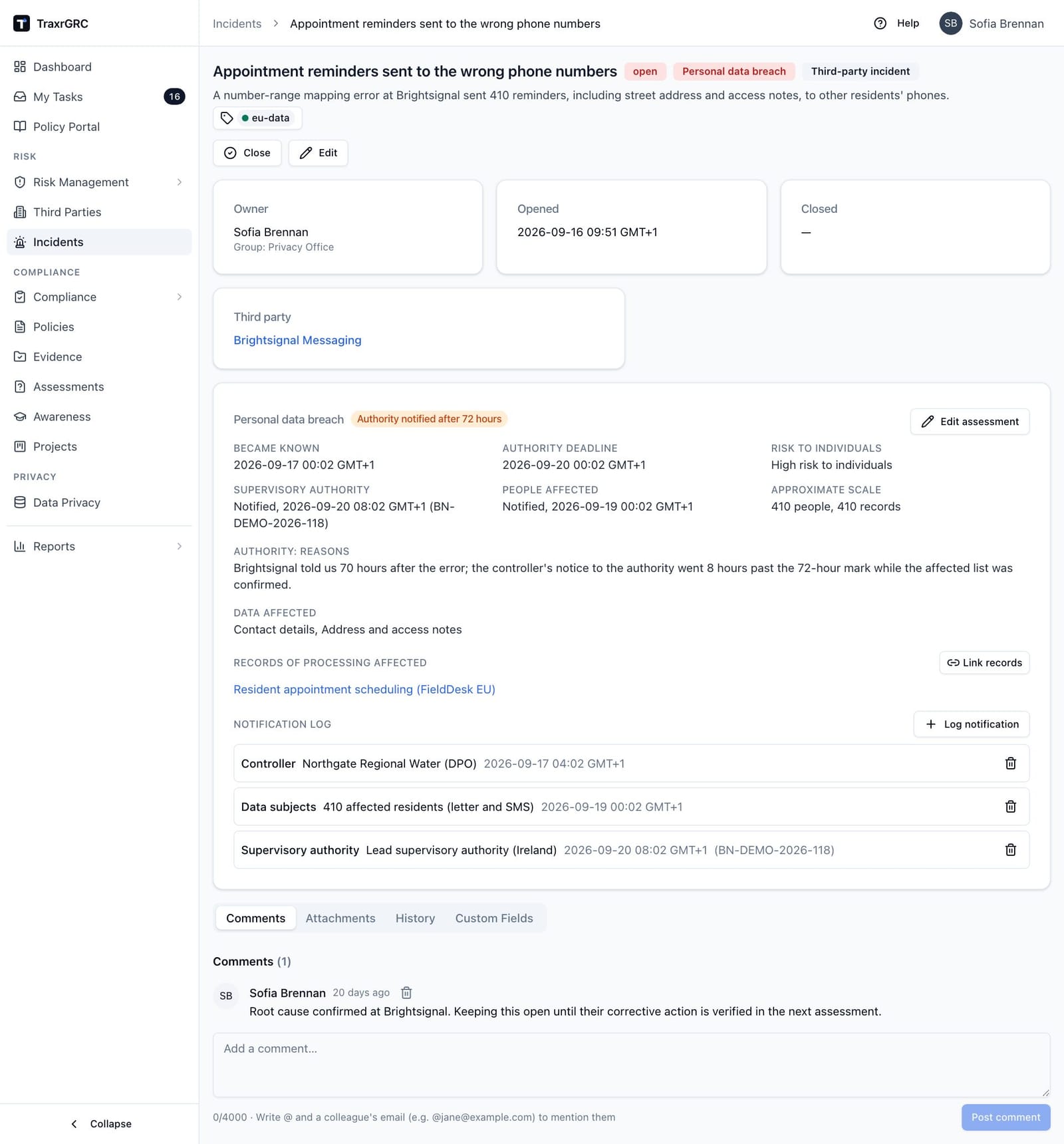
Once marked, the incident shows a red Personal data breach badge in its header and a Personal data breach card. While the authority notification is still open and Became known is set, the card opens with a deadline banner: the time left in hours and minutes ("41h 13m left", or "Overdue by 8h 3m" once the deadline has passed), a bar across the 72 hours marked at 24 and 48 hours, and the time the breach became known and the deadline in your own time zone. The banner is blue on the first day, amber on the second, and red on the last day and once overdue, and it updates every minute. If you may edit the incident, Log authority notification in the banner opens the log dialog with the supervisory authority already chosen.
Otherwise the card title carries a chip showing how the notification ended:
| Chip | Meaning |
|---|---|
| Authority notified within 72 hours | The authority decision is Notified and the time is within the deadline. Green. |
| Authority notified after 72 hours | Notified, but after the deadline. Orange. |
| Authority notice not required | The authority decision is Not required. Gray. |
| Time of awareness not set | Became known is empty. Amber. |
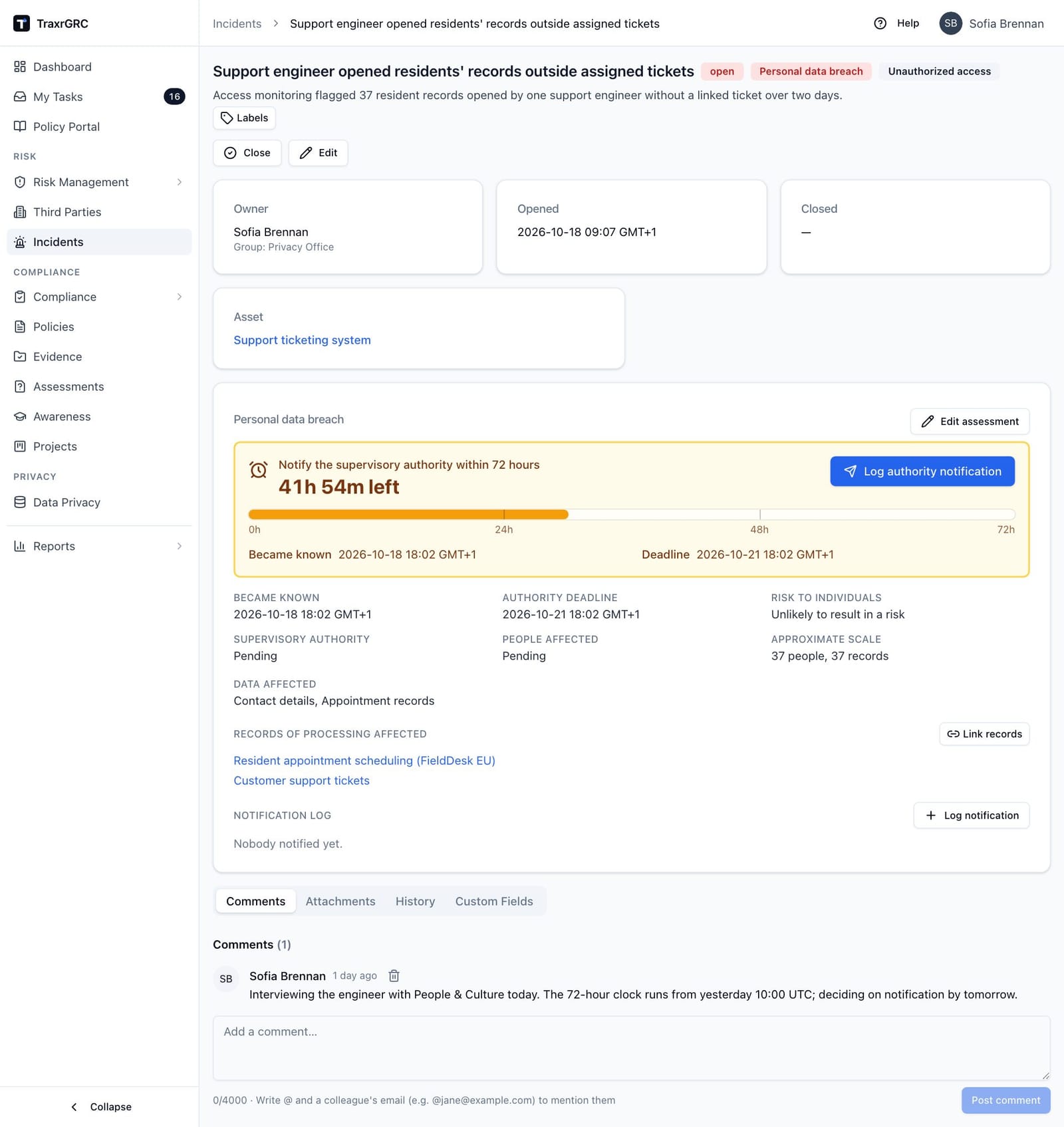
The card lists Became known, the Authority deadline (72 hours later), Risk to individuals, the Supervisory authority and People affected decisions with their times and reference, the Approximate scale, any reasons, and Data affected. It has two further sections:
- Records of processing affected. The records of processing whose data
was involved, each linking to its Data Privacy record. Link records
opens a searchable checklist; ticking or unticking a record saves at once
(requires
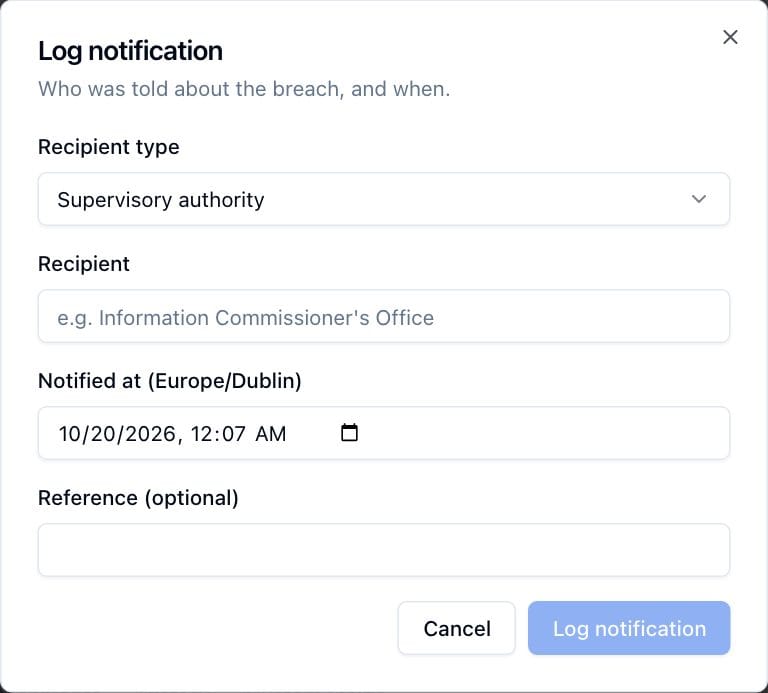
dataPrivacy:read). Records you cannot read are counted, not named. - Notification log. A record of contact: who was told and when. Click Log notification, choose the Recipient type (Supervisory authority, Data subjects, Controller when you act as processor, or Other), enter the Recipient, the Notified at time and an optional Reference, and click Log notification. The trash icon removes an entry. Logging a notification to the supervisory authority while the authority decision is pending records the decision as notified at that time, which stops the countdown; a notification after the 72 hours does so only once the reasons for the delay are in the assessment. Logging one to data subjects does the same for the data subjects decision.
Open breaches also appear on the Personal data breaches dashboard widget.
7.8 Editing and deleting
- Click Edit to change the title, description, classification, asset, third party, owner or owner group, then click Save changes. Editing does not change the status; only Close and Reopen do.
- Open More actions (…), click Delete and confirm with Delete to remove the incident
permanently. Deleting also removes its comments, attachments and labels and
cannot be undone. Deleting requires
incidents:delete.
7.9 Comments, attachments and history
The Comments, Attachments and History tabs sit at the bottom of the page, followed by Custom Fields.
- Comments. Write in the box (up to 4,000 characters) and click Post comment. Write @ followed by a colleague's email address to mention them. You can delete your own comments; administrators can delete any.
- Attachments. Click Upload file to add evidence such as screenshots or logs; files up to 25 MB are accepted. Click a file name to download it. You can delete a file you uploaded; administrators can delete any.
- History. Every change to the incident (create, update, close, reopen, breach assessment and notification entries) as an audit log entry: the action, who made it, when, and which fields changed. This mirrors what administrators see under the audit log.
Commenting and uploading require incidents:update on the incident.
The Custom Fields tab, last in the row, shows any custom fields your
organization has defined for incidents, and lets you fill them in when you
have incidents:update on the record (see Custom Fields).