5 Policy Management
Policies are the written rules your organization operates under: acceptable use, security standards, HR policy and anything else that needs a formal owner, a review cycle and proof of approval. TraxrGRC manages the full lifecycle of each policy: drafting in a built-in editor, routing changes through approval, publishing immutable version snapshots, scheduling periodic reviews, tracking time-boxed exceptions, and publishing policies to a portal where staff read and acknowledge them.
Policy owners, the GRC team and approvers work in the Policies area (sidebar, under Compliance). Every signed-in user, whatever their role, reads published policies on the Policy Portal (sidebar, under Dashboard), described at the end of this chapter.
5.1 The policies list
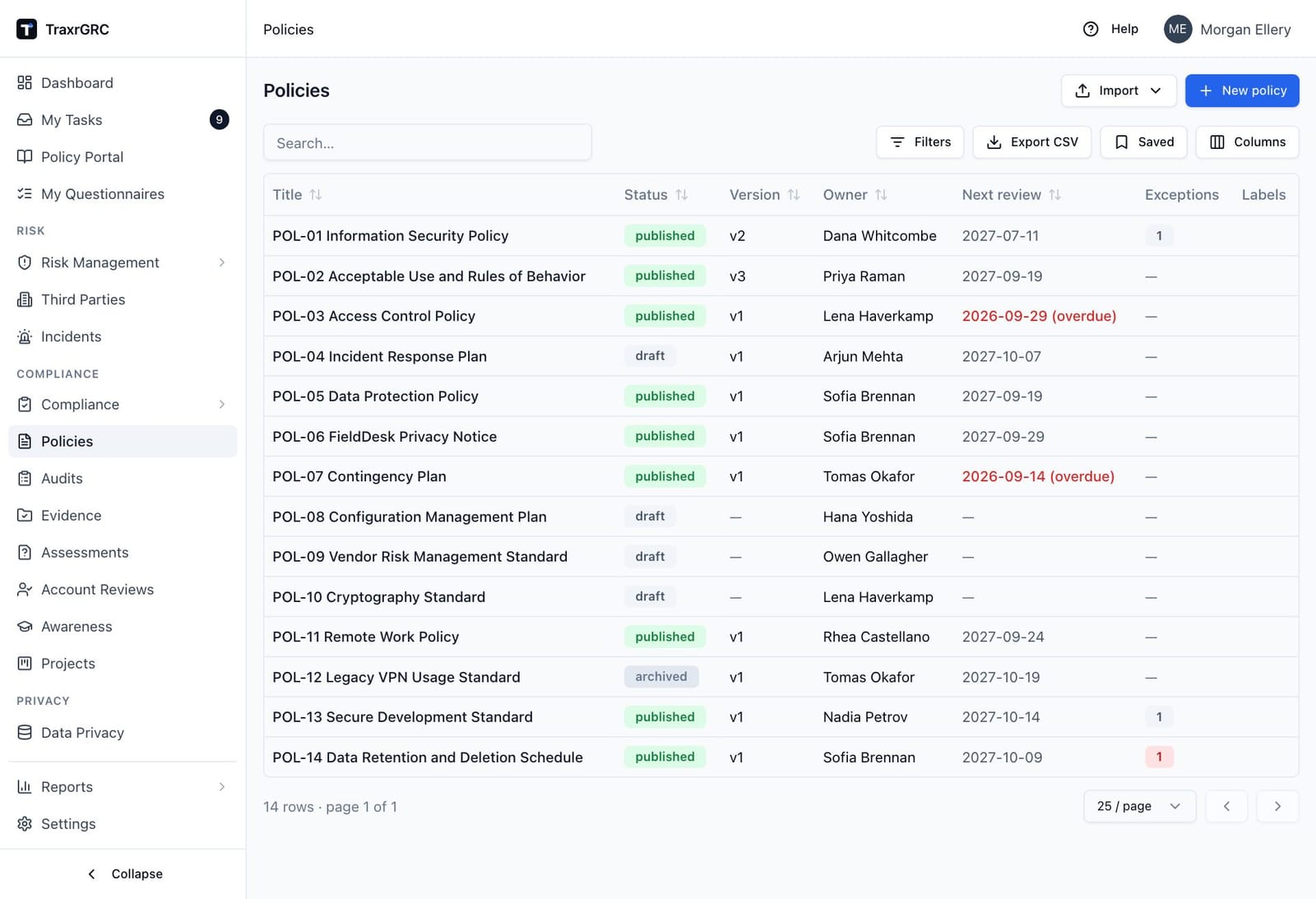
Open Policies from the navigation. The list shows every policy you have access to, with one row per policy:
| Column | What it shows |
|---|---|
| Title | The policy name. Click it to open the policy. |
| Status | Draft, Published or Archived, as a colored badge (see table below). |
| Version | The latest published version (for example v2), or a dash if nothing has been published yet. |
| Owner | The owning user, or the owning group if no user is set. |
| Next review | The date the next review is due. If the date has passed and the policy is not archived, the date is shown in red with "(overdue)". |
| Exceptions | A badge with the number of exceptions, not counting rejected ones. The badge is red when any exception has expired, amber when one expires within the next 14 days, and gray otherwise. A dash means there are no exceptions. |
| Labels | The policy's labels. Filter by typing part of a label name. |
Policy statuses:
| Status | Meaning | Badge color |
|---|---|---|
| Draft | Working copy: not yet published, or changed since the last publish. | Gray |
| Published | A version snapshot is published and current. | Green |
| Archived | Retired from active use; excluded from review-due reminders. | Gray |
Use the filter box to search titles and descriptions, and the Status column filter to narrow the list. You can sort by title, status, next review date and owner. Policies and policy exceptions can also be created in bulk with Import (see Importing from CSV in Getting Started).
5.2 Creating a policy
- Click New policy.
- Complete the dialog:
| Field | What it means |
|---|---|
| Title | The policy name (required). |
| Description | Optional background, shown on the detail page. |
| Owner | The user responsible for the policy. Both owner fields are optional. |
| Owner group | The group responsible for the policy. |
| Review frequency (months) | How often the policy must be reviewed: 1 to 120 months; defaults to 12. |
- Click Create policy.
The new policy starts as a draft with empty content. You add the content after creation, from the policy's Content tab.
5.3 The policy detail page
Click a policy title in the list to open its detail page.
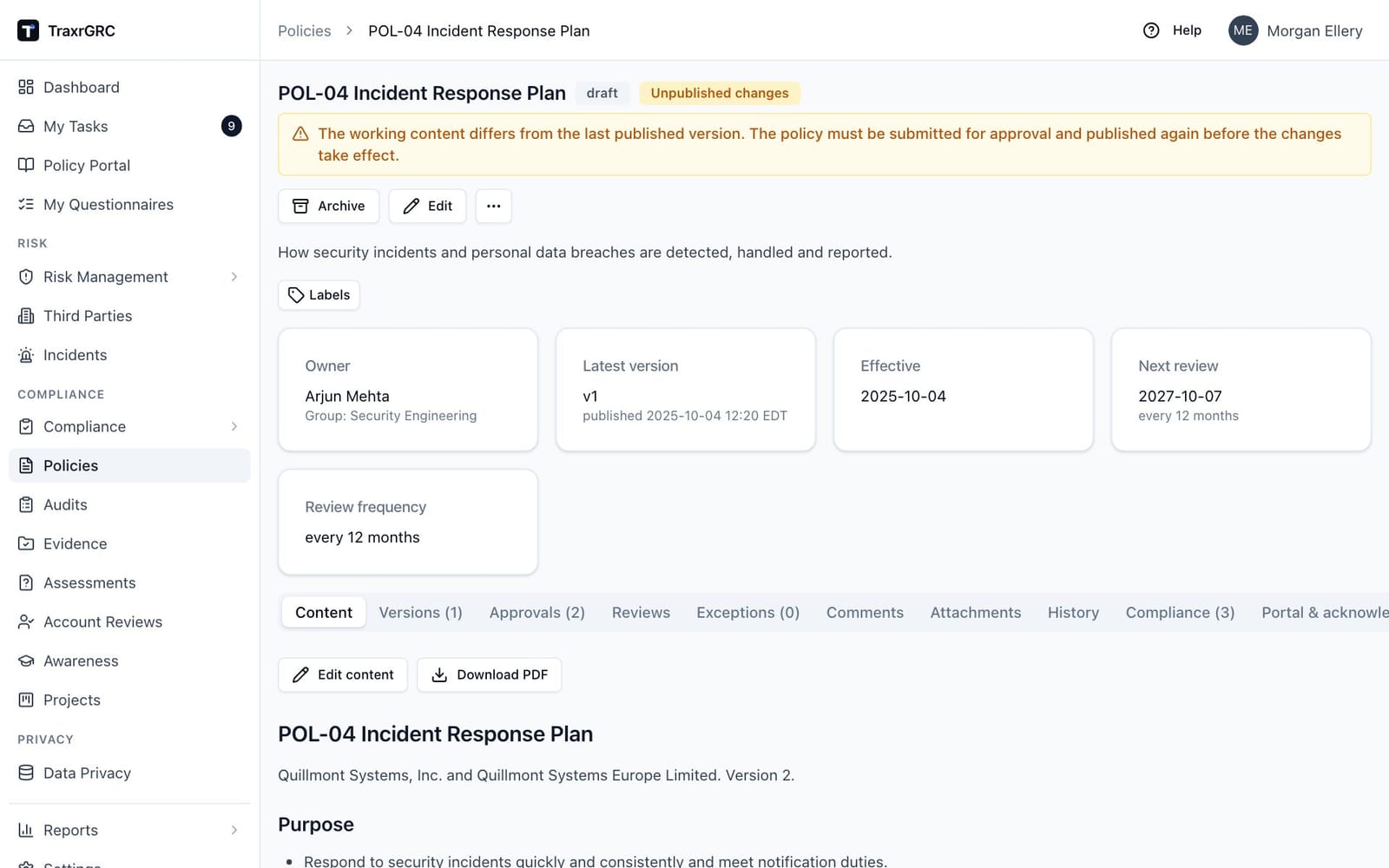
Header. The title, the status badge and, when applicable, an amber Unpublished changes badge with a banner explaining it. On the right are the action buttons: Publish vN (only when the next version is approved), Archive or Reactivate, Edit, and Delete in the More actions menu (…). Each appears only if you have the right to use it.
Labels. Below the description sits the Labels picker (see Labels in Getting Started; attaching needs policies:update on the policy).
Summary cards. Below the description, five cards show:
| Card | What it shows |
|---|---|
| Owner | The owning user, with the owner group underneath. |
| Latest version | The latest published version and when it was published. |
| Effective | The effective date of the published version and, for an approval recorded outside the app, its signatories. |
| Next review | The next review due date, with "overdue" in red when it has passed, and the review frequency. |
| Review frequency | How often the policy is reviewed, in months. |
Tabs. One row of tabs covers the rest of the page:
- Content, Versions, Approvals, Reviews, Exceptions, Comments, Attachments and History: the policy itself. The Versions, Approvals and Exceptions tabs show a count in brackets.
- Compliance (N): the compliance requirements this policy is mapped to, with the package and the analysis status of each. Shown only if you can read the Compliance module. Mappings are made from the requirement's page (see Compliance Management).
- Portal & acknowledgements: putting the policy on the Policy Portal and asking people to acknowledge it.
- Custom Fields: administrator-defined extra fields for policies.
5.4 Writing content (Content tab)
The Content tab is where the policy text lives.
- If the policy has content, it is shown as a formatted document (headings, lists, tables, bold, italic and code styling are rendered). Otherwise the tab reads "No content yet. Use Edit content to write the policy."
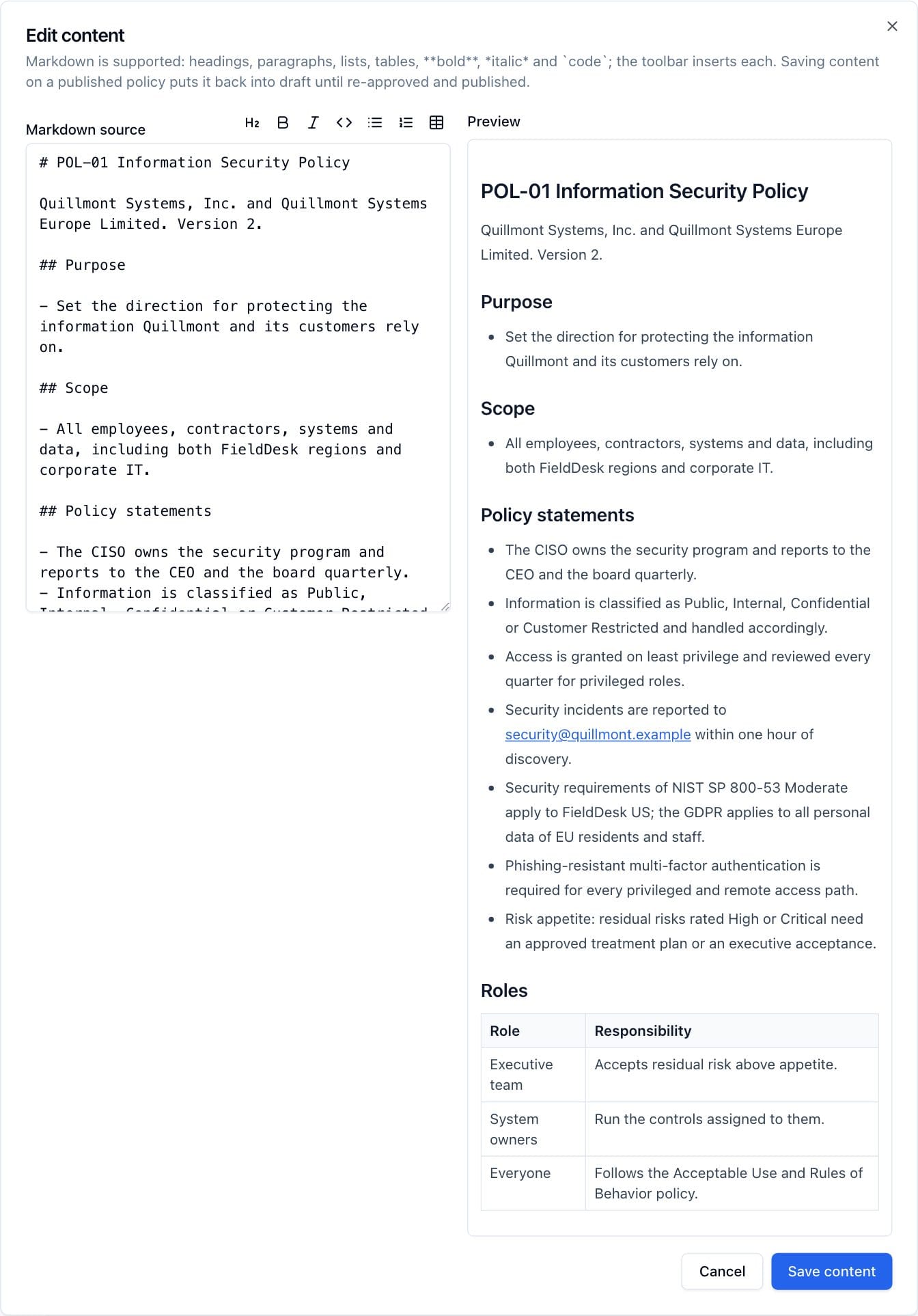
- Click Edit content to open the editor: a Markdown source pane on the
left and a live Preview on the right. Markdown support covers headings,
paragraphs, lists, tables,
**bold**,*italic*and`code`. - The toolbar above the source pane formats the selected text: Heading, Bold, Italic, Code, Bulleted list and Numbered list (click again to remove the formatting), and Table, which inserts a two-column table to fill in. Ctrl+B and Ctrl+I (⌘B and ⌘I on a Mac) work in the source pane too.
- Click Save content to store the working copy.
A table is written as rows of cells separated by |, with a separator row of
dashes under the header row; colons in the separator align a column (:---
left, :---: centered, ---: right). Leave a blank line before and after it:
| Role | Approves | Reviews |
| --- | --- | --- |
| CISO | Policies | Exceptions |
| DPO | DPIAs | Records of processing |
Saving changed content on a published policy puts it back into Draft (see Unpublished changes below) and withdraws any approval for a version not yet published.
Download PDF produces a PDF of the content: for a published policy it renders the latest published snapshot, for a draft the current working content labeled "draft". The PDF is A4 with the title and a "Version … · Generated …" line (in your time zone) at the top, and a footer on every page carrying the title, version and page number; the file name combines the policy title and version. Tables print with their header row repeated on each page they span.
5.5 The draft → approval → publish workflow
Publishing is gated so that no policy version goes live without a recorded approval. Versions are numbered sequentially: the first publish creates version 1, and each later publish is one higher than the highest published snapshot.
An approval covers the exact text that was submitted. If the content changes after a request is submitted or approved, and that version has not been published yet, the approval is withdrawn automatically: it shows as Rejected with the note "Withdrawn automatically: the policy content changed after submission." Submit the new text for approval again.
5.5.1 Submitting for approval
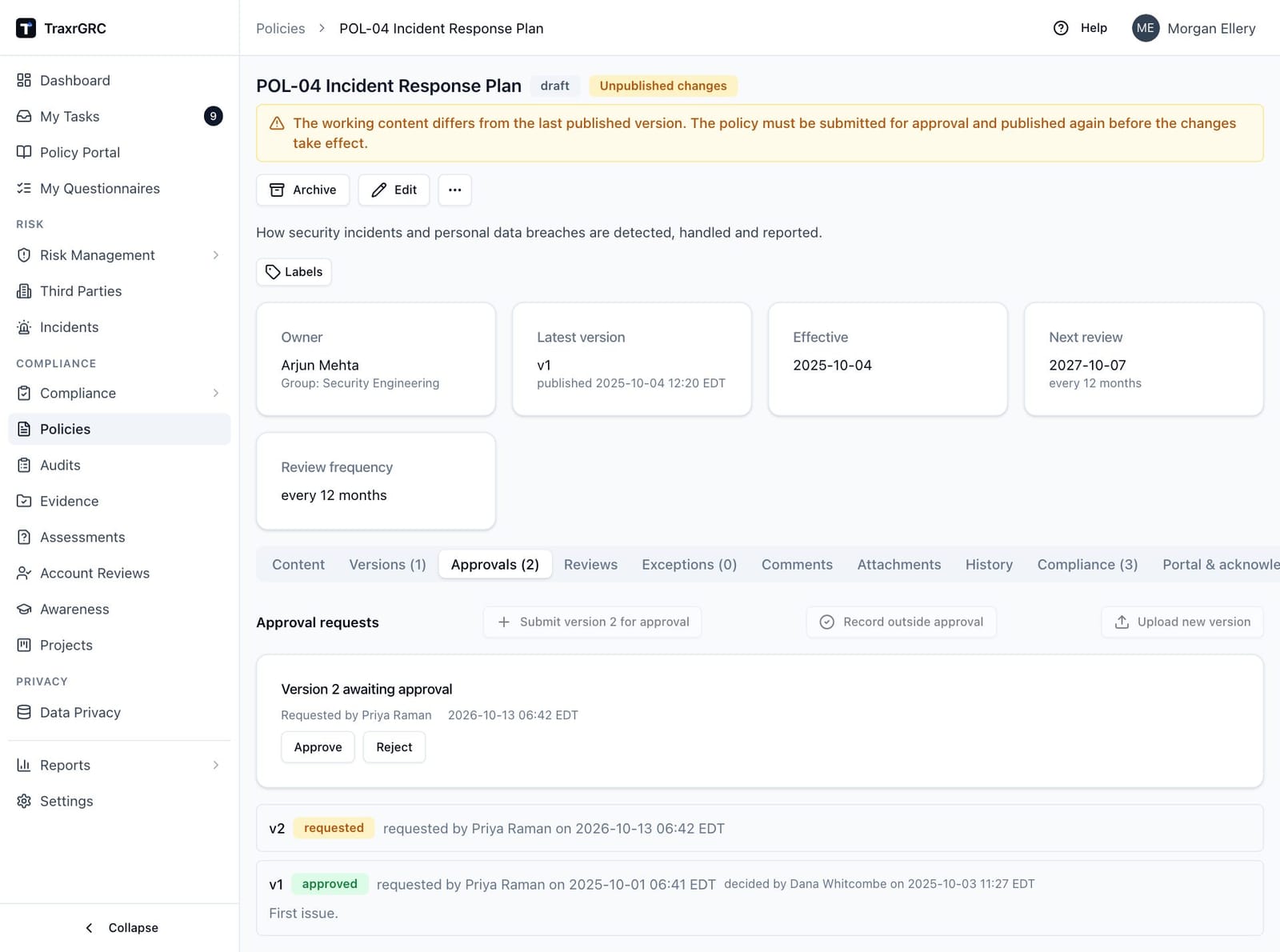
- Open the policy and go to the Approvals tab.
- Click Submit version N for approval, where N is the next version number (highest published + 1).
- An approval request appears as a card, "Version N awaiting approval", showing who requested it and when.
Only one request can be pending at a time: the button is disabled while a request is awaiting a decision, and the server also refuses a new request while one is open. If the next version is already approved, publish it instead of submitting again. Archived policies cannot be submitted for approval.
5.5.2 Approving or rejecting
- On the Approvals tab, find the pending card and click Approve or Reject.
- In the dialog ("Approve version N" or "Reject version N"), optionally add a Note. For an approval, this note becomes the change note stored on the published version snapshot.
- Click Approve or Reject in the dialog. The decision is recorded with your name and the time, and the request's status changes to Approved (green) or Rejected (red).
You cannot approve a request you submitted yourself; another user with permission must make that decision, unless an administrator has relaxed separation of duties (see Sessions under Settings). An approval made that way carries an amber Self-approved badge so reviewers can see the control was waived. The requester may still reject their own request. An approval is also refused if the content changed after the request was submitted; reject it and submit again. When the real approval happens outside the app, record it instead (see below). Deciding an approval writes an entry to the audit log.
5.5.3 Publishing
- Once a request for the exact next version is approved, click Publish vN in the page header.
Publishing checks all of the following and refuses with an explanatory message otherwise:
- the policy is not archived,
- the content is not empty,
- no approval request for the next version is still pending,
- an approved approval exists for exactly that version (an approval for an older version does not count), and
- the content is the same text that was approved.
On success, TraxrGRC creates an immutable version snapshot of the current working content (with the approval note as its change note, and you as the author), sets the policy status to Published, and records the publish date and effective date. Previous approvals stay visible in the Approvals tab as history.
5.5.4 Recording an approval made outside the app
Many organizations approve policies outside any tool: a board signs them, or a controlled-document process collects signatures. Record that approval instead of re-approving the policy in the app. Because it publishes with no second person approving in the app, it is off until an administrator turns on Settings → Policies → Allow recording outside approvals, and it needs both update and Review on Policies.
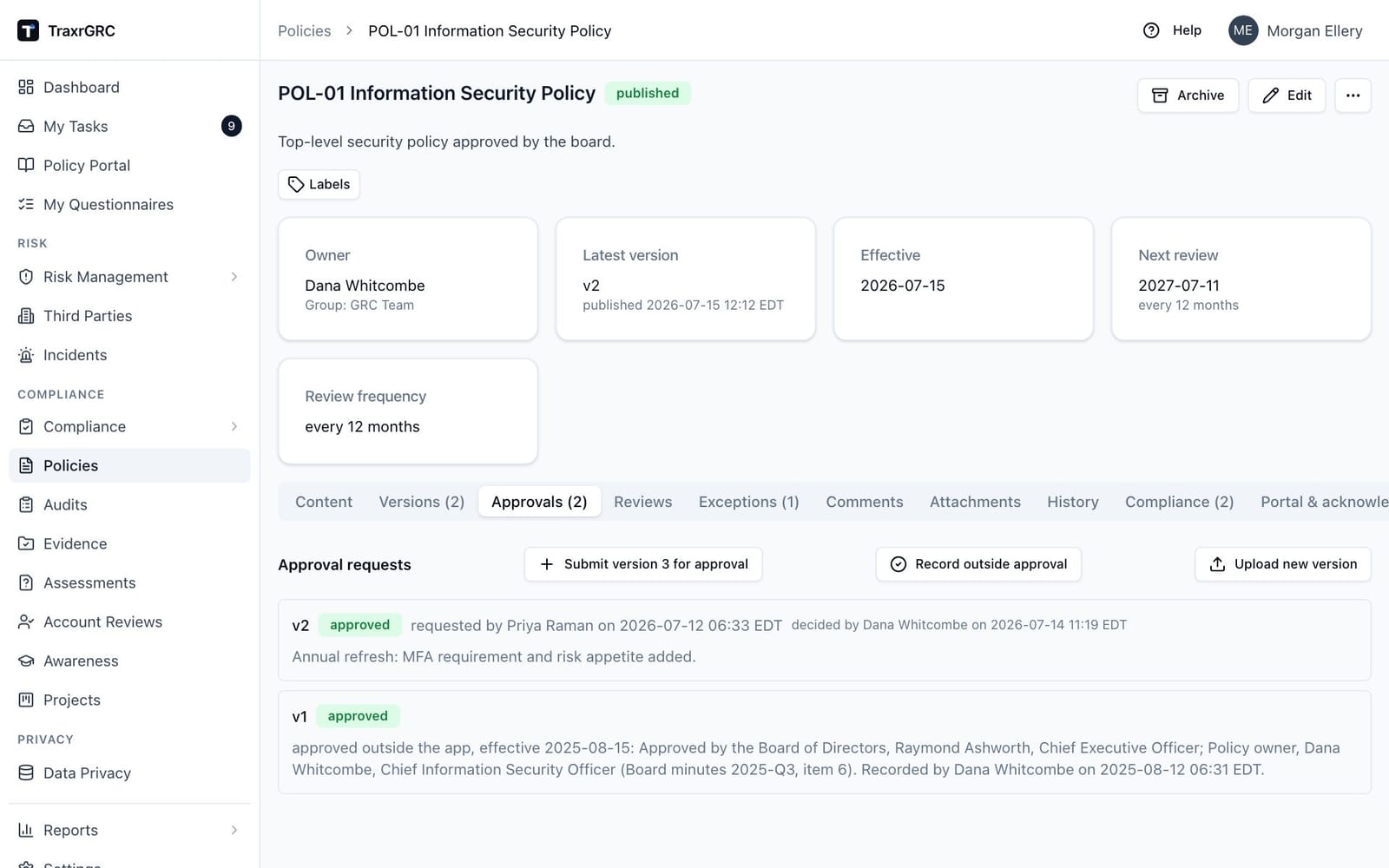
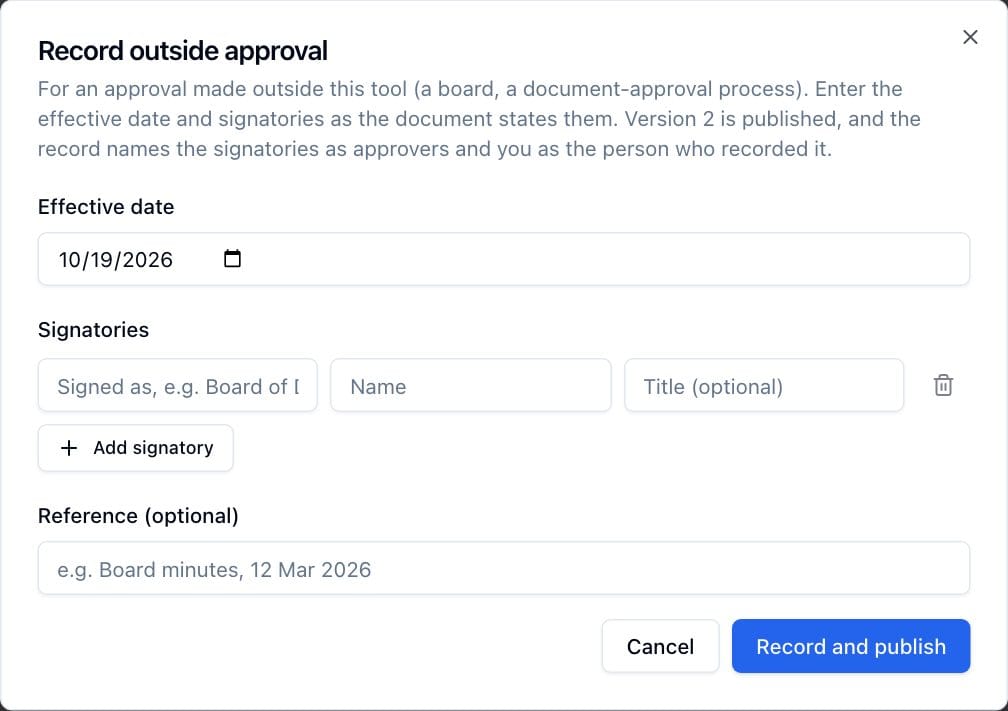
- On the Approvals tab, click Record outside approval.
- Enter the Effective date.
- Under Signatories, enter each signatory as the document states them: the capacity they signed in (for example Board of Directors Approval), their name, and optionally their title. Click Add signatory for each further signatory.
- Add a Reference if there is one, such as board minutes.
- Click Record and publish. The next version is published at once.
The record names the signatories as the approvers and you as the person who recorded it. In the Approvals tab it reads "approved outside the app, effective …", followed by the signatories, the reference and "Recorded by …". The second-person rule for in-app approvals does not apply. The policy's Effective card shows the date and signatories of the published version, and each version keeps its own. The button is unavailable while an in-app approval request is pending; reject that request first.
5.5.5 Uploading a reissued document
When a controlled document is reissued, upload it as the next version instead of pasting its text. This is an outside approval too, so it needs the same setting and rights; without them the button and the dashboard upload link do not appear.
- On the Approvals tab, click Upload new version. Alternatively, use the upload button beside the policy on the Out-of-date documents dashboard widget, which opens the same dialog.
- Under Document, choose the file:
.docx,.pdf,.mdor.txt, up to 25 MB. A Word document's body text is read paragraph by paragraph, and a PDF's text page by page, so a PDF's running headers and footers appear on each page; formatting and images are not kept in the content. A scanned PDF has no text to read and is refused; upload the Word document or a PDF saved from it. - Enter the Effective date. The signatories start as those of the current version; change them if the reissue was signed by others. Add a Reference if there is one.
- Click Upload and publish.
The document's text replaces the working content, the file is attached to the policy, and the next version is published as an outside approval (see above), all in one step: if any part fails, nothing changes and the file is not kept. In the Versions tab that version gets a Source document button that downloads the file as uploaded. A file of another type, one with no text, or one whose text is longer than the 200,000 characters a policy holds, is refused and nothing changes.
5.5.6 Unpublished changes
Editing the content of a published policy, or restoring an older version into the working copy, moves the policy back to Draft. The header then shows an amber Unpublished changes badge and a banner explaining that the working content differs from the last published version and must be submitted for approval and published again before it takes effect. The published snapshot itself is not modified; the Policy Portal and readers of the current version keep seeing it until the new version is published.
5.6 Versions tab
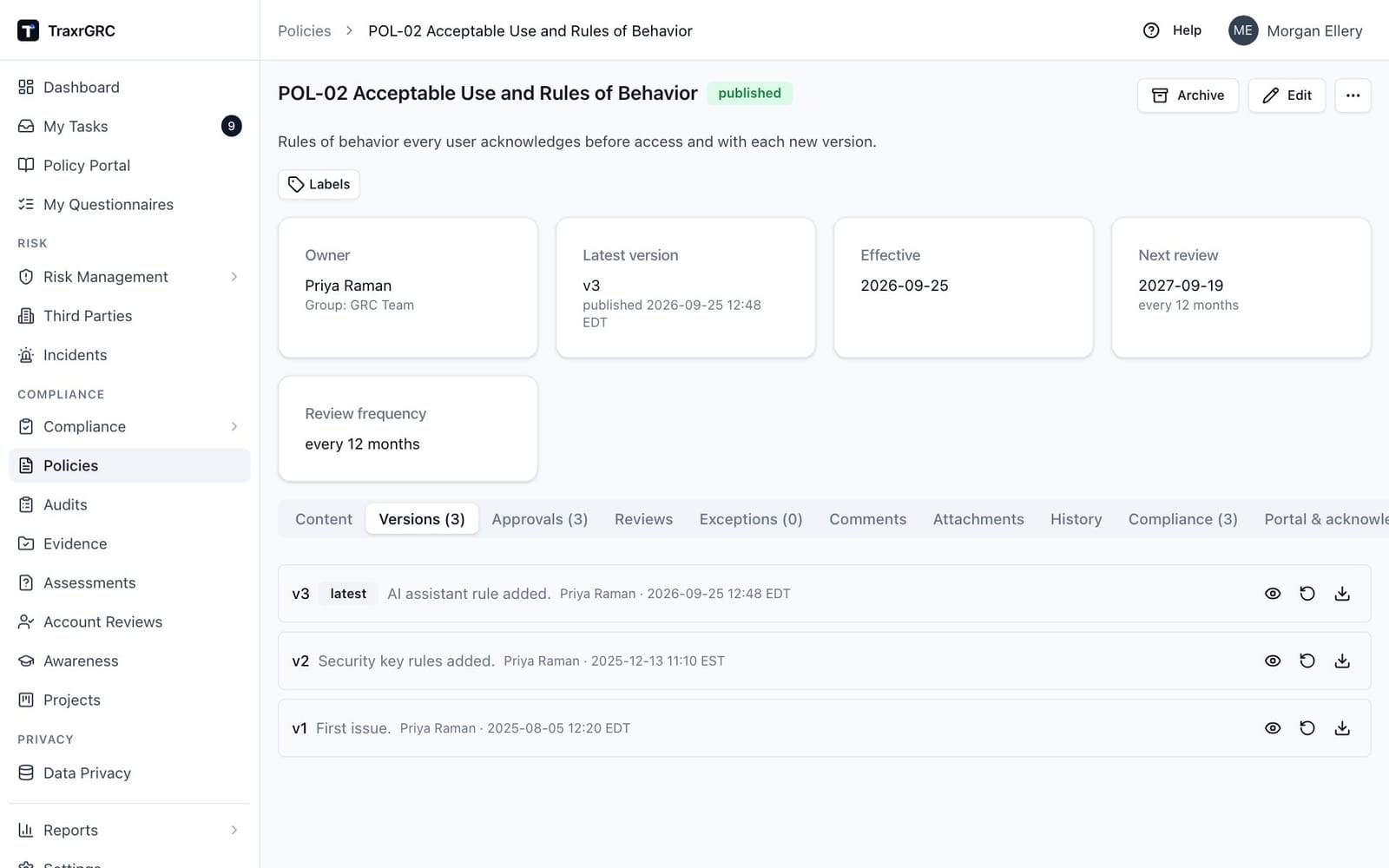
Every published snapshot is listed here, newest first, with its version number, change note, author and date; the newest carries a "latest" badge. Each version offers three icon buttons:
- View content: a read-only dialog showing that snapshot's content.
- Restore into working draft: after you confirm, copies the snapshot's content into the working copy and puts the policy into Draft (an archived policy stays archived). The restored change must be approved and published before it takes effect.
- Download PDF: a PDF of that exact version, styled like the Content-tab PDF, with the version number in the header and footer.
A version published by upload also has Source document, which downloads the uploaded file.
5.7 Reviews tab
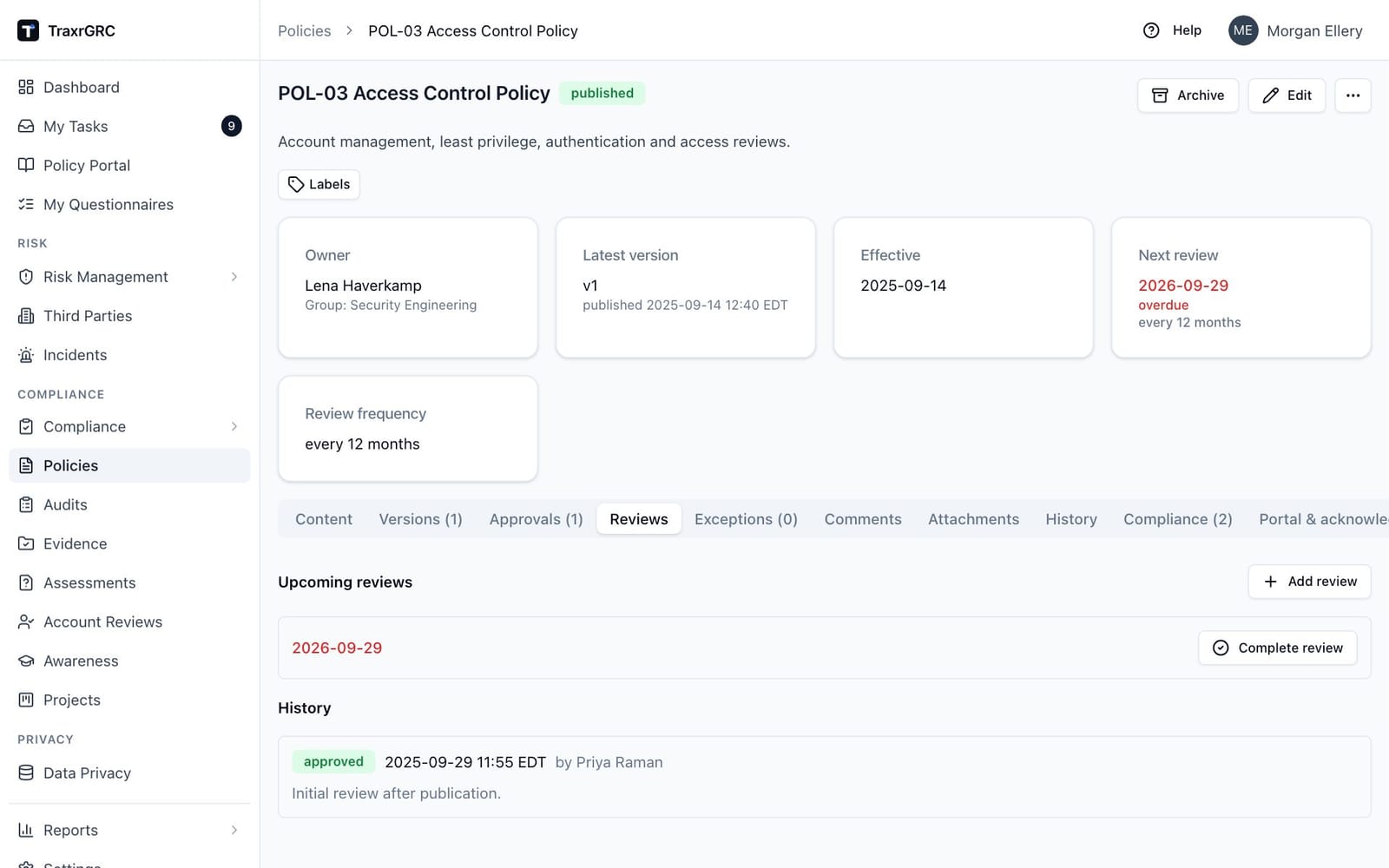
Reviews are the recurring check that a policy is still accurate and being followed. The tab has two sections: Upcoming reviews and History.
Completing a review:
- Under Upcoming reviews, click Complete review on the due entry. Past-due dates are shown in red.
- In the dialog, choose the Result (Approved or Changes required) and add optional Notes.
- Click Complete review.
Publishing a policy schedules its first review one review interval after the version takes effect, unless a review is already scheduled, so every published policy has a Next review date. A review is overdue once that date has passed on a published policy; drafts and archived policies are never overdue. The policy list, the dashboard, My Tasks, compliance evidence and the AI assistant all use this rule.
The review is stamped with the completion time, the result and your name, and moves into the History section. Completing a review automatically schedules the next one at the policy's review frequency (counted from the completion date) and updates the Next review date on the policy and in the list. Completing a review also writes an audit log entry.
| Result | Meaning | Badge color |
|---|---|---|
| Approved | The policy is still accurate. | Green |
| Changes required | The review found changes to make; edit the content and take it through approval. | Amber |
Ad-hoc reviews:
- Click Add review.
- In the Schedule review dialog, pick a Scheduled date.
- Click Schedule review.
This inserts an extra review without completing one. The policy's Next review date is set to the earliest incomplete review.
Changing the review frequency (via Edit) re-anchors the schedule: the next review date is recomputed from the last completed review (or the policy's creation date if none) plus the new frequency, and all incomplete reviews move to that new date.
A daily background sweep emails the policy owner when a review is due soon or overdue, according to the notification settings (see Administration & Settings).
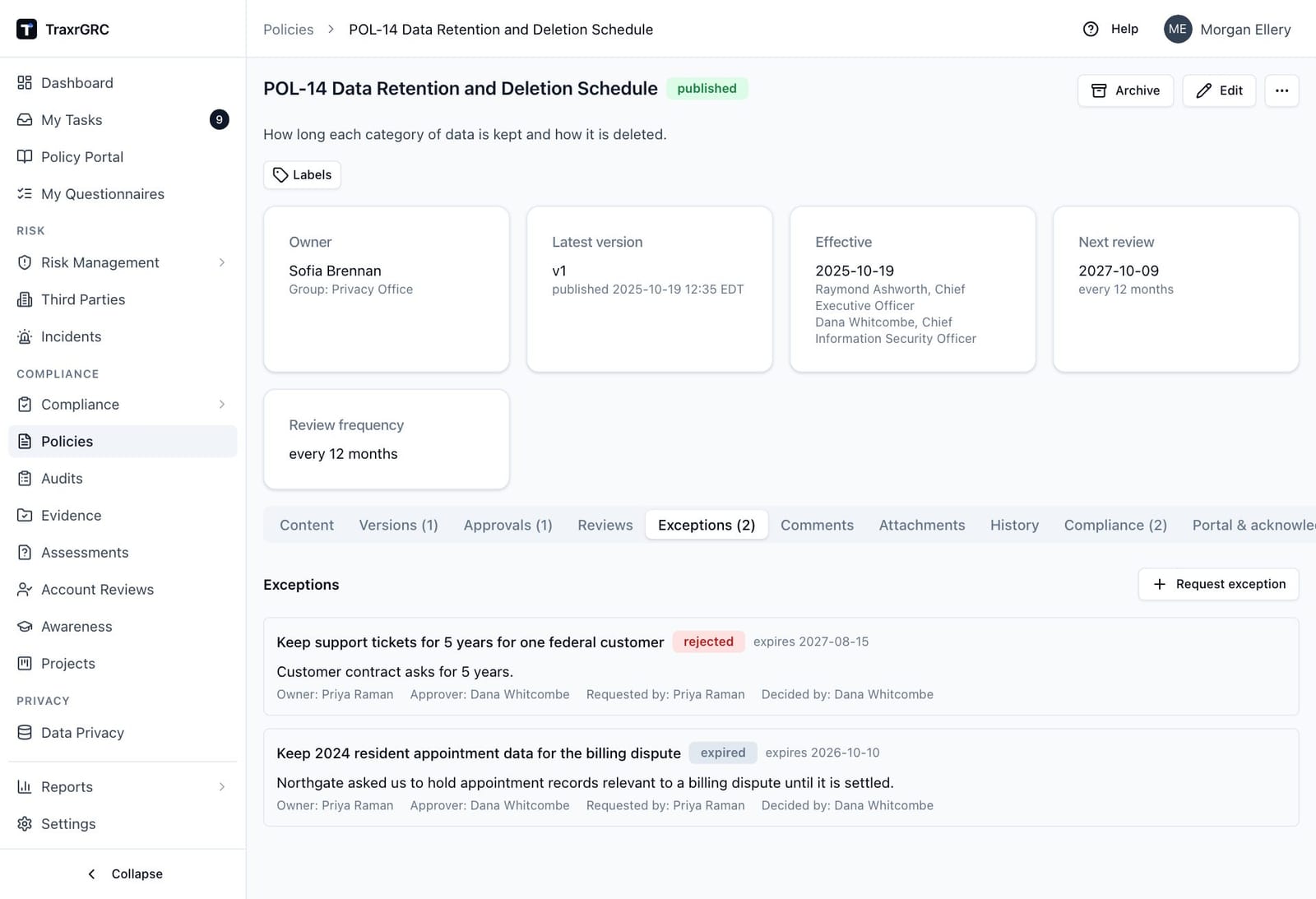
5.8 Exceptions
Exceptions document a time-boxed acceptance of a deviation from a policy, for example a team running an unsupported system until a migration finishes.
- Go to the Exceptions tab and click Request exception.
- Complete the dialog:
| Field | What it means |
|---|---|
| Title | Short name for the exception (required). |
| Description | What is being accepted, and why (required). |
| Owner | The user responsible for the exception. |
| Approver | The user expected to decide it. Leave it as None to let anyone with the Review right decide. |
| Expires at | The date the exception ends (required). |
- Click Request exception.
The exception is created with the status Requested (amber). While it is requested and not yet expired it can be decided with Approve or Reject on its card.
Exceptions follow a separation of duties:
- The person who requested an exception can never approve or reject it, administrators included, unless an administrator has relaxed separation of duties (see Sessions under Settings). A decision made that way carries a Self-approved or Self-decided badge.
- When the request names an approver, only that person (who must be able to see the policy) or an administrator can decide it.
- When it names none, deciding needs the Review right on Policies
(
policies:review). - You cannot name yourself as the approver of your own request.
The exception card shows the description, the owner, the designated approver, who requested it and who decided it; the Approve and Reject buttons appear only for someone allowed to decide. The decision is recorded with who made it and when. Statuses:
| Status | Meaning | Badge color |
|---|---|---|
| Requested | Awaiting a decision. | Amber |
| Approved | The acceptance is in force. | Green |
| Rejected | The request was declined. | Red |
| Expired | Past its expiry date; computed automatically. | Gray |
"Expired" is dynamic: the stored status stays Approved or Requested, but once the expiry date passes the card displays an expired gray badge and the Approve/Reject buttons no longer appear. A daily background sweep emails the exception owner (or the policy owner) when an exception is about to expire, per the notification settings.
5.9 Archive and reactivate
- Click Archive to retire a draft or published policy. Archived policies cannot be submitted for approval, published or put on the Policy Portal, no longer appear as overdue, and are excluded from review and exception reminder emails. Their acknowledgement requests show as Closed.
- Click Reactivate on an archived policy to bring it back as a Draft, ready for the approval and publish cycle again.
Both transitions are recorded in the audit log.
5.10 Comments, Attachments, History and Custom Fields
- Comments: a discussion thread on the policy. Available to anyone who can update the policy.
- Attachments: upload supporting files (for example signed approvals or annexes). Available to anyone who can update the policy. Documents uploaded as new versions appear here too.
- History: the last 100 audit entries for this policy. Each entry shows the action, who performed it, when, and which fields changed. Actions include create, update (also used for archive and reactivate), submit-for-approval, approve, reject, withdraw-approval, publish, record-external-approval, restore, review, portal-publish, portal-unpublish, request-acknowledgement, acknowledgement-due-date, close-acknowledgement, delete-acknowledgement-request and delete. Exception decisions and individual acknowledgements are recorded against their own records and appear in the administrator's audit log, not on this tab.
- Custom Fields: the Custom Fields tab, last in the row, holds administrator-defined extra fields for policies (see Administration & Settings).
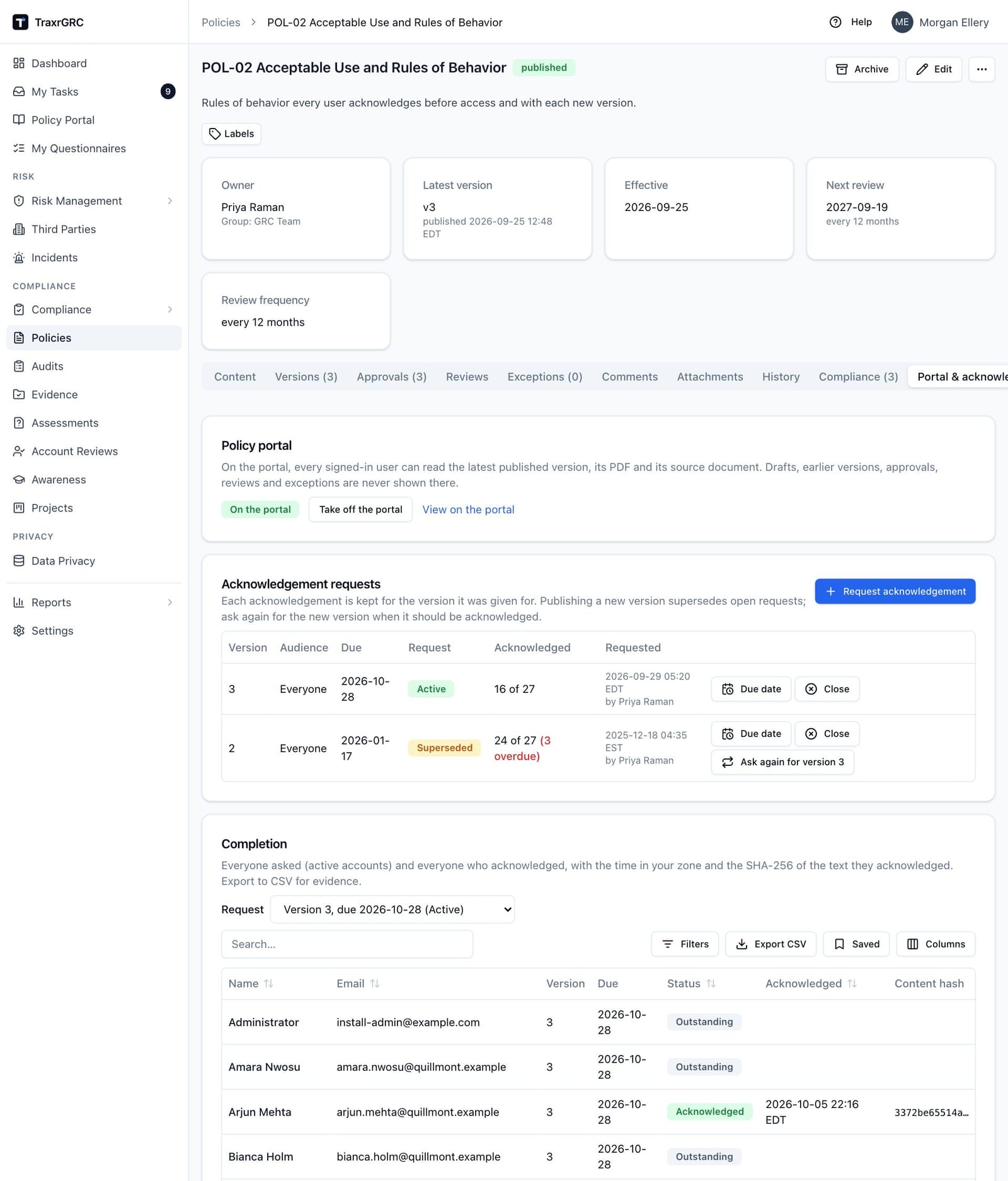
5.11 Policy portal and acknowledgements
The Policy Portal (sidebar, under Dashboard) is where every signed-in user, whatever their role, reads the policies in force and acknowledges the ones they are asked to (for example PL-4 rules of behavior). Nothing is on the portal until someone puts it there, policy by policy.
5.11.1 What the portal shows
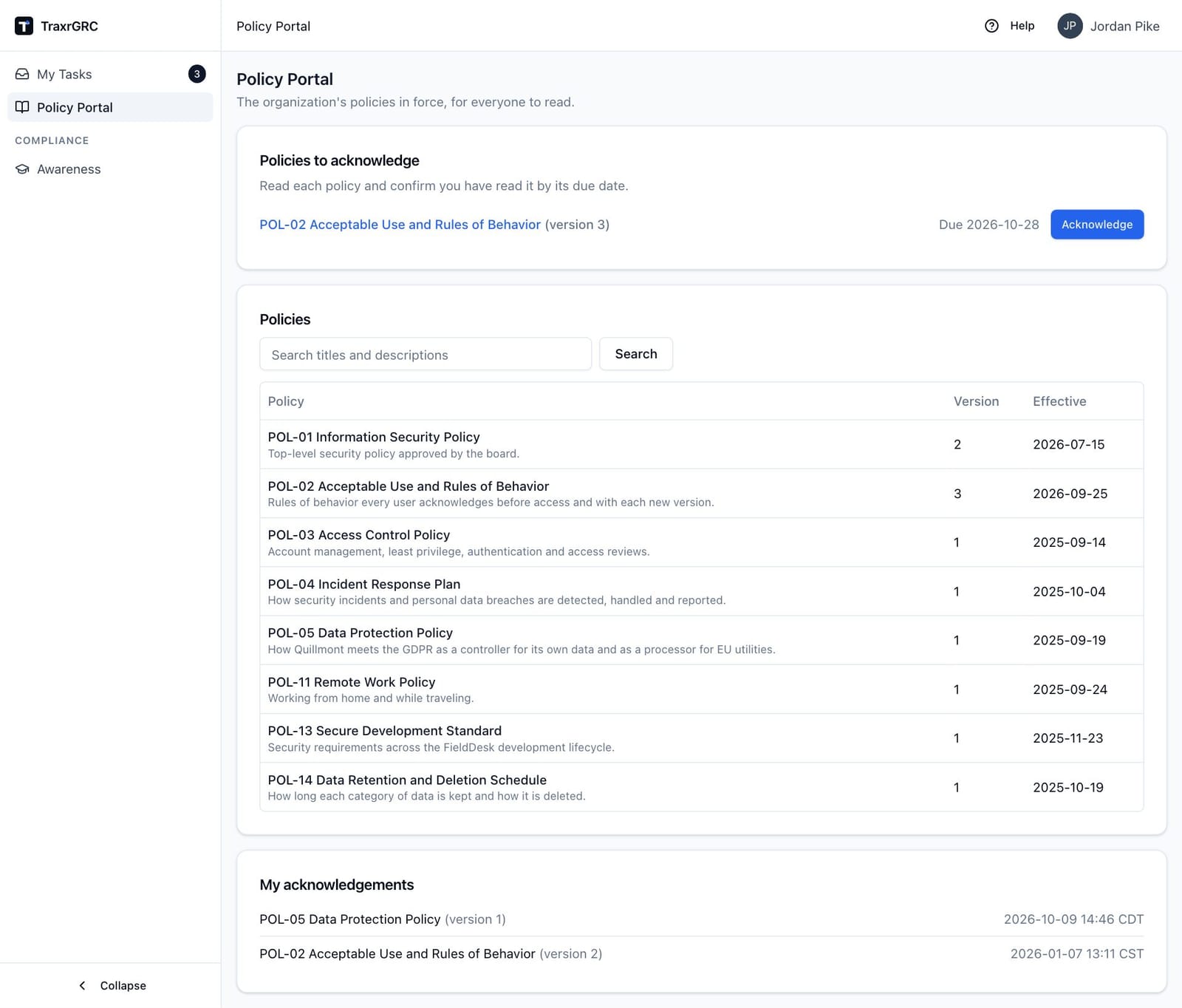
The portal home page has up to three sections:
- Policies to acknowledge: the policies you are asked to acknowledge, with the version and the due date ("Due …", or in red "Overdue, was due …"), and an Acknowledge button that opens the policy at its acknowledgment. When there is nothing to do it reads "Nothing to acknowledge right now."
- Policies: every policy on the portal, with its title and description, version and effective date. Type in the search box and click Search to match titles and descriptions.
- My acknowledgements: the policies and versions you have acknowledged, with the time of each.
Click a policy to open it. The page shows the title, the version number and effective date, the description, a PDF button for that version and, when the version came from an uploaded document, a button carrying the source document's file name, followed by the policy text. It never shows the working draft, earlier versions, approvals, signatories, reviews, exceptions, owners, comments or other attachments. A policy that is archived, was never published, or is not on the portal answers "Page not found" to staff. When a published policy is edited (and so back in draft), the portal keeps showing the last published version until the next one is published.
5.11.2 Acknowledging a policy
When you are asked to acknowledge a policy:
- Open it from Policies to acknowledge on the portal, your dashboard or My profile, or from the link in the email.
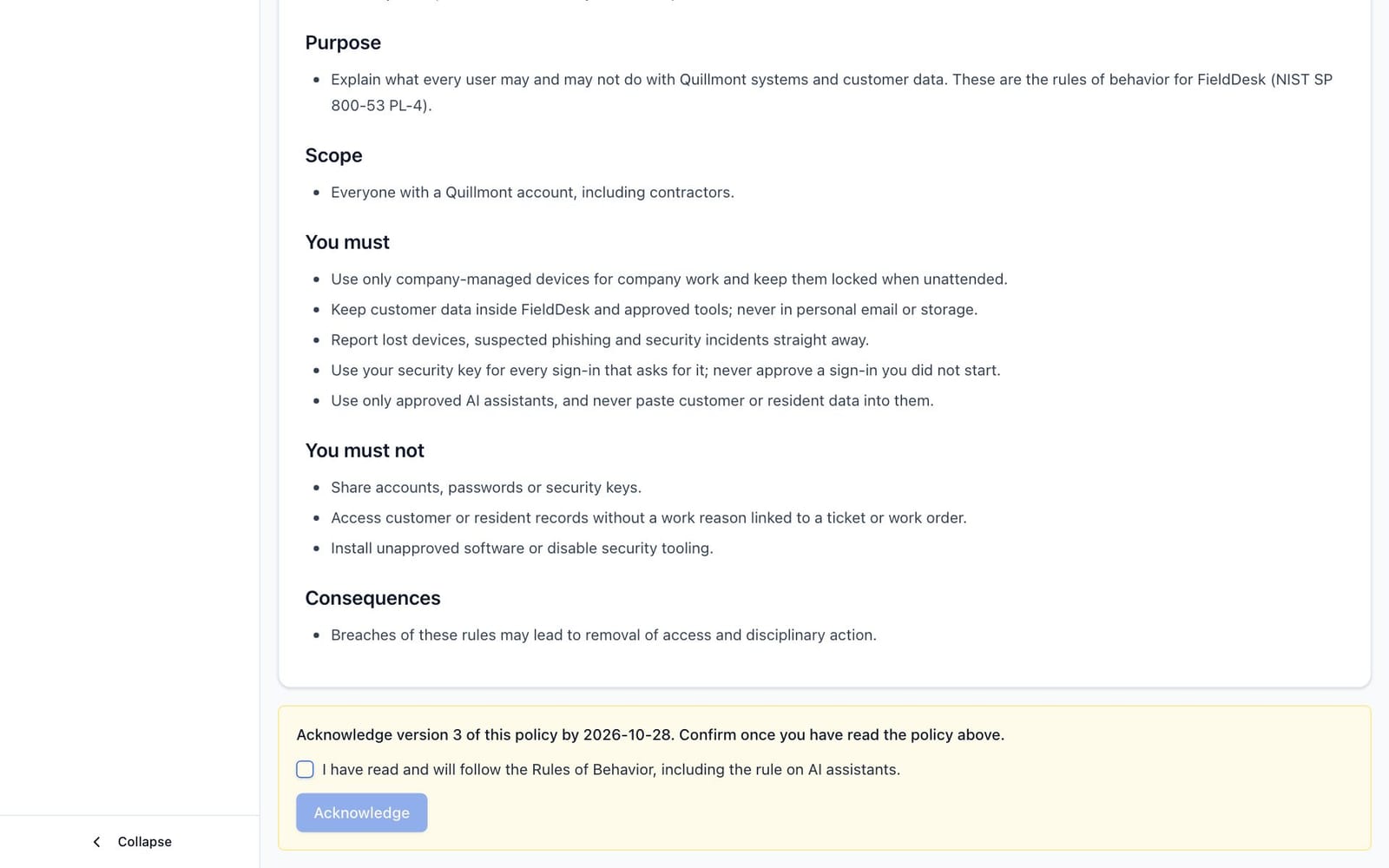
- Read the policy. A note at the top links to the acknowledgment, and the panel below the text says which version you are asked to acknowledge and by when.
- Tick the attestation checkbox in that panel.
- Click Acknowledge.
The panel is replaced by "You acknowledged version N on …".
5.11.3 Putting a policy on the portal
- Open the policy and choose the Portal & acknowledgements tab.
- Under Policy portal, click Publish to the portal.
The badge changes from "Not on the portal" to "On the portal", and a View on
the portal link appears. Take off the portal reverses it. Both need
policies:update and policies:review on the policy, since putting it on
the portal discloses the text to everyone, and the policy needs a published
version and must not be archived. A policy cannot be taken off while one of its
acknowledgement requests is active: close the request first. Both actions are
recorded on the policy's history.
5.11.4 Asking for acknowledgement
Request acknowledgement on the same tab needs policies:update on the
policy (so its owner or a manager) and the policy on the portal. It asks for
the current published version.
- Under Acknowledgement requests, click Request acknowledgement.
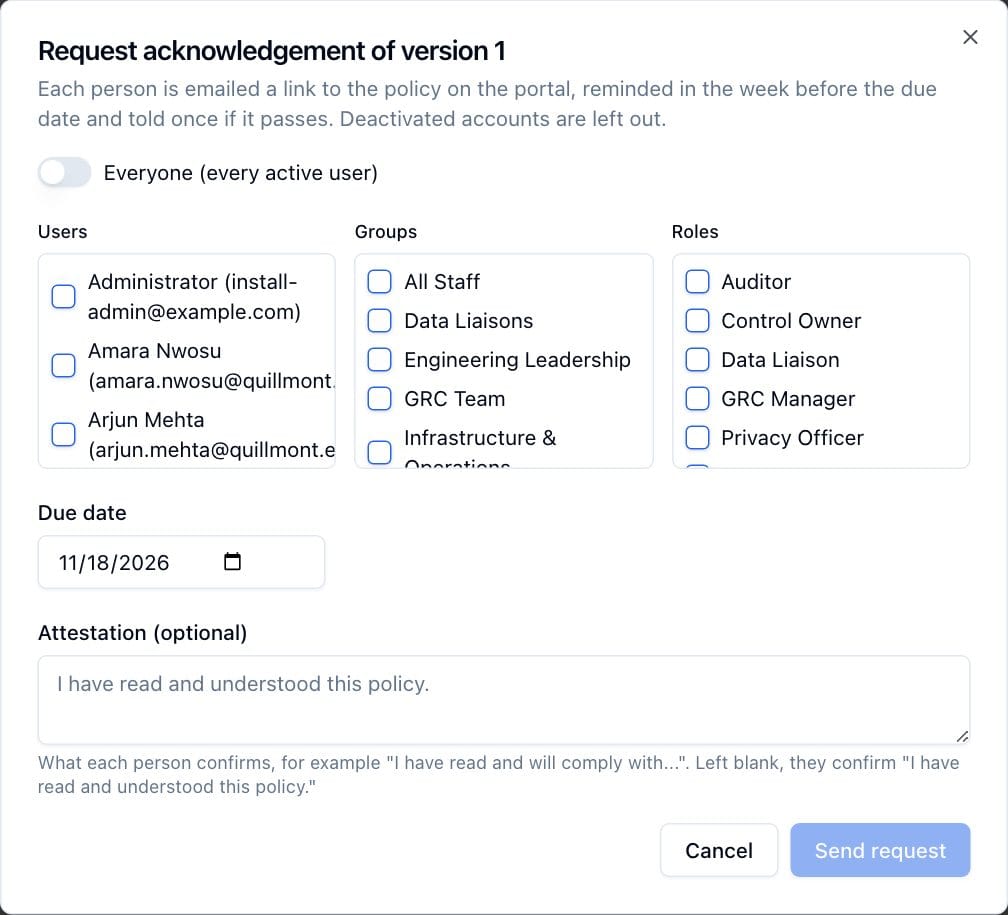
- Complete the dialog, "Request acknowledgement of version N":
| Field | What it means |
|---|---|
| Everyone (every active user) | Every active user, including people who join later. |
| Users, Groups, Roles | When Everyone is off: any mix of named users, members of the groups, and members of groups carrying the roles. Membership is read live, so someone added to a group later is asked too. |
| Due date | A calendar date, 30 days ahead by default; the request is overdue from the next day. It cannot be in the past. |
| Attestation (optional) | What each person ticks to confirm, for example "I have read and will comply with the rules of behavior". Left blank, they confirm "I have read and understood this policy." |
- Click Send request.
Each person asked gets an email with a link, a reminder in the week before the due date and one notice once it has passed (never within a day of the first email; each once per due date). Deactivated accounts are left out. The request appears for them under Policies to acknowledge on the portal, their dashboard and My profile.
5.11.5 What is recorded
Each acknowledgement stores the person, the request, the policy version, the SHA-256 of that version's text, the attestation text they confirmed and the time (stored in UTC, shown in each viewer's zone). It is written once, never changed or deleted, and audited. One acknowledgement per person per version: someone asked twice for the same version acknowledges once. If the text they were shown is no longer the version the request is for, the acknowledgement is refused and they are asked to reload.
5.11.6 Managing requests
Requests are listed on the tab with the version, audience, due date, state (Request column), progress (Acknowledged column, for example "3 of 40", with how many are overdue and how many acknowledged but are no longer in the audience) and who requested it and when.
| State | Meaning | Badge color |
|---|---|---|
| Active | Takes acknowledgements and sends reminders. | Green |
| Superseded | A newer version has been published since; it no longer takes acknowledgements or sends reminders. | Amber |
| Closed | Someone closed it, or the policy was archived. | Gray |
On an active or superseded request:
- Due date opens an inline date field; change it and click Save.
- Close closes the request.
A request nobody has acknowledged through also has Delete.
A new version. Publishing a new version does not ask anyone again by default: earlier acknowledgements stay as evidence for the version they were given for, and open requests become Superseded. To ask for the new version, click Ask again for version N on the earlier request: the dialog opens with its audience and attestation, ready to send with a new due date.
People who leave. Deactivated accounts drop out of the audience and the outstanding and overdue counts; their acknowledgements stay and are listed (marked "(deactivated)", or "No longer in the audience" for someone who left a group). A user who has acknowledged a policy cannot be deleted, only deactivated, and a policy with acknowledgements cannot be deleted, only archived.
5.11.7 Completion and evidence
The Completion table on the tab lists everyone asked and everyone who acknowledged. Use the Request selector to show one request or All requests. Columns:
| Column | What it shows |
|---|---|
| Name | The person, marked "(deactivated)" or "No longer in the audience" where applicable. |
| Their email address. | |
| Version | The version they were asked to acknowledge. |
| Due | The request's due date. |
| Status | Acknowledged (green), Outstanding (gray) or Overdue (red). |
| Acknowledged | The time they acknowledged, in your time zone. |
| Content hash | The first characters of the SHA-256 of the text they acknowledged; hover for the full hash. |
Filter by status, search by name or email, and export it to CSV. It needs
policies:read on the policy. For a view across policies, and to email it on
a schedule, use the Policy Acknowledgements report in the Report Center. A
notification rule on Deadline approaching or Deadline overdue for
Policy records also fires for requests with people still to acknowledge
(see Notification rules).
5.12 Deleting a policy
- Open More actions (…) in the header and click Delete.
- Confirm with Delete in the "Delete policy?" dialog.
A policy that anyone has acknowledged cannot be deleted; archive it instead.
5.13 Who can do what
Access is controlled by the policies module rights (see Administration & Settings):
| Action | Permission needed |
|---|---|
| View the list and a policy | policies:read |
| Create a policy | policies:create |
| Edit metadata or content, submit for approval, decide approvals, publish, restore versions, complete or schedule reviews, request exceptions, archive/reactivate, comment, attach files | policies:update; at the own level you must be the owner or in the owner group |
| Decide an exception that names no approver (never one you requested) | policies:review |
| Decide an exception that names you as approver (never one you requested) | policies:read on the policy |
| Record an outside approval or upload a new version | policies:update and policies:review, with Settings → Policies → Allow recording outside approvals on |
| Delete a policy | policies:delete; at the own level you must be the owner or in the owner group |
| Read the Policy Portal and acknowledge what you are asked to | Signed in; no policies right needed |
| Put a policy on the portal or take it off | policies:update and policies:review on the policy |
| Request acknowledgement, change a request's due date, close or delete it | policies:update on the policy |
| See a policy's requests and completion | policies:read on the policy |
| See the Compliance tab | compliance:read |
Administrators bypass these checks, except that they too cannot decide an exception they requested while separation of duties is enforced.