13 Evidence
Evidence is what shows a control operating or a third party meeting its obligations: the screenshot of a quarterly access review, the notes from a monthly vulnerability scan review, a vendor's SOC 2 report or ISO certificate. Each piece of evidence is one record with its files, the period it covers, when it was collected and how long it stays valid, and links to every record it supports. One access review export can support a control, the test result it was collected for and several compliance requirements at once, and an auditor can open it from any of them.
There are two kinds:
| Kind | Used for | Extra fields |
|---|---|---|
| Internal | Evidence your organization produces: access reviews, vulnerability reviews, configuration screenshots, log reviews, training records, meeting minutes, test results, and reports about your own organization (an Audit or assessment report such as your FISMA assessment, an internal audit or your own SOC 2 report, and a Certification such as your own ISO/IEC 27001 certificate) | None |
| Third-party report | Assurance a third party provides: SOC 1 and SOC 2 reports, ISO/IEC 27001, 27701 and 22301 certificates, PCI DSS attestations, HITRUST, FedRAMP packages, penetration test summaries, bridge letters, security questionnaires (SIG, CAIQ) | The third party, who issued it, the auditor's opinion, and exceptions noted with your response |
13.1 The Evidence page
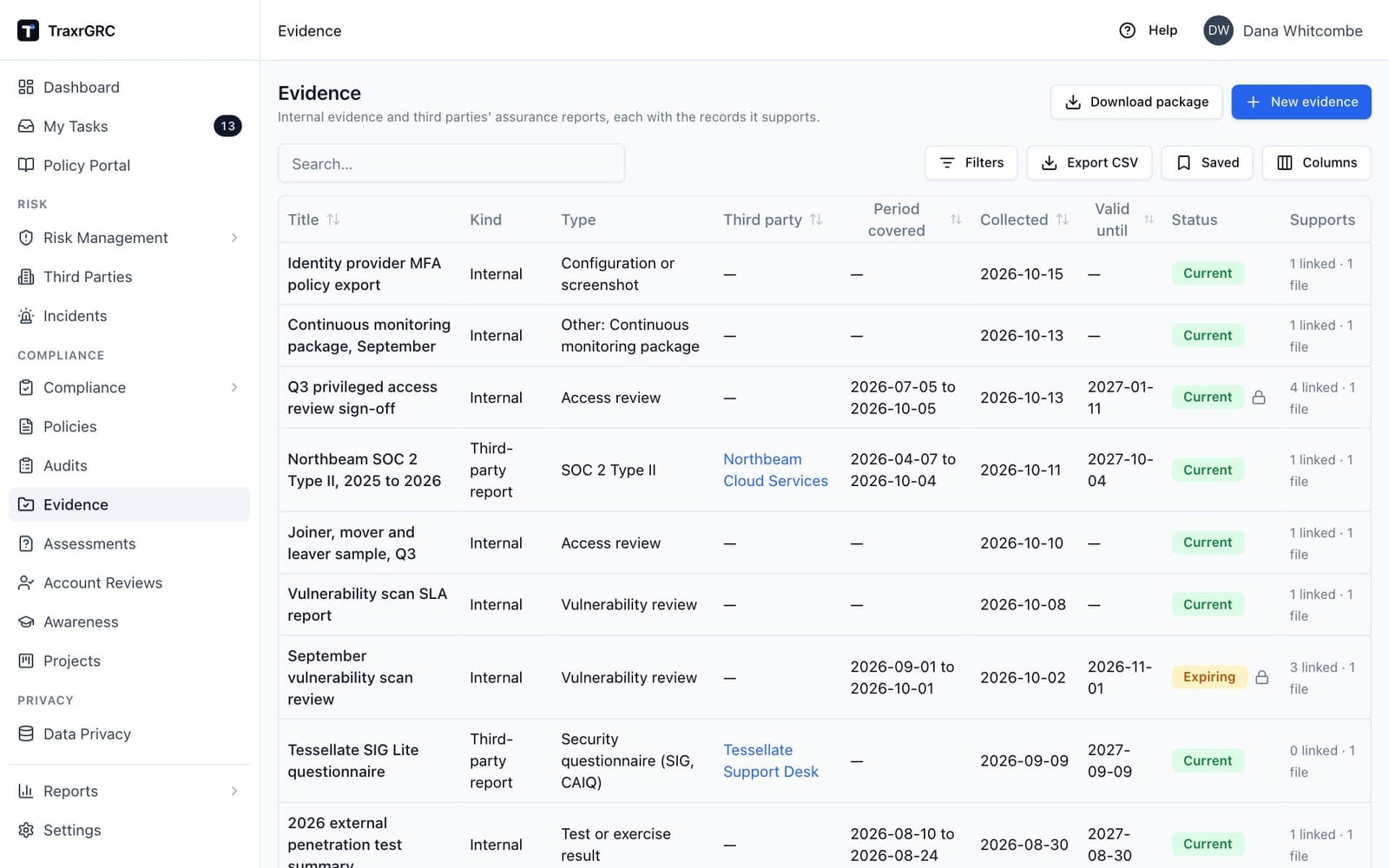
Open Evidence in the sidebar under Compliance. The table lists every piece of evidence you can see, newest first:
| Column | What it shows |
|---|---|
| Title | Click to open the evidence. |
| Kind | Internal or Third-party report. Filter by it. |
| Type | Access review, SOC 2 Type II and so on; an Other type reads "Other: " and its description, for example "Other: DR test report". Filter by it. |
| Other type | Hidden by default: the description of an Other type. Filter by typing part of it to narrow "Other internal evidence" to one kind. |
| Third party | For a report, the third party it is about. Filter by typing part of the name. |
| Period covered | The dates the evidence covers, such as the audit period of a SOC 2 report or the quarter of an access review. |
| Collected | When it was produced or obtained (for a report, the report date). |
| Valid until | When it stops counting: a certificate's expiry, or when the next review or report is due. |
| Status | See the table below. Filter by Current, Expiring or Expired. |
| Supports | How many records it is linked to and how many files it holds. |
| Owner | Hidden by default; turn it on from the column menu. |
The status comes from the dates:
| Status | Meaning |
|---|---|
| Current | Valid until is more than 30 days away, or not set. |
| Expiring | Valid until is within 30 days. |
| Expired | Valid until has passed. |
| Superseded | Later evidence replaces it (its Replaces field names this one). See Replacing earlier evidence. |
The status filter matches the dates only, so a superseded report still appears under the status its own dates give it. Searching the table also matches the description of an Other type.
13.2 Adding evidence
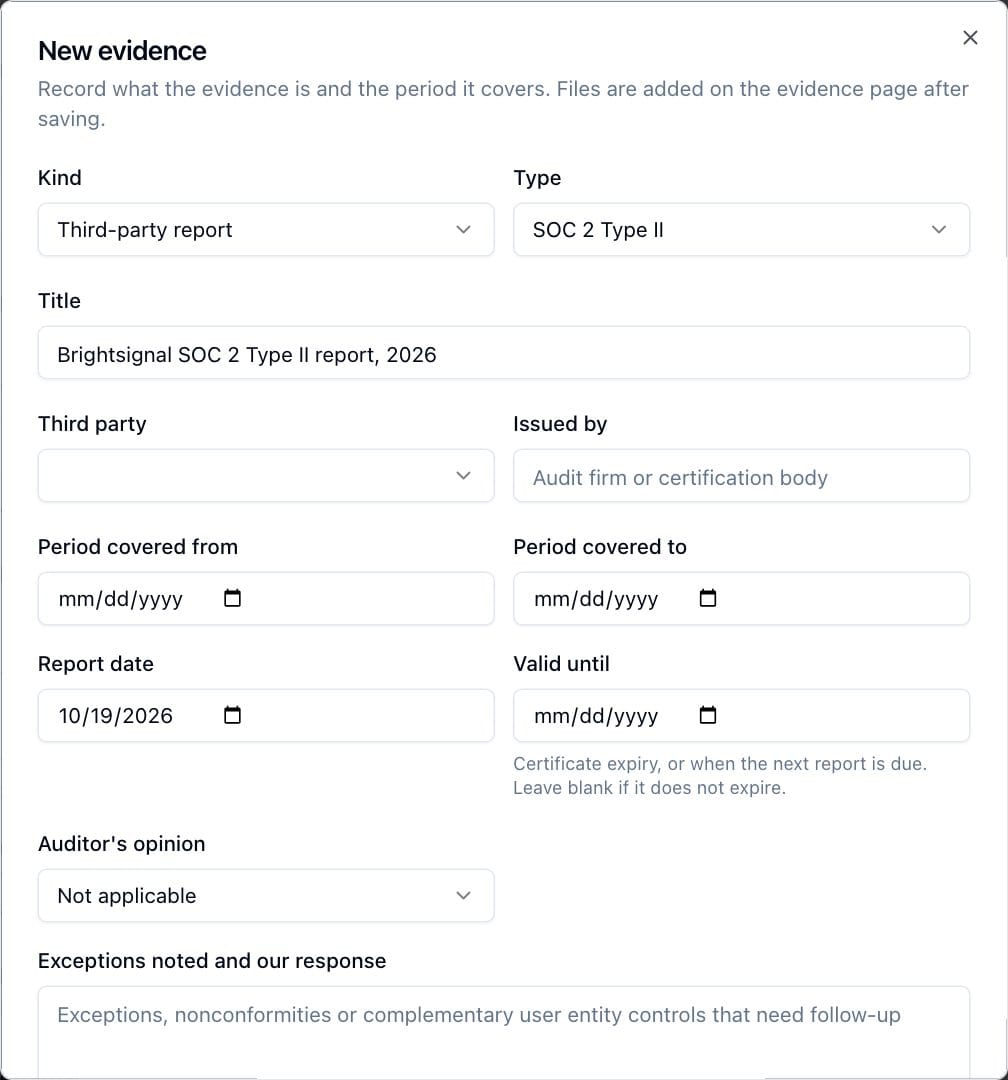
- Click New evidence on the Evidence page, or Add evidence on a control, requirement, account review or third party (see Evidence on other records). From a record, the new evidence is linked to that record.
- Choose the Kind and the Type. For Other internal evidence or Other third-party report, Describe the type in a few words (for example "DR test report"); it is required, and the type then reads "Other: DR test report" wherever it appears.
- Enter a Title, for example "Q3 privileged access review" or "SOC 2 Type II report, 2026".
- For a third-party report, choose the Third party (required) and enter who Issued by: the audit firm or certification body.
- Enter the Period covered from and to if the evidence covers a period, the date it was Collected on (for a report, the Report date), and Valid until if it expires.
- For a third-party report, choose the Auditor's opinion (Unqualified, Qualified, Adverse or Disclaimer of opinion, or Not applicable for a certificate) and record Exceptions noted and our response: exceptions, nonconformities or complementary user entity controls that need follow-up.
- Check Replaces: the earlier evidence this one replaces, if any (see Replacing earlier evidence). The form may have suggested one.
- Add a Description, and choose the Owner (you, unless you choose someone else) and Owner group.
- Click Add evidence. The evidence opens; add its files on the Files tab.
13.3 An evidence record
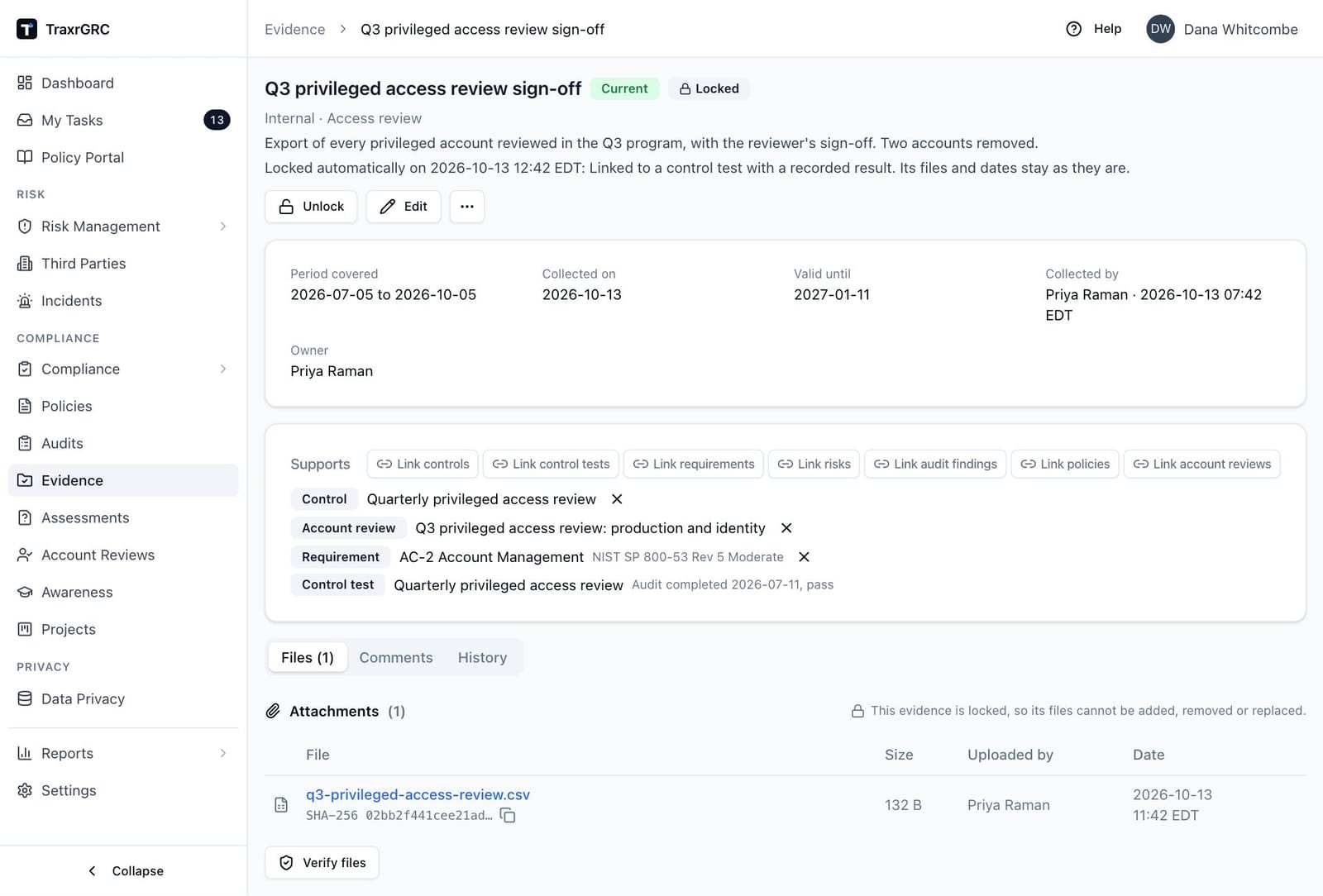
The evidence page shows its kind, type and third party, its status, and its dates: Period covered, Collected on (or Report date), Valid until, Collected by (who recorded it, and when), the Owner and, for a report, Issued by, Auditor's opinion and the exceptions noted. Below the type, "Superseded by" links to the evidence that replaces it and "Replaces" to the evidence it replaces (evidence you cannot read is named as such, without its title).
The Supports card lists every record the evidence is linked to, each labeled with its type (Control, Control test, Requirement, Risk, Audit finding, Policy or Account review) and linking to it. Records you cannot read are counted but not named. If you can edit the evidence, the buttons above the list link more records of each type (a searchable checklist, as for compliance mappings), and the x beside a record unlinks it. Linking needs only read access to the record; it changes the evidence, not the record.
The tabs below hold the Files, Comments and History. Every change, link, unlink, upload, lock, unlock, file check and deletion is recorded in the audit log.
Edit changes the fields (the kind is fixed once created). Delete, in the More actions menu (…), removes the evidence with its files, comments and links after you confirm; the records it supported are not changed. Locked evidence cannot be deleted: the menu shows Delete disabled with "Locked evidence cannot be deleted. Unlock it first." (see Locked evidence and file fingerprints).
13.4 Evidence on other records
Evidence also appears where you work:
| Record | Where | What it lists |
|---|---|---|
| Control | Evidence tab | Evidence linked to the control or to any of its tests (marked "via" the test). Each recorded result has an Add evidence button, and recording a result offers Add evidence in the confirmation, so the evidence is linked to that test and the control as you record it. |
| Compliance requirement | Evidence tab, Evidence supporting this requirement | Evidence linked to the requirement, and evidence of its mapped controls and their tests (marked "via" the control or test). |
| Account review | Evidence tab | Evidence linked to the review program. Add evidence starts an access review. |
| Third party | Assurance reports tab | Every report about the third party, with its status, so an expired or superseded report is visible at a glance. Add evidence starts a SOC 2 Type II report for this third party. |
On a control, requirement or account review, Link existing links evidence you can edit that was recorded elsewhere.
13.4.1 Files on controls, requirements and account reviews
Controls, compliance requirements and account reviews take evidence rather
than loose files: add a file through Add evidence, then the evidence's
Files tab. A file sent to one of these records another way (through the
AI assistant's upload tool or an upload link) becomes new evidence linked to
the record, titled with the file name and typed "Other: Uploaded file", owned
by whoever uploaded it; edit its type and dates afterwards. This needs
evidence:create and read access to the record, the same as linking evidence.
Files attached to these records before they took evidence move onto evidence by themselves shortly after the update: each becomes evidence linked to the same record, titled with the file name, typed "Other: Migrated from control" (or requirement, or account review), collected on the day it was uploaded, and owned by the record's owner. The file keeps its fingerprint, and each move is recorded in the audit log. Until then the record shows an Attachments tab (on a requirement, a list under its evidence) with the old files and no upload button. Evidence moved this way that supports a recorded test result locks the night after (see Locked evidence and file fingerprints).
13.4.2 A third party's files
A third party keeps its Attachments tab for contracts, DPAs and other
documents. A report that was attached there as a plain file can become
evidence: Convert to evidence beside the file opens the New evidence form
as a report about that third party, titled with the file name and dated the
day it was uploaded. Set the type, period, opinion and the rest, and save: the
file moves onto the new report (with its fingerprint) and leaves the
Attachments tab. Converting needs evidence:create and thirdParties:update
on the third party.
13.5 Replacing earlier evidence
Evidence can replace earlier evidence: this year's SOC 2 report replaces last year's, this year's FISMA assessment replaces last year's. The earlier one then shows as Superseded, sends no more reminders, and drops out of the Evidence expiring widget and the requirement counts on the Compliance workspace. Each piece of evidence replaces at most one other, and is replaced by at most one.
Set it with Replaces on the evidence form. It offers evidence of the same kind that nothing else replaces yet (for a third-party report, that third party's reports), the same type first. On new evidence the form suggests one:
| Evidence | Suggested |
|---|---|
| A third-party report | The newest report of the same type from the same third party. |
| An Audit or assessment report, or a Certification | The newest of the same type linked to the same control (when you add it from a control or its test). |
| Anything else | Nothing. Access reviews, log reviews and the like are a history where each entry still counts, so a new one replaces nothing unless you choose. |
Clear the field to replace nothing. Changing Replaces later is recorded in the audit log; it stays editable on locked evidence, since it says nothing about the evidence's own contents. Reports recorded before Replaces existed were linked by the old rule: each report replaces the previous one of the same type from the same third party.
13.6 Locked evidence and file fingerprints
Every uploaded file gets a SHA-256 fingerprint, taken from its bytes when it is uploaded. The Files tab shows the start of it under each file name; the copy button beside it copies the whole value, for an auditor to compare with their own copy of the file. Files uploaded before fingerprinting was added are fingerprinted in the background and show "SHA-256 not recorded yet" until then.
Verify files, below the files, reads each stored file again and compares it with its fingerprint. Each file is reported as Matches, Changed since upload or File missing (a file with no fingerprint yet gets one, shown as Fingerprint recorded). Anyone who can read the evidence can run it, and the result is recorded in the audit log. A changed or missing file means the stored copy is no longer the one that was uploaded: tell your administrator.
Locked evidence is evidence someone has relied on. While it is locked:
- its files cannot be added, removed or replaced;
- it cannot be deleted;
- its type, third party, issuer, period, collected (or report) date, valid until date, opinion and exceptions cannot change;
- a link to a control test with a recorded result cannot be removed.
The title, description and owner can still change, and more records can still be linked. A Locked badge shows beside the status, with who locked it, when and why; the evidence list and the Evidence cards on other records show a lock icon.
Evidence locks in three ways:
| How | When |
|---|---|
| By hand | Lock on the evidence, with an optional note (for example "Given to the external auditor"). Anyone who can edit the evidence can lock it. |
| A result is recorded | Recording a control test's result locks the evidence linked to that test, if it has files. Linking evidence that has files to a test whose result is already recorded locks it too. |
| A day after its files | Evidence added from a recorded result has no files yet, so it stays open while you upload them. Once it supports a recorded result and its newest file is a day old, the nightly run locks it. |
Unlock needs evidence:delete at the all level (GRC Manager, or an
administrator) and a reason, which is recorded in the audit log.
13.7 Expiry and reminders
Evidence with a Valid until date reminds its owner by email when it comes within 30 days of that date (Evidence expiring) and again when the date passes (Evidence expired), once each per date: entering a new date starts again. A third-party report also reminds the third party's owner in your organization (the Owner on the third party, who owns the relationship and usually has to chase the new report); when that is the same person, they get one email. Each recipient must be able to read the evidence. Nobody at the third party is emailed. Superseded evidence, and a report about a terminated third party, sends no reminder. The Evidence expiring dashboard widget lists what is expired and expiring.
13.8 Evidence packages for auditors
An evidence package is one zip an auditor can work from offline: the selected evidence's files, one folder per evidence record, with a manifest.
- From a record: Download package on the Evidence tab of a control or requirement packs everything that tab shows (for a requirement, the evidence of its mapped controls and their tests too). On a third party's Assurance reports tab and an account review's Evidence tab it packs the evidence listed there.
- By period: Download package on the Evidence page asks for From and To dates and packs the evidence you can read whose period covered overlaps them, or, for evidence with no period, whose collection date falls between them. Include superseded reports keeps reports a later one replaces; they are left out otherwise.
The zip holds:
| File | What it is |
|---|---|
manifest.json | Every evidence record: type, third party, issuer, period, dates, opinion, status, lock state (who locked it, when and why), the evidence it replaces or that replaces it, the records it supports, and each file. |
manifest.csv | The same, one row per file, for a spreadsheet. |
README.txt | What the columns mean and how to check a hash yourself. |
evidence/ | The files, in a folder per evidence record. |
Each file is listed with two SHA-256 values: the fingerprint taken when it
was uploaded, and the hash of the bytes in the package. file_check says
match when they agree, mismatch when the stored file changed, missing
when it is gone from storage, and recorded for an older file that had no
fingerprint yet. Mismatched and missing files are also listed together under
problems.
A package contains only what you can read: evidence you cannot read is left
out, and records the evidence supports that you cannot read are counted, not
named. It holds at most 500 evidence records. Downloading a package needs
evidence:read and is recorded in the audit log with what it held.
13.9 Who can do what with evidence
| Action | Permission |
|---|---|
| See the Evidence page and evidence on records | evidence:read (at the own level, evidence owned by you or your groups) |
| Add evidence | evidence:create |
| Edit, link, unlink, upload files, comment | evidence:update (at the own level, on evidence you own) |
| Delete evidence | evidence:delete (unlocked evidence only) |
| Lock evidence | evidence:update on that evidence |
| Unlock evidence | evidence:delete at the all level |
| Verify files | evidence:read |
| Download an evidence package | evidence:read |
The built-in GRC Manager role has every evidence right, Risk Owner can read all evidence, add it and edit their own, and Auditor can read it. Administrators can do everything.