10 Security Awareness
Security Awareness is where you build, deliver and track staff training programs, for example an annual security awareness course with a scored test at the end. A program pairs training material (written in Markdown) with a multiple-choice test. Everyone who takes the test gets a score, and the program reports who has passed, failed or not completed.
Two groups of people use this module. Program owners (typically the security or GRC team) create programs, write the material and the test, publish them and chase completion. Every other member of staff opens the module to read the material and take the test. This chapter covers both: administering programs first, then taking a test. Who can do what is controlled by the awareness module permissions, summarized at the end.
10.1 The programs list
Open Awareness in the navigation (under Compliance). The list shows one row per program:
| Column | What it shows |
|---|---|
| Title | Click it to open the program. |
| Status | Draft, Active or Archived (see Program status below). |
| Owner | The named owner, or the owner group if no individual owner is set. |
| Due date | The completion deadline. Shown in red with "(overdue)" when the program is active and the date has passed. |
| Pass score | The percentage a taker must reach to pass. |
| Completion | How many active users have passed, out of all active users, for example 12/40 (30%). |
The table can be searched and filtered by status, and Export CSV downloads the current view.
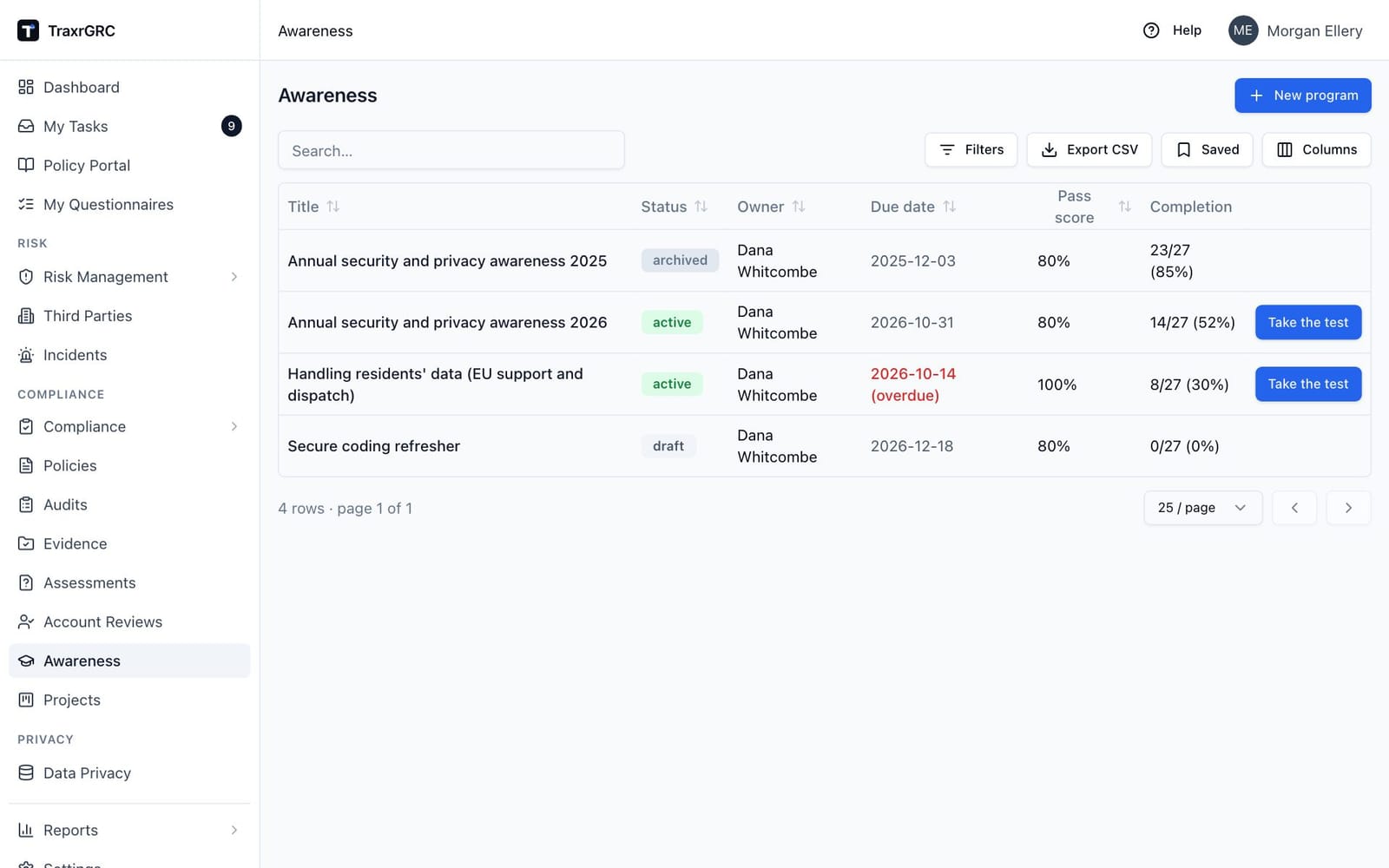
If a program is active and has a test, the last column shows a shortcut for you personally:
| Shown | Meaning |
|---|---|
| Take the test | Opens the test (see Taking a test below). You need awareness:read. |
| Passed | You have already passed; no shortcut is offered. |
| Nothing | The program is a draft or archived, or it is active but has no test yet. |
10.2 Creating a program
-
Click New program (requires awareness:create).
-
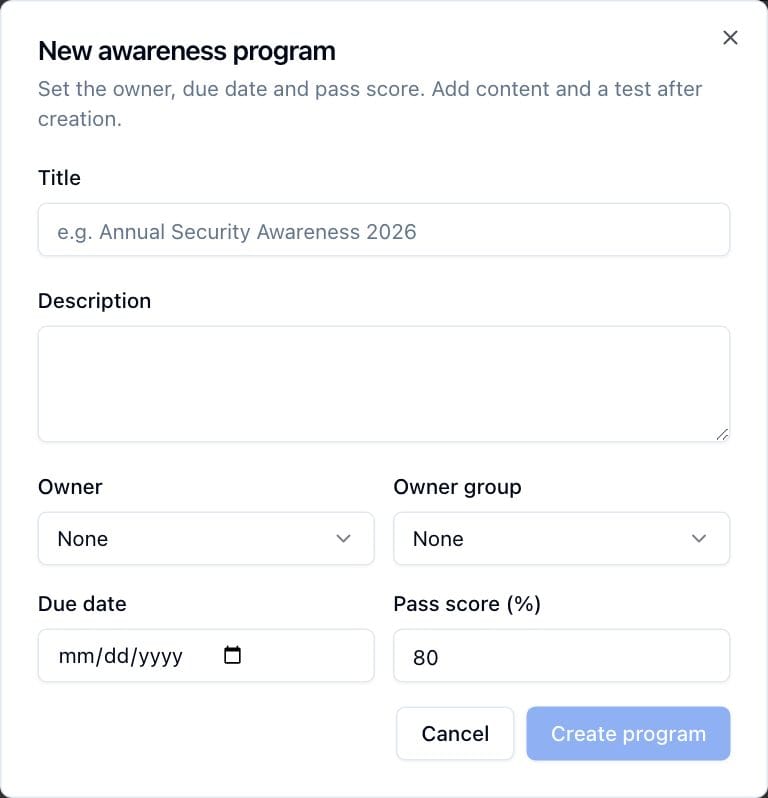
Complete the New awareness program dialog:
Field What it means Title The program name, e.g. "Annual Security Awareness 2026". Required. Description Free text shown to takers under the title. Owner An individual user responsible for the program (optional). Owner group A group responsible for the program (optional). Used for "own"-level permission scoping. Due date The deadline by which staff should complete the program. Optional. Pass score (%) The score needed to pass, from 1 to 100. Defaults to 80. -
Click Create program. The button is enabled once the title is filled in and the pass score is between 1 and 100. The program is created as a Draft.
-
Open the program from the list to add the training content and the test. The dialog only captures the basics.
Every creation, change and deletion is recorded in the audit log and appears on the program's History tab.
10.3 Program status: draft, active, archived
A program moves through three statuses:
| Status | Badge | Meaning |
|---|---|---|
| Draft | Gray | Being prepared. Not open for completion. |
| Active | Green | Published. Takers can open and complete the test; due-date reminders are sent. |
| Archived | Gray | Closed. Hidden from takers: the test can no longer be opened or submitted. |
The allowed moves are:
| From | To | Typical use |
|---|---|---|
| Draft | Active | Publish the program. |
| Draft | Archived | Shelve it before publishing. |
| Active | Archived | Close it, for example after the campaign ends. |
| Archived | Active or Draft | Bring it back. |
To change status:
- Open the program and click Edit.
- Pick the new value in Status. The list offers only the moves allowed from the current status.
- Click Save changes.
Archiving an active program immediately blocks any further test submissions, even mid-campaign.
10.4 The program detail page
Click a program title to open it. The header shows the title, the status badge and, if you have passed, a green You passed badge with your score. Four summary cards sit underneath:
| Card | What it shows |
|---|---|
| Owner | The owner, with the owner group below it. |
| Due date | The deadline, in red with "(overdue)" when the program is active and the date has passed. |
| Pass score | The percentage needed to pass. |
| Completion | "passed/total passed (%)", counted over all active users. |
The header buttons depend on the program and your permissions:
| Button | When it appears |
|---|---|
| Take the test / Retake the test | The program is active and has a test. Shown to everyone with awareness:read; it reads Retake the test once you have a result. |
| Edit | You have awareness:update on the program. Edits the settings, including status. |
| Delete | You have awareness:delete on the program. |
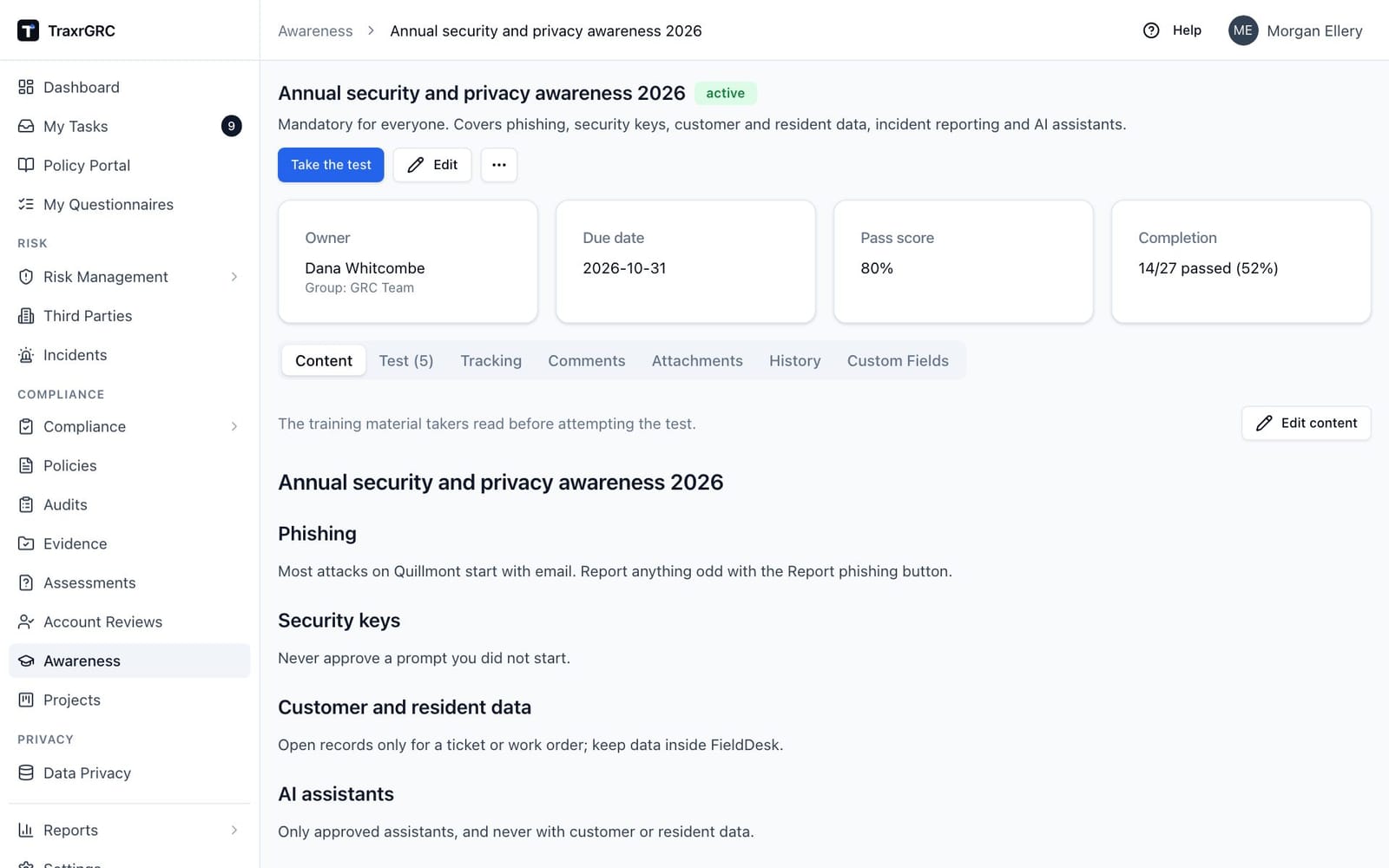
The program is organized into these tabs:
| Tab | Contents |
|---|---|
| Content | The training material takers read before the test. |
| Test (N) | The question editor; N is the number of questions. |
| Tracking | Per-person completion status and reminders. |
| Comments | Discussion about the program. |
| Attachments | Supporting files. |
| History | The audit trail for the program. |
| Custom Fields | Organization-specific fields (see Comments, attachments, history and custom fields below). |
10.5 Content tab: the training material
The Content tab displays the program's training material as formatted text. A program with no material shows "No content yet."
To write or change the material (requires awareness:update):
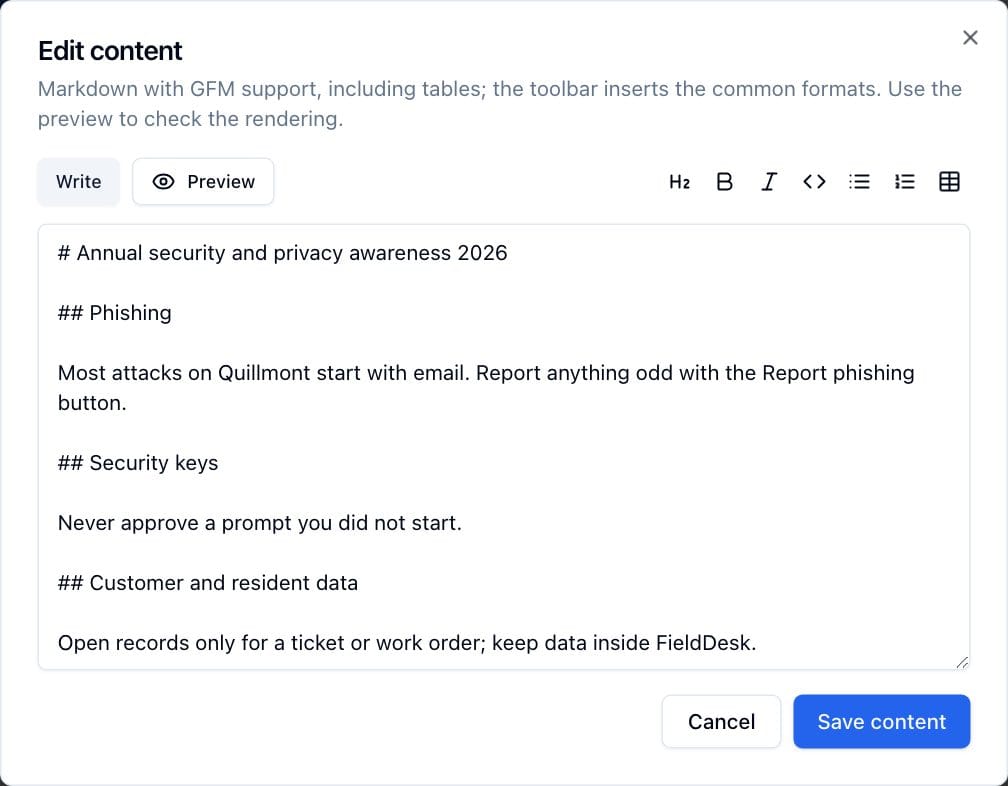
- Click Edit content.
- Write the material in the Write view. Markdown formatting is supported, including tables and checklists, and the toolbar beside the Write and Preview buttons inserts headings, bold, italic, code, lists and a table (the same toolbar as the policy editor, see Writing content).
- Switch to Preview at any time to check how it renders for takers.
- Click Save content.
Takers read this material before attempting the test, so write it first. The test should only cover what the material teaches.
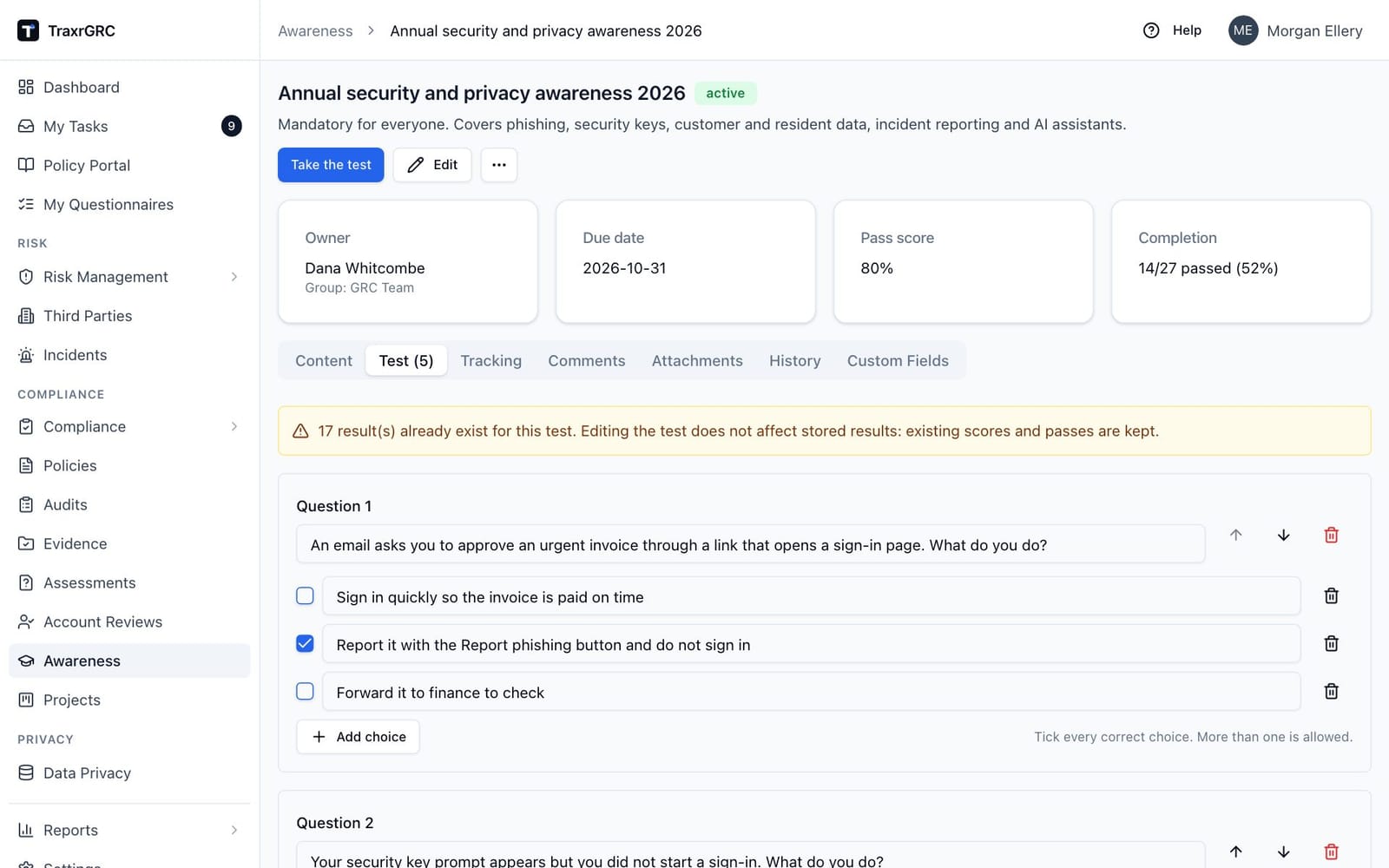
10.6 Test tab: building the question set
The Test tab is the question editor. Each program has one test, and questions are shown to every taker in the order you define.
If you can update the program you see the full editor, including which choices are correct. Anyone else sees a read-only list of the questions and their choices without the answer key; the key is withheld through the API as well.
To build or change the test (requires awareness:update):
- Click Add question. Repeat for each question (up to 100).
- For each question, type the question text.
- Each new question starts with two choices. Edit the choice texts, and click Add choice for more (up to 20 per question).
- Tick the checkbox next to every correct choice. A question may have more than one correct choice; the editor reminds you that more than one is allowed.
- Reorder questions with the up and down arrows, or remove one with its trash icon. A choice can be removed with its trash icon, but a question always keeps at least two choices.
- Click Save test. The button is enabled only once you have made changes and the test has at least one question.
A test only saves if it meets all of these rules:
- At least one question.
- Each question has text.
- Each question has between 2 and 20 non-empty choices.
- Each question has at least one choice ticked as correct.
If results already exist, an amber warning above the editor states how many. Editing the test does not affect stored results: existing scores and passes are kept as they were, even if questions are reworded or removed afterward. People who take the edited test are scored against the new version.
10.7 Tracking tab: who has completed the program
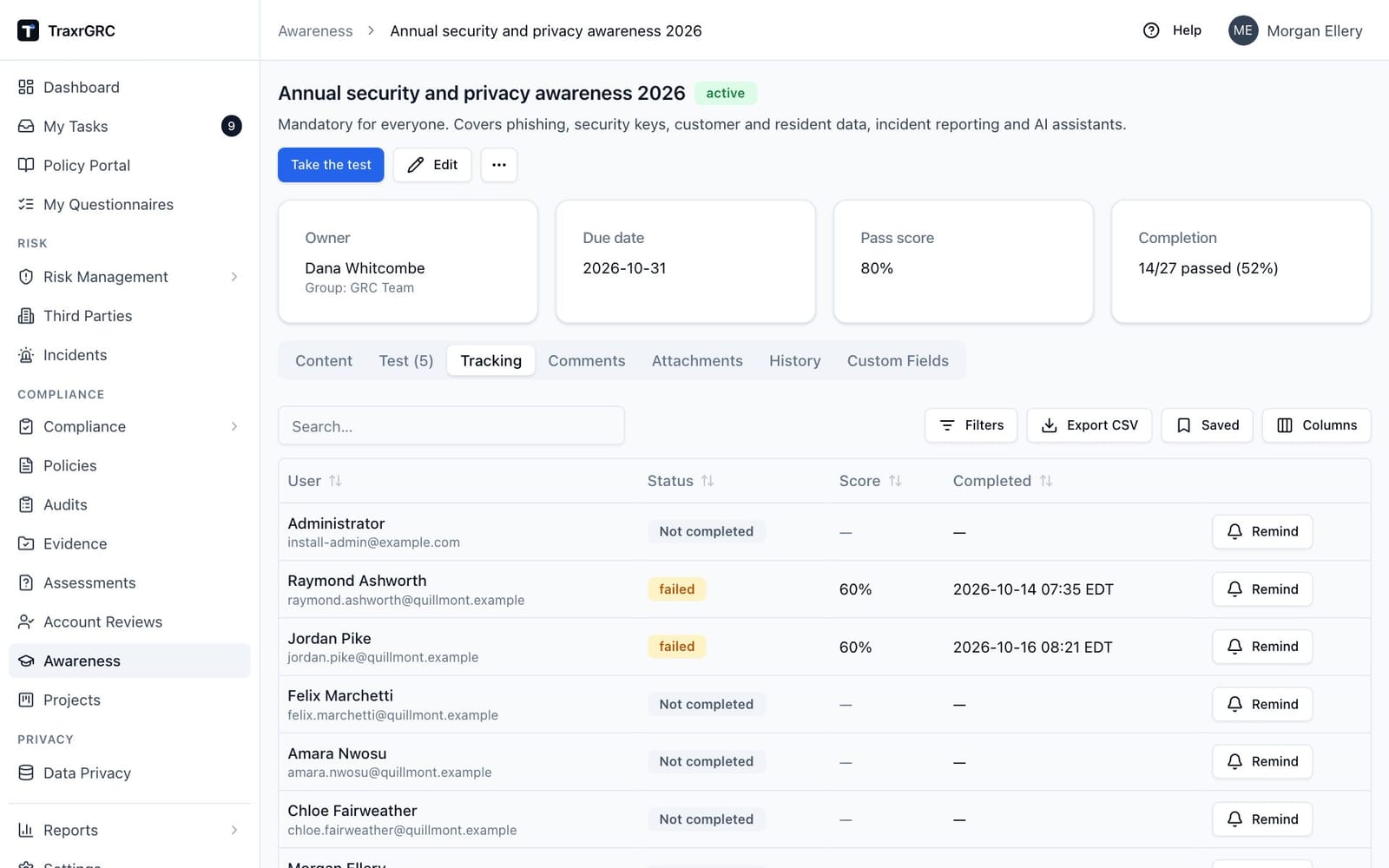
The Tracking tab lists every active user, one row each, with their latest state. It is shown to those who can update the program and to those with auditLog:read (the built-in GRC Manager and Auditor roles); reading the program is enough to take it, and someone with read access alone sees only their own result. Draft and archived programs are likewise listed only for them.
| Column | What it shows |
|---|---|
| User | Name and email address. |
| Status | Passed (green), Failed (amber) or Not completed (gray). |
| Score | The percentage from the person's most recent attempt, or a dash if they have never submitted. |
| Completed | The date and time of the most recent submission. |
Use the status filter or the search box to narrow the list, and Export CSV to download it, for example as evidence or for reporting.
If the program has no test yet, a notice tells you to add one in the Test tab before asking people to complete it, and the list shows everyone as Not completed.
10.7.1 Sending a reminder
For anyone who has not passed, you can send a reminder by hand (requires awareness:update):
- Find the person in the Tracking list.
- Click Remind on their row.
The person is emailed the "Awareness program due" notification at once, naming the program and its due date. The button then reads Reminder sent for the rest of your session. Each person gets at most one reminder per program a day, counting the daily reminder emails; a second Remind within 24 hours is refused with a message saying so.
10.7.2 Automatic reminders
Independently of the Remind button, the system's daily sweep emails every active user who has not passed an active program whose due date is within the notification lead window (default 7 days) or already past. The same email template is used, and each person is reminded at most once per sweep period. Lead windows and templates are configured in Settings → Notifications (see Administration & Settings).
10.8 Taking a test
This section is for everyone, not just program owners. You need awareness:read, the same permission that lets you see the Awareness module.
- Open Awareness and click Take the test on a program, or open the program and use the button in its header. If the program is not active or has no test, the test cannot be opened.
- Read the training material on the program's Content tab if you have not already.
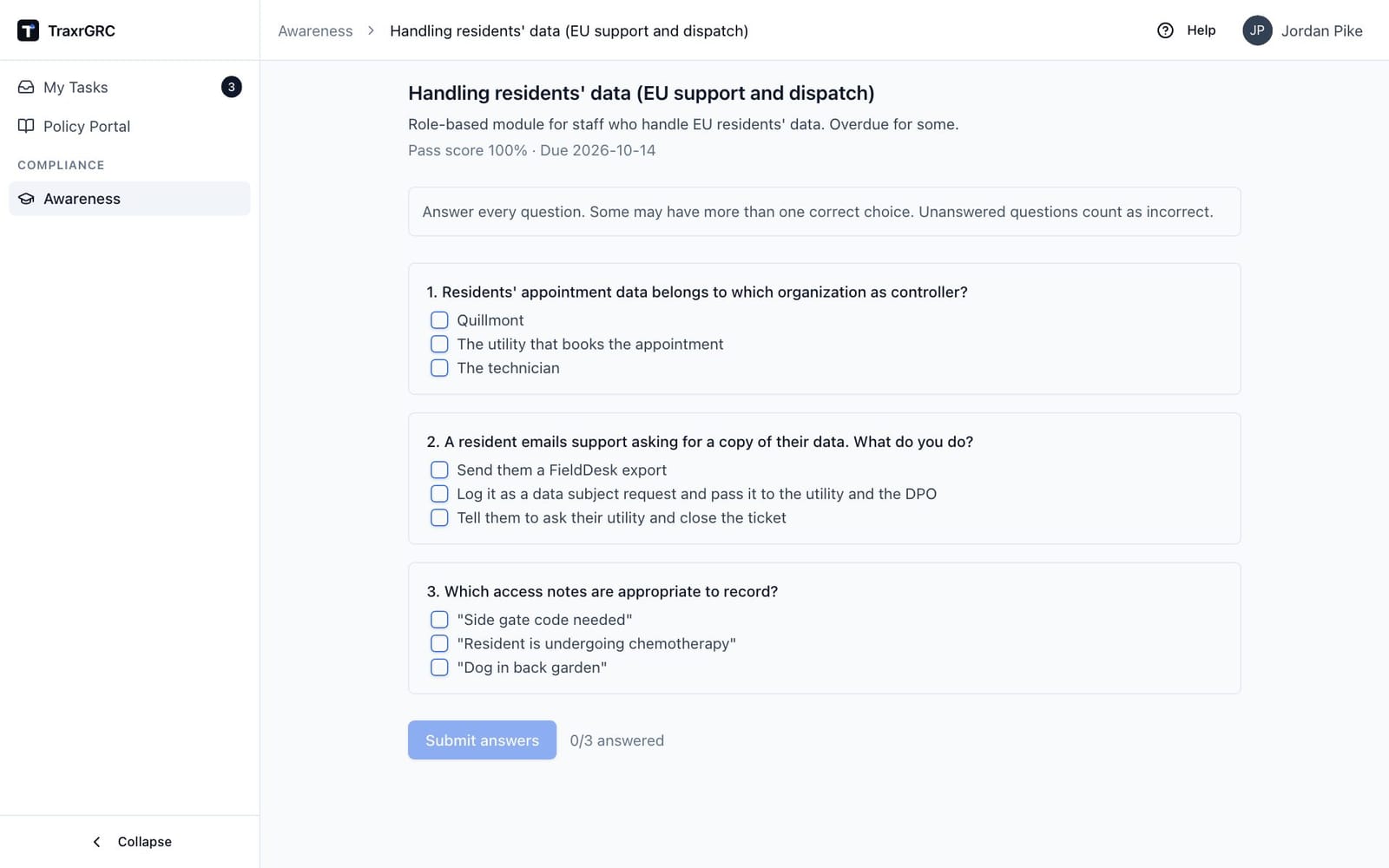
- On the test page, check the pass score and due date shown under the title, then work through each question.
- Tick your answers. More than one choice can be correct per question: tick every choice you believe is right. A question only counts as correct when your selection exactly matches the intended set. There is no partial credit, and an unanswered question counts as incorrect.
- Click Submit answers. The button stays disabled until at least one question is answered; the counter next to it shows how many questions you have answered out of the total.
You immediately see a result screen:
- Your score as a percentage, and a Passed (green) or Failed (amber) badge next to the title, measured against the program's pass score.
- Per-question feedback: questions you got right are marked with a green tick and wrong ones with a red cross, with your own picks labeled "(your answer)". The right choices are never shown, on a pass or a fail, so the test cannot be passed by reading the key from an earlier attempt.
- Back to program returns you to the program page.
10.8.1 Retakes
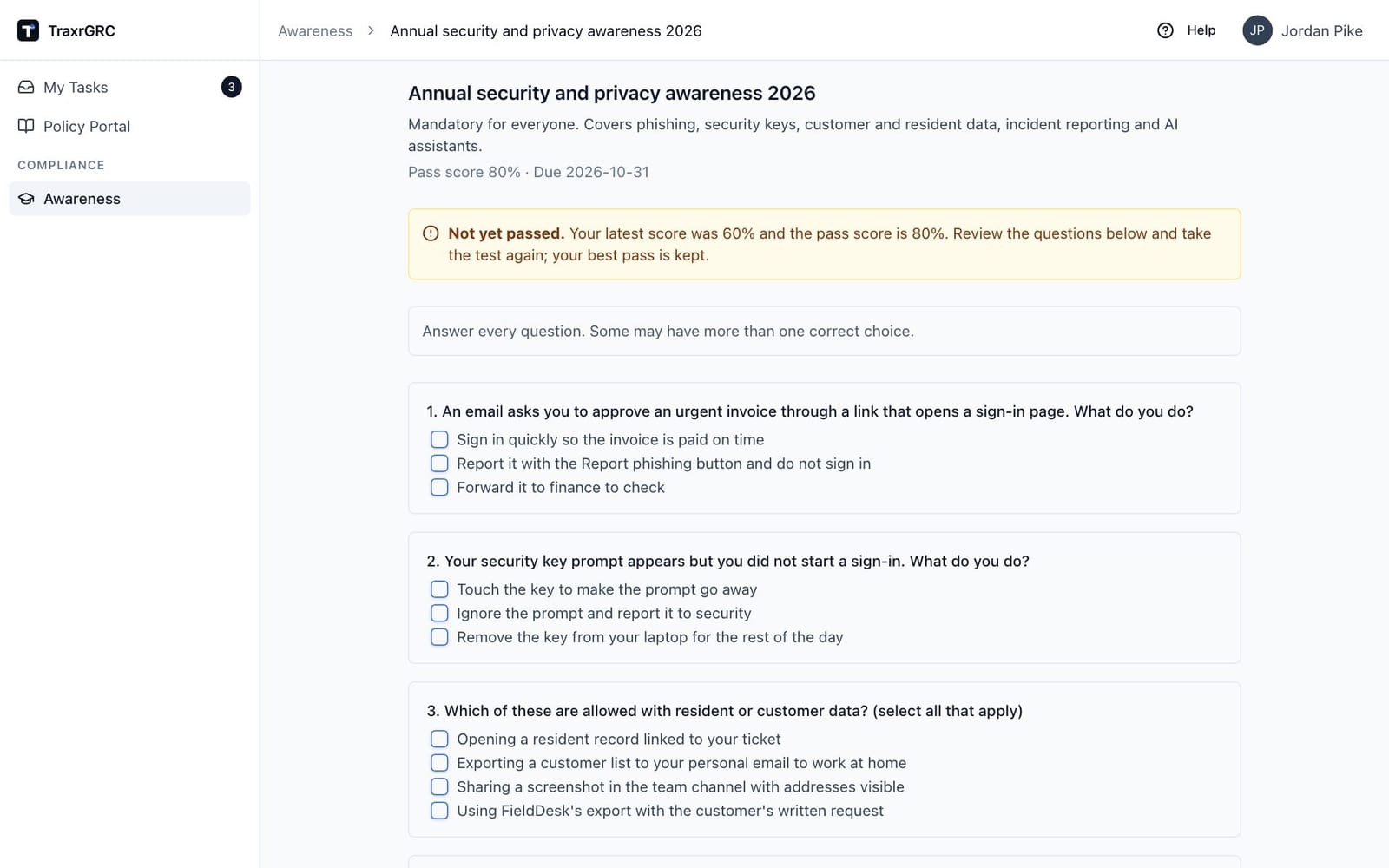
You may retake a test as often as you like. When you open a test you have taken before, a banner above the questions shows your previous result: green if you passed, amber with Not yet passed, your latest score and the pass score if you did not. Two rules keep the record fair:
- A pass is never lost: if you passed earlier, a lower score on a retake does not remove your pass.
- The recorded score is always your latest attempt, so a retake that improves your score is reflected in Tracking.
Once you have passed, the program list shows "Passed" for you, the detail page shows the "You passed" badge, and automatic due-date reminders stop for you.
10.9 Comments, attachments, history and custom fields
- Comments. Discuss the program in the Comments tab. Posting requires awareness:update on the program.
- Attachments. Upload reference files (policies, slide decks) in the Attachments tab. Uploading likewise requires awareness:update; anyone who can read the program can download them.
- History. The History tab lists the audit-log entries for this program: creation, updates, content changes, test saves, test submissions, reminders and deletions, each with the action, the person who made it, the date and the fields that changed (last 100 entries).
- Custom Fields. The Custom Fields tab, last in the row, shows any extra fields your organization has defined for awareness programs, or a note that none are defined. Editing values requires awareness:update on the program (field definitions are managed under the customFields module; see Administration & Settings).
10.10 Deleting a program
- Open the program, open More actions (…) and click Delete (requires awareness:delete).
- Read the confirmation. It states exactly what goes away: the program with its test, all results, comments, attachments and labels.
- Click Delete to confirm, or Cancel.
Deletion cannot be undone and is recorded in the audit log. Consider archiving instead if you need to keep the completion evidence.
10.11 Awareness permissions
| Action | Permission needed |
|---|---|
| See the list and open a program | awareness:read |
| Take or retake a test | awareness:read (program must be active, with a test) |
| See the answer key on the Test tab | awareness:update on the program |
| Create a program | awareness:create |
| Edit settings, content or the test; send reminders | awareness:update on the record; at "own" level you must own it (or its owner group) |
| Post comments, upload attachments | awareness:update on the record |
| Delete a program | awareness:delete on the record |
Roles are assigned to groups and inherited through group membership; administrators bypass all of the above (see Managing Users, Groups & Roles).