4 Compliance Management
Compliance Management is where you assess your organization against a standard or framework. You load the framework's clause structure as a package, record a status and owner for every clause, map the controls, policies and risks behind each one, link the projects that remediate its gaps, raise time-boxed exceptions, and export a board-ready PDF report. Compliance managers and GRC analysts maintain packages and run assessments; requirement owners record their analysis; approvers decide exceptions; auditors and executives read the workspace, the gap view and the report.
The Compliance entry in the sidebar expands to these pages:
| Page | Screen title | What it is for |
|---|---|---|
| Analyses | Compliance analyses | The assessment workspace: one row per requirement, per package. |
| Packages | Compliance packages | The frameworks and their clause trees. |
| Gaps | Compliance gaps | The POA&M view of every open gap and its remediation projects. |
| POA&M | Plan of action and milestones | The POA&M register: permanent items from requirement status, audit findings and entries. |
Access is controlled by the compliance module permissions (see Who can do
what, at the end of this chapter).
4.1 Packages
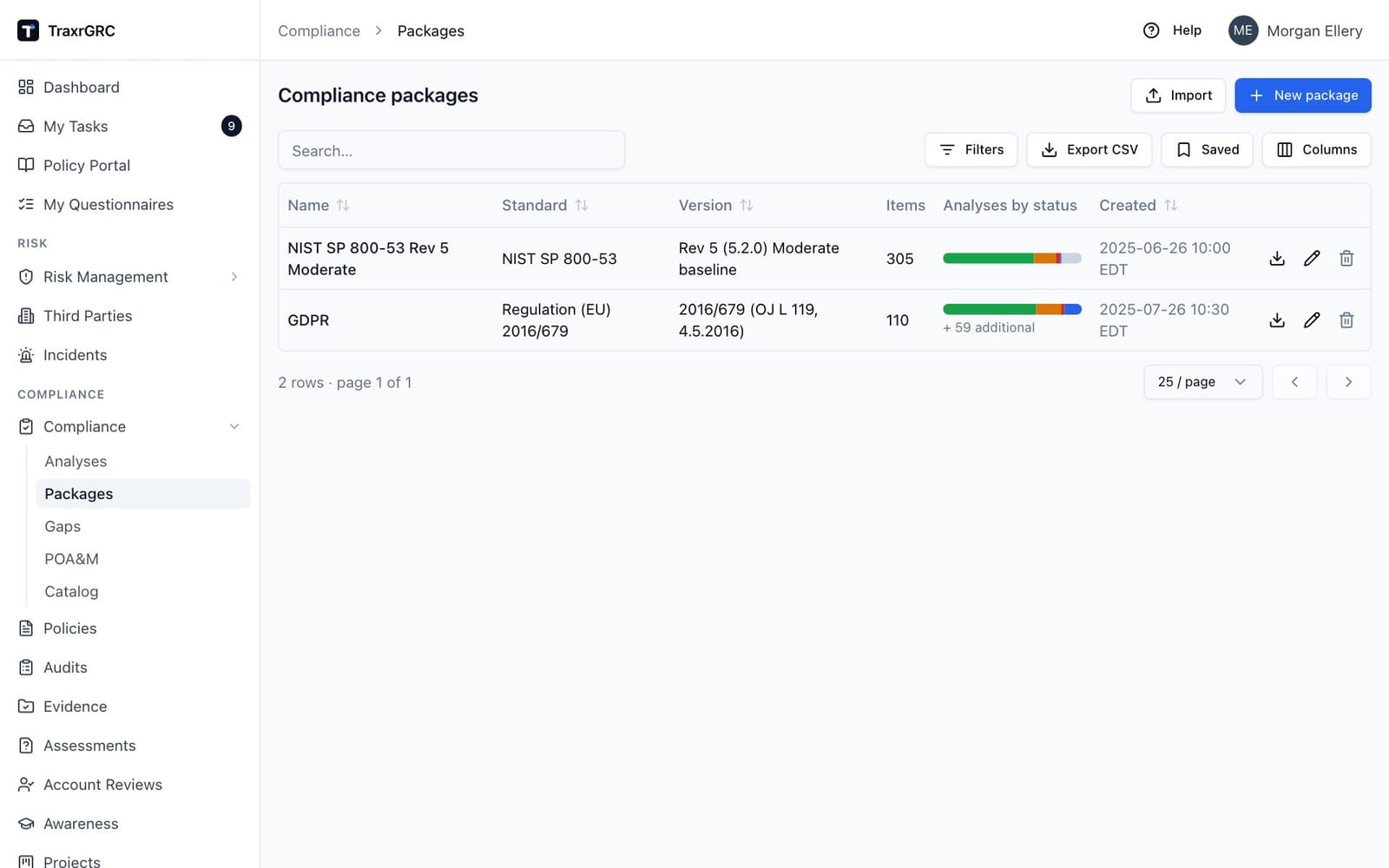
A package is one framework: a named set of items (usually domains at the top level and clauses beneath them) with a standard reference, version and description. Compliance → Packages lists every package:
| Column | What it shows |
|---|---|
| Name | Click to open the package. |
| Standard | The standard reference, for example NIST SP 800-53. |
| Version | The version of the standard. |
| Items | How many items the package holds, headings included. |
| Analyses by status | A stacked mini-bar of requirement statuses, with "+ N additional" beneath it when the package has additional items. With compliance:read at 'own' level it counts only the analyses you own. |
| Created | When the package was created. |
Each row has a download icon that exports the package (see Exporting a package), and, with the matching rights, pencil and bin icons to edit or delete it. New package (compliance:create) registers an empty package with a Name (required), Standard, Version and Description.
4.1.1 The package page
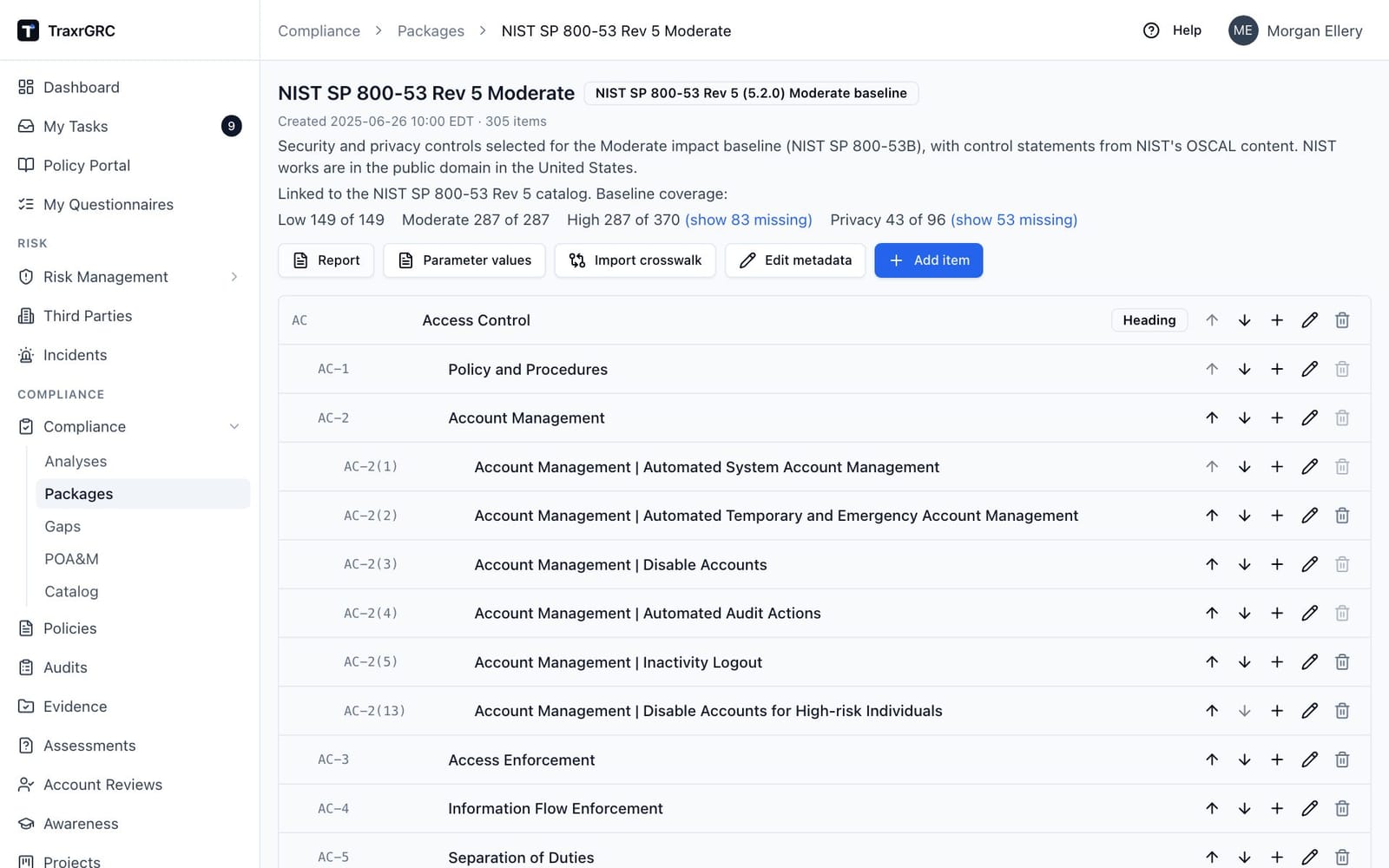
Click a package name to open it. The header shows the name, a badge with the standard and version, the creation time, the item count and the description. Three buttons sit beside it:
- Report generates the PDF compliance report (see The compliance report).
- Import crosswalk (compliance:update at 'all') links this package's requirements to another package's (see Crosswalks between frameworks).
- Edit metadata (compliance:update) changes the name, standard, version, description and the provider package it inherits common controls from (see Common controls and inheritance).
- Add item (compliance:create) adds a top-level item.
Under the description the header says which package this one inherits common controls from, which packages inherit from it, and how many crosswalk links connect it to each other package.
Below the header is the item tree, indented by depth and ordered by sort order and code. Each row shows the code, the name (click it to open the item) and a kind badge for headings and additional items. The row icons are:
| Icon | Action | Permission |
|---|---|---|
| Up and down arrows | Move the item among its siblings. | compliance:update |
| Plus | Add a child under the item. | compliance:create |
| Pencil | Edit the item. | compliance:update |
| Bin | Delete the item (see Deleting packages and items). | compliance:delete |
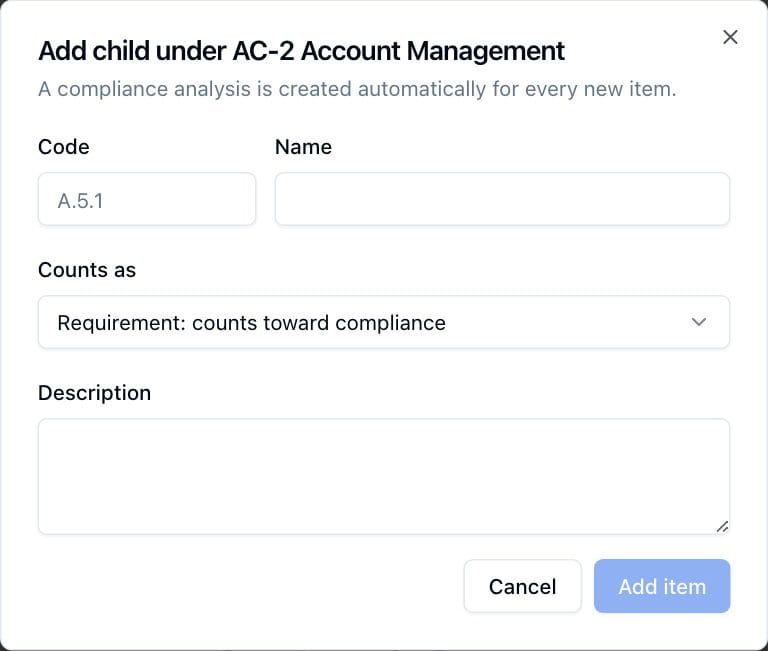
Every item has a Code (for example A.5.1), a Name, an optional Description, and a Counts as setting. The code must be unique within the package. The dialog is titled Add top-level item, Add child under followed by the parent's code and name, or Edit item.
Counts as sets one of three kinds, shown as a badge in the tree:
| Kind | Option in the dialog | Meaning |
|---|---|---|
| Requirement | Requirement: counts toward compliance | The default. Counts toward compliance: the status counts, the compliance percentage and the dashboard. No badge. |
| Additional | Additional: implemented, not required, reported separately | Implemented but outside the required set (for example, controls the organization documents but does not have to meet). Reported in its own section with its own counts and percentage; never part of the compliance percentage. Marked with an "Additional" badge. |
| Heading | Heading: structure only, not counted | Structure only, such as a family or domain title. Counted nowhere and left out of the analysis workspace; its children stand in its place. |
A compliance analysis is created automatically for every new item.
4.2 Importing a package
Importing builds a whole package, metadata plus the item hierarchy, from a file.
- On the Packages page, click Import (requires compliance:create).
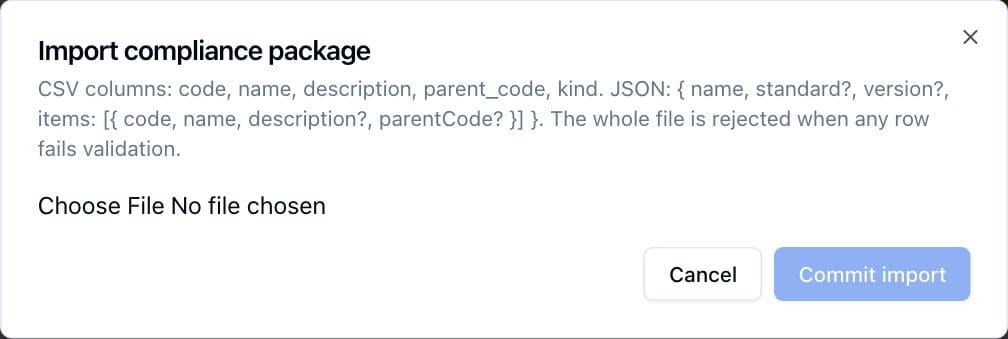
- In the Import compliance package dialog, choose a CSV or JSON file:
- CSV: a header row with
codeandnamecolumns plus optionaldescription,parent_codeandkind(requirement,additionalorheading; blank means requirement) columns. Each row after the header is one item;parent_codepoints at another row's code to build the tree. A CSV carries no metadata, so you fill in the Package name (required), Standard and Version in the dialog. - JSON: an object of the form
{ "name": "…", "standard": "…", "version": "…", "description": "…", "items": [{ "code": "…", "name": "…", "description": "…", "parentCode": "…", "kind": "…" }] }. Name and a non-empty items array are required; the metadata is read from the file.
- CSV: a header row with
- Check the preview. The dialog shows either the parsed tree (indented, first 20 items) or a list of validation errors.
- Click Commit import.
The whole file is rejected when any problem is found: empty codes or names,
duplicate codes, references to a parent_code that does not exist in the
file, and parent cycles. Nothing is written until the file is completely
clean. Each imported item gets its own "Not reviewed" analysis.
TraxrGRC does not bundle licensed frameworks such as ISO 27001. Import clause structures only from exports you are licensed to use (a purchased toolkit, or your own earlier export; see below).
4.3 Exporting a package
The download icon on every package row produces a JSON file in exactly the
import shape above. Exports carry each item's kind and re-import cleanly, so
you can copy a package between workspaces or keep versioned snapshots of a
framework. A package linked to a catalog exports its catalog key and each
requirement's own organization-defined values as parameters (a map from
parameter id, such as ac-02_odp.01, to text; values inherited from a
provider are not exported, and values on analyses you cannot read are left
out without notice, so a copy made from your export lacks them; a value the
control no longer has, after the package's catalog or an item's code
changed, is left out too). Importing a JSON file with parameters stores
them on the new analyses; every id must be one of the control's parameters
in the named catalog, and headings take none, or the whole file is refused.
CSV imports carry neither.
4.4 Common controls and inheritance
Most organizations implement many controls once, at the corporate level, and every system inherits them: NIST calls this control origination. A system package can name a provider package of the same framework, for example NIST SP 800-53 Moderate: Trial platform inheriting from NIST SP 800-53 Moderate: Corporate. Each requirement of the system package then has an Origination:
| Origination | Effective status |
|---|---|
| System-specific | The system package's own status (the default). |
| Common (inherited) | The provider's status for the requirement with the same code. The system package's own status is kept but does not count. |
| Hybrid | Both parts apply, so the worse of the system package's own status and the provider's. Not reviewed counts as worse than partially compliant, since an unreviewed part may hide anything. |
If the provider has no requirement with the same code, the inherited part counts as Not reviewed and the requirement page says why.
To set it up:
- Open the system package and click Edit metadata.
- Choose the provider in Inherits common controls from and save.
- Mark requirements Common or Hybrid on each requirement page, or many at once with Set origination… in the analysis workspace.
The effective status is worked out each time it is shown and is never stored, so a change in the provider reaches every system package straight away. It is what the analysis workspace badges, the package counts, the dashboard's compliance donut, the compliance status report and the PDF report use; the filter and sort in the workspace still use the status recorded in the package. Like the control health roll-up, it is the same for every viewer: someone who cannot read the provider's analysis still sees the inherited status.
Inheritance is one level deep: a provider has no provider of its own, and a package that others inherit from cannot inherit itself. A provider cannot be removed while any requirement is still Common or Hybrid (set them back to System-specific first), and a package cannot be deleted while another inherits from it.
4.5 The NIST SP 800-53 catalog
The application ships NIST SP 800-53 Rev 5 (release 5.2.0) as reference data:
all 1,196 controls and enhancements (182 of them withdrawn), their families,
statements and organization-defined parameters, and their membership of the
Low, Moderate, High and Privacy baselines from NIST SP 800-53B. A package whose
Reference catalog is set to NIST SP 800-53 Rev 5 (in Edit metadata)
matches its requirement codes, such as AC-2(1), against it. Packages loaded
before 2026-10-18 whose standard names 800-53 Rev 5 were linked automatically.
A catalog package shows:
- Baseline coverage on the package page: "High 287 of 370", for example, with a link to the missing controls in the catalog.
- Baseline badges on each requirement page.
- A Statement and organization-defined values card on each requirement page (see below), and a Parameter values CSV export on the package page.
4.5.1 Organization-defined values
Many controls leave a value to the organization: "Review accounts for compliance with account management requirements [Assignment: organization-defined frequency]". The card shows the control statement with each value you have set highlighted in green and each unset one in amber, then a field per parameter: a text box, a list for a single choice, or tick boxes for "one or more". Click Save values (compliance:update on the analysis). Clearing a field removes the value. Every change is recorded on the requirement's history.
A Common or Hybrid requirement whose package inherits from a provider shows the provider's value for the same parameter where it has none of its own ("Inherited from the provider: ..."); setting a value here overrides it. Unlike the inherited status, an inherited value is shown only to people who can read the provider's analysis, since values are free text. Saving sends only the fields you changed, so a value someone else saved meanwhile is kept.
Parameter values on the package page downloads every parameter of every requirement with its value and source (own or provider), one row per parameter, for a system security plan. It needs compliance:read at 'all'.
4.5.2 The catalog page
Compliance → Catalog lists the whole catalog. Filter by Family, Baselines or text; tick Include withdrawn controls to see those too. Click a control's code to read its statement.
Choose a Package to add an In the package column with each control's effective status there, and a Show filter: all controls, those in the package, those missing from it, or gaps (missing, not reviewed, partially or not compliant). "Every High control we are not covering" is the Baselines filter set to High with Show set to gaps. Statuses of analyses you cannot read are not shown and never count as gaps.
With compliance:create and compliance:update at 'all', tick missing controls and click Add to package. Each is added as a requirement with its statement and an empty analysis, under its base control when the package holds it, otherwise under its family heading (created if needed), in catalog order among its siblings; items you reordered by hand keep their order. This is how a Moderate package grows to High without a second import.
4.6 Crosswalks between frameworks
A crosswalk links requirements in two packages, so a control implemented once against NIST SP 800-53 shows what it says about ISO/IEC 27001 or SOC 2. Each link has a direction (the source's status indicates the target's) and a relation: Equivalent, Partial or Supports.
The indication never sets the target's status. Published mappings are a general indication that a person must judge (NIST says so of its own), so the target requirement page shows the linked statuses beside the status you set: "Indicated by 4 requirements: 3 compliant, 1 partially compliant".
To import a crosswalk:
- Open either package and click Import crosswalk.
- Choose the Other package, and whether the file's source column holds this package's codes or the other package's.
- Choose a CSV file with
sourceandtargetcolumns (optionalrelation, blank meaning Supports, andnote), or click the built-in NIST SP 800-53 Rev 5 to ISO/IEC 27001:2022 mapping (NIST OLIR 155, 643 links, source: 800-53 codes). - Click Import links.
Codes must match each package's codes exactly. Rows whose code is not in a
package are skipped and listed under the header, so one file serves any
baseline; headings are never linked. A pair already linked takes the file's
relation and note. Importing never removes links. The same CSV ships in the
repository as docs/crosswalks/nist-sp800-53r5-to-iso27001-2022.csv. ISO text
is copyrighted and not included: load the ISO package from your own licensed
copy with codes like 5.2 and A.5.15.
On a requirement page the Other frameworks card lists what this requirement Indicates and what it is Indicated by, each with its package, relation and (effective) status. With compliance:update at 'all', Link requirement adds a link by package and code, and the cross beside a link removes it. Each link and removal is recorded in the audit log, and so is each link an import rewrites. Statuses of linked analyses you cannot read are counted, not shown, and left out of the summary. The built-in mapping sets the direction itself: it finds which of the two packages holds the 800-53 codes.
4.7 The analysis workspace
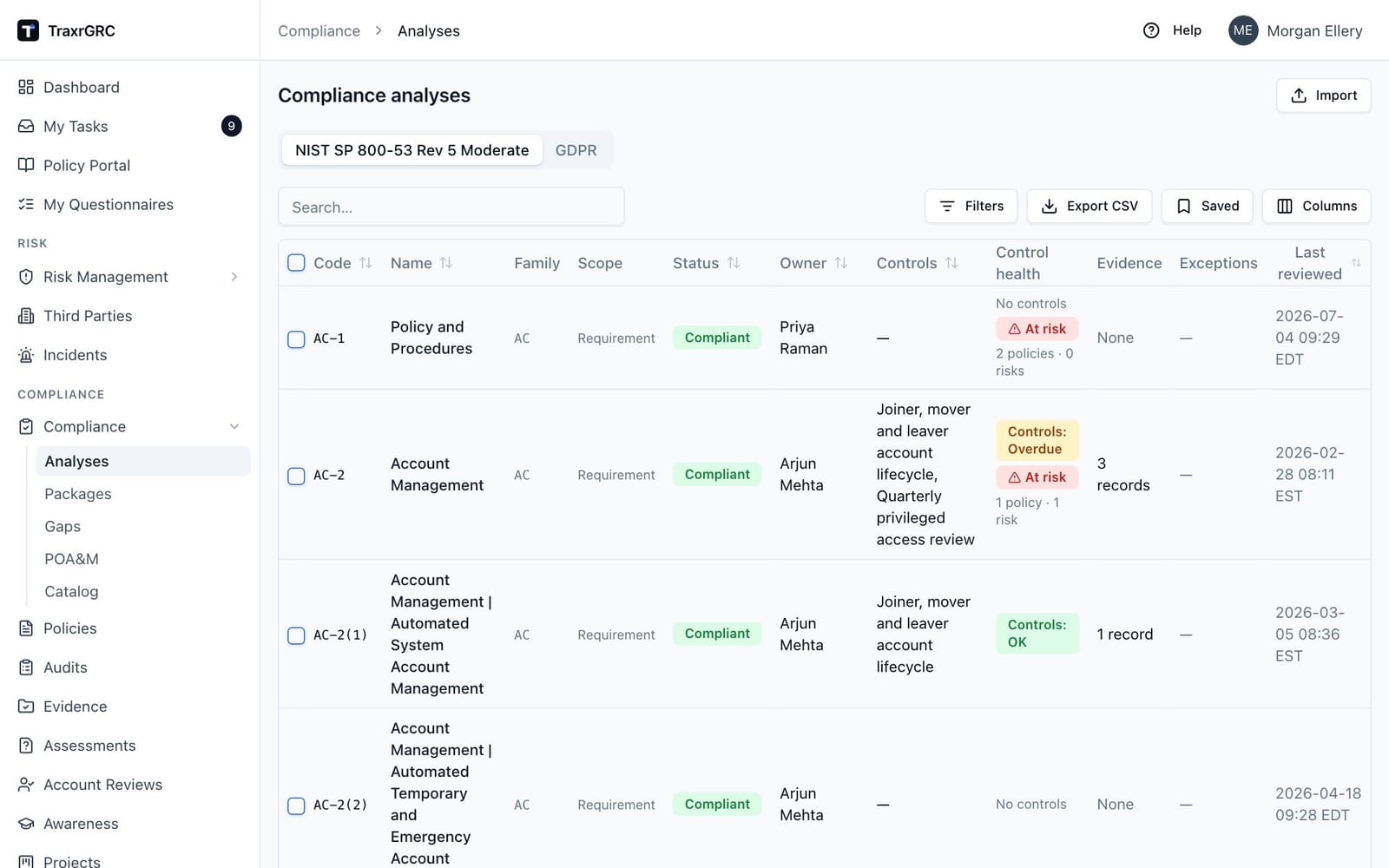
Compliance → Analyses (titled Compliance analyses) is where the assessment happens. It has one tab per package, in the order the packages were created. Each tab lists every requirement and additional item in the package as a row; headings are left out. Until a package exists, the page links you to the Packages page instead.
| Column | What it shows |
|---|---|
| Code | The clause code (monospace). |
| Name | The clause name. |
| Scope | "Requirement", or an Additional badge. Filter on it to list one kind. |
| Status | The analysis status badge (see Analysis statuses). |
| Owner | The assigned assessor. |
| Controls | The mapped controls by name, or a count ("2 mapped") when you cannot read controls. |
| Control health | The worst testing status across the mapped controls ("Controls: Failed", "Controls: OK" and so on, or "No controls"), an At risk badge, and the number of mapped policies and risks. Filter on it to list only at-risk requirements. |
| Evidence | How many evidence records support the requirement: those on its Evidence tab, linked to it directly or through its mapped controls and their tests, not counting superseded ones. A red badge counts the expired ones and an amber one the expiring ones. Filter on it for Expired or expiring or No evidence. Shows "—" without evidence:read. |
| Exceptions | A count badge for open exceptions, suffixed "· expiring" (amber) when one runs out within the reminder window or "· expired" (red) when one is past expiry. |
| Last reviewed | When the status last changed. |
Clicking any cell opens the item's page. The search box matches code, name and description; the status column filters by value. Export CSV downloads the current view. Import creates compliance exceptions in bulk from CSV (see Importing from CSV in Getting Started).
4.7.1 Filtering by family
In a package with family or domain headings at the top of its tree, the workspace has a Family column and filter: pick a family, such as AC Access Control, to list only the requirements beneath it. Requirements at the top level of the tree belong to no family and never match.
4.7.2 Bulk updates
With compliance:update each row has a checkbox, and the header has a select-all box. To change many analyses at once:
- Tick the rows you want. The toolbar shows how many are selected.
- Choose a value from Set status… or Assign owner…, or, in a package that inherits from a provider, Set origination…. The change is applied as soon as you pick it.
A message reports how many analyses were updated. This is the quickest way to mark a whole domain "Not applicable".
4.8 Analysis statuses
| Status | Meaning | Badge color |
|---|---|---|
| Not reviewed | No assessment recorded yet (the default). | Gray |
| Compliant | The clause is met. | Green |
| Partially compliant | The clause is met in part; gaps remain. | Amber |
| Not compliant | The clause is not met. | Red |
| Not applicable | The clause does not apply to your organization. | Blue |
Saving an analysis with a changed status re-stamps Last reviewed to that moment. Edits that leave the status untouched (notes, owner, mappings) do not move the stamp.
A requirement is At risk when it is marked compliant or partially compliant but its evidence says otherwise: a mapped control is failed, overdue or retired, or a mapped policy is unpublished or past its review date. The flag is calculated every time it is shown and never changes the status you set; it tells you which claims to re-check.
4.9 Working on an item
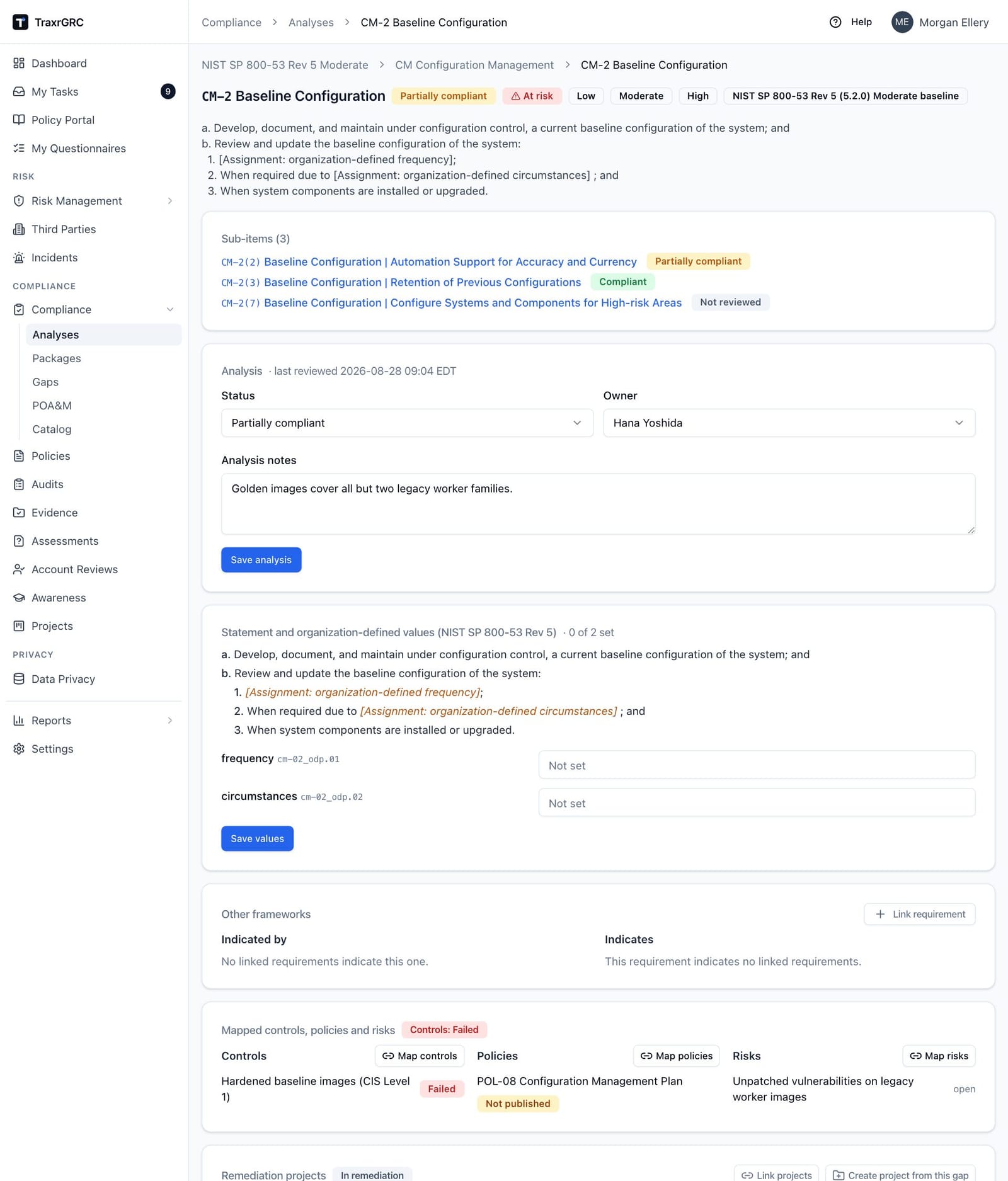
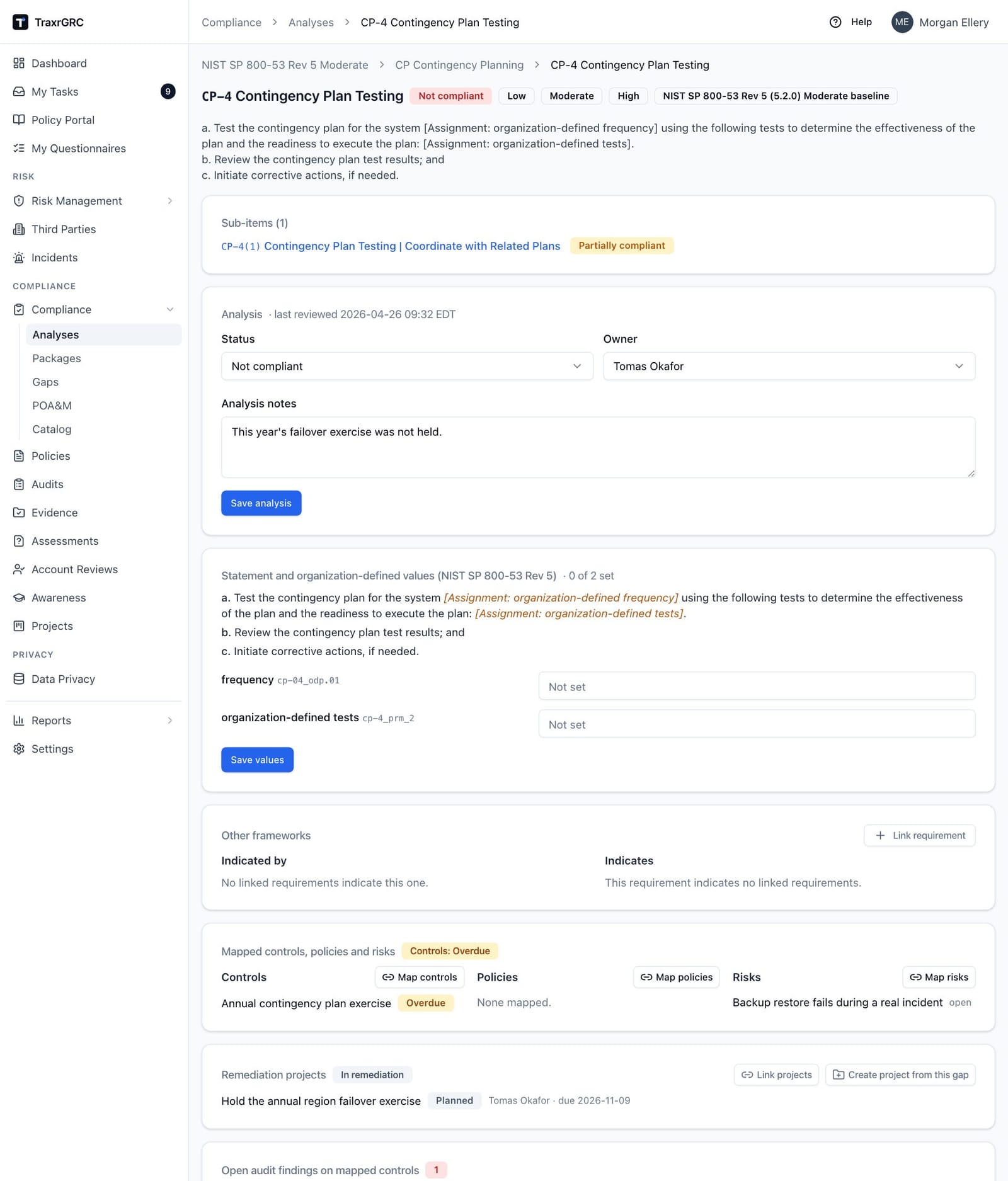
An item's page opens with a breadcrumb of the package and every ancestor, then the code and name with the status badge, an At risk badge when it applies, a kind badge for headings and additional items, and the standard badge. The clause description follows. When it was imported with its list run together on one line ("a. ...; b. ...: 1. ..."), each item is shown on its own line and indented by level, a., then 1., then (a); the stored text is not changed. A Sub-items card lists the item's children with their own status badges; click through to work down the tree.
4.9.1 Recording the analysis
The Analysis card shows when the status last changed and holds the assessment. With compliance:update:
- Pick a Status from the five values above.
- In a package that inherits from a provider, pick an Origination (see Common controls and inheritance). For Common and Hybrid requirements the card shows the Effective status, how it was reached, and a link to the provider's requirement; the page header shows the effective status.
- Optionally assign an Owner.
- Write up your reasoning in Analysis notes.
- Click Save analysis.
Without compliance:update the fields are shown read-only.
4.9.2 Mapping controls, policies and risks
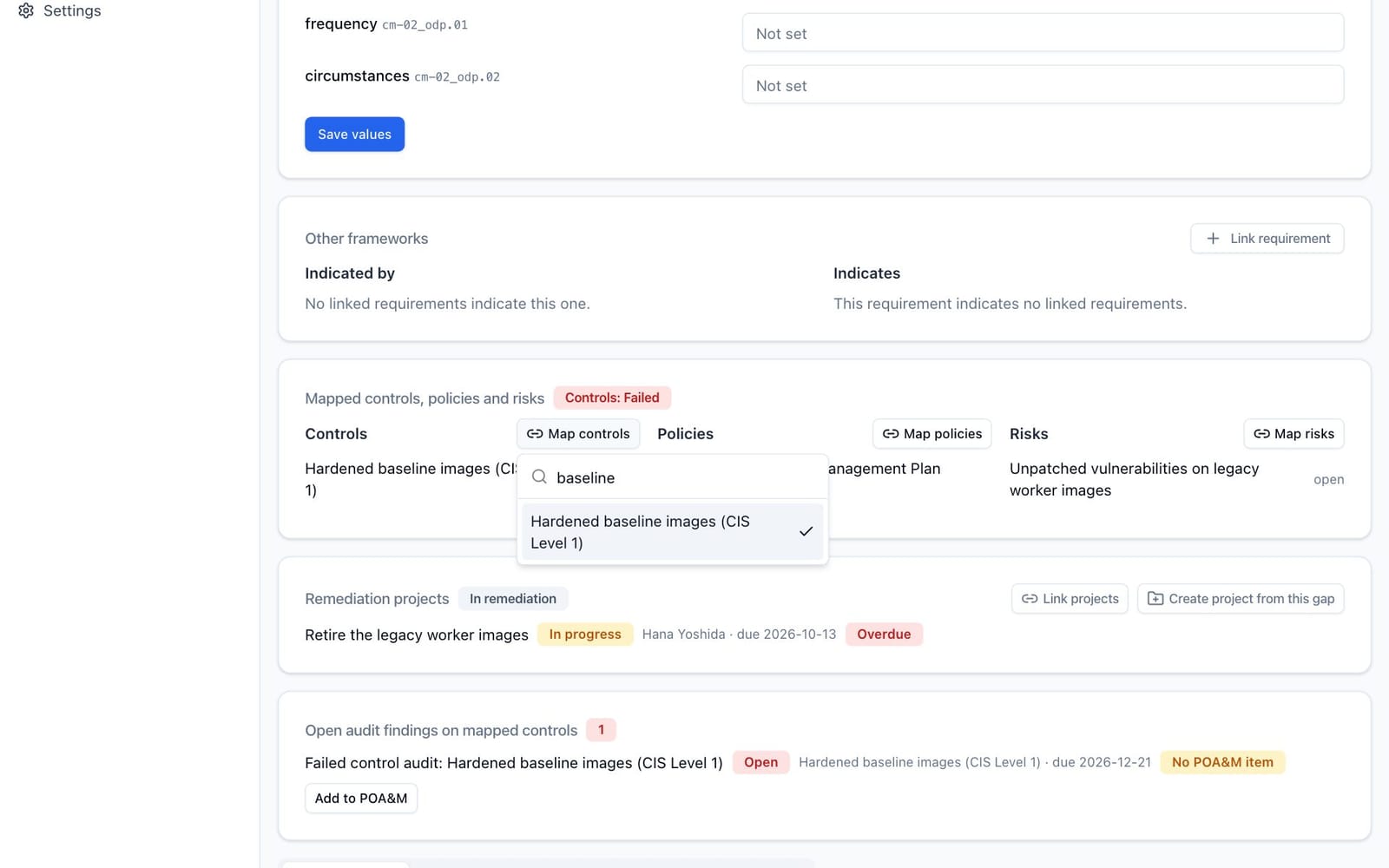
The Mapped controls, policies and risks card links the requirement to the controls that implement it, the policies that mandate it and the risks it addresses. The card header shows the controls' combined health ("Controls: Failed", for example).
- Click Map controls, Map policies or Map risks (compliance:update, plus read on that module).
- Search the checklist and tick or untick entries. Each change saves straight away.
Controls show their testing status and policies show whether they are published and in date. Entries in modules you cannot read are counted but not listed, and are left untouched when you change the others. Policy and risk pages have a Compliance tab listing the requirements they are mapped to; a control's Used by tab does the same. Deleting a policy or risk removes its mappings and records that on each affected requirement's history.
4.9.3 Open audit findings on mapped controls
When an audit finding that is still open names one of the requirement's mapped controls, the card Open audit findings on mapped controls lists it: its title (a link to its audit plan), status, control and deadline (red when past), and the POA&M item tracking it, or a No POA&M item badge with Add to POA&M for users with compliance:create. Findings you cannot read are counted. The card appears only when there is at least one such finding; it is worked out from the current mappings each time the page opens, so mapping or unmapping a control changes it at once.
4.9.4 Remediation projects
The Remediation projects card lists the projects that close the requirement's gap, each with its status, owner (or owner group), deadline and an Overdue badge when the deadline has passed and the project is not completed. On a partially compliant or not compliant requirement the header shows the coverage:
| Coverage | Meaning |
|---|---|
| No project | No project is linked (red). |
| In remediation | At least one linked project is still running. |
| Projects completed | Every linked project is done but the status still reports a gap, so the requirement needs reassessing. |
Link projects (compliance:update, plus projects:read) opens a searchable checklist of the projects you can read. Ticking or unticking one saves straight away, and the change is recorded on the history of both the requirement and the project. Projects you cannot read are counted ("N more you do not have access to") but not named, and stay linked when you change the others.
To start remediation from the requirement:
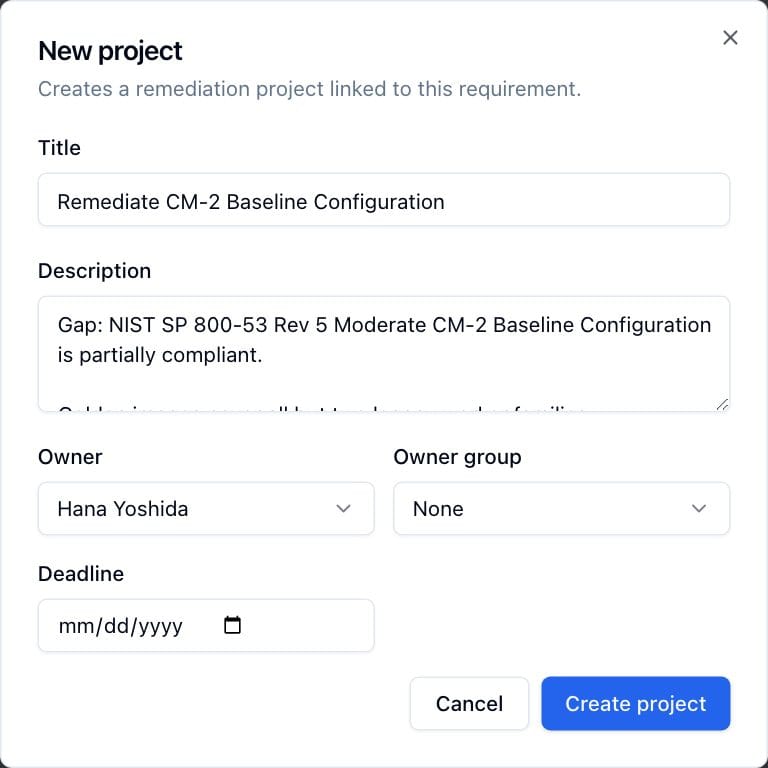
- On a partially compliant or not compliant requirement, click Create project from this gap (requires projects:create).
- The New project dialog opens filled in from the requirement: the title "Remediate code name", a description naming the package, the clause and its status followed by your analysis notes, and the requirement's owner.
- Set the deadline (it becomes the planned completion date in the gap view) and adjust anything else.
- Click Create project. The new project is linked to the requirement.
Linking or creating a project never changes the analysis status.
4.9.5 Record tabs
Below the cards, five tabs cover the rest of the record:
| Tab | What it holds |
|---|---|
| Exceptions (N) | Time-boxed deviations from the clause; see Exceptions on a clause. |
| Evidence | Evidence records supporting the requirement, directly or through its mapped controls and their tests (see Evidence on other records). Adding evidence requires evidence:create. |
| Comments | Discussion on the analysis. Posting requires compliance:update. |
| History | Audit entries for the analysis and its exceptions: action, actor, time and changed fields. |
| Custom Fields | Administrator-defined fields on the analysis (see Administration & Settings). Editing requires compliance:update. |
4.10 The gap view (POA&M)
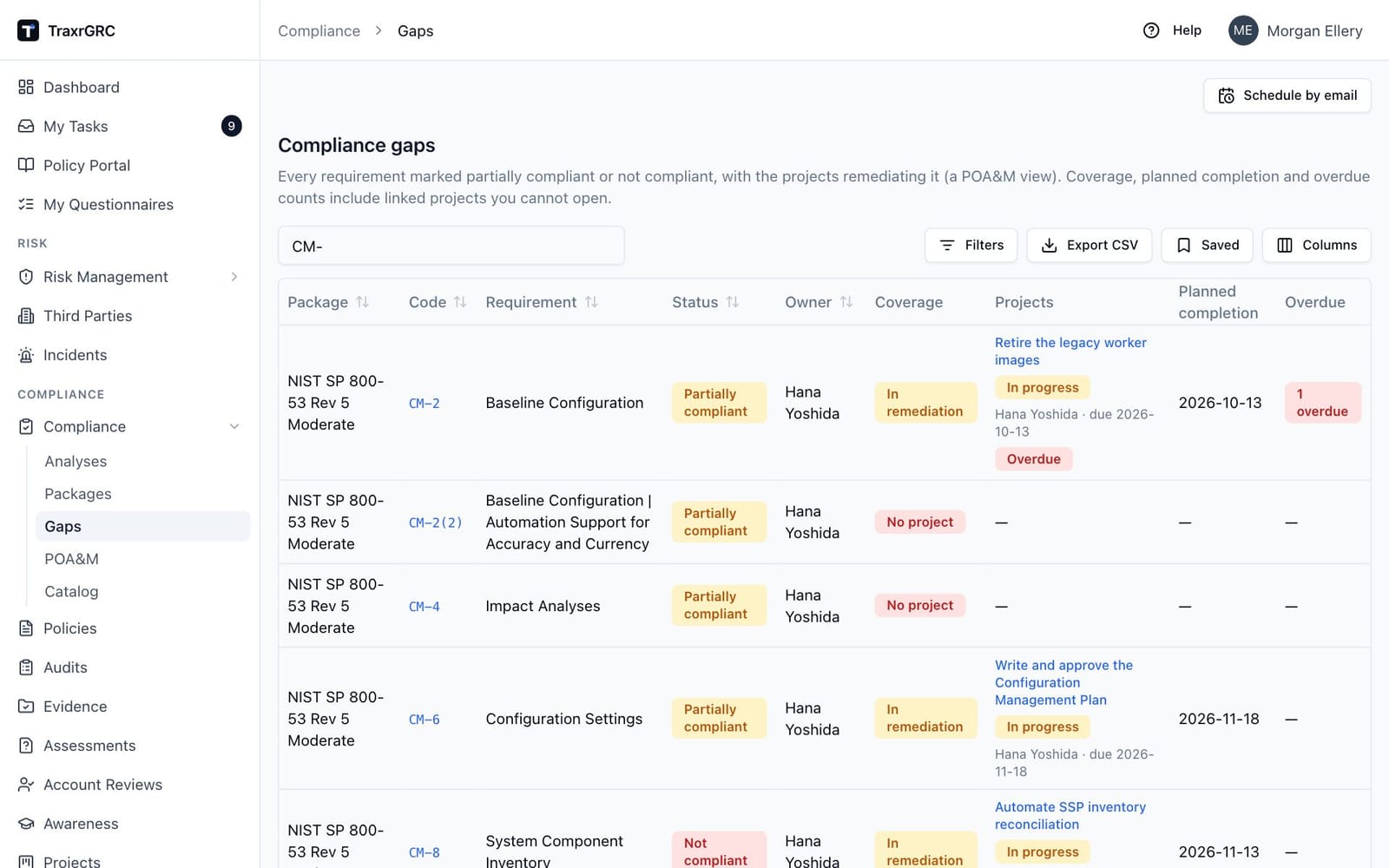
Compliance → Gaps (titled Compliance gaps) lists every requirement whose effective status is Partially compliant or Not compliant across all packages, one row per requirement, like a plan of action and milestones. A requirement inherited from a provider package (common) is a gap when the provider's requirement is; a hybrid one when the worse of the two is. The Status column shows that effective status. Additional items and headings are left out, and with compliance:read at 'own' level you see only analyses you own.
| Column | What it shows |
|---|---|
| Package | The package. Filter on it to see one framework. |
| Code, Requirement | The clause; the code opens the requirement. |
| Status | Partially compliant or Not compliant (the severity). Filterable. |
| Owner | The requirement's owner. |
| Coverage | No project, In remediation or Projects completed (see Remediation projects). Filter on No project for uncovered gaps. |
| Projects | Each linked project you can read, with its status, owner, deadline and an Overdue badge; projects you cannot read are counted ("1 more you do not have access to"). |
| Planned completion | The latest deadline among the linked projects not yet completed. |
| Overdue | How many linked projects are overdue. Filter on Overdue projects to see gaps whose remediation is late. |
Coverage, planned completion and the overdue count take every linked project into account, including ones you cannot open, so every viewer sees the same picture of a gap. Without projects:read, linked projects are counted only. Export CSV downloads the current view (at most 5,000 rows, with a notice when there are more) with one row per gap and the projects, their owners and statuses joined into single cells. There is no PDF of this view.
4.11 The POA&M register
Compliance → POA&M is the plan of action and milestones as a register of its own. Each item has a permanent id (POAM-0007) that is never reused, even after the item closes, so references in reports and emails stay valid.
Items come from three sources:
| Source | How it opens | How it closes |
|---|---|---|
| Requirement status | On its own, when a requirement's own status becomes Partially compliant (moderate) or Not compliant (high). | On its own, when the status changes to anything else, the item stops being a requirement, or the requirement is deleted. If the gap returns, the same item reopens under its number. |
| Audit finding | Add to POA&M on the finding's row of its audit plan. An open finding moves to In remediation. | By a person, with a note, or on its own when whoever runs the audit plan closes the finding. |
| Entered | New item, for a weakness no requirement or finding records: a scan, a penetration test, one you found yourself. | By a person, with a note. |
If a requirement's status worsens while its item is open (partially to not compliant), the item rises to high and its due date moves to the high window; a severity a person raised is never lowered.
A requirement set to Common opens no item: the weakness is the provider's, and the provider's own requirement carries the item. A Hybrid requirement opens one for its own part. Additional items and headings open none.
Due dates. An item is due a number of days after it opens, set per severity: 30 (high), 90 (moderate) and 180 (low) by default. A GRC Manager, or anyone whose role holds compliance:review at 'all' level (typically the CISO), changes them with Due dates on the register. New values apply to items opened, reopened or given a new severity from then on; existing due dates stay. On an item, a new severity moves its due date to that severity's window from the opening date, and Due can also be set directly.
On an item's page you edit the weakness and milestones text, severity and due date. A finding or entered item also takes a title, an owner and one remediation project, and closes with a note saying how the weakness was resolved; it reopens under the same id. A requirement-status item takes its title, owner and remediation projects from its requirement and cannot be closed by hand. Every change, including the automatic ones, is in the item's History and the audit log.
Milestones. Each item carries dated milestones (Milestones on its page: a description and a due date). Marking one Done records the day it was completed; a completed milestone stays on the plan and cannot be removed, reworded or moved (Not done undoes a completion made by mistake). Moving a milestone's date keeps the date it was first planned for, shown beside it, so the plan's changes stay visible. An item holds up to 50 milestones, and a closed item's plan is final until the item reopens. Every milestone change is in the item's History.
FedRAMP fields. An item also records Controls (such as "RA-5, SI-2"), Detected by (the scanner, test or audit that found it) and Assets (the hosts, components or services affected). A requirement-status item's control is its requirement code and its source is the control assessment; its assets are yours to fill in. Vendor dependency says whether the fix waits on a vendor (Not recorded, No, or Yes). Yes asks for the vendor product the fix waits on and takes the date of the last vendor check-in (today or earlier); switching to No clears both.
FedRAMP export. FedRAMP export on the register downloads an .xlsx in the layout of FedRAMP's POA&M template (R3.0, December 2025): the Open POA&M Items sheet with the provider, offering, impact level and POA&M date at the top and the column headers on row 5, Closed POA&M Items, and an empty Configuration Findings sheet. The dialog prefills the provider with your organization's name and takes an optional package (requirement-status items of that package only). R3.0 has no separate milestone columns, so each item's milestones are listed in its Remediation Plan cell, as the template's guidance asks, and a moved milestone is noted in Comments with a closed item's closure note. An audit-finding item's detection date is the day the finding was recorded. Vendor Dependency, Vendor Dependent Product Name and Last Vendor Check-in Date come from the item's vendor dependency; an item where it is Not recorded leaves Vendor Dependency blank (the template makes it mandatory, so record it before you submit). The situational columns (risk adjustment, false positive, operational requirement, BOD 22-01, CVE) are left for you to fill in. Only items you can read are exported.
One weakness, one item. When a finding describes a weakness an open item already tracks, choose Attach to an open item in the Add to POA&M dialog instead of opening a second one. The audit plan's findings table shows each finding's POA&M id, marked "(closed)" once the item closes.
Findings and their items move together. Adding a finding to the POA&M (or attaching it to an open item) moves an open finding to In remediation and notes the item on the finding's comments. Closing the item notes "ready to verify and close the finding" there; the finding itself stays open until whoever runs the audit plan closes it, which verifies the fix. Closing the finding closes its open item ("The audit finding was verified and closed."), and reopening the finding reopens the item under its number with a new due date. While an open finding item tracks a weakness on a control, a requirement that control is mapped to opens no second, status-derived item for the same weakness.
Findings on mapped controls. When the finding names a control that is mapped to requirements, the dialog says which ("Its control is mapped to AC-2 (NIST SP 800-53 Rev 5), ...") and fills Controls with their codes and Detected by with the source (Control audit: <control> for a finding raised by a failed control audit, otherwise Audit: <plan>); change either before adding. The item still belongs to no package, like every finding item. While such a finding has no item, the POA&M page shows a notice ("2 open audit findings affect mapped requirements and have no POA&M item") with Review them, which opens Open findings filtered to those findings.
The register lists, filters (source, severity, status, package, overdue) and
exports CSV like the gap view; with compliance:read at 'own' level you see
items you or your groups own. Linked projects you cannot read are counted,
and a finding you cannot read shows as "A finding you cannot open" (a
finding needs audits:read on both the finding and its audit plan, as in CSV
import). The
register is also GET /api/v1/compliance/poam (see the API chapter) and,
for AI assistants, the read-only list_poam and get_poam_item tools. The
package PDF report lists the package's open requirement-status items with
their milestones.
4.12 Exceptions on a clause
An exception documents a time-boxed deviation from a clause, for example accepting a known gap until a control is deployed.
-
On the item's Exceptions tab, click Request exception (requires compliance:update).
-
Complete the dialog:
Field What it means Title Short name of the exception (required). Description Why the deviation is needed (required). Owner Optional user responsible for the exception. Approver Optional user who must decide it. You cannot name yourself. Expires at The date the exception runs out (required). -
Click Request exception.
New exceptions are requested (amber) and are decided with Approve (green) or Reject (red). Exceptions follow a separation of duties:
- The person who requested an exception can never approve or reject it, administrators included, unless an administrator has relaxed separation of duties (see Sessions under Administration & Settings). A decision made that way carries an amber Self-approved or Self-decided badge.
- When the request names an approver, only that person (who must be able to see the record) or an administrator can decide it.
- When it names none, deciding needs the Review right on Compliance (compliance:review).
The exception card shows the owner, the designated approver, who requested it and who decided it; the Approve and Reject buttons appear only for someone allowed to decide. The decision is recorded with who made it and when, and is final. Once the expiry date has passed, an open exception displays as expired (gray). The notification worker sends "Compliance exception expiring" reminders before open exceptions run out, and expiring and expired exceptions color the exceptions badge in the analysis workspace.
4.13 The compliance report (PDF)
Click Report on a package page to download a PDF for that package. The button appears when you hold compliance:read at 'all' level. The report contains:
- A cover header with the organization name, package name, standard and version, and the generation time.
- An Executive summary of requirements only: the number of requirements, a count for each of the five statuses, a headline Compliant (excl. N/A) percentage (the share of applicable requirements that are compliant), and the number of At risk requirements. Headings and additional items are never counted here.
- One section per top-level domain, each with a clause table (clause, name, color-coded status, owner, exception count) covering that domain's whole subtree. At-risk clauses carry an At risk marker under their status. Headings appear only as section titles.
- Additional implemented items, when the package has any: their own counts, percentage, at-risk count and clause table.
- For a package linked to a catalog, Organization-defined values: how many of the package's parameters are set, then each requirement with parameters and every parameter's value, "Not set", or the provider's value marked Inherited.
- An appendix of open exceptions (requested or approved, with past-expiry ones shown as expired), sorted by expiry date.
PDFs (this report, policy downloads and the Article 30 register) are generated a couple at a time. When several people generate one at the same moment, the rest are told to try again in a few seconds.
4.14 Deleting packages and items
Deleting a package (compliance:delete) asks for confirmation ("Delete package?"), then removes it together with all of its items, analyses, exceptions, comments, attachments (files included), label assignments and custom-field values. It also removes its requirements' links to projects (the projects stay) and records that on each project's history, and its requirements' crosswalk links. It is refused while another package inherits common controls from it. This cannot be undone.
Deleting an item (compliance:delete) removes the item, its analysis and its whole subtree of sub-items with their analyses. Deletion is blocked while the item's analysis has mapped controls, policies, risks or projects (unmap them first) or any exceptions (remove them first); hover over the disabled bin icon to see why.
4.15 Who can do what (Compliance Management)
| Action | Permission |
|---|---|
| See packages, the analysis workspace and item pages | compliance:read (at 'own' level you see only analyses you or your groups own) |
| Download the PDF report | compliance:read at 'all' level |
| Create packages, import, add items | compliance:create |
| Edit packages and items, reorder items, set statuses, bulk updates, map controls/policies/risks and link projects (also needs read on that module and on each newly linked record), request exceptions, comment, upload evidence, edit custom fields | compliance:update: 'all' for every record, 'own' only for analyses you or your groups own |
| See the gap view | compliance:read (projects are named only with projects:read on them) |
| See the POA&M register and its items | compliance:read (at 'own' level, items you or your groups own) |
| Add a finding or entered POA&M item | compliance:create, plus audits:read on the finding and its plan, and projects:read on the project |
| Edit, close, reopen a POA&M item, attach a finding, add, move, complete or remove its milestones | compliance:update on the item |
| Download the FedRAMP export | compliance:read (items in your read scope) |
| Set POA&M due dates by severity | compliance:review at 'all' level |
| Create a project from a gap | projects:create and compliance:read on the requirement |
| Decide an exception that names no approver (never one you requested) | compliance:review |
| Decide an exception that names you as approver (never one you requested) | compliance:read on the analysis |
| Set a package's provider, import crosswalks, link and unlink requirements | compliance:update at 'all' |
| Set an analysis's origination or its organization-defined values | compliance:update on the analysis |
| Link a package to the catalog | compliance:update at 'all' |
| Add catalog controls to a package | compliance:create and compliance:update at 'all' (it reorders the package) |
| Download the parameter values CSV | compliance:read at 'all' |
| Delete packages and items | compliance:delete |
Administrators bypass all of the above.