3 Risk Management
Risk Management is where you record what could go wrong, score it, decide what to do about it, and prove that you review it on a schedule. Risk owners use it to maintain their risks and treatments, control owners to run control tests, reviewers to sign off scheduled reviews and decide exceptions, and administrators to configure the scoring model.
A risk in TraxrGRC carries an inherent score (before any action), a
residual score (after implemented mitigations) and a status. It can hold
treatments, scheduled reviews, time-boxed exceptions, comments, attachments
and custom fields. This chapter covers the risk register, the scoring model,
the shared catalogs (controls, assets and business units) and the Risk
Settings screen. Access is controlled by the risks module permissions and,
for the catalogs, by their own modules (see Who can do what, at the end of
this chapter).
The Risk Management entry in the sidebar expands to five pages:
| Page | What it holds |
|---|---|
| Risks | The risk register. |
| Controls | The control library and control testing. |
| Assets | The things you protect, including systems that hold personal data. |
| Business Units | Your organizational hierarchy. |
| Risk Settings | Classifications, magnitudes, impact axes, the calculation matrix and appetite bands. |
3.1 The risk register and its tabs
Open Risk Management → Risks. The register opens on the All tab, which lists every risk you can see. Alongside it is one tab per risk classification. A new installation has four:
| Classification | Purpose (seeded description) |
|---|---|
| Asset-based | Risks tied to specific assets. |
| Third-party | Risks introduced by vendors and partners. |
| Business continuity | Risks to business operations and recovery. |
| Enterprise | Organization-wide strategic risks. |
Classifications only group the register: they drive the tabs and the Classification filter. Your administrator can rename them, add more, or remove unused ones on the Risk Settings screen.
Two buttons sit above the tabs:
- New risk creates a risk (requires risks:create; see Creating a risk).
- Import creates or updates risks, or creates risk exceptions, in bulk from a CSV file. A menu offers the record type. See Importing from CSV in Getting Started.
3.2 The Risks list
The list shows one row per risk, with live scores computed from the current matrix and treatments:
| Column | What it shows |
|---|---|
| Title | Click to open the risk. |
| Inherent | Score chip: the inherent score, tinted with its appetite band color. Hover for the band name. |
| Residual | Score chip: the residual score, tinted with its band color. |
| Status | Badge: open, closed or archived (see The risk detail page). |
| Controls | A red Control failing or N controls failing badge when the risk is flagged (see below); otherwise the worst testing status of its treatment controls (OK, Untested, and so on), or a dash when no treatment links a control. |
| Classification | The risk's classification. |
| Owner | The named owner, if set. |
| Asset | The linked asset, if set. |
| Next review | The next review due date. For an open risk whose review date has passed, the date shows in red with "(overdue)". Closed and archived risks are never flagged overdue. |
| Labels | Any labels assigned to the risk. |
The search box matches the title and description. Column filters narrow the list by Status, Controls (choose Controls failing), Classification and Labels (records with a label whose name contains the text). Click a column header to sort. Export CSV downloads the current view as a CSV file. Saved filters and column choices work as described under Data tables in Getting Started.
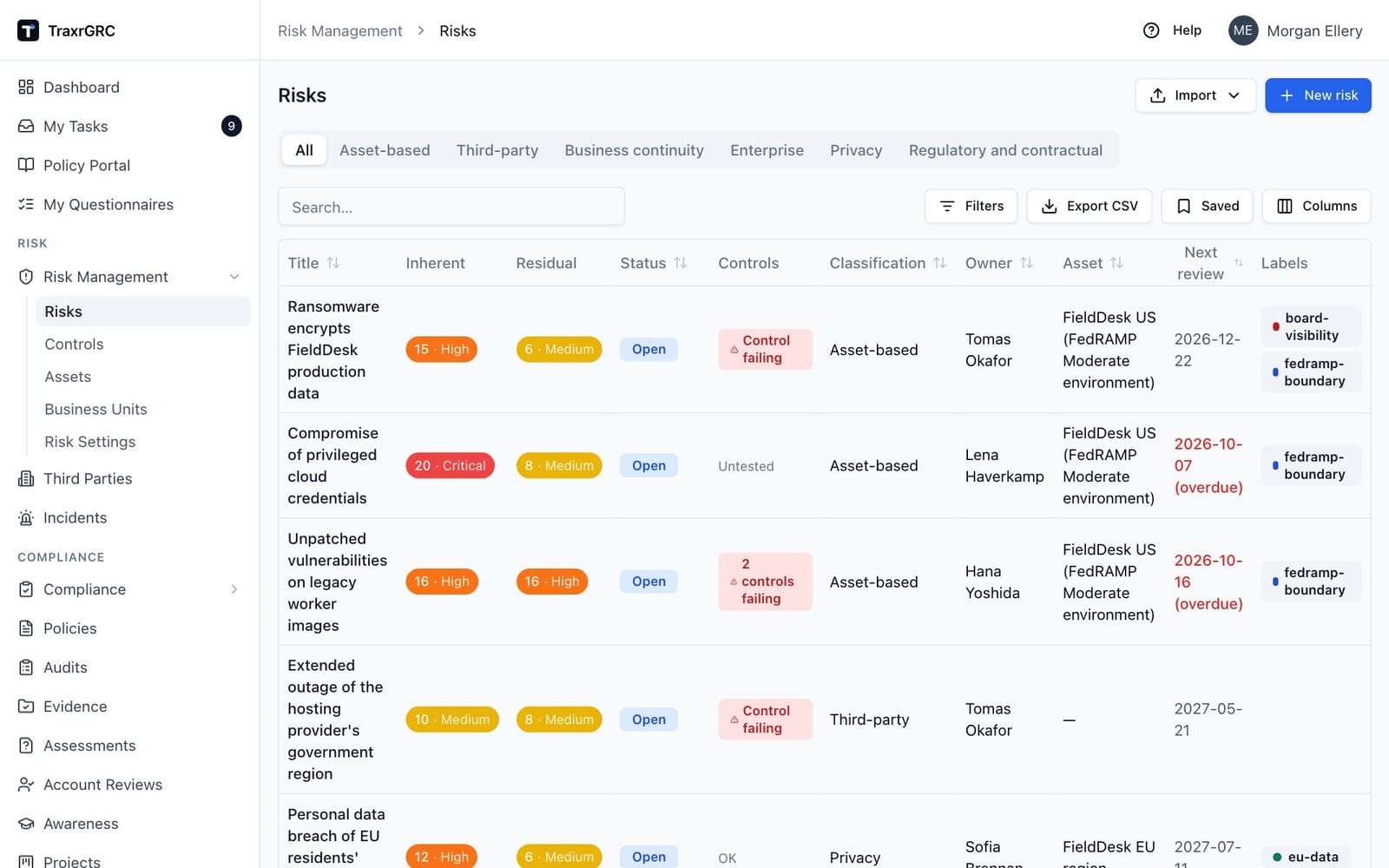
An open risk is flagged as having failing controls when a control linked from one of its treatments failed its latest audit or maintenance, or is overdue for one (see Controls). Rejected treatments and retired controls do not count, and closed or archived risks are never flagged.
A treatment whose control is retired earns no reduction: a retired control no longer treats anything, so retiring a control rescores every risk it treats, and the treatment's reduction badge reads "no credit: control retired". Making the control active again restores the credit. The flag is calculated every time it is shown and never changes the risk's status, scores or treatments; it tells you which risks to re-check, the way At risk does for compliance.
3.3 Creating a risk
-
Click New risk on the Risks page.
-
Complete the New risk dialog:
Field What it means Title The risk name (required). Description Free text explaining the risk. Classification Which register tab the risk belongs to. Pre-filled with the classification of the tab you were viewing. Asset Optional link to a catalog asset (see Assets). Owner Optional named user responsible for the risk. Owner group Optional group responsible for the risk. You can set a user, a group, or both. Inherent likelihood A value from your likelihood scale, shown as "Name (value)", for example Rare (1) to Almost Certain (5). Inherent impact A value from your impact scale, for example Insignificant (1) to Severe (5). Review frequency (months) How often this risk should be reviewed: 1 to 120, default 12. Schedule first review Shown only when creating, ticked by default. The label shows the due date offset, for example "Schedule first review (due in 12 months)". When ticked, a first review is scheduled at the frequency from today and Next review is set to it. -
Click Create risk.
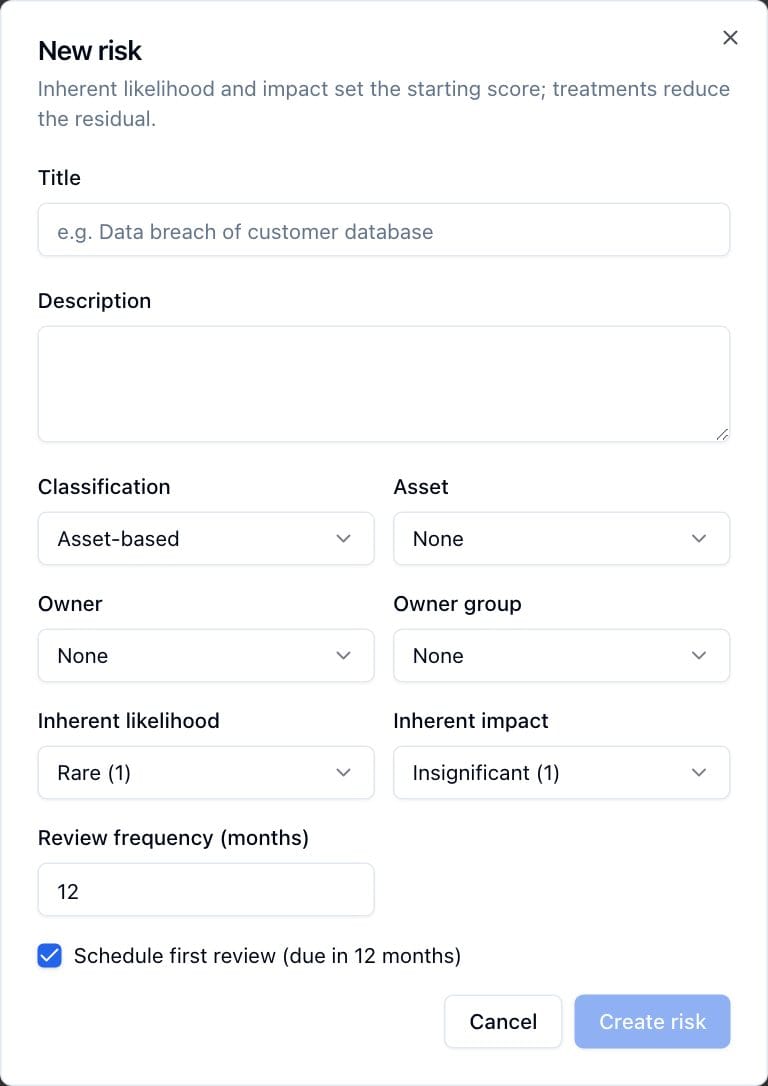
Creating a risk writes an entry to the audit log. The new risk's residual magnitudes start equal to its inherent ones, so residual equals inherent until mitigations are implemented.
A risk also has a Business unit, shown on its detail page. The dialog
does not set it; it is set through a CSV import (the business_unit column)
or the REST API.
3.4 How scoring works
-
Inherent score. The value of the calculation-matrix cell at your chosen likelihood and impact. With the default 5 × 5 matrix the cell score is likelihood × impact (1 to 25).
-
Impact axes. When Risk Settings defines impact axes (for example participant safety, data integrity, contractual and privacy), a risk scores each axis on the impact scale and its impact is the highest axis, never an average, so a severe consequence on one axis is not offset by a negligible one on another. With no axes, impact is one value.
-
Residual score. Start from the inherent likelihood and impact, then subtract each implemented mitigate treatment's "Reduce likelihood by" and "Reduce impact by" values, scaled by the treatment's effectiveness: E1 Effective takes the full reduction, E2 Partially effective half (rounded down, so residual is never understated), E3 Largely ineffective and E4 Absent nothing. A treatment not yet assessed counts in full, as before effectiveness existed. Subtractions add up, and each magnitude stops at the lowest value on its scale, so it can never fall below 1 (or your minimum). The resulting likelihood and impact pair is looked up in the matrix to give the residual score. Treatments with any other strategy, or any status other than implemented, do not affect the score.
-
Appetite bands. Each band covers scores from its minimum score upward; the highest band whose minimum the score reaches wins (ties on minimum resolve by sort order). The band supplies the color and name shown on the score chips. A score with no matching band shows as plain gray "Unscored". The default bands are:
Band Minimum score Over appetite Low 1 No Medium 6 No High 12 Yes Critical 19 Yes -
Over appetite. Bands flagged over appetite mark unacceptable scores. An open risk whose residual score lands in an over-appetite band shows a red banner on its detail page ("This risk is over the organization's risk appetite (residual score 16, High band)."), and appears in the Risks over appetite dashboard widget. When the score crosses into an over-appetite band, the notification worker sends the risk owner a "Risk over appetite" notification. A recalculation that leaves the risk where it was sends nothing.
Scores recalculate automatically whenever something relevant changes: editing inherent likelihood or impact, adding, editing or deleting treatments, saving the matrix or bands, or changing magnitude values. The Recalculate all risks button on Risk Settings recomputes everything on demand.
3.5 The risk detail page
Click a risk title to open it. The header shows the title, a status badge, a red Control failing or N controls failing badge when the risk is flagged, and the classification. Under the header you may see:
- the over-appetite banner, for an open risk whose residual score is in an over-appetite band;
- a red panel listing each failing control with a link to it and the reason, such as "Audit failed 2026-09-02" or "Maintenance overdue since 2026-08-01". Controls you cannot read are not named; the panel says only how many there are.
Two cards show the Inherent score and Residual score as large numbers, each with its band chip and the magnitude names behind it (for example "Likely × Major"). Below them sit the description and the label picker (labels are managed in Administration & Settings). A row of summary cards shows the Owner (and owner group), the Asset (and its business unit), the risk's Business unit, and Next review. The next review date turns red and is marked "overdue" when an open risk has passed it, and the review cadence appears underneath ("every N months").
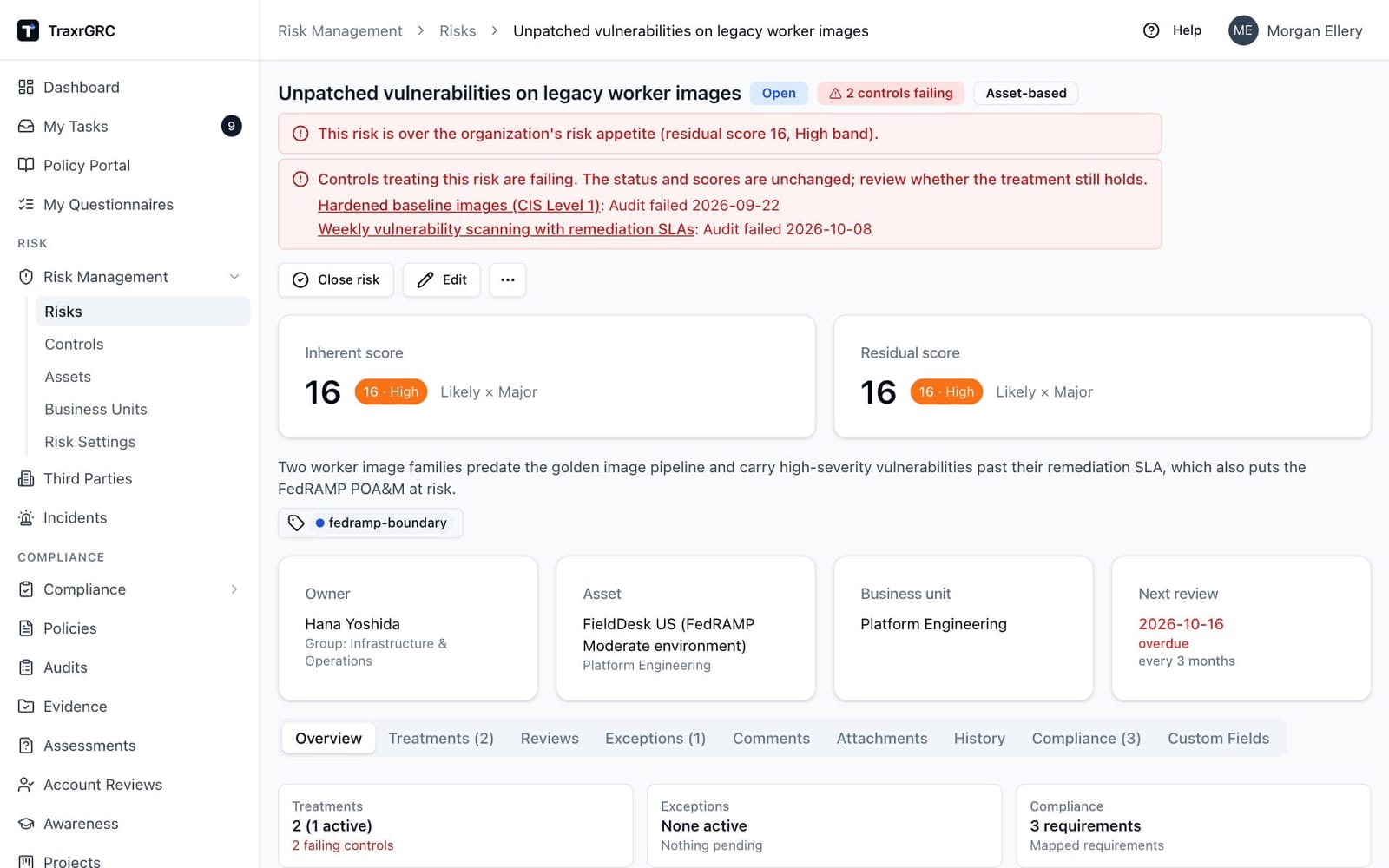
Below the cards, one row of tabs covers the rest of the record: Overview, Treatments, Reviews, Exceptions, Comments, Attachments and History, then Compliance (N) (the compliance requirements this risk is mapped to; see Compliance Management; shown when you can read compliance) and Custom Fields (administrator-defined fields for risks; see Administration & Settings; editing requires risks:update on the record). The Treatments and Exceptions tab names show their counts. The Overview tab opens with three summary cards, each of which opens its tab when clicked: Treatments (how many, how many are active, and how many controls are failing), Exceptions (how many are active and when the next one expires, or how many await a decision) and Compliance (how many requirements the risk is mapped to; shown when you can read compliance). Below them it shows the created and updated times, the inherent and residual magnitudes as values ("L4 × I4"), and the completed-review history.
3.5.1 Status and actions
The action buttons depend on the status and your rights: risks:update on the record for Close risk, Reopen, Archive and Edit, and risks:delete for Delete, which is in the More actions menu (…).
| Status | Meaning | Badge color | Allowed moves |
|---|---|---|---|
| open | Live risk, actively managed. | Blue | Close risk |
| closed | Accepted as resolved or no longer applicable. | Gray | Reopen, Archive |
| archived | Retired from the working register; terminal state. | Darker gray | none |
Edit opens the Edit risk dialog with the current values. Saving recalculates the scores when likelihood or impact changed, and re-anchors the next review date when the frequency changed (see Reviews).
Delete asks for confirmation ("Delete risk?"), then removes the risk together with its treatments, reviews, exceptions, comments, attachments (files included), label assignments and custom-field values, and writes an audit-log entry. This cannot be undone.
3.6 Treatments
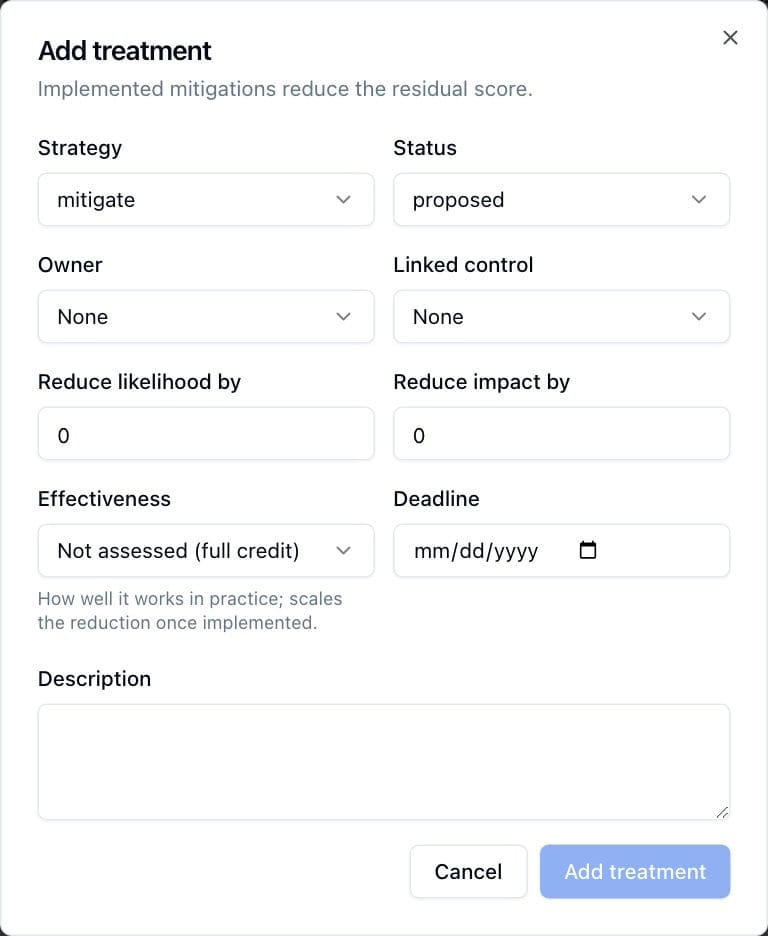
The Treatments tab lists the actions taken on the risk. Each treatment card shows strategy and status badges, the linked control, reduction badges ("−L1 −I2") for mitigate treatments, the description, the owner and the deadline. Strategies are color-coded: mitigate blue, transfer purple, avoid red, accept gray.
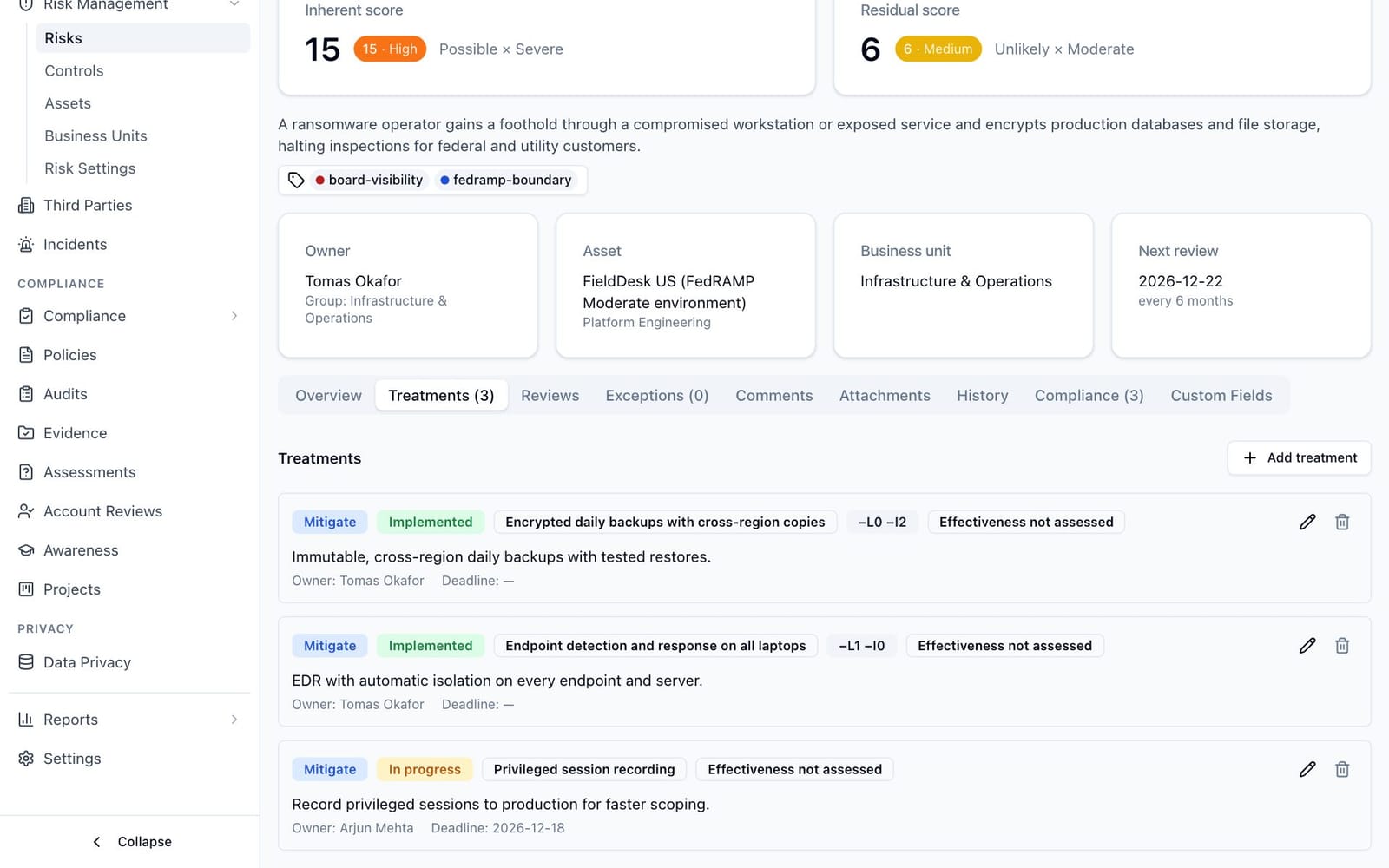
To add a treatment:
-
Click Add treatment.
-
Complete the dialog:
Field What it means Strategy mitigate (reduce the score), accept, transfer, or avoid. Status proposed, accepted, in_progress, implemented, or rejected. Owner Optional responsible user. Linked control Optional link to a catalog control. Controls are shared with compliance analyses. Reduce likelihood by / Reduce impact by 0 to 4. Editable only for mitigate; how far this treatment lowers each magnitude once implemented. Effectiveness Mitigate only: how well it works in practice, E1 Effective, E2 Partially effective, E3 Largely ineffective, E4 Absent, or not assessed. It scales the reduction (see How scoring works). Assess it from the linked control's results; when that control is failing or overdue and the treatment is rated E1 or E2, the treatment shows Control failing: review effectiveness. The control's results never change the rating or the score by themselves. Deadline Optional target date. Description What the treatment actually is (required). -
Click Add treatment.
Treatment statuses:
| Status | Meaning | Badge color |
|---|---|---|
| proposed | Suggested, not yet agreed. | Gray |
| accepted | Agreed, not yet started. | Blue |
| in_progress | Being implemented. | Amber |
| implemented | In place. Only implemented mitigations reduce the residual score. | Green |
| rejected | Will not be done. Ignored by the failing-controls flag. | Red |
Use the pencil icon on a card to edit a treatment and the bin icon to delete it. Adding, editing or deleting a treatment re-scores the risk immediately, which can move it into or out of an over-appetite band and can therefore trigger the over-appetite notification described above.
3.7 Reviews
The Reviews tab shows Upcoming reviews first, with past-due dates in red, and the completed-review History below it (result badge, time, reviewer and notes).
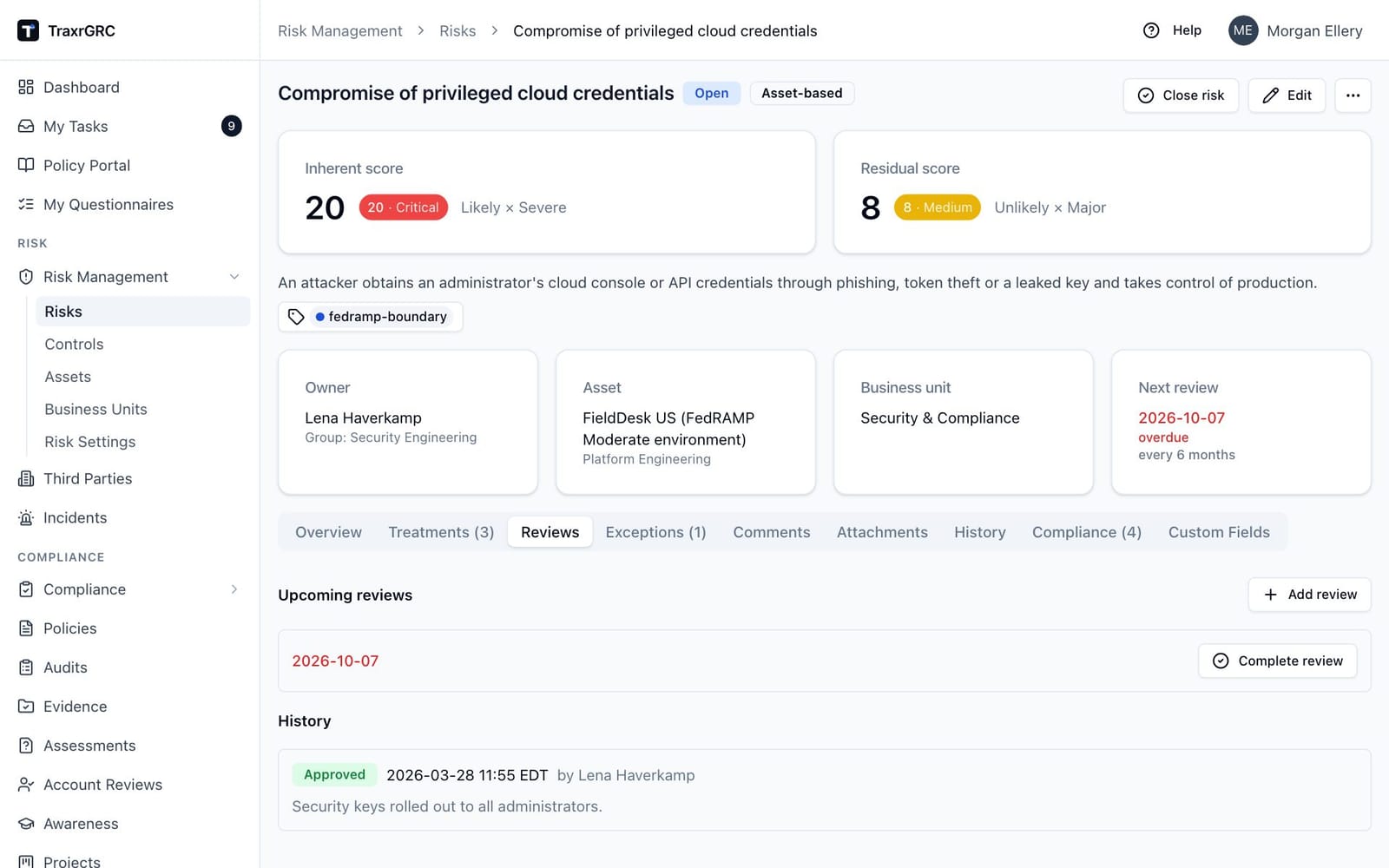
To complete a review:
-
Click Complete review on a scheduled review. The button appears only when you hold risks:review.
-
Choose a Result and add Notes:
Result Meaning Badge color Approved The risk was reviewed and is fine as it is. Green Changes required The review found problems; follow-up is needed. Amber Accepted over appetite The risk stays over appetite by explicit decision, once an exception request is approved (see below). Red -
Click Complete review.
Accepting a risk over appetite raises an exception request. Choosing
Accepted over appetite opens three more fields: Justification
(required), Accepted until (the expiry, required) and Approver
(optional; the list offers only active people who can see the risk, never
you). Completing the review records the result and creates the request on the
risk's Exceptions tab, linked to the review. Until it is decided the risk
shows "Acceptance pending approval" above its tabs, and the review in the
history reads the same. The request is decided like any other risk exception
(see Exceptions): approved, the risk is accepted until the expiry date, with
the usual expiry reminders and lapse; rejected, the risk shows "Acceptance
rejected: plan a treatment" and you, the reviewer, get the email
risk.acceptance.rejected. Reviews recorded with this result before the
request was required keep their result and have no request.
Completing a review records you as the reviewer, schedules the next review at the risk's review frequency from today, updates the Next review date shown everywhere, and writes an audit-log entry. Completing reviews needs the separate risks:review right; risks:update does not include it.
To book an extra review without completing one:
- Click Add review (requires risks:update).
- Pick a Scheduled date.
- Click Schedule review.
Next review moves to the earliest open review if the new one is sooner. Changing the review frequency on the risk re-anchors all open reviews from the last completed review (or the creation date).
The notification worker sends review reminders: "Risk review coming due" before the date and "Risk review overdue" once it has passed, individually or bundled into the daily digest when digests are enabled (see Notifications in Administration & Settings).
3.8 Exceptions
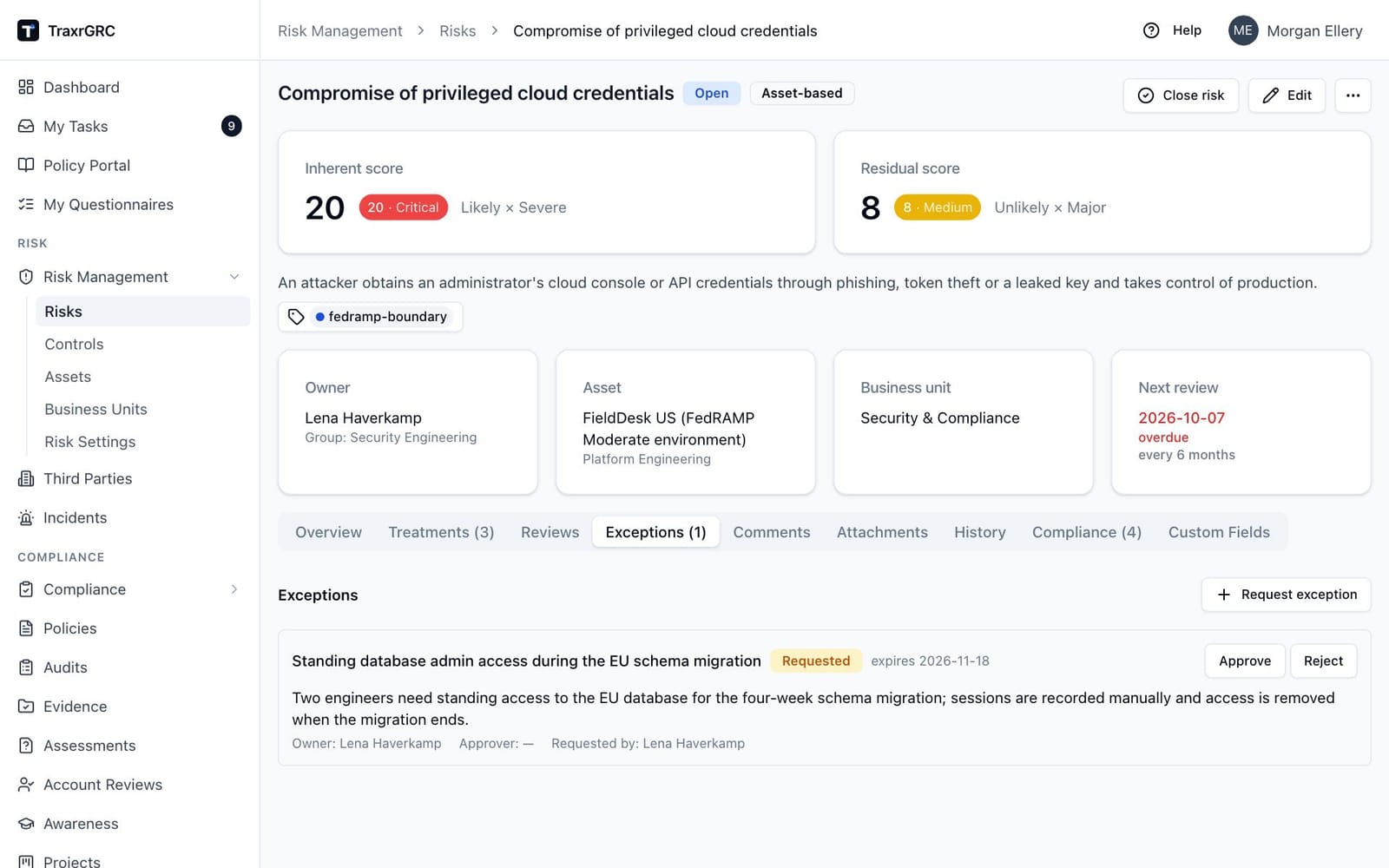
The Exceptions tab records time-boxed acceptances for the whole risk or for one treatment.
-
Click Request exception (requires risks:update).
-
Complete the dialog:
Field What it means Title Short name of the exception (required). Description Why the exception is needed (required). Linked treatment One treatment, or Whole risk (the default). Owner Optional user responsible for the exception. Approver Optional user who must decide it. The list offers only active users who can see the risk, since nobody else could decide it, and never you. Expires at The date the exception runs out (required). -
Click Request exception.
An exception starts as requested (amber) and is decided with Approve (green) or Reject (red). Exceptions follow a separation of duties:
- The person who requested an exception can never approve or reject it, administrators included, unless an administrator has relaxed separation of duties (see Sessions under Administration & Settings). A decision made that way carries an amber Self-approved or Self-decided badge.
- When the request names an approver, only that person (who must be able to see the record) or an administrator can decide it.
- When it names none, deciding needs the Review right on Risks (risks:review, the same right that completes risk reviews).
The exception card shows the owner, the designated approver, who requested it, who decided it, and "Linked to a treatment" when it covers one treatment. The Approve and Reject buttons appear only for someone allowed to decide. The decision is recorded with who made it and when, and an exception cannot be re-decided. Past its expiry date, an open exception displays as expired (gray) and the decision buttons disappear; a request past its expiry can still be rejected through the API but never approved. The nightly worker then records the exception as expired, with an audit entry, so the risk register's open-exception count, My Tasks, the API and notification rules on the expired status all agree. The same applies to compliance and policy exceptions. The notification worker sends "Risk exception expiring" reminders before an open exception runs out.
3.9 Comments, attachments and history
- Comments: discussion thread on the risk. Posting requires risks:update on the record.
- Attachments: upload supporting files such as evidence or diagrams. Requires risks:update.
- History: the audit-log entries for this risk: action, actor, time and which fields changed.
3.10 Controls
Risk Management → Controls is the control library shared by risk treatments, compliance requirements and audit findings. The list has these columns:
| Column | What it shows |
|---|---|
| Name | Click to open the control page. |
| Type | policy, process, technical, physical or other. Filterable. |
| Status | planned (gray), active (green) or retired (gray). Filterable. |
| Testing | The calculated testing status (see below). |
| Next test | The next scheduled audit or maintenance date. |
| Owner | The owning user. |
| References | How many treatments and compliance analyses link to the control, for example "2 treatments · 3 analyses". |
| Labels | The control's labels. Filter by typing part of a label name. |
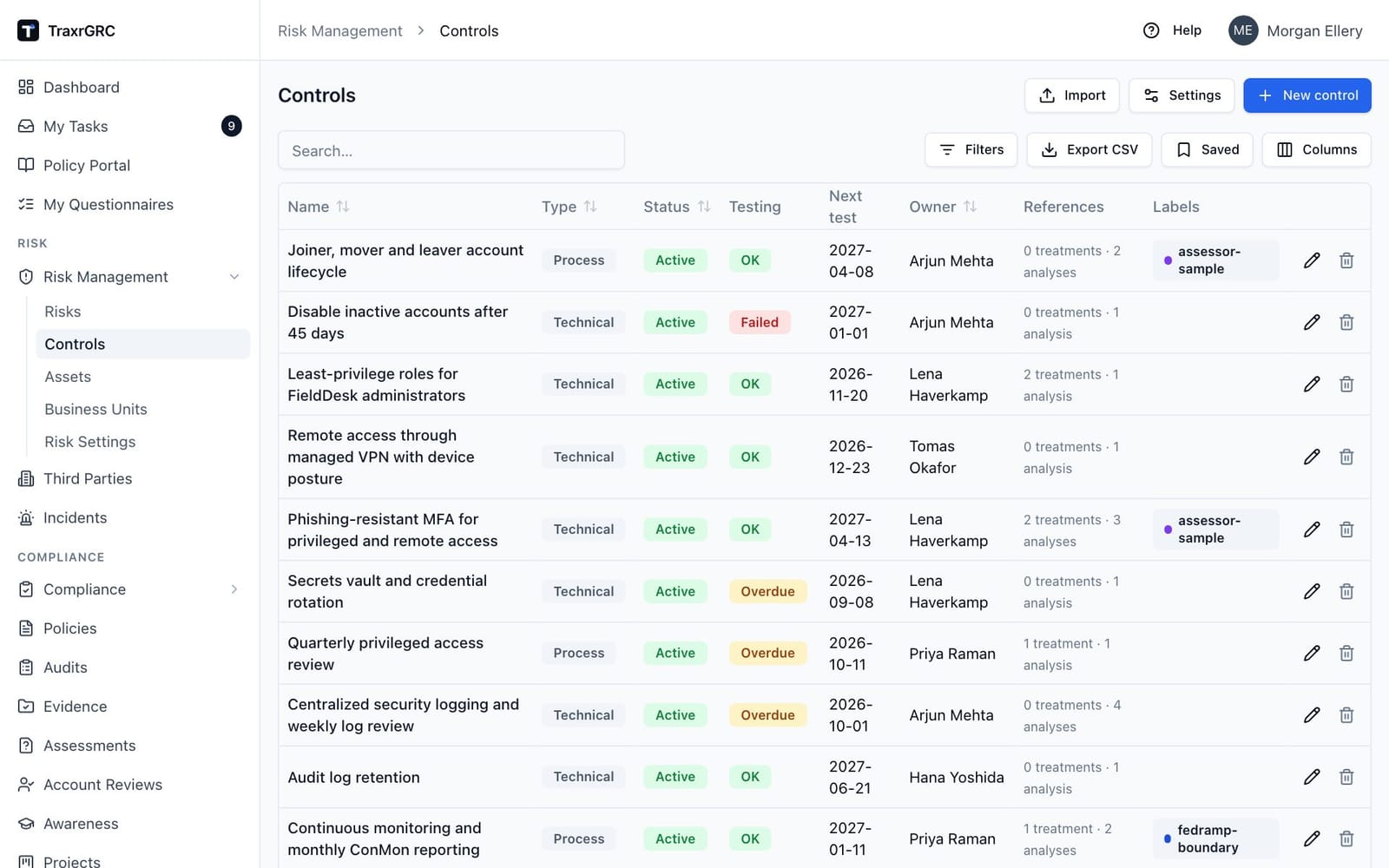
New control (controls:create) opens a dialog with Name, Type, Status, Owner, Owner group and Description. The pencil and bin icons on each row edit (controls:update) and delete (controls:delete) a control. Import loads controls from CSV (see Importing from CSV in Getting Started). Deletion is blocked while any treatment or compliance requirement references the control (the confirmation dialog warns you), and for good once a test result has been recorded: results are evidence, so retire the control instead.
3.10.1 The control page
Click a control's name to open it. The header shows the name with type, status and testing-status badges, the description, and the Labels picker (see Labels in Getting Started; attaching needs controls:update on the control).
The description is laid out for reading. Each line you typed starts a new paragraph, and so do two spaces after a sentence. A line that begins with an enhancement code and a title followed by a colon, such as "AC-2(1) Automated System Account Management: ...", starts its own section with the code and title in bold, and the text after the colon starts with a capital letter. A paragraph longer than about 1,200 characters is split at sentence ends into paragraphs of a few sentences each. The stored text is not changed; Edit shows it exactly as saved. Cards show the owner (and owner group) and, for Audit and Maintenance separately, the last result, the next due date (red with "(overdue)" when it has passed) and the schedule ("Every 6 months after completion", "Each year on 15 Apr" or "Not scheduled").
Below the cards are seven tabs:
| Tab | What it holds |
|---|---|
| Audits | The Audit metric and Success criteria, the Scheduled audits and the Results. |
| Maintenance | The Maintenance task, the scheduled maintenance and the results. |
| Used by (N) | The risk treatments, compliance requirements and audit findings that link to the control. |
| Comments | Discussion on the control. |
| Attachments | Evidence files. |
| History | Audit-log entries for the control and its tests. |
| Custom Fields | Administrator-defined fields for controls (see Administration & Settings). Editing requires controls:update on the control. |
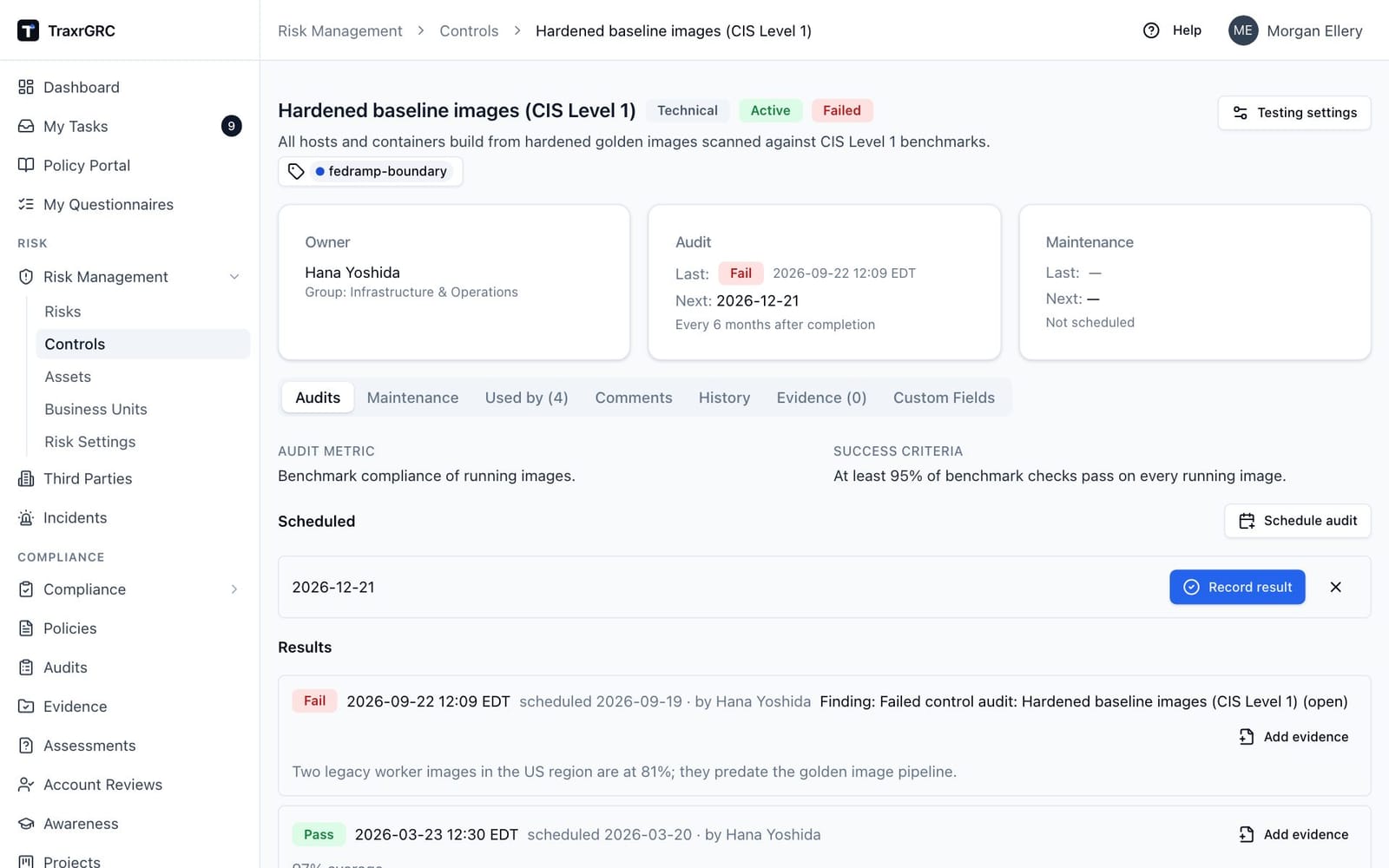
The calculated testing status is:
| Status | When |
|---|---|
| Failed | The latest audit or maintenance failed. |
| Overdue | A scheduled test is past its date. |
| OK | Every scheduled kind's latest result passed. |
| Untested | None of the above, for example no result yet. |
| Retired | The control is retired. |
3.10.2 Scheduling and recording control tests
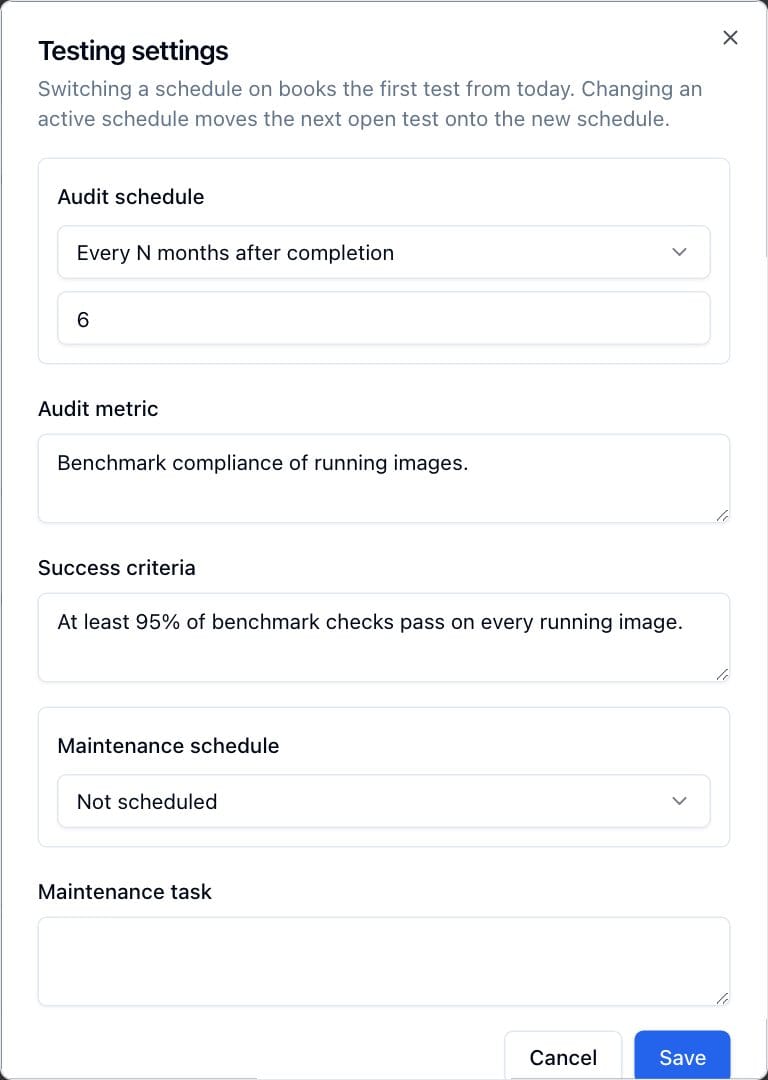
Testing settings (controls:update) sets the schedule for audits and maintenance separately, plus the audit metric, success criteria and maintenance task. Each schedule is one of:
- Not scheduled.
- Every N months after completion (1 to 60). A late test pushes the schedule back.
- Fixed dates each year: month and day, for example
03-01, 09-01. 29 February is not allowed, and a test done early or late falls back onto the next fixed date.
Switching a schedule on books the first test; changing an active schedule moves the next open test.
On the Audits or Maintenance tab:
- Schedule audit or Schedule maintenance adds a one-off test alongside the recurring schedule. Not offered for retired controls.
- Record result on a scheduled test opens a dialog that shows the success criteria (for audits). Choose Pass or Fail (there is no default, so a result is always a decision), add notes and click Record result. Recording a result books the next test, and the confirmation offers Add evidence to record the evidence for it (see Evidence). Each recorded result also has an Add evidence button.
- The × button removes a test that is still open.
A failed audit emails the control owner. Each result shows the time, the scheduled date and the tester, plus a link to the finding raised for it, if any. While a finding raised by a failed audit is still open, the control gets no second one: a later failure adds the comment "Failed again on date" with its notes to that finding's thread, and a passing re-audit adds "Passed the re-audit on date; ready to verify and close", for whoever runs the audit plan to close it. These comments are marked Recorded by the app and cannot be deleted; the finding's description stays as the auditor wrote it.
3.10.3 Control testing settings
The Settings button on the Controls page (settings:read to view, settings:update to change) opens Control testing settings. Raise findings for failed audits in names an audit plan that receives a finding for every failed control audit. The finding is owned by the control owner, due by the re-audit date, linked to the control, and shown next to the failed result on the control page. Choose Off: do not raise findings to stop raising them; deleting the chosen plan also turns it off. You must create an audit plan before you can turn this on.
3.11 Assets
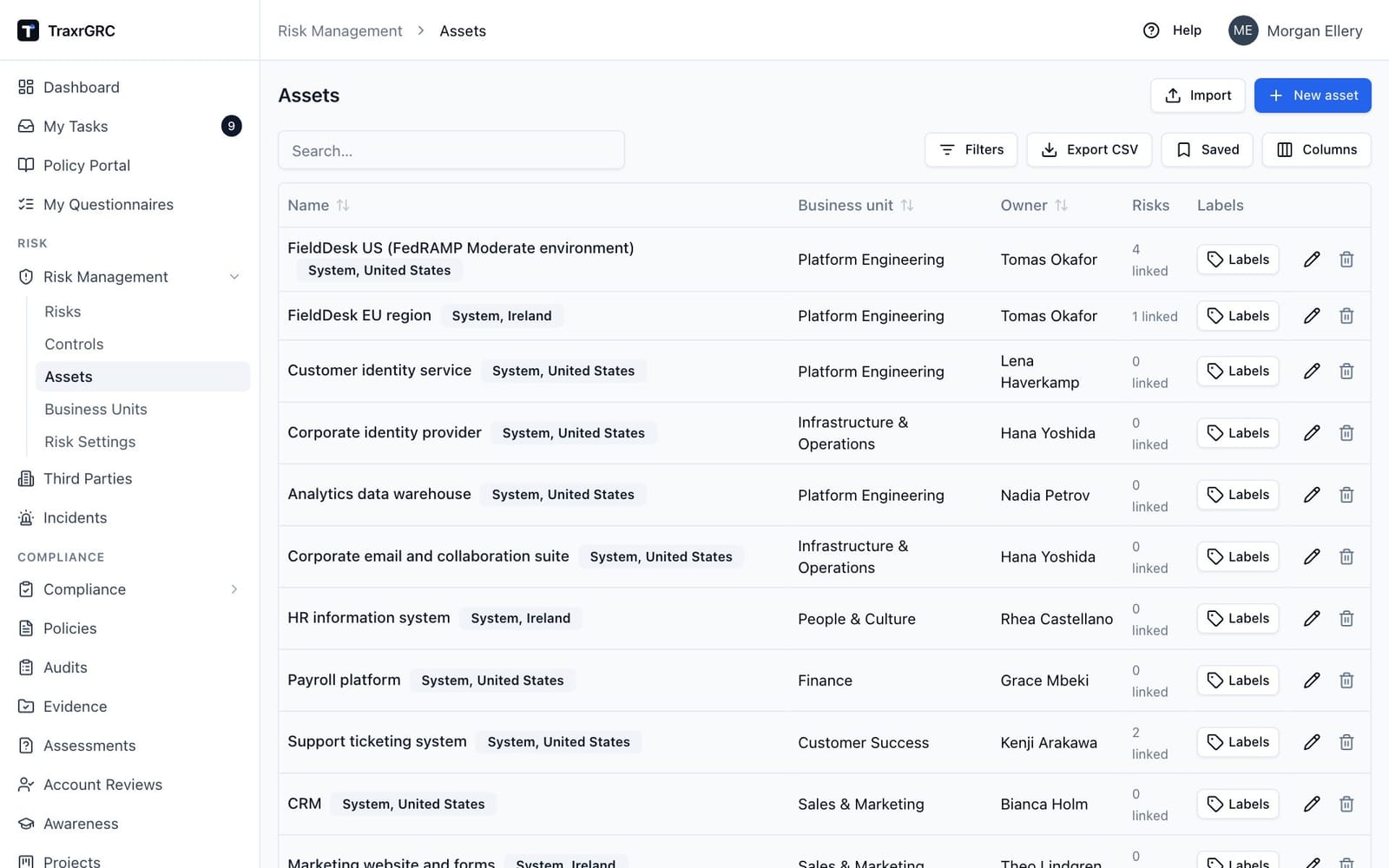
Risk Management → Assets lists the things you protect, with Name, Business unit, Owner, Risks (how many risks link to the asset) and Labels columns. Assets have no page of their own, so labels are attached in the list: with assets:update on an asset, its Labels cell is the label picker; otherwise it shows the labels read-only. Each asset has a name, description, optional business unit and optional user or group owner; risks can then be linked to it.
New asset (assets:create) opens the asset dialog; the pencil icon on a row edits an asset (assets:update) and the bin icon deletes it (assets:delete). Import loads assets from CSV.
Tick A system that holds or processes personal data to mark an asset as a system. It then takes a Hosting country and the Categories of personal data held (type a category and press Enter), shows a "System" badge with its hosting country in the list, comes first when a Data Liaison picks systems, and carries its hosting country on the data map (see Data Privacy).
Deleting an asset keeps its risks but clears the asset link on them, and removes the asset's comments, attachments (files included), labels and custom-field values.
3.12 Business Units
Risk Management → Business Units holds your organizational hierarchy, with Name, Parent, Owner and Assets (count) columns. A unit can have a parent (forming a tree), an owner and a description. Create units with New business unit (businessUnits:create) and edit or delete them from the row icons.
When editing, a unit cannot be parented to itself or any of its descendants: the parent list leaves those out, and the server rejects cycles outright. Deletion is blocked while child units exist. Linked assets and risks are kept (they lose the reference), and the unit's comments, attachments (files included), labels and custom-field values are removed with it.
3.13 Risk Settings
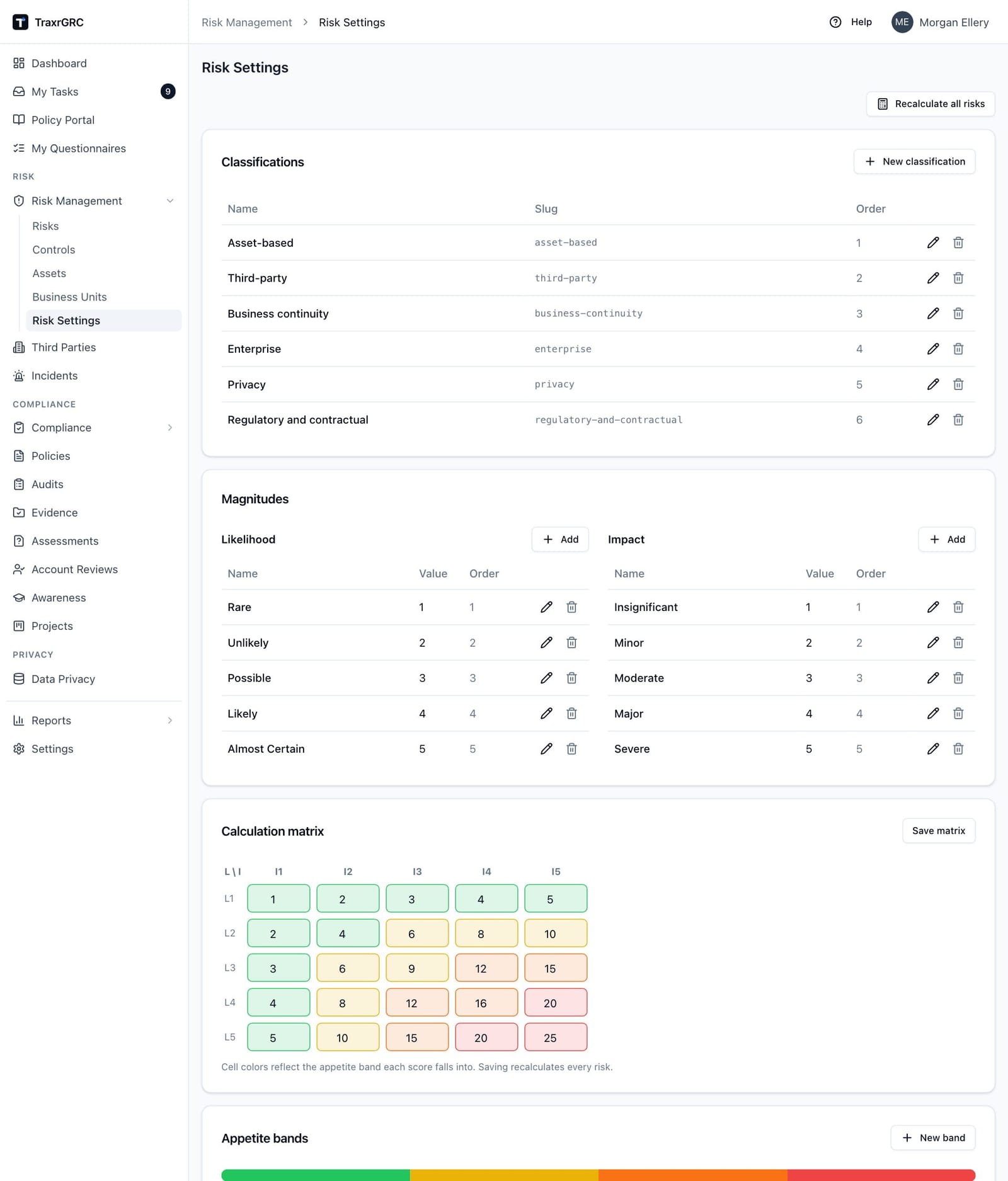
Risk Management → Risk Settings configures the scoring engine. Viewing requires settings:read; the edit controls require settings:update (creating and deleting records also uses settings:create and settings:delete). The screen has four panels plus a maintenance button:
- Classifications: the register tabs. Each has a name, a unique slug (derived from the name if left blank), an optional description and a sort order. Add one with New classification. Deletion is blocked while any risk uses the classification.
- Magnitudes: the likelihood and impact scales, side by side, each with its own Add button. Each entry has a kind (Likelihood or Impact), a name (for example Rare or Severe), a numeric value, a sort order and an optional description. Names appear in the risk form as "Name (value)". Values must be unique within a kind. A value in use by any risk or matrix cell cannot be changed or deleted until those references are removed.
- Calculation matrix: one editable score per likelihood and impact cell. Each cell is tinted live with the color of the appetite band its current score falls into. Click Save matrix to keep your changes; saving recalculates every risk immediately.
- Appetite bands: name, minimum score, color (preset swatches or any custom hex), an Over appetite switch ("Risks in this band count as appetite breaches.") and a sort order. Add one with New band. A bar above the table previews the bands in minimum-score order. Creating, updating or deleting bands recalculates all risks.
- Impact axes: the axes impact is scored on, each with a name and an optional description. Every axis uses the impact magnitudes. Adding an axis starts every risk at its current impact on it, so no score moves until someone rescores an axis. Removing one asks for confirmation, says how many risks have it as their highest axis, and lowers those risks to their next highest axis with residual rescored; each lowered risk's history records it and the audit log keeps the removed scores. While axes exist, the risk form shows one impact per axis and the highest becomes the risk's impact. The API, CSV import and other paths that send a single impact set every axis to it when the value differs from the current impact; sending back the same value changes nothing.
- Recalculate all risks: recomputes the residual score of every risk using the current matrix, bands and treatments, and fires over-appetite notifications for any risk that crosses into an over-appetite band. Use it as a maintenance sweep after bulk changes made outside the normal flows.
3.14 Who can do what (Risk Management)
| Action | Permission |
|---|---|
| See the Risks list and risk detail | risks:read (at 'own' level you see only risks you or your groups own) |
| Create a risk | risks:create |
| Edit a risk, change its status, add/edit/delete treatments, schedule extra reviews, request exceptions, comment, upload | risks:update: 'all' for every record, 'own' only for records you or your groups own |
| Complete a review; decide an exception that names no approver (never one you requested) | risks:review (same all/own levels) |
| Decide an exception that names you as approver (never one you requested) | risks:read on the risk |
| Delete a risk | risks:delete (all/own) |
| Manage controls and record control tests | controls module rights (create/update/delete, with the same all/own levels on update/delete) |
| Control testing settings (findings for failed audits) | settings:read to view, settings:update to change |
| Manage assets | assets module rights |
| Manage business units | businessUnits module rights |
| View Risk Settings; change classifications, magnitudes, matrix and bands; recalculate | settings:read to view; settings:update to edit (settings:create and settings:delete for adding and removing records) |
Administrators bypass all of the above.